Windows IT Pro Blog:
Today, we’re excited to share that remote PC connections in Windows App on Windows is now generally available!
Many people depend on remote access to Windows devices for work, testing, learning, and everyday tasks. With remote PC support in Windows App, users can now access and manage physical and virtual Windows devices alongside Windows 365, Azure Virtual Desktop, and Microsoft Dev Box resources in a single experience. A work or school account is not required to use remote PC connections in Windows App on Windows, making the feature accessible to more users. Users will simply authenticate when connecting to their remote PC.
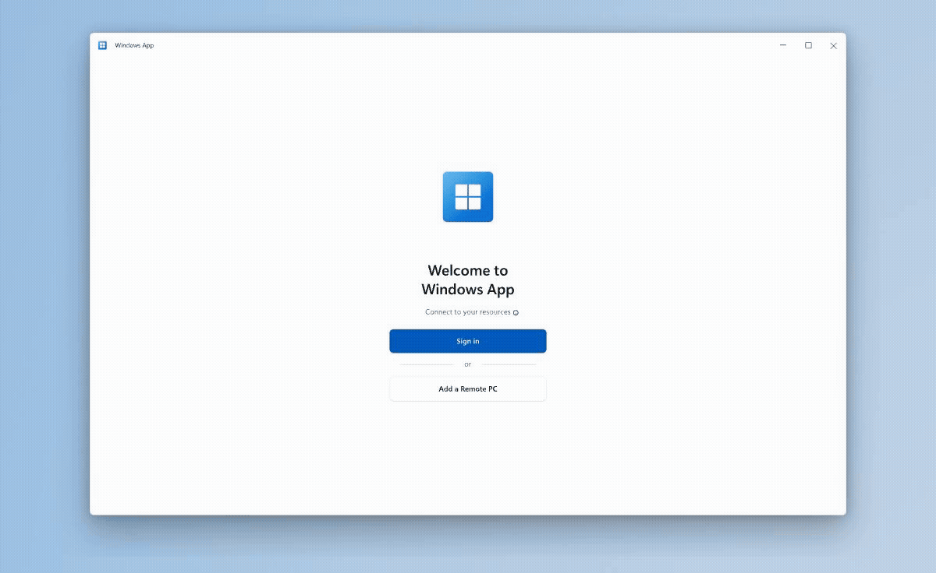
A modern way to connect to remote PCs
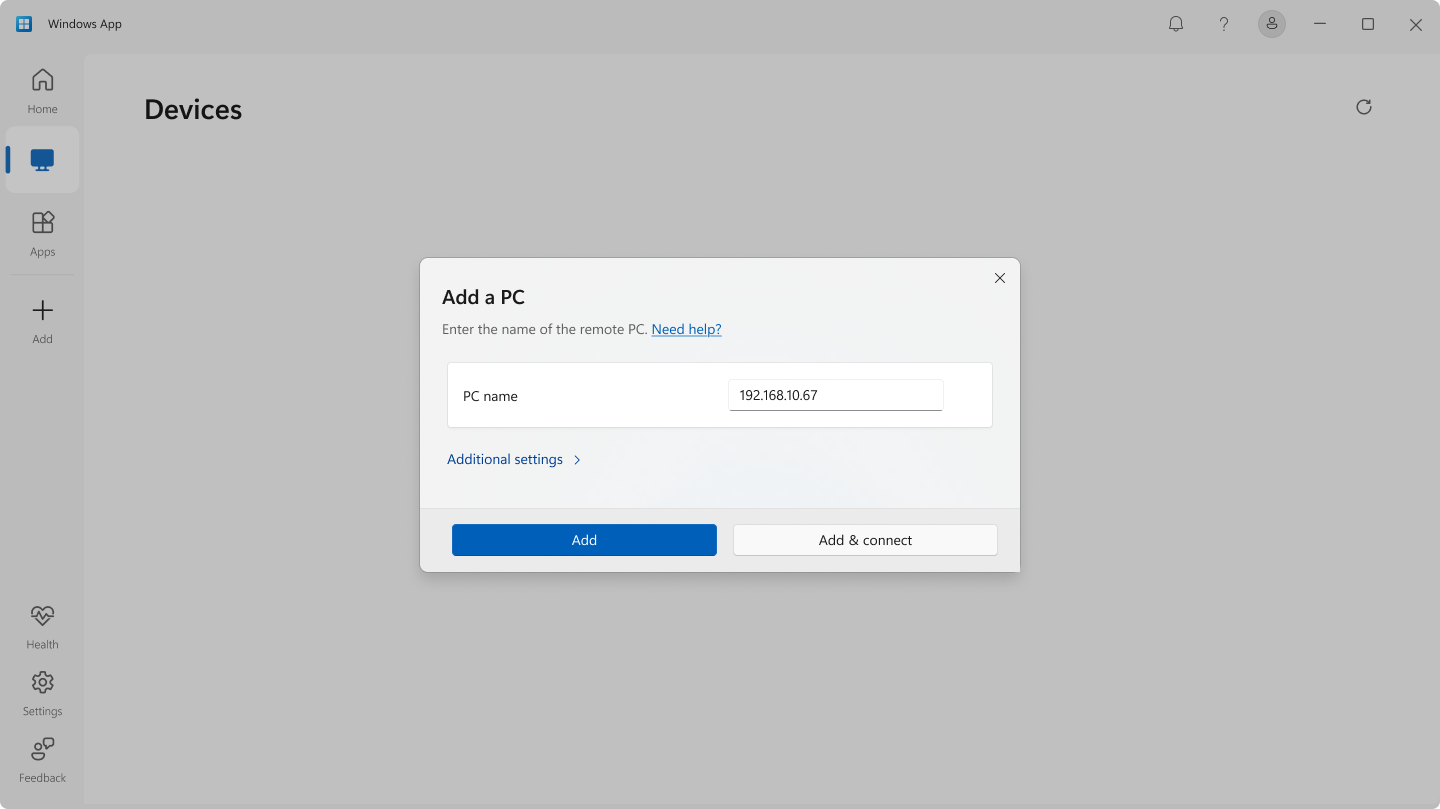
Remote PC support enables users to add and manage direct connections to Windows PCs in Windows App. Users can specify a PC name or IP address, customize display preferences, and configure local resource redirection.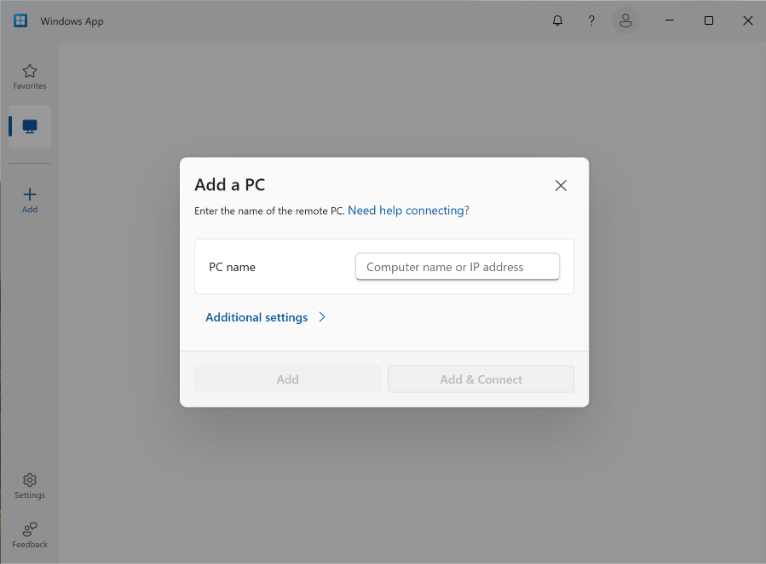
Users can save remote PC connections, pin frequently used devices to Favorites, and reconnect to devices they have added to Windows App.
Built for more Windows scenarios
This milestone is especially important for users and organizations that need flexibility across both cloud and traditional remote access scenarios. Windows App already provides a unified entry point for Windows 365 Cloud PCs, Azure Virtual Desktop, and Microsoft Dev Box. Adding Remote PC support helps bring another important connection type into that experience.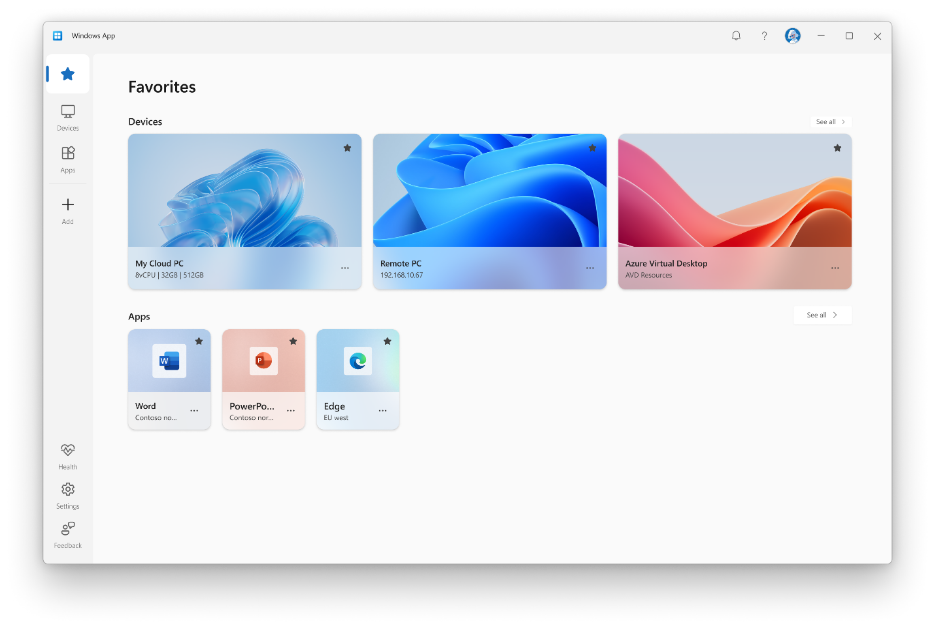
Get started
- Make sure Remote Desktop is enabled on the PC you want to connect to.
- Install or update Windows App from the Microsoft Store.
- Open Windows App and select Add a Remote PC or select the Add button.
- Add your remote PC using its PC name or IP address.
- Select Add or Add and Connect.
Thank you to everyone who tried remote PC connections during public preview and shared feedback. Your input helped shape this feature and bring it to general availability. Please continue sharing your feedback as we keep improving the experience.
Source:
Remote PC connections in Windows App on Windows generally available
Remote PC connections in Windows App on Windows generally available
 techcommunity.microsoft.com