Repair non-bootable Windows 11 partition without losing data and apps


bagaios

Member
Local time
1:17 AM
Posts
5
OS
Windows 11
Hello,
any idea how to re-install Win 11 system data without loosing data, settings, drivers or apps on not bootable Win 11 ?

repair via dism didnt work
sfr /scannow didnt work

Dont know how to get a Win 11 inplace upgrade to work with booting from installer usb or via WinPE.

Can I use NTlite somehow? Or edit registry? Edit files of the iso?
 

My Computer

System One

  • OS
    Windows 11
    Computer type
    PC/Desktop
    CPU
    AMD Ryzen 5 3600
    Motherboard
    MSI Tomahawk B450 Max
    Memory
    2x 16Gb
    Graphics Card(s)
    AMD RX5700
    Hard Drives
    1TB m2 SSD
Please fill in your 'System specs as fully as you can. What error message(s) do you get when you try and boot?
The more info you give, the sooner you will get a solution. Do you have access to another computer?
 

My Computers

System One System Two

  • OS
    Windows 11 Pro 25H2 26200.8524
    Computer type
    Laptop
    Manufacturer/Model
    Acemagic LX15PRO
    CPU
    AMD Ryzen 7 5825U with Radeon Graphics
    Memory
    16GB
    Screen Resolution
    1920 x 1080
    Hard Drives
    SSD 2TB
    Internet Speed
    30 Mbps
    Browser
    Brave
    Antivirus
    Webroot Secure Anywhere
    Other Info
    System 3

    Acer Swift SF114-34 laptop
    OS Windows 11 Pro 26200.8524
    CPU Pentium Silver N6000
    RAM 4GB
    SSD Samsung 970 EVO Plus SSD 2TB (an upgrade)
  • Operating System
    Windows 11 Pro 23H2 22631.2506
    Computer type
    Laptop
    Manufacturer/Model
    HP Mini 210-1090NR PC (bought in late 2009!)
    CPU
    Atom N450 1.66GHz
    Memory
    2GB
    Browser
    Brave
    Antivirus
    Webroot
Sorry, I just added my specs.
First error was an cng.sys error "SYSTEM_SERVICE_EXCEPTION (cng.sys)" after I stopped the tool "DoesNotBelong" in process. Somehow it didn`t create a restore point first as said.
I tried many things to repair it and now it is the error "0xc0000001". I already tried to fix it with bootrec /fixmbr, bootrec /fixboot, and bootrec /rebuildbcd.

I have a backup of the whole partition (with the error) and have access to a Win11 laptop.
 
Last edited:

My Computer

System One

  • OS
    Windows 11
    Computer type
    PC/Desktop
    CPU
    AMD Ryzen 5 3600
    Motherboard
    MSI Tomahawk B450 Max
    Memory
    2x 16Gb
    Graphics Card(s)
    AMD RX5700
    Hard Drives
    1TB m2 SSD
Paste you post into ChatGPT and have a conversation. I have to go out now.
 
Last edited:

My Computers

System One System Two

  • OS
    Windows 11 Pro 25H2 26200.8524
    Computer type
    Laptop
    Manufacturer/Model
    Acemagic LX15PRO
    CPU
    AMD Ryzen 7 5825U with Radeon Graphics
    Memory
    16GB
    Screen Resolution
    1920 x 1080
    Hard Drives
    SSD 2TB
    Internet Speed
    30 Mbps
    Browser
    Brave
    Antivirus
    Webroot Secure Anywhere
    Other Info
    System 3

    Acer Swift SF114-34 laptop
    OS Windows 11 Pro 26200.8524
    CPU Pentium Silver N6000
    RAM 4GB
    SSD Samsung 970 EVO Plus SSD 2TB (an upgrade)
  • Operating System
    Windows 11 Pro 23H2 22631.2506
    Computer type
    Laptop
    Manufacturer/Model
    HP Mini 210-1090NR PC (bought in late 2009!)
    CPU
    Atom N450 1.66GHz
    Memory
    2GB
    Browser
    Brave
    Antivirus
    Webroot
1) Please find a camera or smartphone camera > take pictures > post images or share links

Drop Box
Google drive
GoFile.io


2) Boot to Windows Recovery Environment (RE) > startup repair > post images or share links > search for srttrail.txt > post a share link


3) Open command prompt > type:

notepad
notepad

bcdedit
bcdedit | find "osdevice"
diskpart
lis dis
lis vol
sel dis 0
det dis
lis par
sel par 1
det par
sel par 2
det par
sel par 3
det par
sel par 4
det par
sel dis 1
det dis
lis par
sel par 1
det par
sel par 2
det par
sel par 3
det par
sel par 4
det par

Copy and paste commands with results to notepad > save to a flash drive > post images or share links
 

My Computer

System One

  • OS
    Windows 10
    Computer type
    Laptop
    Manufacturer/Model
    HP
    CPU
    Intel(R) Core(TM) i7-4800MQ CPU @ 2.70GHz
    Motherboard
    Product : 190A Version : KBC Version 94.56
    Memory
    16 GB Total: Manufacturer : Samsung MemoryType : DDR3 FormFactor : SODIMM Capacity : 8GB Speed : 1600
    Graphics Card(s)
    NVIDIA Quadro K3100M; Intel(R) HD Graphics 4600
    Sound Card
    IDT High Definition Audio CODEC; PNP Device ID HDAUDIO\FUNC_01&VEN_111D&DEV_76E0
    Hard Drives
    Model Hitachi HTS727575A9E364
    Antivirus
    Microsoft Defender
    Other Info
    Mobile Workstation
Hello,
any idea how to re-install Win 11 system data without loosing data, settings, drivers or apps on not bootable Win 11 ?

repair via dism didnt work
sfr /scannow didnt work

Dont know how to get a Win 11 inplace upgrade to work with booting from installer usb or via WinPE.

Can I use NTlite somehow? Or edit registry? Edit files of the iso?
What happened to get an un boot able win 11? Did you do something to the EFI partition files?
How did you run Dism and SFC?
You can't do an in place upgrade (repair install) offline, you must do it under running Windows.
 

My Computers

System One System Two

  • OS
    Windows 11 Pro - Windows 7 HP 64 - Lubuntu
    Computer type
    PC/Desktop
    Manufacturer/Model
    custom build
    CPU
    i5 6600K - 800MHz to 4400MHz
    Motherboard
    GA-Z170-HD3P
    Memory
    4+4G GSkill DDR4 3000
    Graphics Card(s)
    IG - Intel 530
    Monitor(s) Displays
    Samsung 226BW
    Screen Resolution
    1680x1050
    Hard Drives
    (1) -1 SM951 – 128GB M.2 AHCI PCIe SSD drive for Win 11
    (2) -1 WD SATA 3 - 1T for Data
    (3) -1 WD SATA 3 - 1T for backup
    (4) -1 BX500 SSD - 256G for Windows 7 and Lubuntu
    PSU
    Thermaltake 450W TR2 gold
    Keyboard
    Old and good Chicony mechanical keyboard
    Mouse
    Logitech mX performance - 9 buttons (had to disable some)
    Internet Speed
    500 Mb/s
    Browser
    Firefox 64
  • Operating System
    Windows 11 Pro
    Computer type
    Laptop
    Manufacturer/Model
    Asus Q550LF
    CPU
    i7-4500U 800- 3000MHz
    Motherboard
    Asus Q550LF
    Memory
    (4+4)G DDR3 1600
    Graphics card(s)
    IG intel 4400 + NVIDIA GeForce GT 745M
    Sound Card
    Realtek
    Monitor(s) Displays
    LG Display LP156WF4-SPH1
    Screen Resolution
    1920 x 1080
    Hard Drives
    BX500 120G SSD for Windows and programs
    & 1T HDD for data
    Internet Speed
    500 Mb/s
    Browser
    Firefox 64
I tried many things to repair it and now it is the error "0xc0000001". I already tried to fix it with bootrec /fixmbr, bootrec /fixboot, and bootrec /rebuildbcd.

The bootrec /fixmbr and bootrec /fixboot commands are designed for older MBR disks, whereas Windows 11 is almost always installed on a GPT disk.

Since bootrec /rebuildbcd only repairs the BCD, try the bcdboot command, which rebuilds all the boot files on the system partition.

(This does not always fix the "0xc0000001" issue.)

Booting the Windows installation USB in UEFI mode allows the bcdboot command to automatically detect the FAT32-formatted EFI system partition.

diskpart
list volume (find the Windows partition letter)
exit

bcdboot x:\windows

Replace "x" with the Windows partition letter.
 

My Computers

System One System Two

  • OS
    Windows 11 Pro
    Computer type
    PC/Desktop
    CPU
    AMD Ryzen 9 9950X3D
    Motherboard
    ASRock B650E Taichi Lite
    Memory
    Kingston FURY Beast 64GB (2x32GB) DDR5 6000MT/s
    Graphics Card(s)
    ASUS TUF Gaming Radeon RX 9070 OC Edition 16GB GDDR6
    Hard Drives
    Solidigm P44 Pro 2TB M.2 NVMe SSD
  • Operating System
    Windows 11 Home
    Computer type
    Laptop
    Manufacturer/Model
    Lenovo Legion Pro 7i Gen 10 16"
    CPU
    Intel Core Ultra 9 275HX
    Memory
    64GB (2x 32GB) DDR5-6400
    Graphics card(s)
    NVIDIA GeForce RTX 5080 16GB GDDR7 Laptop GPU
    Hard Drives
    2x 1TB M.2 NVMe SSD (SK Hynix)
You’ve likely moved from a driver crash (cng.sys) into boot configuration corruption. Error 0xc0000001 is a generic boot failure—usually BCD, system files, or disk issues.
The earlier cng.sys crash (Cryptography driver) suggests something tampered with core system services—very possibly that “DoesNotBelong” tool. Stopping it mid-operation may have left the system inconsistent.
Let’s proceed methodically.
1. First—clarify the current state
Confirm:
Do you reach Windows Recovery Environment (WinRE) automatically?
Or are you booting from a USB installer?
If not already, boot from a Windows 11 USB installer → Repair your computer → Troubleshoot
2. Check disk integrity (critical first step)
Corruption at disk level will make everything else fail.
Open Command Prompt in WinRE and run:

chkdsk C: /f /r
This can take a long time.
If it finds bad sectors, that’s a red flag (drive issue, not just Windows).
3. Offline System File Repair
Still in Command Prompt:
Identify Windows partition (it may not be C:)

diskpart
list vol
exit
Look for the volume containing Windows (by size / label).
Then run:

sfc /scannow /offbootdir=C:\ /offwindir=C:\Windows
(adjust drive letter if needed)
4. DISM repair (offline)
If SFC fails:

dism /image:C:\ /cleanup-image /restorehealth
If DISM complains about source:
You may need to mount the Windows ISO and use /source
5. Rebuild EFI boot files properly (bootrec alone is often insufficient)
Your commands suggest legacy fixes. Windows 11 uses UEFI, so do this instead:
Assign EFI partition a letter

diskpart
list disk
select disk 0
list vol
Find the EFI partition (usually ~100–300MB, FAT32)

select vol X
assign letter=Z
exit
Rebuild boot files:

bcdboot C:\Windows /s Z: /f UEFI
6. If 0xc0000001 persists
Then suspect one of these:
A. Registry corruption
Try:
WinRE → System Restore (if any points exist)
B. Driver corruption (likely given cng.sys)
You can try disabling early launch anti-malware:
Startup Settings → Disable ELAM
But realistically, if core driver files are damaged, repair options are limited.
7. Last practical options (ranked)
Option 1 — In-place repair (best if it works)
Boot from USB → choose:
Upgrade (keep files and apps)
Option 2 — Reset Windows
“Reset this PC” → Keep files
Option 3 — Clean install
Most reliable if system is badly corrupted.
8. Important observation
That tool “DoesNotBelong” is not a standard Windows utility. If it was modifying system components or services, it could easily:
Break cryptographic services (cng.sys)
Corrupt registry/security descriptors
Leave boot chain inconsistent
So this is not a typical “random Windows failure”.
Bottom line
Given your sequence:
Driver crash (cng.sys)
Repair attempts
Now 0xc0000001
You are likely dealing with system-level corruption, not just bootloader damage.
If you want, tell me:
Whether your system is UEFI/GPT or legacy BIOS/MBR
What chkdsk reports
Whether bcdboot succeeds or errors
I can narrow this down further instead of you trying everything blindly.
 

My Computers

System One System Two

  • OS
    Windows 11 Pro 25H2 26200.8524
    Computer type
    Laptop
    Manufacturer/Model
    Acemagic LX15PRO
    CPU
    AMD Ryzen 7 5825U with Radeon Graphics
    Memory
    16GB
    Screen Resolution
    1920 x 1080
    Hard Drives
    SSD 2TB
    Internet Speed
    30 Mbps
    Browser
    Brave
    Antivirus
    Webroot Secure Anywhere
    Other Info
    System 3

    Acer Swift SF114-34 laptop
    OS Windows 11 Pro 26200.8524
    CPU Pentium Silver N6000
    RAM 4GB
    SSD Samsung 970 EVO Plus SSD 2TB (an upgrade)
  • Operating System
    Windows 11 Pro 23H2 22631.2506
    Computer type
    Laptop
    Manufacturer/Model
    HP Mini 210-1090NR PC (bought in late 2009!)
    CPU
    Atom N450 1.66GHz
    Memory
    2GB
    Browser
    Brave
    Antivirus
    Webroot
I think I will give up soon. I just restored the earlier backup partition because I made it more worse.

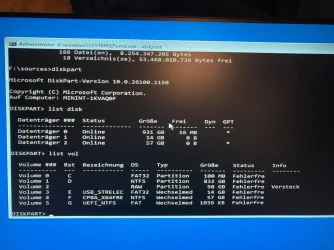
I reach Windows Recovery Environment (WinRE) booting from a USB installer / using WinPE 11-10 Sergei Strelec x64

chkdsk says no errors

sfc /scannow says there are errors but it can`t repair

with dism++
ScanHealth says there are errors but repair possible
Restorehealth gives only error 0x800F0915

using CMD
dism /image:d:\ /cleanup-image /restorehealth /source:F:\sources\install.wim:3 /limitaccess
gives same error code 0x800F0915 with message repair content cant be found anywhere
D: is now the win 11 with data
F: USB installer
wim:3 because 3 is the enterprise edition like my win 11

C: has now two folders EFI and Windows

The bootloader shows now 2x Windows 11
If I select the first one the error "0xc0000001" appears and if I press it again after "enter" to select OS the old "cng.sys" error comes.
Selectig the second one "winload.efi" error 0xc0000225 appears

I used to run my Win 11 with bios setting on legacy+uefi with "Windows OS configuration": csm
but it also run with UEFI only

the partition is UEFI/GPT
 

Attachments

  • WhatsApp Image 2026-03-22 at 19.06.44 (1).webp
    WhatsApp Image 2026-03-22 at 19.06.44 (1).webp
    148.7 KB · Views: 1
  • WhatsApp Image 2026-03-22 at 19.06.44.webp
    WhatsApp Image 2026-03-22 at 19.06.44.webp
    171.5 KB · Views: 1

My Computer

System One

  • OS
    Windows 11
    Computer type
    PC/Desktop
    CPU
    AMD Ryzen 5 3600
    Motherboard
    MSI Tomahawk B450 Max
    Memory
    2x 16Gb
    Graphics Card(s)
    AMD RX5700
    Hard Drives
    1TB m2 SSD
When available please update the progress with post #5.


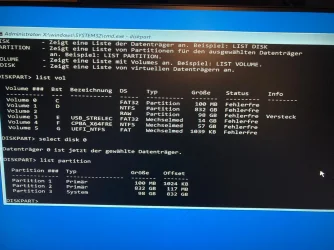
What is on the 98 GB RAW volume 2?
 

My Computer

System One

  • OS
    Windows 10
    Computer type
    Laptop
    Manufacturer/Model
    HP
    CPU
    Intel(R) Core(TM) i7-4800MQ CPU @ 2.70GHz
    Motherboard
    Product : 190A Version : KBC Version 94.56
    Memory
    16 GB Total: Manufacturer : Samsung MemoryType : DDR3 FormFactor : SODIMM Capacity : 8GB Speed : 1600
    Graphics Card(s)
    NVIDIA Quadro K3100M; Intel(R) HD Graphics 4600
    Sound Card
    IDT High Definition Audio CODEC; PNP Device ID HDAUDIO\FUNC_01&VEN_111D&DEV_76E0
    Hard Drives
    Model Hitachi HTS727575A9E364
    Antivirus
    Microsoft Defender
    Other Info
    Mobile Workstation
Recreate the EFI partition (FAT32, 100 MB):

diskpart
list volume
select volume # (replace # with your EFI partition number)
delete partition override
create partition efi
format quick fs=fat32

assign letter=z
list volume
exit

bcdboot x:\windows /s z: /f uefi

- replace "x" with the Windows partition letter
- /s z: means your EFI partition, which you assigned above
- when you boot your USB flash drive in UEFI mode, the firmware type /f uefi is not required
 

My Computers

System One System Two

  • OS
    Windows 11 Pro
    Computer type
    PC/Desktop
    CPU
    AMD Ryzen 9 9950X3D
    Motherboard
    ASRock B650E Taichi Lite
    Memory
    Kingston FURY Beast 64GB (2x32GB) DDR5 6000MT/s
    Graphics Card(s)
    ASUS TUF Gaming Radeon RX 9070 OC Edition 16GB GDDR6
    Hard Drives
    Solidigm P44 Pro 2TB M.2 NVMe SSD
  • Operating System
    Windows 11 Home
    Computer type
    Laptop
    Manufacturer/Model
    Lenovo Legion Pro 7i Gen 10 16"
    CPU
    Intel Core Ultra 9 275HX
    Memory
    64GB (2x 32GB) DDR5-6400
    Graphics card(s)
    NVIDIA GeForce RTX 5080 16GB GDDR7 Laptop GPU
    Hard Drives
    2x 1TB M.2 NVMe SSD (SK Hynix)
Recreate the EFI partition (FAT32, 100 MB):

diskpart
list volume
select volume # (replace # with your EFI partition number)
delete partition override
create partition efi
format quick fs=fat32

assign letter=z
list volume
exit

bcdboot x:\windows /s z: /f uefi

- replace "x" with the Windows partition letter
- /s z: means your EFI partition, which you assigned above
- when you boot your USB flash drive in UEFI mode, the firmware type /f uefi is not required

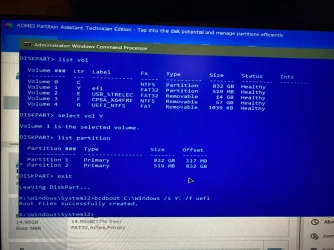
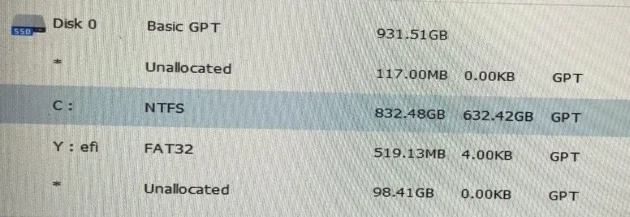
Unfortunately it didnt change anything. Same situation.
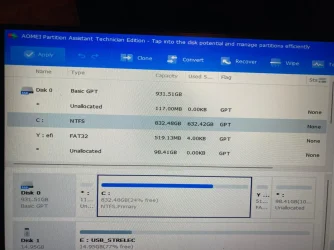
The EFI partition was the 98Gb volume, it was too big to format to fat32.
I deleted and wiped this volume with AOMEI Partition Assistant and created a 500mb fat32 efi partition
Then bcdboot C:\windows /s Y: /f uefi
*Y: the 500mb efi partition
*C: is now Win 11 again

@zbook
With
sel dis 0
det dis
I would delete my Win 11 with the data
 

Attachments

  • 2026-03-23 at 10.06.29 (1).webp
    2026-03-23 at 10.06.29 (1).webp
    307.9 KB · Views: 1
  • 2026-03-23 at 10.06.29.webp
    2026-03-23 at 10.06.29.webp
    195.4 KB · Views: 1

My Computer

System One

  • OS
    Windows 11
    Computer type
    PC/Desktop
    CPU
    AMD Ryzen 5 3600
    Motherboard
    MSI Tomahawk B450 Max
    Memory
    2x 16Gb
    Graphics Card(s)
    AMD RX5700
    Hard Drives
    1TB m2 SSD
Unfortunately it didnt change anything. Same situation.
The EFI partition was the 98Gb volume, it was too big to format to fat32.
I deleted and wiped this volume with AOMEI Partition Assistant and created a 500mb fat32 efi partition
Then bcdboot C:\windows /s Y: /f uefi
*Y: the 500mb efi partition
*C: is now Win 11 again

@zbook
With
sel dis 0
det dis
I would delete my Win 11 with the data

How or why?

det dis does not delete.
 

My Computer

System One

  • OS
    Windows 10
    Computer type
    Laptop
    Manufacturer/Model
    HP
    CPU
    Intel(R) Core(TM) i7-4800MQ CPU @ 2.70GHz
    Motherboard
    Product : 190A Version : KBC Version 94.56
    Memory
    16 GB Total: Manufacturer : Samsung MemoryType : DDR3 FormFactor : SODIMM Capacity : 8GB Speed : 1600
    Graphics Card(s)
    NVIDIA Quadro K3100M; Intel(R) HD Graphics 4600
    Sound Card
    IDT High Definition Audio CODEC; PNP Device ID HDAUDIO\FUNC_01&VEN_111D&DEV_76E0
    Hard Drives
    Model Hitachi HTS727575A9E364
    Antivirus
    Microsoft Defender
    Other Info
    Mobile Workstation
Unfortunately it didnt change anything. Same situation.
The EFI partition was the 98Gb volume, it was too big to format to fat32.
I deleted and wiped this volume with AOMEI Partition Assistant and created a 500mb fat32 efi partition
Then bcdboot C:\windows /s Y: /f uefi
*Y: the 500mb efi partition
*C: is now Win 11 again

So sorry about that! That was my mistake.

Google Gemini:

The short answer is that create partition efi doesn't automatically hunt for a tiny 100 MB gap; by default, it tries to use all the contiguous unallocated space it can find.

Here is the technical breakdown of why your instructions led to a 98 GB "monster" EFI partition instead of a 100 MB one.

1. The "Fill the Gap" Logic​

When you gave the command delete partition override on the original 100 MB partition, you created 100 MB of unallocated space. However, because the OP also had a 98 GB RAW partition (which Diskpart often treats as unallocated or "available" depending on its state), those two chunks of space were likely adjacent or seen as one large block of available sectors.

2. Missing the​

In Diskpart, the create partition command follows a "take what’s available" rule unless you tell it otherwise.
  • Your command: create partition efi
  • What Diskpart did: Looked at the disk, saw a massive 98+ GB hole of unallocated/RAW space, and filled the entire thing with the new EFI partition.
To force Diskpart to stick to a specific footprint, you have to define the size in megabytes:

create partition efi size=100
 

My Computers

System One System Two

  • OS
    Windows 11 Pro
    Computer type
    PC/Desktop
    CPU
    AMD Ryzen 9 9950X3D
    Motherboard
    ASRock B650E Taichi Lite
    Memory
    Kingston FURY Beast 64GB (2x32GB) DDR5 6000MT/s
    Graphics Card(s)
    ASUS TUF Gaming Radeon RX 9070 OC Edition 16GB GDDR6
    Hard Drives
    Solidigm P44 Pro 2TB M.2 NVMe SSD
  • Operating System
    Windows 11 Home
    Computer type
    Laptop
    Manufacturer/Model
    Lenovo Legion Pro 7i Gen 10 16"
    CPU
    Intel Core Ultra 9 275HX
    Memory
    64GB (2x 32GB) DDR5-6400
    Graphics card(s)
    NVIDIA GeForce RTX 5080 16GB GDDR7 Laptop GPU
    Hard Drives
    2x 1TB M.2 NVMe SSD (SK Hynix)
How or why?

det dis does not delete.
Im sorry, you are right. I was probably confused because you used shortcuts like dis par sel

There are only 2 partitions.

DISKPART> select disk 0
Disk 0 is now the selected disk.
DISKPART> det dis

Samsung SSD 860 EVO 1TB
Disk ID: {BD5746C7-BD8B-4F48-ABDA-D50B2C5BD596}
Type : SATA
Status : Online
Path : 5
Target : 0
LUN ID : 0
Location Path : PCIROOT(0)#PCI(0103)#PCI(0001)#ATA(C05T00L00)
Current Read-only State : No
Read-only : No
Boot Disk : No
Pagefile Disk : No
Hibernation File Disk : No
Crashdump Disk : No
Clustered Disk : No

Volume ### Ltr Label Fs Type Size Status Info
---------- --- ----------- ----- ---------- ------- --------- --------
Volume 0 C NTFS Partition 832 GB Healthy
Volume 1 D efi FAT32 Partition 519 MB Healthy

DISKPART> list par

Partition ### Type Size Offset
------------- ---------------- ------- -------
Partition 1 Primary 832 GB 117 MB
Partition 2 Primary 519 MB 832 GB

DISKPART> select par 1
Partition 1 is now the selected partition.
DISKPART> det par

Partition 1
Type : ebd0a0a2-b9e5-4433-87c0-68b6b72699c7
Hidden : No
Required: No
Attrib : 0000000000000000
Offset in Bytes: 122683392

Volume ### Ltr Label Fs Type Size Status Info
---------- --- ----------- ----- ---------- ------- --------- --------
* Volume 0 C NTFS Partition 832 GB Healthy

DISKPART> select par 2
Partition 2 is now the selected partition.
DISKPART> det par

Partition 2
Type : ebd0a0a2-b9e5-4433-87c0-68b6b72699c7
Hidden : No
Required: No
Attrib : 0000000000000000
Offset in Bytes: 893995974656

Volume ### Ltr Label Fs Type Size Status Info
---------- --- ----------- ----- ---------- ------- --------- --------
* Volume 1 D efi FAT32 Partition 519 MB Healthy


I think I have to do a clean install :(
 

My Computer

System One

  • OS
    Windows 11
    Computer type
    PC/Desktop
    CPU
    AMD Ryzen 5 3600
    Motherboard
    MSI Tomahawk B450 Max
    Memory
    2x 16Gb
    Graphics Card(s)
    AMD RX5700
    Hard Drives
    1TB m2 SSD
Unfortunately you didn't answer my questions on post # 6
What happened to get an un boot able win 11? Did you do something to the EFI partition files?

You don't need to do a clean install.

The first unallocated space is the one to converted to Fat32 EFI partition and on a MSR partition.


1774273471884.webp


The steps to correct this mess:
Don't use Aomei. Use diskpart as instructed.
Boot from a Win 10 installation drive and at the Windows Setup screen, press Shift+F10 simultaneously to open a command line prompt and type:

Diskpart
list vol (identify the Windows partition letter and the EFI partition letter. It may not be C: and it may not be y )
Select disk 0
Select vol y (replace y with the EFI partition letter)
delete partition override
select vol c (replace c with the Windows partition letter)
Extend (to extend the Windows partition to the end of the drive)
create partition efi size=100
format quick fs=fat32
assign letter=z
create part MSR
exit

bcdboot W:\Windows /s Z: /f UEFI (Replace W with the Windows partition letter found with list vol)

Reboot and enter BIOS. You must select to boot as UEFI and select the Windows boot manager on drive 0 as the first boot option
 
Last edited:

My Computers

System One System Two

  • OS
    Windows 11 Pro - Windows 7 HP 64 - Lubuntu
    Computer type
    PC/Desktop
    Manufacturer/Model
    custom build
    CPU
    i5 6600K - 800MHz to 4400MHz
    Motherboard
    GA-Z170-HD3P
    Memory
    4+4G GSkill DDR4 3000
    Graphics Card(s)
    IG - Intel 530
    Monitor(s) Displays
    Samsung 226BW
    Screen Resolution
    1680x1050
    Hard Drives
    (1) -1 SM951 – 128GB M.2 AHCI PCIe SSD drive for Win 11
    (2) -1 WD SATA 3 - 1T for Data
    (3) -1 WD SATA 3 - 1T for backup
    (4) -1 BX500 SSD - 256G for Windows 7 and Lubuntu
    PSU
    Thermaltake 450W TR2 gold
    Keyboard
    Old and good Chicony mechanical keyboard
    Mouse
    Logitech mX performance - 9 buttons (had to disable some)
    Internet Speed
    500 Mb/s
    Browser
    Firefox 64
  • Operating System
    Windows 11 Pro
    Computer type
    Laptop
    Manufacturer/Model
    Asus Q550LF
    CPU
    i7-4500U 800- 3000MHz
    Motherboard
    Asus Q550LF
    Memory
    (4+4)G DDR3 1600
    Graphics card(s)
    IG intel 4400 + NVIDIA GeForce GT 745M
    Sound Card
    Realtek
    Monitor(s) Displays
    LG Display LP156WF4-SPH1
    Screen Resolution
    1920 x 1080
    Hard Drives
    BX500 120G SSD for Windows and programs
    & 1T HDD for data
    Internet Speed
    500 Mb/s
    Browser
    Firefox 64
Back
Top Bottom