This tutorial will show you how to manually run Storage Sense on demand in Windows 11.
Storage Sense can automatically free up drive space for you by getting rid of items that you don't need, like temporary files and items in your Recycle Bin.
If Storage Sense is turned on, you can select to automatically run Storage Sense Every day, Every week, Every month, or During low free disk space (default).
You can use Run Storage Sense now to free up drive space on demand.
Reference:
Manage drive space with Storage Sense | Microsoft Support
How to use Storage Sense to free up hard drive space on your Windows device.
 support.microsoft.com
Here's How:
1 Open Settings (Win+I).
2 Click/tap on System on the left side, and click/tap on Storage on the right side. (see screenshot below)
3 Click/tap on Yes if prompted by UAC.
Starting with Windows 11 build 26100.7705 (24H2) and build 26200.7705 (25H2), to help ensure that only authorized Windows users can access system files, Windows now displays a User Account Control (UAC) prompt when you open Storage settings (Settings > System > Storage).
Starting with Windows 11 build 26100.8524 (24H2) and build 26200.8524 (25H2), Microsoft updated Settings > System > Storage, so rather than seeing a UAC prompt immediately when you go to the page, you’ll only see it when going to view temporary files.
4 Click/tap on Storage Sense under Storage management. (see screenshot below)
5 Click/tap on the Run Storage Sense now button at the bottom. (see screenshot below)
The Run Storage Sense now button will be grayed out if Storage Sense is not turned on.
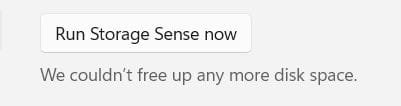
6 Storage Sense will now start cleaning up files, and report how much disk space it was able to free up when finished. (see screenshots below)
7 You can now close Settings if you like.
That's it,
Shawn Brink
Last edited: