This tutorial will show you how to share files using the Drag/Drop Tray in Windows 11.
Starting with Windows 11 build 26100.4202 (24H2) and build 22631.5413 (23H2), sharing files in Windows is getting a lot easier and quicker with our new drag tray feature. When you start dragging a local file with mouse (or touch) from File Explorer or your desktop, a handy tray appears at the very top of your screen allowing you to drop the file into one of the displayed apps or choose “More…” to open the Windows share window.
Starting with Windows 11 build 26100.8328 (24H2) and build 26200.8328 (25H2), Drag Tray has been now renamed to Drop Tray. Microsoft is also moving the corresponding settings for Drop Tray from Nearby Sharing to now be under System > Multitasking.
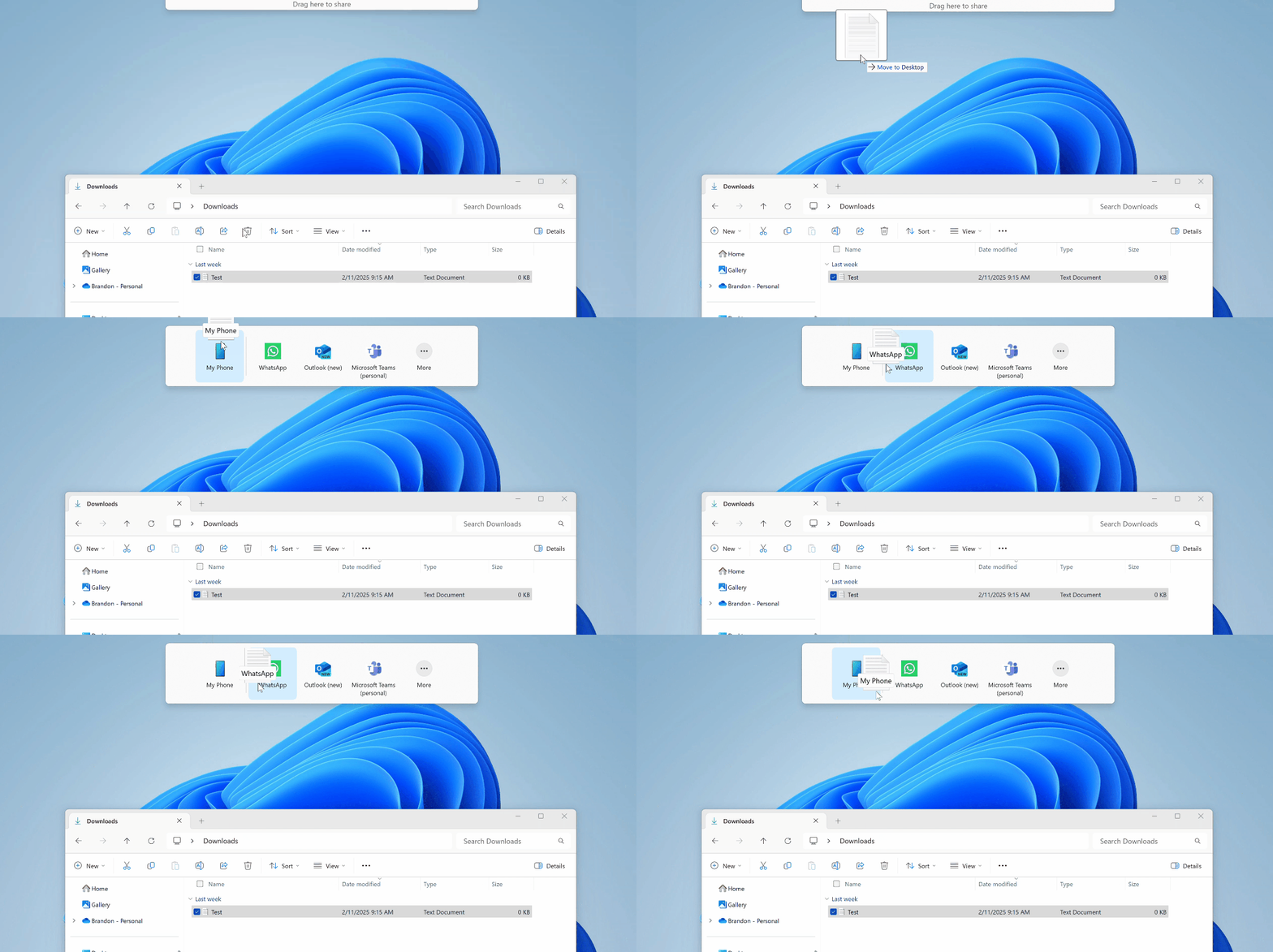
EXAMPLE: Sharing file with Drop Tray
Here's How:
1 Drag one or more selected files you want to share to have the Drop Tray "Drop here to share, move, or do more" appear at the top of the screen, and continue to drag the file on the drag tray. (see screenshots below)
2 When the Drop Tray opens, you can drop the file on a mobile device (phone), app, or More you want to share with. (see screenshot below)
3 If you drop the file on More, the Windows Share window will open so you can share the file with an available app, email contact, mobile device (phone), or nearby device. (see screenshot below)
If this is an image file, you can Edit the image before sharing it.
If this is an image file, you can change the compression scale of the image file when sharing.
That's it,
Shawn Brink
Related Tutorials
- Enable or Disable Drop Tray in Windows 11
- Share File with App in Windows 11
- Share Files with Nearby Devices in Windows 11
- Share File with Email Contact in Windows 11
- Share Files to Android Mobile Device from Windows 11 PC
- Edit Image when Sharing in Windows 11
- Change Compression Scale of Image when Sharing in Windows 11
- Pin or Unpin Apps on Windows Share in Windows 11
- Add or Remove Suggested Apps in Share dialog in Windows 11
Last edited: