This tutorial will show you how to turn on or off Live Captions for your account in Windows 11.
Microsoft introduced the Live Captions feature in Windows 11 build 22557.
Live captions will help everyone, including people who are deaf or hard of hearing, better understand audio by viewing captions of spoken content. Captions are automatically generated on-device from any content with audio. Captions can be displayed at the top or bottom of the screen, or in a floating window. The caption window can be resized, and caption appearance can be personalized by applying or customizing a caption style. Microphone audio can be included, which can be helpful during in-person conversations.
Starting with Windows 11 build 26100.3624 (24H2), Microsoft is enhancing communication on AMD and Intel powered Copilot+ PCs with live captions and real-time translation. Live captions support translating more than 44 languages into English, including speakers in real-time video calls, recordings, and streamed content. On Snapdragon-powered Copilot+ PCs, Microsoft is bringing the ability to do real-time translation to Chinese (Simplified). Supported languages include Arabic, Bulgarian, Czech, Danish, German, Greek, English, Estonian, Finnish, French, Hindi, Hungarian, Italian, Japanese, Korean, Lithuanian, Norwegian, Dutch, Polish, Portuguese, Romanian, Russian, Slovak, Slovene, Spanish, and Swedish.
References:
Use live captions to better understand audio | Microsoft Support
Learn how to use live captions
 support.microsoft.com
Troubleshooting live captions or voice access setup issues | Microsoft Support
Troubleshoot problems with downloading the required language files when setting up live captions or voice access.
support.microsoft.com
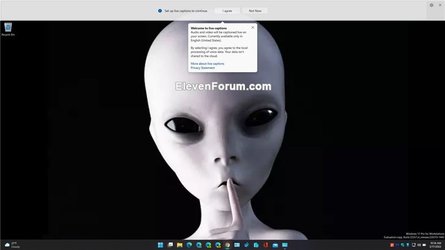
Turning on live captions will download the live captions language files. Voice data will be processed locally and your data isn't shared to the cloud.
When turned on the first time, live captions will prompt for download of the required speech model to enable on-device captioning.
Contents
- Option One: Turn On and Off Live Captions using Keyboard Shortcut
- Option Two: Turn On and Off Live Captions in Quick Settings
- Option Three: Turn On and Off Live Captions in Settings
- Option Four: Turn Off Live Captions from Live Captions bar
- Option Five: Turn Off Live Captions in Task Manager
EXAMPLE: Live captions on Copilot+ PC
1 Press the Win + Ctrl + L keys to toggle live captions on or off.
1 Open Quick Settings (Win+A), and
2 Click/tap on Accessibility, and turn on or off (default) Live captions for what you want. (see screenshots below)
1 Open Settings (Win+I).
2 Click/tap on Accessibility on the left side, and click/tap on Captions under Hearing on the right side. (see screenshot below)
3 Turn on or off (default) Live captions for what you want. (see screenshot below)
4 You can now close Settings if you like.
1 Close (X) the live captions bar. (see screenshot below)
1 Open Task Manager (Ctrl+Shift+Esc).
2 Open either the Processes or Details page in Task Manager. (see screenshots below)
3 Select the Live captions (Processes) or LiveCaptions.exe (Details) process in the Name column.
4 Click/tap on End task on the toolbar.
That's it,
Shawn Brink
Related Tutorials
- Change Live Captions Bar Position and Size on Screen in Windows 11
- Change Closed Caption Style in Windows 11
- Reset Closed Caption Style to Default in Windows 11
- Enable or Disable Include Screen Reader Audio in Live Captions on Windows 11
- Add Language for Live Captions in Windows 11
- Change Language for Live Captions in Windows 11
- Turn On or Off Include Microphone Audio in Live Captions in Windows 11
- Turn On or Off Live Captions Profanity Filter in Windows 11
Last edited: