This tutorial will show you how to turn on or off Remember my preferences for your Microsoft account (MSA) across all your Windows 10 and Windows 11 devices you sign in with the same Microsoft account.
When Windows backup is turned on, Windows backs up the settings you choose across all your Windows 10 and Windows 11 devices that you've signed in to with your Microsoft account.
You can back up preferences including passwords, language, and other Windows settings. If you turn on Other Windows settings, Windows also syncs some device settings (for things like printers and mouse options), File Explorer settings, and notification preferences.
Starting with Windows 11 build 25179, the spelling dictionary will now use a language-neutral word list and Microsoft is trying out syncing this across all devices that use the same Windows account via the Language preferences setting.
Starting with Windows 11 build 25231, the spelling dictionary now uses a language-neutral word list and syncs across all devices that use the same Windows account
Starting with Windows 11 build 25300, the change to sync voice typing settings, Automatic punctuation and Voice typing launcher, across all devices signed in using the same Microsoft account is now available to all Windows Insiders in the Dev Channel. You can toggle this feature via Settings > Accounts > Windows backup > Remember my preferences > Accessibility. This currently only works with Microsoft accounts today with AAD support coming later.
Starting with Windows 11 build 22631.3672, Windows will now back up many of your sound settings (this includes your sound scheme). This only occurs if you turn on Remember my preferences and select the checkboxes for Personalization and Other Windows settings.
References:

Windows settings backup and restore Overview
Learn how to configure devices to use Windows settings backup and restore.
learn.microsoft.com
Windows Backup Settings Catalog | Microsoft Support
Windows Backup and Sync settings allow you to sync the settings you choose across all your Windows devices that you've signed in to with your Microsoft account. This article describes in detail what's synced.
 support.microsoft.com
Back up and restore with Windows Backup | Microsoft Support
Learn how to back up and restore apps, settings, files, photos, and Microsoft Edge favorites and preferences on your Windows PC using Windows Backup.
support.microsoft.com
Getting the most out of your PC backup | Microsoft Support
Learn why it's important to have a backup, and how Windows Backup can help you keep your files and settings safe.
support.microsoft.com

Windows Backup: How to Back Up Files to Transfer Between Devices | Microsoft
Explore seamless data transfer solutions between Windows PCs from Microsoft. Learn how to effortlessly transfer your data between devices with Windows Backup.
KB5032038: Overview of Windows Backup as installed in Windows 10 and Windows 11 | Microsoft Support
KB5032038: Overview of Windows Backup as installed in Windows 10 and Windows 11
support.microsoft.com
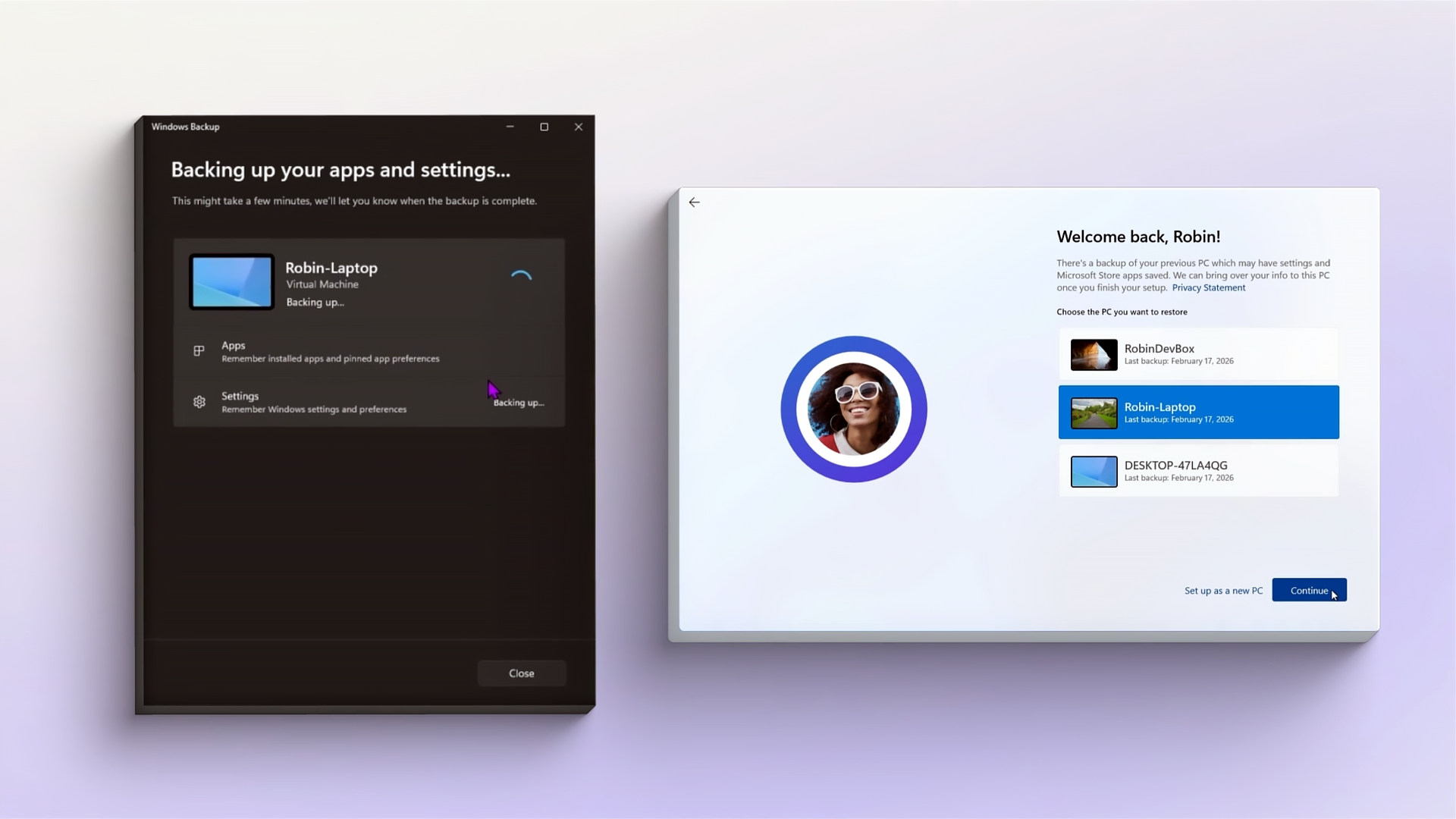
Windows settings backup becoming a new resilience baseline - Windows IT Pro Blog
A recoverable list of settings and Microsoft Store apps is becoming a baseline part of the Windows experience rather than an opt-in configuration step.
 techcommunity.microsoft.com
Contents
- Option One: Turn On or Off Remember Preferences for MSA Across Windows 10/11 Devices in Settings
- Option Two: Turn On or Off Remember Remember Preferences for MSA Across Windows 10/11 Devices in Windows Backup app
EXAMPLE: Select to restore from device during clean install with Microsoft account
1 Open Settings (Win+I).
2 Click/tap on Accounts on the left side, and click/tap on Windows backup on the right side. (see screenshots below)
3 Do step 4 (on) or step 5 (off) below for what you want.
4 Turn On "Remember my preferences"
This is the default setting.
A) Turn on Remember my preferences. (see screenshots below)
B) Click/tap on Remember my preferences to expand it open.
C) Check (default) or uncheck Accessibility.
D) Check (default) or uncheck Accounts, Wi-Fi networks and passwords.
E) Check (default) or uncheck Personalization.
F) Check (default) or uncheck Language preferences and dictionary.
G) Check (default) or uncheck Other Windows settings.
H) Go to step 6.
5 Turn Off "Remember my preferences"
A) Turn off Remember my preferences, and go to step 6. (see screenshot below)
6 You can now close Settings if you like.
Turn On or Off Remember Remember Preferences for MSA Across Windows 10/11 Devices in Windows Backup app
KB5032038: Overview of Windows Backup as installed in Windows 10 and Windows 11 | Microsoft Support
KB5032038: Overview of Windows Backup as installed in Windows 10 and Windows 11
support.microsoft.com
1 Open the Windows Backup app from the Start menu > All Apps.
2 Click/tap on Back up this PC to select it, and click/tap on Next. (see screenshot below)
3 Click/tap on Apps to expand it open, and turn on (default) or off Accessibility, Language preferences, Other Windows settings, and Personalization for what you want. (see screenshots below)
If these settings have been backed up in the past (and some are by default), they will show as Backed up and the toggle switch will be unavailable.
4 Click/tap on Credentials to expand it open, and turn on (default) or off Remember wifi network and other passwords for what you want. (see screenshots below)
If this setting had been backed up in the past, it will show as Backed up and the toggle switch will be unavailable.
5 Click/tap on Back up to apply. (see screenshots above)
6 Windows Backup will now start backing up your PC for what you turned on. (see screenshot below)
7 When finished backing up, you can close the Windows Backup app window if wanted. (see screenshot below)
That's it,
Shawn Brink
Related Tutorials
- Enable or Disable Sync Apps and Preferences for Microsoft Accounts in Windows 11
- Turn On or Off Remember Apps for Microsoft Account Across Windows 11 Devices
- Turn On or Off OneDrive Folder Backup Syncing Across Windows 11 Devices
- Clear Cloud Synced Settings from all Windows Backup Devices for Microsoft Account
Last edited: