Solved Webcam Access Windows 11 Is Disabled


DSNeed

Active member
Local time
10:58 AM
Posts
28
OS
Windows 11 Pro
I am unable to enable webcam access in Windows 11. When I try to open the Camera Privacy Settings, it immediately crashes, even in Safe Mode. Windows detects both of my webcams, but I can't use either. The speakers on the Poly Studio P15 work, but not the camera. This just suddenly happened. I have tried the following,

- Re-install the drivers
- Downgrade the drivers to USB Video Device
- Reset to the Settings apps
- SFC and DISM
- Camera Troubleshooter
- Uninstalled both Bitdefender and Malwarebytes using their uninstall tools
- Safe Mode
- Repair via Windows Update
- Checked the Group Policy that the Camera Access policy is either Net Configured or Enabled. (Tried both)

I'm running out things to try.

1761054179846.webp
 
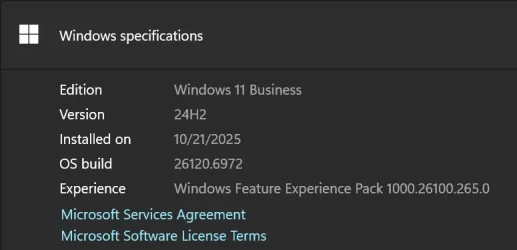
Windows Build/Version
Windows 11 Business 24H2 26120.6972

My Computer

System One

  • OS
    Windows 11 Pro
You are running Insider Beta channel. Anything can be broken that the majority of us are not aware of. Hopefully one of the insiders will see this and give an answer.
 

My Computers

System One System Two

  • OS
    Windows 11 Pro 25H2 26200.8655
    Computer type
    PC/Desktop
    Manufacturer/Model
    Dell Optiplex 7080
    CPU
    i9-10900 10 core 20 threads
    Motherboard
    DELL 0J37VM
    Memory
    32 gb
    Graphics Card(s)
    none-Intel UHD Graphics 630
    Sound Card
    Integrated Realtek
    Monitor(s) Displays
    Benq 27
    Screen Resolution
    2560x1440
    Hard Drives
    2x1tb Solidigm m.2 nvme /External drives 512gb Samsung m.2 sata+2tb Kingston m2.nvme
    PSU
    500w
    Case
    MT
    Cooling
    Dell Premium
    Keyboard
    Logitech wired
    Mouse
    Logitech wireless
    Internet Speed
    so slow I'm too embarrassed to tell
    Browser
    #1 Edge #2 Firefox
    Antivirus
    Defender+MWB Premium
  • Operating System
    Windows 11 Pro 24H2 26200.8457
    Computer type
    PC/Desktop
    Manufacturer/Model
    Beelink Mini PC SER5
    CPU
    AMD Ryzen 7 6800U
    Memory
    32 gb
    Graphics card(s)
    integrated
    Sound Card
    integrated
    Monitor(s) Displays
    Benq 27
    Screen Resolution
    2560x1440
    Hard Drives
    1TB Crucial nvme
    Keyboard
    Logitech wired
    Mouse
    Logitech wireless
    Internet Speed
    still too embarrassed to tell
    Browser
    Firefox
    Antivirus
    Defender
    Other Info
    System 3 is non compliant Dell 9020 i7-4770/24gb ram Win11 PRO 26200.8457
You are running Insider Beta channel. Anything can be broken that the majority of us are not aware of. Hopefully one of the insiders will see this and give an answer.
The same webcams are working on my work laptop, which is using the exact Beta build.
 

Attachments

  • 1761062824112.webp
    1761062824112.webp
    17.5 KB · Views: 0

My Computer

System One

  • OS
    Windows 11 Pro
Only other suggestions I can give are to test using another account to make sure it's not an account problem rather than a driver problem.
I'd also see if the camera works correctly using another application. Your app may be corrupted.

I see where you said you re-installed the drivers. Have you completely uninstalled the drivers? Use device manager, uninstall both cameras checking the box to remove the driver. I'd then use Driver Store Explorer to make sure that no trace of the drivers are left. If DDE detects any old camera drivers, let DDE uninstall them. Then restart.
In device manager you should see the cameras detected with no driver installed. Before you install the drivers you have, run windows update. If WU finds drivers for the 2 cameras let it install them. Otherwise, install the ones you have.
 

My Computers

System One System Two

  • OS
    Windows 11 Pro 25H2 26200.8655
    Computer type
    PC/Desktop
    Manufacturer/Model
    Dell Optiplex 7080
    CPU
    i9-10900 10 core 20 threads
    Motherboard
    DELL 0J37VM
    Memory
    32 gb
    Graphics Card(s)
    none-Intel UHD Graphics 630
    Sound Card
    Integrated Realtek
    Monitor(s) Displays
    Benq 27
    Screen Resolution
    2560x1440
    Hard Drives
    2x1tb Solidigm m.2 nvme /External drives 512gb Samsung m.2 sata+2tb Kingston m2.nvme
    PSU
    500w
    Case
    MT
    Cooling
    Dell Premium
    Keyboard
    Logitech wired
    Mouse
    Logitech wireless
    Internet Speed
    so slow I'm too embarrassed to tell
    Browser
    #1 Edge #2 Firefox
    Antivirus
    Defender+MWB Premium
  • Operating System
    Windows 11 Pro 24H2 26200.8457
    Computer type
    PC/Desktop
    Manufacturer/Model
    Beelink Mini PC SER5
    CPU
    AMD Ryzen 7 6800U
    Memory
    32 gb
    Graphics card(s)
    integrated
    Sound Card
    integrated
    Monitor(s) Displays
    Benq 27
    Screen Resolution
    2560x1440
    Hard Drives
    1TB Crucial nvme
    Keyboard
    Logitech wired
    Mouse
    Logitech wireless
    Internet Speed
    still too embarrassed to tell
    Browser
    Firefox
    Antivirus
    Defender
    Other Info
    System 3 is non compliant Dell 9020 i7-4770/24gb ram Win11 PRO 26200.8457
I found the following in my Event Viewer. Could this be the culprit?

The Still Image Acquisition Events service terminated with the following service-specific error:
The RPC server is unavailable.
 

My Computer

System One

  • OS
    Windows 11 Pro
Remote Procedure call issues are usually network related. RPC allows a program to execute a function on a remote computer as if it were a local function, hiding the complexities of network communication.

Did that event happen at a time coinciding when you tried to access the webcam or was it a random event.
If it happened while accessing the webcam, check whatever app you were using is allowed through the firewall.
If it happened at a time you were not attempting to use the webcam I do not see it being related.

Fo RPC issues,In services, Remote Procedure Call service should be set to automatic and running.
It is dependent on the RPC Endpoint Mapper service and DCOM Server Process Launcher service to also be set to automatic and running.

The following are general troubleshooting step for windows issues, not specifically a webcam problem. If you are certain you have no diver problems, It would be worth seeing if they made a difference with your issue.

Test while in a clean boot state. If it doesn't happen in clean boot you have some software conflicting with Windows.Y ou have to use process of elimnation to find out which one.
Perform a Clean Boot in Windows 11 to Troubleshoot Software Conflicts Tutorial

Make sure you have no corrupt system files that is causing this problem. Open a command prompt as administrator and type
dism /online /cleanup-image /restorehealth
When complete, restart. Then open command prompt as admin again and run sfc /scannow
Pay attention to the scan results to see if SFC found anything it could not repair.

Perform a repair install with an inplace upgrade.
 

My Computers

System One System Two

  • OS
    Windows 11 Pro 25H2 26200.8655
    Computer type
    PC/Desktop
    Manufacturer/Model
    Dell Optiplex 7080
    CPU
    i9-10900 10 core 20 threads
    Motherboard
    DELL 0J37VM
    Memory
    32 gb
    Graphics Card(s)
    none-Intel UHD Graphics 630
    Sound Card
    Integrated Realtek
    Monitor(s) Displays
    Benq 27
    Screen Resolution
    2560x1440
    Hard Drives
    2x1tb Solidigm m.2 nvme /External drives 512gb Samsung m.2 sata+2tb Kingston m2.nvme
    PSU
    500w
    Case
    MT
    Cooling
    Dell Premium
    Keyboard
    Logitech wired
    Mouse
    Logitech wireless
    Internet Speed
    so slow I'm too embarrassed to tell
    Browser
    #1 Edge #2 Firefox
    Antivirus
    Defender+MWB Premium
  • Operating System
    Windows 11 Pro 24H2 26200.8457
    Computer type
    PC/Desktop
    Manufacturer/Model
    Beelink Mini PC SER5
    CPU
    AMD Ryzen 7 6800U
    Memory
    32 gb
    Graphics card(s)
    integrated
    Sound Card
    integrated
    Monitor(s) Displays
    Benq 27
    Screen Resolution
    2560x1440
    Hard Drives
    1TB Crucial nvme
    Keyboard
    Logitech wired
    Mouse
    Logitech wireless
    Internet Speed
    still too embarrassed to tell
    Browser
    Firefox
    Antivirus
    Defender
    Other Info
    System 3 is non compliant Dell 9020 i7-4770/24gb ram Win11 PRO 26200.8457
Remote Procedure call issues are usually network related. RPC allows a program to execute a function on a remote computer as if it were a local function, hiding the complexities of network communication.

Did that event happen at a time coinciding when you tried to access the webcam or was it a random event.
If it happened while accessing the webcam, check whatever app you were using is allowed through the firewall.
If it happened at a time you were not attempting to use the webcam I do not see it being related.

Fo RPC issues,In services, Remote Procedure Call service should be set to automatic and running.
It is dependent on the RPC Endpoint Mapper service and DCOM Server Process Launcher service to also be set to automatic and running.

The following are general troubleshooting step for windows issues, not specifically a webcam problem. If you are certain you have no diver problems, It would be worth seeing if they made a difference with your issue.

Test while in a clean boot state. If it doesn't happen in clean boot you have some software conflicting with Windows.Y ou have to use process of elimnation to find out which one.
Perform a Clean Boot in Windows 11 to Troubleshoot Software Conflicts Tutorial

Make sure you have no corrupt system files that is causing this problem. Open a command prompt as administrator and type
dism /online /cleanup-image /restorehealth
When complete, restart. Then open command prompt as admin again and run sfc /scannow
Pay attention to the scan results to see if SFC found anything it could not repair.

Perform a repair install with an inplace upgrade.
The in-place upgrade finally resolved the issue! TY!
 

My Computer

System One

  • OS
    Windows 11 Pro

Latest Support Threads

Back
Top Bottom