Planner Blog:
Fall is officially here, and with it comes our first quarterly edition of What's New in Microsoft Planner! Each quarter, we'll bring the latest Planner updates together in one place.
We're continuing to invest in Planner to help people work alongside AI to plan and get work done, whether you're tracking your own tasks or coordinating a shared plan across your team. This quarter's updates give you a clearer view of your work, new ways to save time keeping plans current, and more places to manage tasks where work already happens.
Planner Agent is now built directly into basic plans, so you can ask questions about your plan, create and update tasks, and focus on your top priorities without leaving Planner. We're also making Planner Agent in Copilot more capable, with fuller answers on large, complex plans and faster, more reliable responses.
You'll also find updates that bring Planner closer to where your team collaborates, from adding Planner as a tab in private and shared Teams channels to bringing your tasks and plans into Outlook. And the new Task Details Side Pane lets you update assignments, dates, and checklists without losing sight of the bigger picture.
Read on to see everything that's new in Planner this quarter and share your feedback through the Planner Feedback Portal.
Keep the details and bigger picture in view
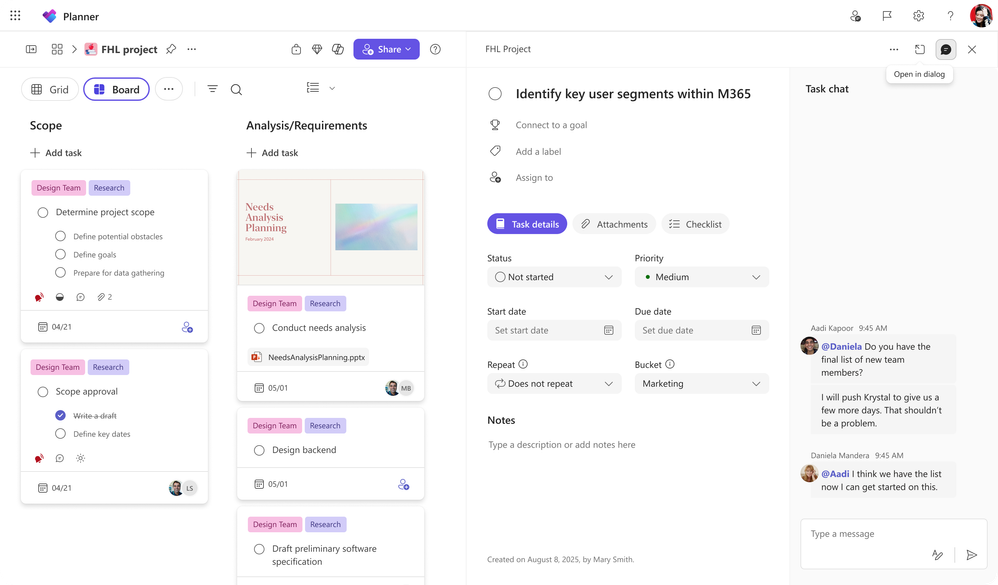
Task Details Side Pane
Planner now offers a new way to view and edit task details without losing sight of the plan or task list. The Task Details Side Pane opens alongside Board, Grid, and My Tasks views. Assignees, dates, notes, and checklists can be updated without leaving that view.Seeing task details alongside the plan makes it easier to review assignments and dates without losing context. Planner now also remembers the preferred task details layout when the app is reopened. On smaller screens, task details automatically open in a dialog for a better fit.
Save time planning and getting work done
Chat with Planner Agent in Planner
Planner Agent chat is available directly in basic plans. It allows teams to ask questions about the plan, create and update tasks, and filter the view to focus on the top priorities. With chat built into the plan, teams can now review tasks and make updates without leaving Planner to start a separate conversation in Copilot.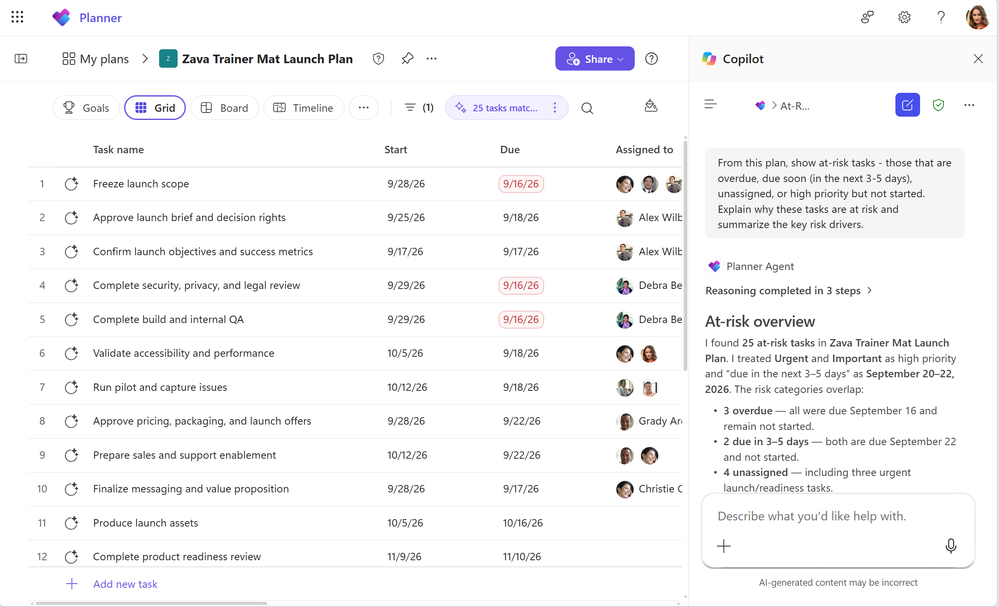
Planner Agent in Microsoft Copilot
- More context for large plans: Planner Agent can now use more information from large and complex plans when answering questions. It leverages the latest frontier models for more in-depth reasoning and draws more effectively on work content. These improvements help find relevant tasks and include more supporting plan details in responses, giving teams a fuller picture of the work being reviewed.
- Create larger plans in Copilot: The previous 30-task limit when creating a plan has been removed, allowing Planner Agent to generate larger initial task lists without a limit. Teams can review the proposed tasks in Copilot before saving them to the plan. Improvements also extend beyond plan creation, with faster responses and fewer interruptions across the Planner Agent experience in Copilot.
- Assign tasks to team members: Users can set task owners by asking Planner Agent or using task cards in the agent's responses, without leaving the conversation in Copilot.
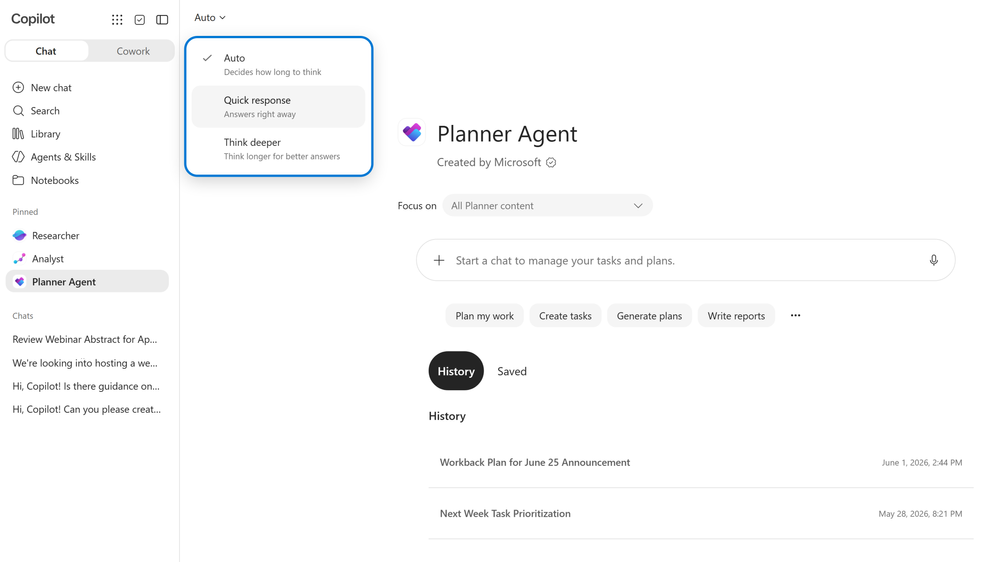
- Choose how Planner Agent responds: A new model selector offers Quick response, Think deeper, and Auto modes. Users can choose a quicker response, request more in-depth reasoning, or let Planner Agent select the mode automatically.
Planner capabilities in Copilot
Users can keep tasks current while handling other work in one conversation, without opening Planner or a separate Planner Agent chat. In Copilot Chat, users can now search for tasks and plans, get answers about their work, create or update tasks, and take action on plans. The same chat includes capabilities from Outlook, Excel, PowerPoint, and other apps. Users can access these alongside Planner capabilities without switching between agents.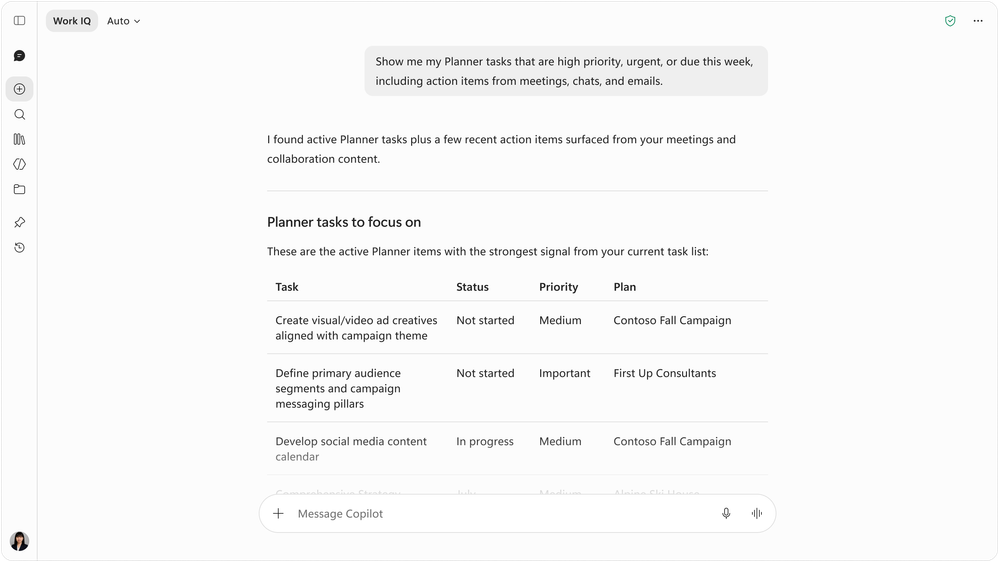
Manage work where it happens
Planner in Outlook
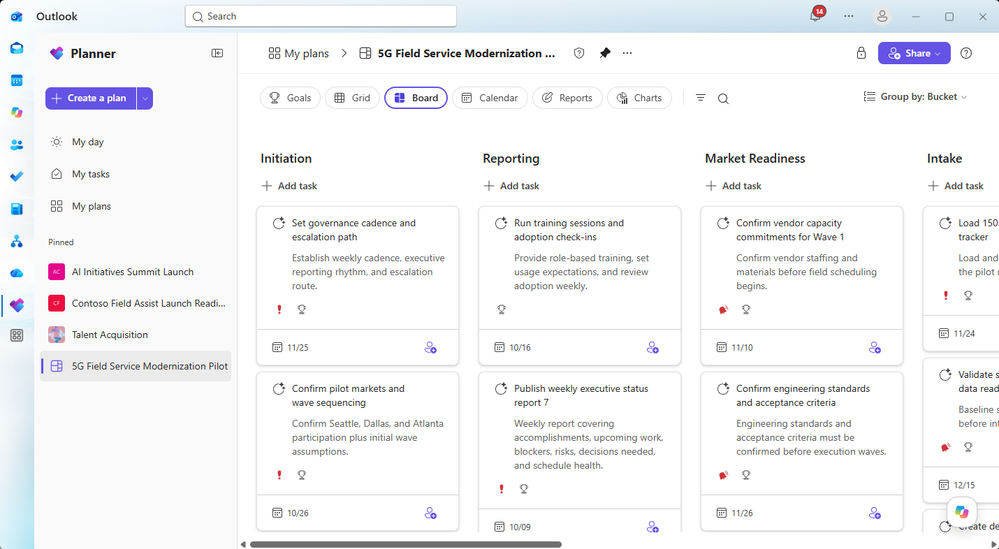
Planner is now available in Outlook, bringing tasks and plans, along with Planner Agent, into the inbox. This experience supports both personal task tracking and collaborative planning, so individual commitments and shared work can be managed in one place.With Planner in Outlook, people can track progress, coordinate responsibilities, and take action without leaving their inbox. To get started in Outlook on the web or the new Outlook for Windows, select Apps, search for Planner, then add and pin it for quick access.
Planner tabs in Teams channels
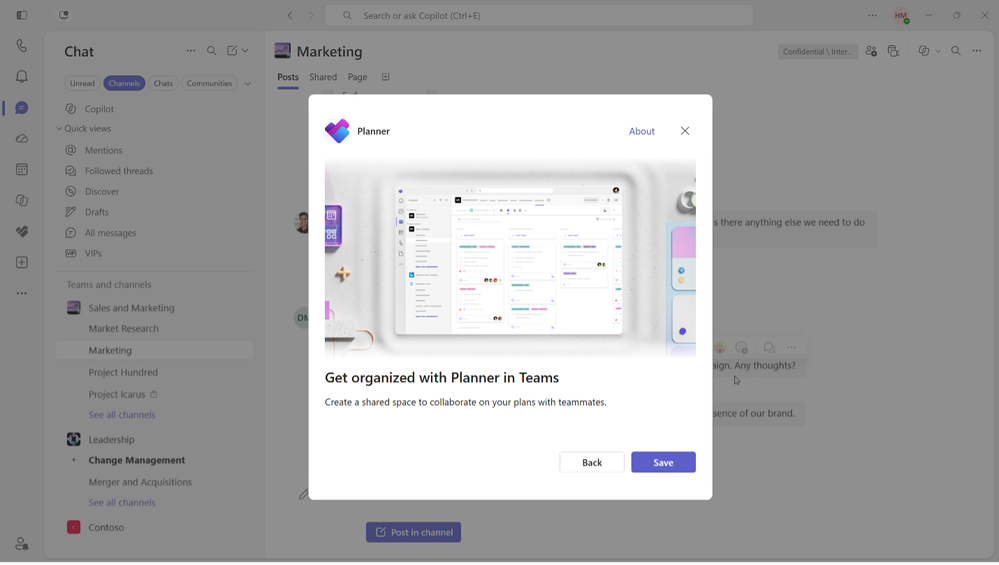
Planner can now be added as a tab in private and shared Team channels. Team members can create a new basic plan or select an existing plan shared with the group associated with the channel.Once added, the plan is easy to find in the channel where the team collaborates. Members can return to that dedicated space to review tasks and manage projects together.
Source:
What's new in Microsoft Planner | September 2026 | Microsoft Community Hub
Fall is officially here, and with it comes our first quarterly edition of What's New in Microsoft Planner! Each quarter, we'll bring the latest Planner...
 techcommunity.microsoft.com