Solved Why does Windows allocate 100MB to the other disk


FirasKing Air

Well-known member
Member
Local time
1:20 AM
Posts
551
Location
Germany
OS
Windows 11
Why does Windows allocate 100MB to the other disk even when I intentionally left it unallocated? Will Windows still boot if I lose that 100MB?

fA4pd7yFKc.png
 
Windows Build/Version
22621.2283

My Computer My Computer

At a glance

Windows 11
OS
Windows 11
Computer type
PC/Desktop
Manufacturer/Model
MSI
It looks like Windows was installed on Disk #2 previously and when you installed Windows on Disk #1, it used this FAT 32 partition for the boot files.
You can test this theory by unplugging Disk #2 and starting the computer. If it loads Windows on Disk #1, then you can safely delete that Partition on Disk#2.
 

My Computer My Computer

At a glance

Windows 11 Pro Insider 64 bit 25H2 26200.5742Intel Core i7 9700K 3.6016 GBnVidia GEForce RTX 2060 Super
OS
Windows 11 Pro Insider 64 bit 25H2 26200.5742
Computer type
PC/Desktop
Manufacturer/Model
Gigabyte Z390 UD
CPU
Intel Core i7 9700K 3.60
Motherboard
Gigabyte Z390 UD
Memory
16 GB
Graphics Card(s)
nVidia GEForce RTX 2060 Super
Sound Card
onboard
Monitor(s) Displays
Two 27" Dell 4K monitors
Screen Resolution
3840 x 2160
Hard Drives
M.2 NVME SSD, 500 GB; Two 2TB Mechanical HDD's
PSU
850w PSU
Case
Cyberpower PC
Cooling
Water cooled
Keyboard
Backlit Cyberpower gaming keyboard
Mouse
Backlit Cyberpower gaming mouse
Internet Speed
1 GB mbps
Browser
Brave
Antivirus
Windows Security
Windows has been known to stick that EFI system partition on any disk it feels like during installation.
The safe way to install Windows includes removing all other disks before you start.

If that is a Disk management diagram then check the partitions in, say, MiniTool partition wizard.
If, as I think, it is a MiniTool partition wizard diagram {and hence an accurate diagram} then you have a problem to resolve [unless, of course, you have deliberately been removing partitions yourself but then you would not be asking this question].

I think the most straightforward method of removing that partition involves all these steps:-
1 Make a new system image of your Windows disk [disk 1].
2 Disconnect disks 2 & 3.
3 Clean install Windows on disk 1.
4 Restore the C:\ drive of the system image to the C:\ drive of disk 1.
5 Reconnect disks 2 & 3 if you want them connected.
6 Delete that 100MB partition from disk 2.
7 Make a new system image.
It's quite a bit of work.

I'm surprised to see that disk 3 is MBR even though the others are GPT.
I'm also surprised that it is so small. Oh, its icon might mean it's some sort of floppy drive.
Perhaps it would be worth resolving that afterwards.


All the best,
Denis
 

My Computer My Computer

At a glance

Windows 11 Home x64 Version 25H2 Build 26200....
OS
Windows 11 Home x64 Version 25H2 Build 26200.8037
Windows has been known to stick that EFI system partition on any disk it feels like during installation.
The safe way to install Windows includes removing all other disks before you start.

If that is a Disk management diagram then check the partitions in, say, MiniTool partition wizard.
If, as I think, it is a MiniTool partition wizard diagram {and hence an accurate diagram} then you have a problem to resolve [unless, of course, you have deliberately been removing partitions yourself but then you would not be asking this question].

I think the most straightforward method of removing that partition involves all these steps:-
1 Make a new system image of your Windows disk [disk 1].
2 Disconnect disks 2 & 3.
3 Clean install Windows on disk 1.
4 Restore the C:\ drive of the system image to the C:\ drive of disk 1.
5 Reconnect disks 2 & 3.
6 Delete that 100MB partition from disk 2.
7 Make a new system image.
It's quite a bit of work.


All the best,
Denis
Thank you Sir

and yes it is MiniTool partition wizard diagram
keeping it for now, I wrote down the steps you provided. Although I know removing all disks is the best way, I wanted to see if it would still install on an unallocated disk.
:thumbsup:
 

My Computer My Computer

At a glance

Windows 11
OS
Windows 11
Computer type
PC/Desktop
Manufacturer/Model
MSI
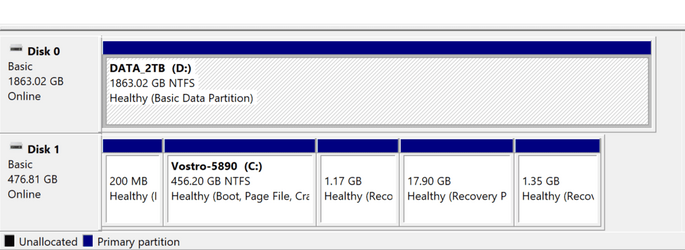
My Desktop from April 2022, came with 512GB NVMe drive and added the 2TB HDD later using power and data cables already in the case..

1694897187584.png
 

My Computers My Computers

  • At a glance

    Win11 Pro RTM Version 24H2 Build 26100.4202Intel Core i5 11th Gen. 2.40GHz12GB
    OS
    Win11 Pro RTM Version 24H2 Build 26100.4202
    Computer type
    Laptop
    Manufacturer/Model
    Dell Vostro 3400
    CPU
    Intel Core i5 11th Gen. 2.40GHz
    Memory
    12GB
    Hard Drives
    256GB SSD NVMe M.2
  • At a glance

    Win11 Pro RTM Version 24H2 Build 26100.4202Intel Core i5 10th Gen. 2.90GHz16GBOnboard, no VGA, using a DisplayPort-to-VGA a...
    Operating System
    Win11 Pro RTM Version 24H2 Build 26100.4202
    Computer type
    PC/Desktop
    Manufacturer/Model
    Dell Vostro 5890
    CPU
    Intel Core i5 10th Gen. 2.90GHz
    Memory
    16GB
    Graphics card(s)
    Onboard, no VGA, using a DisplayPort-to-VGA adapter
    Monitor(s) Displays
    24" Dell
    Hard Drives
    512GB SSD NVMe, 4TB Seagate HDD
    Browser
    Firefox, Edge
    Antivirus
    Windows Defender/Microsoft Security
If you want you can delete the EFI partition on Disk 2 and create a new EFI partition on Disk 1.

In this video, i will show you how to create EFI partition from within Windows Recovery Environment.


My Computer My Computer

At a glance

Windows 11AMD Ryzen 7 5700GMicron Technology DDR4-3200 16GBNVIDIA GeForce RTX 3060
OS
Windows 11
Computer type
PC/Desktop
Manufacturer/Model
HP Pavilion
CPU
AMD Ryzen 7 5700G
Motherboard
Erica6
Memory
Micron Technology DDR4-3200 16GB
Graphics Card(s)
NVIDIA GeForce RTX 3060
Sound Card
Realtek ALC671
Monitor(s) Displays
Samsung SyncMaster U28E590
Screen Resolution
3840 x 2160
Hard Drives
SAMSUNG MZVLQ1T0HALB-000H1
I wrote down the steps you provided
And do remember that my solution was what I regarded as straightforward.
Solutions, such as Freebooter's, to delete-create-populate partitions manually are a lot quicker but I found them complicated when I tried them several years ago.
As long as you precede everything with a system image then you can try such solutions.


Denis
 

My Computer My Computer

At a glance

Windows 11 Home x64 Version 25H2 Build 26200....
OS
Windows 11 Home x64 Version 25H2 Build 26200.8037
If you want you can delete the EFI partition on Disk 2 and create a new EFI partition on Disk 1.

In this video, i will show you how to create EFI partition from within Windows Recovery Environment.

I greatly appreciate your help. The information you provided is exactly what I needed. Thank you!
many thanks :thumbsup: ;-);-)
 

My Computer My Computer

At a glance

Windows 11
OS
Windows 11
Computer type
PC/Desktop
Manufacturer/Model
MSI
I greatly appreciate your help. The information you provided is exactly what I needed. Thank you!
many thanks :thumbsup: ;-);-)
You are very welcome!
 

My Computer My Computer

At a glance

Windows 11AMD Ryzen 7 5700GMicron Technology DDR4-3200 16GBNVIDIA GeForce RTX 3060
OS
Windows 11
Computer type
PC/Desktop
Manufacturer/Model
HP Pavilion
CPU
AMD Ryzen 7 5700G
Motherboard
Erica6
Memory
Micron Technology DDR4-3200 16GB
Graphics Card(s)
NVIDIA GeForce RTX 3060
Sound Card
Realtek ALC671
Monitor(s) Displays
Samsung SyncMaster U28E590
Screen Resolution
3840 x 2160
Hard Drives
SAMSUNG MZVLQ1T0HALB-000H1
Windows has been known to stick that EFI system partition on any disk it feels like during installation.
The safe way to install Windows includes removing all other disks before you start.

If that is a Disk management diagram then check the partitions in, say, MiniTool partition wizard.
If, as I think, it is a MiniTool partition wizard diagram {and hence an accurate diagram} then you have a problem to resolve [unless, of course, you have deliberately been removing partitions yourself but then you would not be asking this question].

I think the most straightforward method of removing that partition involves all these steps:-
1 Make a new system image of your Windows disk [disk 1].
2 Disconnect disks 2 & 3.
3 Clean install Windows on disk 1.
4 Restore the C:\ drive of the system image to the C:\ drive of disk 1.
5 Reconnect disks 2 & 3 if you want them connected.
6 Delete that 100MB partition from disk 2.
7 Make a new system image.
It's quite a bit of work.

I'm surprised to see that disk 3 is MBR even though the others are GPT.
I'm also surprised that it is so small. Oh, its icon might mean it's some sort of floppy drive.
Perhaps it would be worth resolving that afterwards.


All the best,
Denis
I once had a problem with a system that I dual booted from two HDDs. When I removed the second drive my computer wouldn't boot. Nothing I tried worked and that included using Macrium to create the boot partition. In the end I fixed the problem by doing steps 1 - 4 of what you posted.
 

My Computers My Computers

  • At a glance

    Windows 11 Pro 25H2Intel Core i7-10700K16GB (8GB PC4-19200 DDR4 SDRAM x2)NVIDIA GeForce GTX 1050 TI
    OS
    Windows 11 Pro 25H2
    Computer type
    PC/Desktop
    Manufacturer/Model
    PowerSpec B746
    CPU
    Intel Core i7-10700K
    Motherboard
    ASRock Z490 Phantom Gaming 4/ax
    Memory
    16GB (8GB PC4-19200 DDR4 SDRAM x2)
    Graphics Card(s)
    NVIDIA GeForce GTX 1050 TI
    Sound Card
    Realtek Audio
    Monitor(s) Displays
    #1. LG ULTRAWIDE 34" #2. AOC Q32G2WG3 32"
    Screen Resolution
    #1. 3440 X 1440 #2. 1920 x 1080
    Hard Drives
    NVMe WDC WDS100T2B0C-00PXH0 1TB
    Samsung SSD 860 EVO 1TB
    PSU
    750 Watts (62.5A)
    Case
    PowerSpec/Lian Li ATX 205
    Keyboard
    Logitech K270
    Mouse
    Logitech M185
    Browser
    Microsoft Edge and Firefox
    Antivirus
    Webroot SecureAnywhere CE 26.1
  • At a glance

    Windows 11 Canary ChannelIntel Core i5-8400 CPU @ 2.80GHz16 MB DDR 4-2666
    Operating System
    Windows 11 Canary Channel
    Computer type
    PC/Desktop
    Manufacturer/Model
    PowerSpec G156
    CPU
    Intel Core i5-8400 CPU @ 2.80GHz
    Motherboard
    AsusTeK Prime B360M-A
    Memory
    16 MB DDR 4-2666
    Monitor(s) Displays
    23" Speptre HDMI 75Hz
    Screen Resolution
    1920x1080
    Hard Drives
    Samsung 970 EVO 500GB NVMe
    Keyboard
    Logitek K270
    Mouse
    Logitek M185
    Browser
    Firefox, Edge and Edge Canary
    Antivirus
    Windows Defender
I once had a problem with a system that I dual booted from two HDDs. When I removed the second drive my computer wouldn't boot. Nothing I tried worked and that included using Macrium to create the boot partition. In the end I fixed the problem by doing steps 1 - 4 of what you posted.
Yes, I had to learn by trial and error.
I thought I was clever, so I used Minitool to copy the 100 MB partition.
and it worked, but the PC continued assigning drive letters left and right.

Finally, I did the one thing I should have done two days ago: I removed one of the hard drives and installed Windows.
 

My Computer My Computer

At a glance

Windows 11
OS
Windows 11
Computer type
PC/Desktop
Manufacturer/Model
MSI
If I had enough time on my hands to be able to risk making mistakes then rectifying them, I would use this guidance to create a new EFI System partition on the correct disk:-
manually setting up a new drive and its partitions [NavyLCDR #3] - TenForums
I'd make my system image beforehand as normal.
I'd use this guidance just as if the OS was Windows 10 because I am ignorant of any differences.
NavyLCDR said:
The method I like to use is to set the new drive up manually. Assuming UEFI booting: use diskpart to create a 100 mb EFI system partition followed by Microsoft's recommended 16 MB MSR partition. Then use a program such as Macrium Reflect or MiniTool Partition Wizard to clone or copy the existing C: drive partition to the new drive. Then use the bcdboot command to populate the EFI system partition on the new drive with boot files from the newly copied OS partition.

The command sequence looks like this:

Code:
diskpart
list disk
select disk # <-replace # with the actual number for the new drive
clean
convert gpt
select part 1
delete part override
create part EFI size=100
format fs=fat32 quick
assign letter=a
create part MSR size=16
exit
exit

Now copy your existing C: drive OS partition to the new drive. Resize it during the copy if you want to fill the whole drive. Once the partition is copied, make sure to give it a drive letter using whatever software you use for the copying. Let's say you gave it drive letter E:. The last commands would be:

Code:
bcdboot E:\Windows /s A: /f UEFI
mountvol A: /D
exit

Restart your computer, but make sure to go into BIOS settings and set the new HDD as the first boot drive.


All the best,
Denis
 

My Computer My Computer

At a glance

Windows 11 Home x64 Version 25H2 Build 26200....
OS
Windows 11 Home x64 Version 25H2 Build 26200.8037
I once had a problem with a system that I dual booted from two HDDs. When I removed the second drive my computer wouldn't boot. Nothing I tried worked and that included using Macrium to create the boot partition. In the end I fixed the problem by doing steps 1 - 4 of what you posted.
I had that problem once and found the BIOS by default was set for AHCI/RAID and I had 2 drives installed. Ended up removing one drive and reinstalling Win10 then after all was working connected the second drive. RAID 1 is a mirror [copy] of one drive to the second. RAID 0 is striping [data spread across both drives for more storage], remove one drive and everything can be lost. I use RAID 1 with my 2TB NAS [2 x 2TB drives].
 

My Computers My Computers

  • At a glance

    Win11 Pro RTM Version 24H2 Build 26100.4202Intel Core i5 11th Gen. 2.40GHz12GB
    OS
    Win11 Pro RTM Version 24H2 Build 26100.4202
    Computer type
    Laptop
    Manufacturer/Model
    Dell Vostro 3400
    CPU
    Intel Core i5 11th Gen. 2.40GHz
    Memory
    12GB
    Hard Drives
    256GB SSD NVMe M.2
  • At a glance

    Win11 Pro RTM Version 24H2 Build 26100.4202Intel Core i5 10th Gen. 2.90GHz16GBOnboard, no VGA, using a DisplayPort-to-VGA a...
    Operating System
    Win11 Pro RTM Version 24H2 Build 26100.4202
    Computer type
    PC/Desktop
    Manufacturer/Model
    Dell Vostro 5890
    CPU
    Intel Core i5 10th Gen. 2.90GHz
    Memory
    16GB
    Graphics card(s)
    Onboard, no VGA, using a DisplayPort-to-VGA adapter
    Monitor(s) Displays
    24" Dell
    Hard Drives
    512GB SSD NVMe, 4TB Seagate HDD
    Browser
    Firefox, Edge
    Antivirus
    Windows Defender/Microsoft Security

Latest Support Threads

Back
Top Bottom