UPDATE 3/07:
 www.elevenforum.com
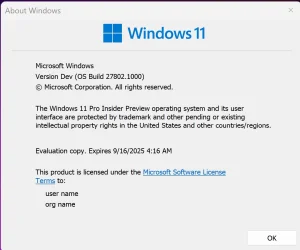
Hello Windows Insiders, today we are releasing Windows 11 Insider Preview Build 27802 to the Canary Channel.
We are also not planning to release SDKs for 27xxx series builds for the time being.
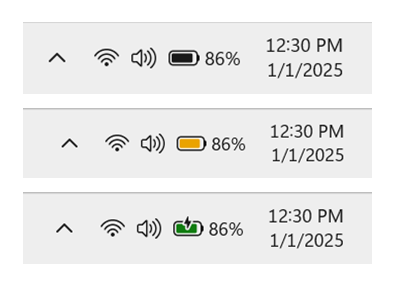
Battery shown in black, yellow, and green to indicate different charging states.
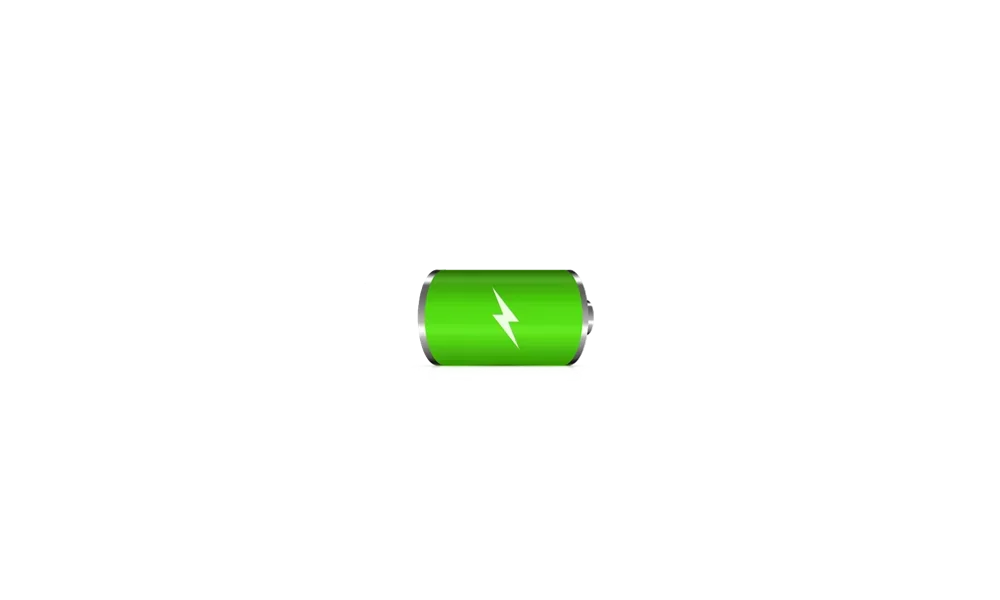
When your battery icon is green, this shows that your PC is charging and in a good state. A yellow battery icon will let you know that your PC using battery in energy saving mode – this automatically happens when your battery is less than or equal to 20% to preserve power. When the battery icon is red, you have a critically low battery and should plug in your PC as soon as possible. You will see these new battery icons on the taskbar in the system tray, in the quick settings flyout, and in Settings. The new battery icons will begin showing on the Lock screen in a future flight.
As always, your PC’s battery status and more will also be available to you when you hover over the battery icon in the system tray and under Settings > System > Power & battery where you can also adjust the battery level percentage in which energy saver mode kicks on for your PC.
 www.elevenforum.com
 www.elevenforum.com
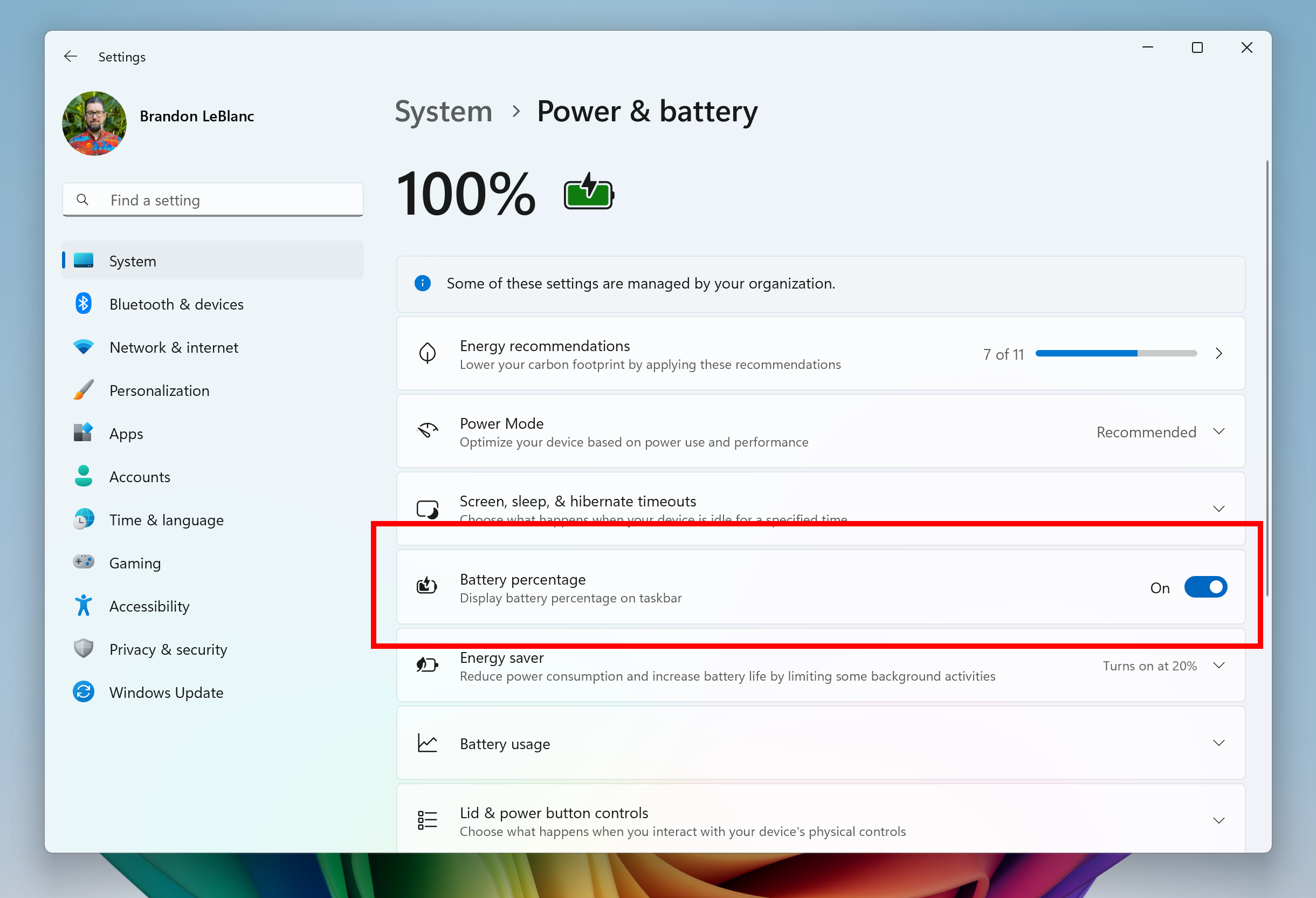
The toggle to turn on showing battery percentage in Settings highlighted in a red box.
Along with the updates to the battery icon, we are also introducing the ability to show your battery percentage next to the battery icon in the system tray – a highly requested feature by Insiders and customers. To enable this, go to Settings > Power & battery and toggle on the “Battery Percentage” setting.
FEEDBACK: Please file feedback in Feedback Hub (WIN + F) under Desktop Environment > System Tray.
Windows 11 Insider Canary build 27808.1000 - March 7
Windows Blogs: Source: Check Windows Updates UUP Dump: 64-bit ISO download: https://uupdump.net/selectlang.php?id=5028317e-7c56-482a-bc4b-e218a2213c8b ARM64 ISO download: https://uupdump.net/selectlang.php?id=404f09a5-1398-4ded-9562-602c04807f9c...
www.elevenforum.com
Windows Blogs:
Hello Windows Insiders, today we are releasing Windows 11 Insider Preview Build 27802 to the Canary Channel.
We are also not planning to release SDKs for 27xxx series builds for the time being.
What’s new with Build 27802
Improving the battery iconography in Windows 11
Introducing new and improved battery icons in Windows 11! These icons have been designed to communicate the battery status of your PC with just a quick glance. Key changes include colored icons to indicate charging states, simplified overlays that don’t block the progress bar, and an option to turn on battery percentage.
Battery shown in black, yellow, and green to indicate different charging states.
When your battery icon is green, this shows that your PC is charging and in a good state. A yellow battery icon will let you know that your PC using battery in energy saving mode – this automatically happens when your battery is less than or equal to 20% to preserve power. When the battery icon is red, you have a critically low battery and should plug in your PC as soon as possible. You will see these new battery icons on the taskbar in the system tray, in the quick settings flyout, and in Settings. The new battery icons will begin showing on the Lock screen in a future flight.
As always, your PC’s battery status and more will also be available to you when you hover over the battery icon in the system tray and under Settings > System > Power & battery where you can also adjust the battery level percentage in which energy saver mode kicks on for your PC.
Enable or Disable Show Battery Percentage on Taskbar in Windows 11
This tutorial will show you how to turn on or off displaying the battery percentage on the taskbar for your account in Windows 11. By default, you can always check your PC's battery status and more when you hover over the battery icon in the taskbar system tray. Starting with Windows 11 build...
www.elevenforum.com
Turn On or Off Energy Saver in Windows 11
This tutorial will show you how to turn on or off energy saver for all users in Windows 11. Energy Saver replaces battery saver and exists on Windows 11 24H2 and later versions. It significantly extends battery life and reduces energy consumption by automatically managing power usage across...
www.elevenforum.com
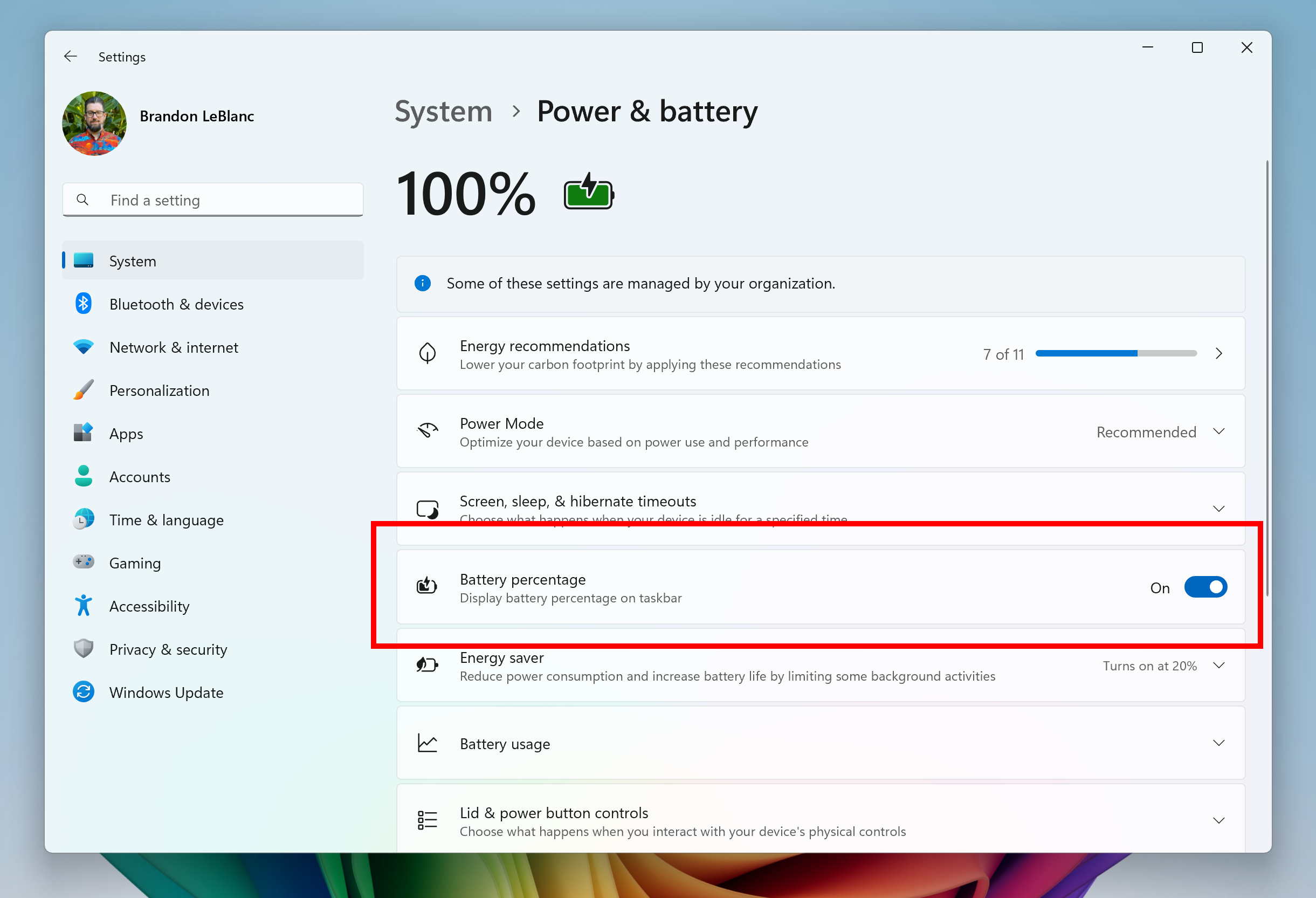
The toggle to turn on showing battery percentage in Settings highlighted in a red box.
Along with the updates to the battery icon, we are also introducing the ability to show your battery percentage next to the battery icon in the system tray – a highly requested feature by Insiders and customers. To enable this, go to Settings > Power & battery and toggle on the “Battery Percentage” setting.
FEEDBACK: Please file feedback in Feedback Hub (WIN + F) under Desktop Environment > System Tray.
Changes and Improvements
[Taskbar & System Tray]
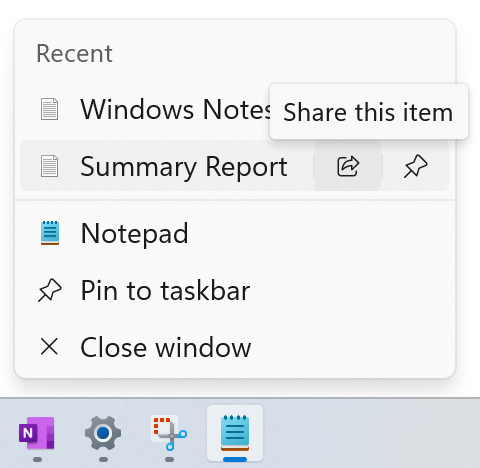
- We are rolling out the ability to share files directly from the jump lists on the taskbar, which appears when you right-click on an app with a jump list like Notepad the taskbar.

Share File with App in Windows 11
This tutorial will show you how to share a file with an app in Windows 11. Windows Share in Windows 11 allows you to share file(s) with an app to send from. Starting with Windows 11 build 22631.3810, Microsoft is rolling out the ability to copy files from the Windows share window. Just click...
www.elevenforum.com

Share icon appearing on a txt file on the jump list for Notepad.
[Spotlight on the desktop]
- We’re beginning to roll out some changes to the Desktop Spotlight icon interaction model for Windows Insiders. You can now quickly and easily discover more information about your background image by simply hovering over or clicking on the “Learn about this picture” icon on your desktop.

Add or Remove "Learn about this picture" Desktop icon in Windows 11
This tutorial will show you how to add or remove the Learn about this picture desktop icon when using Windows Spotlight as your desktop background for your account in Windows 11 and Windows 10. When you choose to have Windows Spotlight as your desktop background or theme, it will add a Learn...
www.elevenforum.com
Fixes
[General]
- We fixed the issue causing Insiders to see an error trying to install Build 27788 (0x8007000d) along with a failed .NET update (0x80073712). This issue should not occur with Build 27798.
[File Explorer]
- Fixed an issue where if you opened a File Explorer window and minimized it, it might not be rendered correctly when you restore it.
[Taskbar & System Tray]
- Fixed an issue when using multiple monitors, where the distance between the date and time and edge of the screen wasn’t consistent.
[Input]
- Fixed an issue where if you were using a non-default mouse color (enabled in Settings > Accessibility > Mouse pointer and touch), it may unexpectedly revert back to white when you encountered a UAC dialog.
[Lock Screen]
- Fixed an issue which was causing the login screen to crash when clicking the “sign-in options” link for some Insiders.
[Administrator Protection]
- Fixed a rare issue when Administrator Protection was enabled, which could cause you to see a resource loader cache error loading the MUI file on sign in.
- Removed extraneous space between Dynamic Lock and Administrator Protection under Account Protection in Windows Security.
- Fixed an issue where Administrator Protection wasn’t showing in the results if you searched from the taskbar.
Last edited:


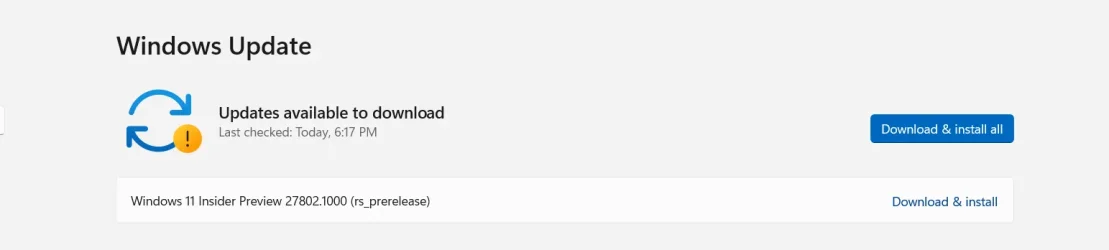


 I paused Windows update so the build wouldn't try installing again.