Windows IT Pro Blog
Editor's note 12.9.2025: This policy will be available starting with the January 2026 security update and will no longer be enabled by default. We have reflected this change in the post below and added clarification about device targeting.
Get the latest Windows quality updates during the out-of-box experience (OOBE) by default. This much awaited improvement is coming to your eligible Microsoft Entra joined or Microsoft Entra hybrid joined devices running Windows 11, version 22H2 and later. It will be available starting with the September 2025 Windows security update.
You can manage this new capability with a policy setting. With Windows Autopilot and Microsoft Intune (or alternative management solutions), you can maintain seamless control over quality update behavior during provisioning, while ensuring alignment with organizational security and compliance requirements.
Manage your OOBE update experience in Microsoft Intune
When Windows quality update support is available in the Windows Autopilot Enrollment Status Page (ESP) at the end of August 2025, you’ll see the new quality update setting enabled by default.You’ll be able to control whether updates are installed during OOBE if you meet these criteria:
- Your devices are on Windows 11, version 22H2 or later and on any of the following SKUs: Pro, Enterprise, Education, or SE.
- You use Microsoft Intune to manage Windows quality updates.
- You’ve assigned a Windows Autopilot Enrollment Status Page (ESP) profile to devices using either Windows Autopilot preregistered device group or using the “All devices” assignment.
- Your devices have one of the following required updates that include the new setting:
- Devices that get the August 2025 OOBE zero-day patch (ZDP) update will have this capability.
- Devices imaged with the June 2025 Windows non-security update or later already include the new setting.
Note: At this time, if you’re not using device ESP, you won’t be able to turn off Windows updates during OOBE. This might be the case if you enroll devices using Windows Autopilot device preparation policies. These devices will have updates applied by default.
The new setting
The new setting is available to you to confirm or control this experience:- Go to the Microsoft Intune admin center.
- Navigate to Devices > Enrollment > Enrollment Status Page.
- Select the ESP profile you wish to check or create a new one and go to its Settings tab.
- Locate the new setting called Install Windows quality updates (might restart the device). If its value is set to “Yes,” you’re set to install quality updates during provisioning!
Note: Preexisting ESP profiles will have Install Windows quality updates set to “No.” You can edit this setting to enable the updates. New ESP profiles will default to “Yes.”
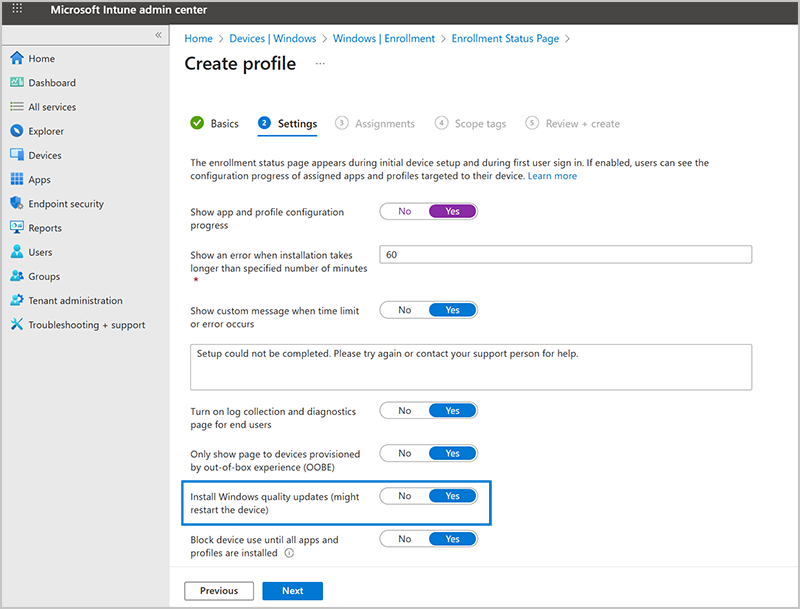
The Enrollment Status Page (ESP) profile settings in the Microsoft Intune admin center, with a new setting to Install Windows quality updates set to “Yes.”
As we’ve preannounced, the device will check Windows Update at the last page of OOBE and install any applicable quality updates. That way, the user will start out with the latest security and quality updates at first sign in.
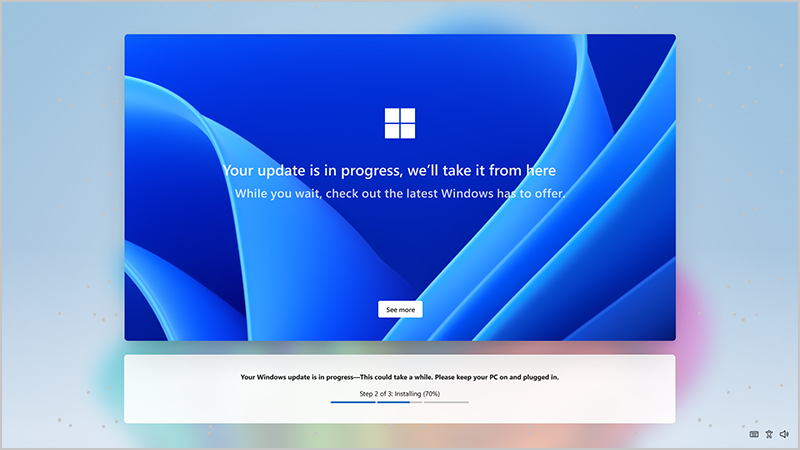
The final OOBE screen shows the message for an in-progress Windows update.
Recommendation for pause and deferral settings
Want to ensure that quality updates during OOBE respect pause and deferral settings? Assign your Windows Update rings profile to the same Windows Autopilot preregistered device group as your ESP profile or using the “All devices” assignment.During the device phase of provisioning, the ESP will ensure that the settings from the Windows Update rings policy are synchronized prior to exiting the page. That way, settings are in place before the final Windows Update page checks for updates. Note: If these requirements aren’t met, the pause and deferral settings might be inconsistently applied during OOBE.
Alternative management solutions for OOBE updates
Some non-Microsoft mobile device management (MDM) solutions are also capable of using the ESP functionality. How can you determine if that’s the case for you? Check if your MDM provider has developed its own ESP functionality using features or protocols offered by Microsoft to reliably deliver certain policies during OOBE. If they have selected the ESP profile as eligible to be applied, designate the ESP profile as a tracked policy when creating it. You must enable ESP to ensure that the latest Windows quality updates indeed get installed during OOBE.Ready for an improved OOBE?
With this new default experience, you can:- Complete the devices’ OOBE with the latest approved quality updates already applied.
- Enhance security from day 1.
- Reduce post-deployment update overhead.
Source:
Get ready for Windows quality updates out of the box - Windows IT Pro Blog
Learn how to ensure the latest Windows quality updates are installed by default on the devices you manage from day one.
 techcommunity.microsoft.com
Last edited: