Microsoft Core Infrastructure and Security Blog:
You likely know about the Windows App and Link, but have you checked out Boot?
Hi folks – Mike Hildebrand here! It’s the July 4th holiday here in the good 'ol USA and happens to also be our country’s 250th birthday … and where I live, that means it’s probably hot. VERY hot. So, I’m taking some time to enjoy the A/C and type up a ‘cool’ post about a ‘cool’ solution.In the land of Windows 365, there are a couple of physical endpoint options – Windows App or browser from any device, thin-client and other purpose-built devices, like our own Link (and one soon coming from Asus).
We also have another option called Windows 365 Boot. In this nifty little situation, we take a full-throated Windows 11 device and apply policy from Intune to transform the shell and other settings into a Link-like experience.
NOTE: For a long time, the Boot configuration process was only configurable via a ‘black-box’ guided flow in the Intune portal – and that works just fine. However, after an update of docs and the Intune Settings Catalog, the W365 Boot configurations can now be hand-carved like all of your other Intune configuration policies.
Recently, I was part of a customer conversation where they had a substantial quantity of Flex Dedicated CPCs used by rotating call center staff and accessed from a fleet of Windows 11 PCs deployed at hot-desk stations. They wondered about a model to simplify and streamline access directly to the CPCs, bypassing the local Windows OS, which wasn’t used/needed and sometimes caused confusion.
The physical devices were still ‘current’ and had a lot of life left (i.e. warranty coverage, driver and firmware support, parts availability, etc.) - and due to the price-jumps of new devices, it made ‘dollars and sense’ (
 ) to leverage that investment and re-purpose them.
 They also wondered if they could use Autopilot in ‘Self-deploy’ mode to further automate the deployment process for these endpoints.
“Let’s try it out”
I proposed a rapid, off-the-cuff ‘right now’ PoC to try out the W365 Boot scenario in their environment and they were up for it. These days, it’s common and easy to perform carefully controlled ‘production pilots’ to more accurately validate the proposed experience.NOTE: Since the customer already had Entra, Intune, and modern management in steady-state operations for quite some time, we were able to make this idea very real, very fast.
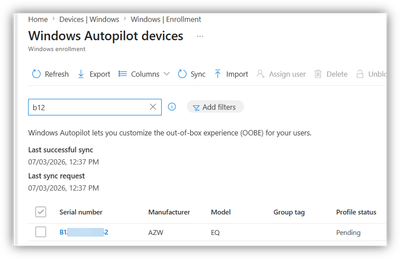
We reset a few of the test PCs they use for their hot-desks and uploaded them into Autopilot via the Get-WindowsAutopilotInfo PowerShell script and the -online switch.
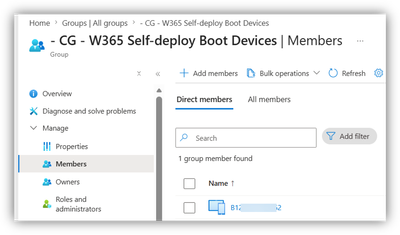
Entra – Create a Device Group
We created a device group in Entra for the PoC Boot devices and added the Autopilot-uploaded test devices into it as members- This group was used by Intune to target several different elements of the PoC:
o An Enrollment Status Page (ESP) profile - to prevent access to the Boot device until the Windows App is installed
o The Windows App – used by the Boot device to connect to Cloud PCs
o A W365 Boot Configuration Profile to transform the Windows 11 OS into a W365 Boot device
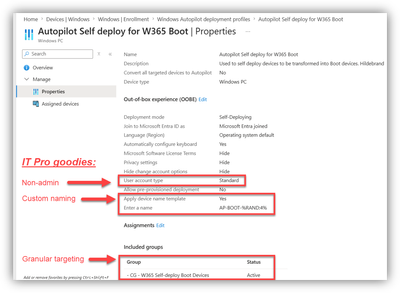
Intune - Autopilot Self-deploy Profile
We created an Autopilot ‘self-deployment’ profile via Intune, to automatically enroll the physical endpoints at the call center desks.- Autopilot self-deploy requires very little interaction at the endpoint - plug in power, connect to network and turn it on.
Intune – Enrollment Status Page
We created an ESP targeted at the device group to block access to the Boot devices until the Windows App is installed.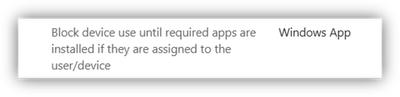
Intune – Windows App
They already deploy the Windows App to ‘All Devices,’ so this step was easy
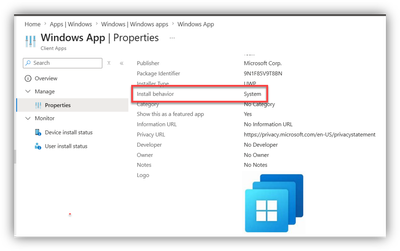
The key thing here is make sure it installs in the ‘System’ context:
Intune - Boot Device Configuration Policy
We created a very simple Configuration Policy (two settings from the Settings Catalog – that’s it) in Intune to transform these self-deployed endpoints into “Shared PC Mode” Windows 365 Boot devices. These have minimal ‘end user’ configurations/apps because they boot to the W365 purpose-specific ‘cloud shell’ – which allows the user to sign in to the Boot device and be directly SSO’d into their CPC.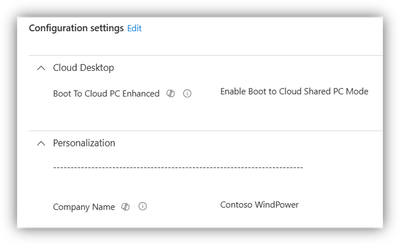
- NOTE: The ‘Boot to Cloud PC Enhanced’ setting includes many other settings/behaviors but they’re all bundled up which makes it super easy to deploy this
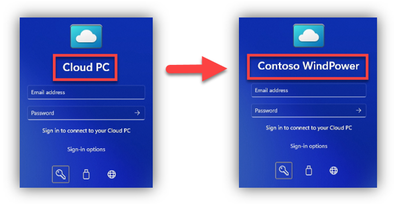
- NOTE: If the ‘Personalization > Company Name’ setting isn’t used, you’ll see ‘Cloud PC’ at the sign in screen
Self-deploy…oh the joy!
Plug it in; turn it on … Autopilot Self-deploy OOBE screen, followed by a brief ESP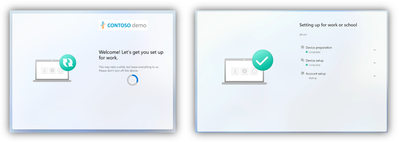
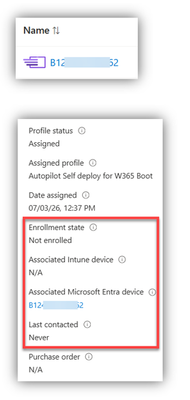
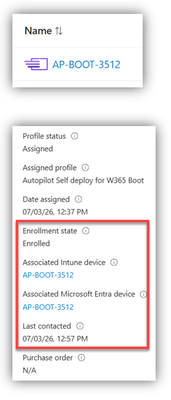
NOTE: As part of the Autopilot deployment profile, a device naming template was applied and the devices were renamed; this was reflected in various portals/UIs
Before:
After:
“So, what does it look like for the users?”
I thought you’d never ask! A PIN, a touch and TA DA!NOTE: The org already was using FIDO2 for these users, so they insert their FIDO2 key to the Boot device, enter the PIN for it, touch it for ‘proof of presence’ - and that’s it. No long username to type in; no long password to remember/type; no additional prompts. The users glide right through to their CPC desktop.
NOTE: Hello for Business (H4B) is supported for the “Dedicated Mode” Boot deployment option but since we used the “Shared PC Mode” setting, where H4B is not supported, we didn’t test. Maybe official H4B support will come later to Shared PC Mode, but given how easy FIDO2 is, and the fact that the target users already use FIDO keys, we didn’t spend any more time on H4B.

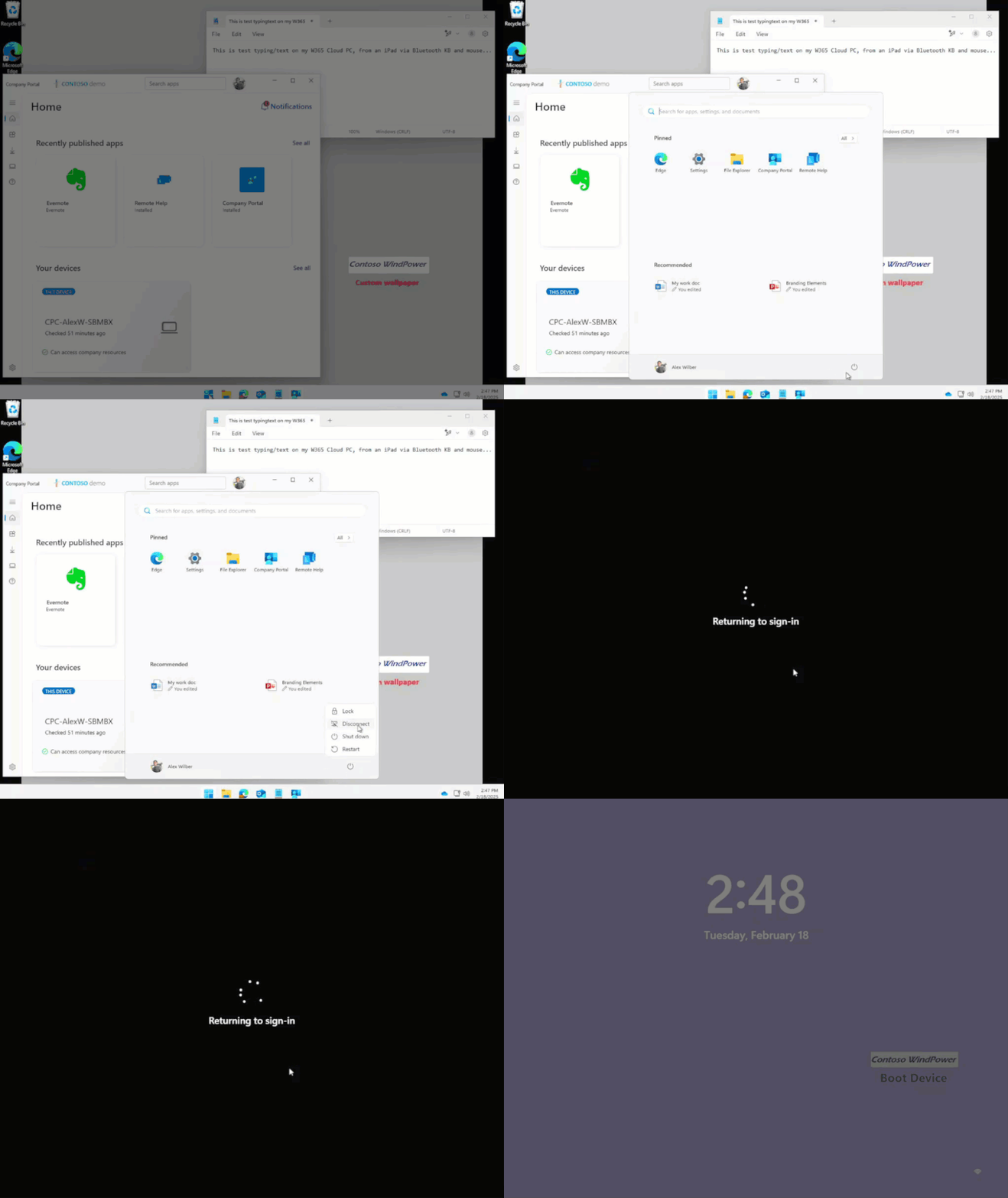
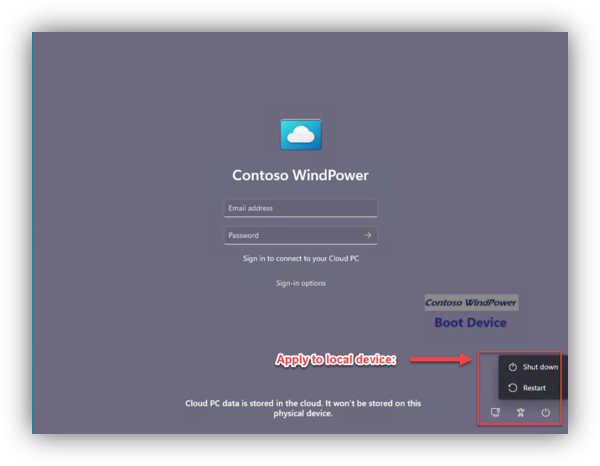
- At the end of the shift, disconnect the session from the CPC desktop to get back to the Boot sign in screen:
A few FAQs
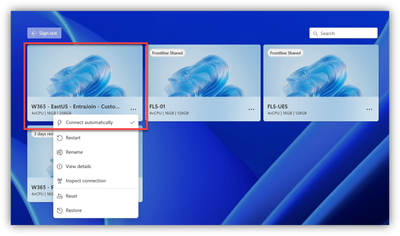
“What if a user has more than one CPC?”- Connection Center is supported via Boot – here’s one of my demo users, using Boot w/ more than one CPC:
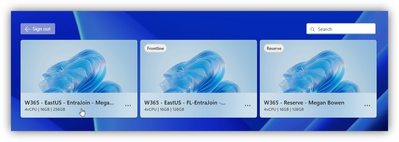
- Further, you can select ‘Connect automatically’ from the three dots of a specific CPC’s card; then you’ll always bypass the Connection Center and get SSO’d right into that one.
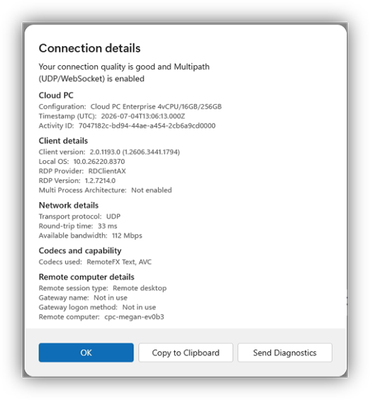
o BONUS SECRET HOTKEY COMBO (just between us) – For detailed connection info, from the Cloud PC: <Ctrl> + <Windows key> + <Down Arrow>
“Can I customize the look and feel of the Boot sign in experience?”
- Yes – There are policy settings for a custom icon, company name and wallpapers to help differentiate Boot devices from other PCs/devices.
- TIP: those docs indicate needing to use a URL for files – you can use this syntax for local content already on the device: file:///C:/Folder/File.jpg
There you have it, folks … Windows 365 Boot (or, DAS BOOT!! as I like to sometimes yell) … in the form of a quick PoC.
P.S. A special shout-out is in order for Mr. Liu for his assistance and appreciation of the Boot scenarios.
Stay cool out there…
Hilde
Source: