Windows IT Pro Blog:
Today, we are excited to announce the public preview of context-based redirections for Windows App. This new capability helps organizations apply more granular controls to device and resource redirection based on contextual signals such as device management state, compliance posture, user or group membership, and network conditions. The result is a more adaptive way to help users stay productive while reducing the risk of data leaving the protected Windows environment.
Context-based redirections are part of our broader secure bring-your-own-device (BYOD) strategy. Instead of relying only on a one-size-fits-all redirection policy, admins can use Microsoft Entra Conditional Access authentication context with Windows 365 and Azure Virtual Desktop redirection settings to make redirection decisions that better match the trust level of the session.
Why context matters for redirection
Redirections control important data paths between the local device and the remote session. In BYOD scenarios, an unmanaged or noncompliant device may not meet the same security standard as a corporate-managed endpoint. Context-based redirections help admins align these data paths with policy intent: enable what users need when the session is trusted and restrict higher-risk redirections when the session is not.This builds on the existing Windows App and RDP security model where the more restrictive setting takes precedence. For example, if one policy allows a redirection but another security layer disables it, the redirection remains disabled. The most restrictive wins behavior, helping provide defense in depth and reducing the chance that a configuration gap becomes a data loss path.
What is in scope for public preview
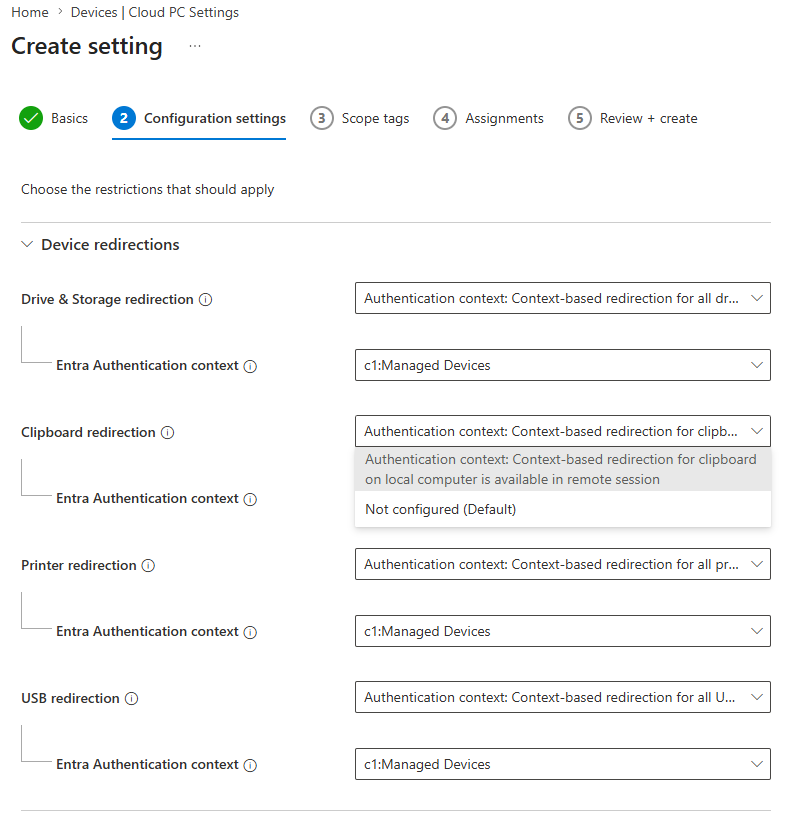
In this public preview, the core scenarios are centered on:- Clipboard redirection: Control whether clipboard data can move between the local device and the remote Windows session.
- Drive and storage redirection: Control access to local fixed, removable, and network storage from the remote session.
- Printer redirection: Control whether users can print from the remote session to local printers.
- USB redirection: Control whether supported USB devices can be redirected into the remote session.
Note: We are currently developing the feature Resultant Set of Policy (RSOP) that will help users and IT admins determine which redirections settings were applied to this connection and which policy source produced this value.
Prerequisites
Note: If you’re testing with a recent gallery image or already have policies in your environment that disable redirections, update those settings before testing, as the most restrictive policy always applies. For context-based redirection to function properly, configure the redirections you want to test as “Not Configured” or “Enabled.”To simplify testing and rollout, we recommend creating a dedicated device group for pilot Cloud PCs. This allows you to target only test devices with these settings and later reuse the same group when deploying your context-based redirection policy more broadly.
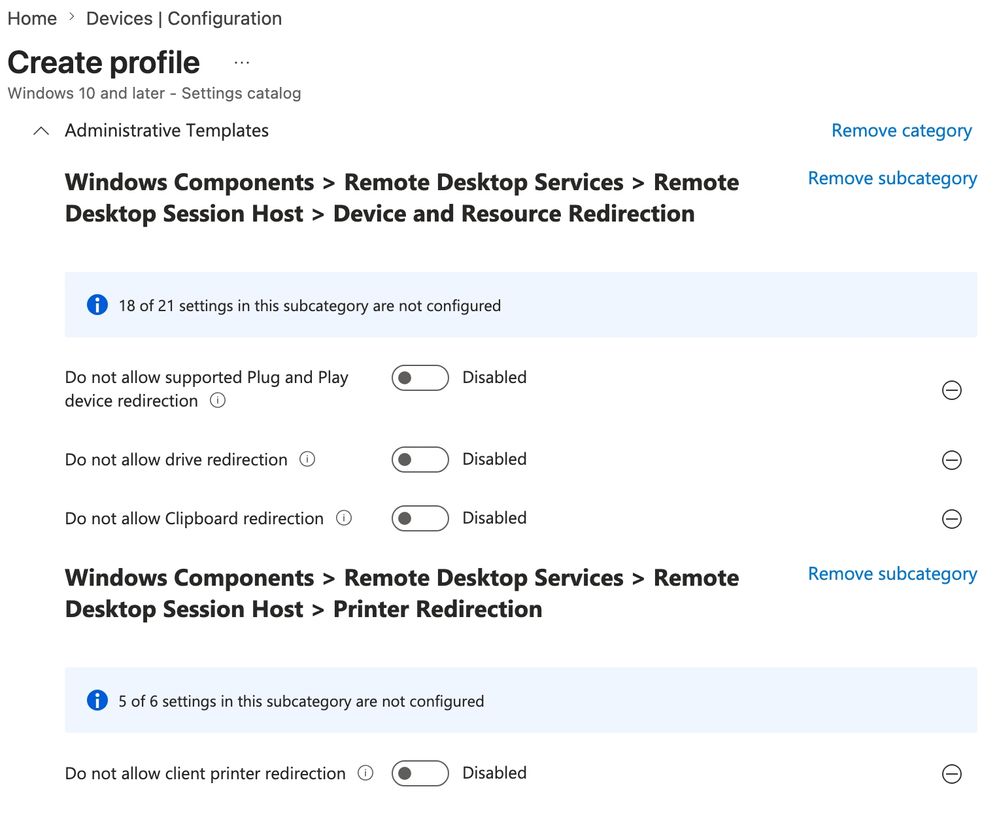
For more information, please visit Manage device RDP redirections for Cloud PCs. | Microsoft Learn.
Get started
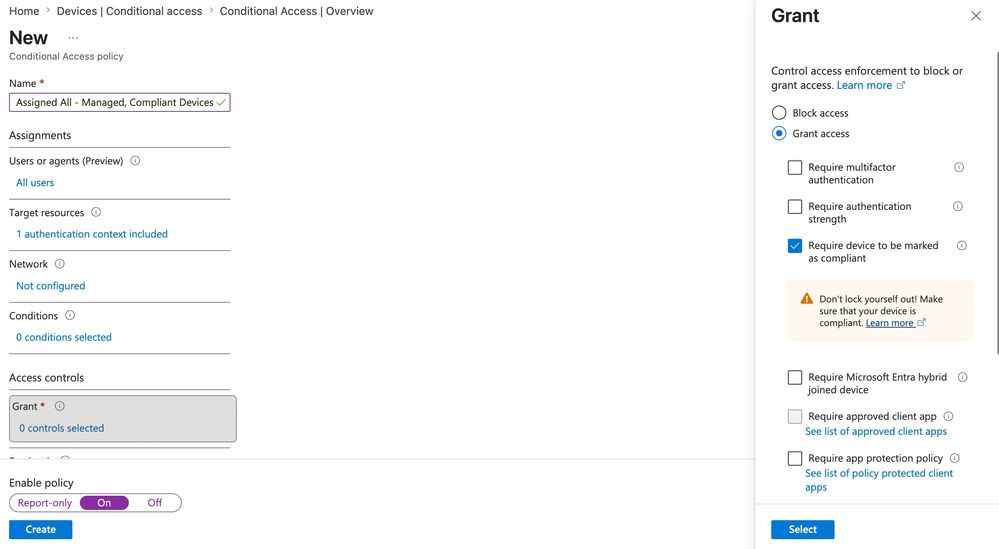
To get started with context-based redirections, admins will first create an Entra authentication context, then create an Entra Conditional Access to issue the authentication context.Once the authentication context and Conditional Access policy are in place, admins can configure the Windows 365 Remote Connection Experience setting policy to require the specified authentication context for the targeted redirections.
Validating the provisioned context-based redirection policy
To validate whether the provisioned context-based redirection policy is working as intended, test it from the user perspective by connecting to a Windows 365 Cloud PC/Azure Virtual Desktop VM that’s associated with the targeted device group:- Use any Windows App client. You can use the Windows web client by going to windows.cloud.microsoft.
- Find the targeted, managed Windows 365 Cloud PC/Azure Virtual Desktop VM and click the "Connect" button.
- Once the remote session loads, verify the behavior of the 4 redirections. Please visit each redirection’s respective Microsoft Learn documentations for detailed testing instructions:
- Clipboard redirection: Verify whether copy and paste work between the local device and remote session.
- Drive redirection enabled: Configure fixed, removable, and network drive redirection over the Remote Desktop Protocol | Microsoft Learn
- Printer redirection: Configure printer redirection over the Remote Desktop Protocol | Microsoft Learn
- USB redirection enabled: Configure USB redirection on Windows over the Remote Desktop Protocol | Microsoft Learn
Source:

Adaptive data protection with context-based redirections in Windows 365, now in public preview
New contextual policy controls to help organizations better protect their data in Windows 365
 techcommunity.microsoft.com