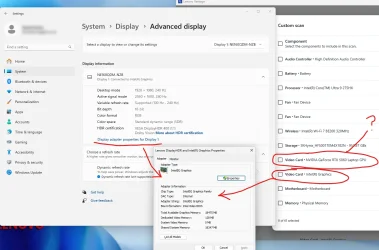
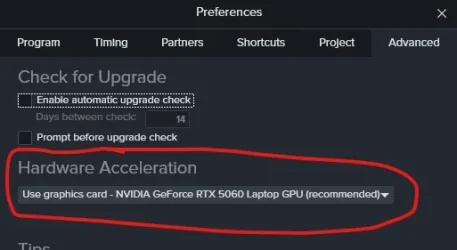
Just getting going on my new laptop which has a built-in display resolution of 2560x1600, and I have (via two USB-C -> HDMI cables) a second super widescreen monitor connected. I'm using two inputs on the monitor so that the left side of it can be screen #2, and the right side is screen #3, both of which I have set to their native 1920x1080. I had an identical setup prior to this on my old laptop using a DP-> HDMI cable and a HDMI-HDMI cable - that worked perfectly and didn't have the following issue:
The problem I'm seeing is that despite having Scale set to 100%, all three (yes even the laptop native screen) are showing all application windows (and settings, calculator etc) as unexpectedly large. Right-clicking on the desktop and selecting "Display Settings", I'd expect the settings window that opens to take up about half the width of a 1920 pixel wide screen (and on the old laptop it does), but on the new one it takes up 98% of the screen width. It's like someone did a Ctrl+ half a dozen times "on Windows". Which I believe is what the Scale is meant to do. I can't scale lower than 100%, that's not allowed.
Two laptops with identical setups (apart from the cabling) but a different result.
When my eyesight starts to go, I think I'd quite like it setup this way, but currently not so much.
I was starting to doubt whether I'm really in 1920x1080 and that Windows was lying to me in the Display settings but I did a screenshot of one of the displays, saved it, and viewed the properties of the image and it was indeed 1920x1080. So there seems to be a hidden extra Scale setting somewhere. On the screenshot it says "A custom scale factor is set", that's because I saw it was at 125% and I changed it to 100%. I followed the instruction of logging out and back in for it to take effect, but it didn't do anything.
The problem I'm seeing is that despite having Scale set to 100%, all three (yes even the laptop native screen) are showing all application windows (and settings, calculator etc) as unexpectedly large. Right-clicking on the desktop and selecting "Display Settings", I'd expect the settings window that opens to take up about half the width of a 1920 pixel wide screen (and on the old laptop it does), but on the new one it takes up 98% of the screen width. It's like someone did a Ctrl+ half a dozen times "on Windows". Which I believe is what the Scale is meant to do. I can't scale lower than 100%, that's not allowed.
Two laptops with identical setups (apart from the cabling) but a different result.
When my eyesight starts to go, I think I'd quite like it setup this way, but currently not so much.
I was starting to doubt whether I'm really in 1920x1080 and that Windows was lying to me in the Display settings but I did a screenshot of one of the displays, saved it, and viewed the properties of the image and it was indeed 1920x1080. So there seems to be a hidden extra Scale setting somewhere. On the screenshot it says "A custom scale factor is set", that's because I saw it was at 125% and I changed it to 100%. I followed the instruction of logging out and back in for it to take effect, but it didn't do anything.
- Windows Build/Version
- 24H2 26100.3624
My Computer
At a glance
Win11 Pro 25H2Intel Core Ultra 9 275HX32GBNVIDIA® GeForce RTX™ 5060 Laptop GPU
- OS
- Win11 Pro 25H2
- Computer type
- Laptop
- Manufacturer/Model
- Lenovo ThinkBook 16p G6 IAX
- CPU
- Intel Core Ultra 9 275HX
- Memory
- 32GB
- Graphics Card(s)
- NVIDIA® GeForce RTX™ 5060 Laptop GPU
- Monitor(s) Displays
- 3 external monitors, Samsung 43" super widescreen (providing 2x 1080p via separate inputs), 1x LG 27" 1080p
- Screen Resolution
- 2560x1600 and 3x 1920x1080
- Hard Drives
- 1TB SSD internal, 2x4TB SSD external
- Keyboard
- Logitech illuminated and silent thing
- Mouse
- Traditional MS Intellimouse
- Internet Speed
- 256Mb down/50Mb up
- Browser
- Chrome mostly, Edge for PDF's, Brave for YouTube
- Antivirus
- MalwareBytes/Defender
- Other Info
- Also an m4 Mac Mini for work dev stuff that I operate remotely via HelpWire.