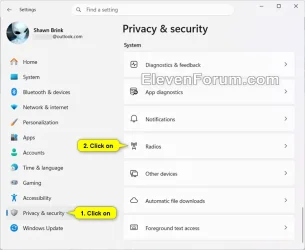
This tutorial will show you how to enable or disable if apps have access to control device radios for your account or all users in Windows 11.
The radio control access privacy setting allows you to manage if apps can control radio devices such as Wi‑Fi, Bluetooth, cellular, NFC, and similar wireless hardware.
For example, an app with radio control access may be able to disable Wi‑Fi or enable Bluetooth programmatically, whereas an app without that permission cannot perform those control operations.
- Option One: Turn On or Off Radio Control Access by Apps for All Users in Settings
- Option Two: Turn On or Off Radio Control Access by Apps for All Users using Command
- Option Three: Turn On or Off Radio Control Access by Apps for Current User in Settings
- Option Four: Enable or Disable Radio Control Access by Apps for All Users in Local Group Policy Editor
- Option Five: Enable or Disable Radio Control Access by Apps for All Users using REG file
You must be signed in as an administrator to use this option.
1 Open Settings (Win+I).
2 Click/tap on Privacy & security on the left side, and click/tap on Radios on the right side under "System". (see screenshot below)
3 Turn On (default) or Off Radio control access for what you want. (see screenshot below)
This will enable (on) or disable (off) users ability to use Option Three.
4 You can now close Settings if you like.
You must be signed in as an administrator to use this option.
This is the same setting as Option One.
1 Open Windows Terminal (Admin), and select either Windows PowerShell or Command Prompt.
2 Copy and paste the command below you want to use into Terminal (Admin), and press Enter to apply. (see screenshots below)
This will enable (on) or disable (off) users ability to use Option Three.
Turn on "Radio control access"
SystemSettingsAdminFlows.exe SetCamSystemGlobal radios 1OR
Turn off "Radio control access"
SystemSettingsAdminFlows.exe SetCamSystemGlobal radios 01 Open Settings (Win+I).
2 Click/tap on Privacy & security on the left side, and click/tap on Radios on the right side under "System". (see screenshot below)
3 Turn On (default) or Off Let apps control device radios for what you want. (see screenshot below)
4 You can now close Settings if you like.
Enable or Disable Radio Control Access by Apps for All Users in Local Group Policy Editor
You must be signed in as an administrator to use this option.
The Local Group Policy Editor is only available in the Windows 11 Pro, Enterprise, and Education editions.
All editions can use Option Five to configure the same policy.
1 Open the Local Group Policy Editor (gpedit.msc).
2 Navigate to the policy location below in the left pane of the Local Group Policy Editor. (see screenshot below step 3)
3 In the right pane of App Privacy in the Local Group Policy Editor, double click/tap on the Let Windows apps control radios policy to edit it. (see screenshot below)
4 Do step 5 (force enable), step 6 (disable), or step 7 (default) below for what you want.
This will prevent using Option One, Option Two, and Option Three.
This will prevent using Option One, Option Two, and Option Three.
This is the default setting to allow using Option One, Option Two, and Option Three.
8 You can now close the Local Group Policy Editor if you like.
You must be signed in as an administrator to use this option.
1 Do step 2 (force enable), step 3 (disable), or step 4 (disable) below for what you want.
This will prevent using Option One, Option Two, and Option Three.
(Contents of REG file for reference)
Windows Registry Editor Version 5.00

[HKEY_LOCAL_MACHINE\SOFTWARE\Policies\Microsoft\Windows\AppPrivacy]
"LetAppsAccessRadios"=dword:00000001
"LetAppsAccessRadios_UserInControlOfTheseApps"=hex(7):00,00
"LetAppsAccessRadios_ForceAllowTheseApps"=hex(7):00,00
"LetAppsAccessRadios_ForceDenyTheseApps"=hex(7):00,00This will prevent using Option One, Option Two, and Option Three.
(Contents of REG file for reference)
Windows Registry Editor Version 5.00

[HKEY_LOCAL_MACHINE\SOFTWARE\Policies\Microsoft\Windows\AppPrivacy]
"LetAppsAccessRadios"=dword:00000002
"LetAppsAccessRadios_UserInControlOfTheseApps"=hex(7):00,00
"LetAppsAccessRadios_ForceAllowTheseApps"=hex(7):00,00
"LetAppsAccessRadios_ForceDenyTheseApps"=hex(7):00,00This is the default setting to allow using Option One, Option Two, and Option Three.
(Contents of REG file for reference)
Windows Registry Editor Version 5.00

[HKEY_LOCAL_MACHINE\SOFTWARE\Policies\Microsoft\Windows\AppPrivacy]
"LetAppsAccessRadios"=-
"LetAppsAccessRadios_UserInControlOfTheseApps"=-
"LetAppsAccessRadios_ForceAllowTheseApps"=-
"LetAppsAccessRadios_ForceDenyTheseApps"=-
5 Save the .reg file to your desktop.
6 If you have Smart App Control turned on, you will need to unblock the downloaded REG file.
7 Double click/tap on the downloaded .reg file to merge it.
8 When prompted, click/tap on Run, Yes (UAC), Yes, and OK to approve the merge.
9 You can now delete the downloaded .reg file if you like.
That's it,
Shawn Brink