1080P scaling on Laptop (15.6")


Matyy

Active member
Local time
5:40 AM
Posts
7
OS
Windows 11
Hi I think this is the correct place to post this "issue" of mine. I have a laptop that when using 1080P Resolution (native) at 100% scale on windows 11 23H2 v22361.4751, Windows Looks very big, taskbar are huge and also tabs and windows interfaces looks pixelated, is this normal or is something wrong ? I don't remember 1080p being so bad on a 24" monitor. Recently I have been using 1440p (Nvidia DSR) and everything seems to look much better and scaling works great, but are all 15.6" screens so bad at 1080p ? Is there a way to downscale 1080p lower than 100% ?
I would like to know if some other people is using this kind of resolution and screen combo and what do you guys think about it?
 

My Computer My Computer

At a glance

Windows 11Intel Core i9 12900h16GB DDR5 4800Mhz SamsungNvidia RTX 3070 TI
OS
Windows 11
Computer type
Laptop
Manufacturer/Model
Asus Strix Scar 15 2022
CPU
Intel Core i9 12900h
Memory
16GB DDR5 4800Mhz Samsung
Graphics Card(s)
Nvidia RTX 3070 TI
Screen Resolution
2560x1440p
Hard Drives
NVME Micron 3400 1TB
Ext SSD Crucial X8 2TB
WD Elements 5TB
Mouse
Steelseries Rival 710
Internet Speed
300 Mbps
Browser
Firefox / Chrome
Antivirus
Windows Defender
I have a 15.6” and it's fine.

1.webp
 

My Computer My Computer

At a glance

Microsoft Windows 11 HomeIntel Core i5-13490F2 x 16 Patriot Memory (PDP Systems) PSD516G56...GIGABYTE GeForce RTX 4070 WINDFORCE OC 12G (G...
OS
Microsoft Windows 11 Home
Computer type
PC/Desktop
Manufacturer/Model
MSI MS-7D98
CPU
Intel Core i5-13490F
Motherboard
MSI B760 GAMING PLUS WIFI
Memory
2 x 16 Patriot Memory (PDP Systems) PSD516G560081 6400MT (32-37-37-74); 1.35V)
Graphics Card(s)
GIGABYTE GeForce RTX 4070 WINDFORCE OC 12G (GV-N4070WF3OC-12GD)
Sound Card
Bluetooth Аудио
Monitor(s) Displays
INNOCN 15K1F
Screen Resolution
1920 x 1080
Hard Drives
WD_BLACK SN770 250GB
KINGSTON SNV2S1000G (ELFK0S.6)
PSU
Thermaltake Toughpower GF3 1000W
Case
CG560 - DeepCool
Cooling
ID-COOLING SE-224-XTS / 2 x 140Mm Fan - rear and top; 3 x 120Mm - front
Keyboard
Corsair K70 RGB TKL
Mouse
Corsair KATAR PRO XT
Internet Speed
100 Mbps
Browser
Firefox
Antivirus
Microsoft Defender Antivirus
Other Info
https://www.userbenchmark.com/UserRun/66553205
Is there a way to downscale 1080p lower than 100% ?

I had a similar problem when going from a 1080p 32 inch monitor to a 40 inch.... it looked horrible. This utility gave me the ability to choose any resolution I wanted even though the monitor officially shouldn't support it. Custom Resolution Utility (CRU)

Forcing a higher resolution is basically the same as scaling to less than 100%. You'll still have the pixilated look, but the desktop will be larger and icons smaller.

In the end I went to 43 inch 4k monitor set on 2k because I couldn't find 4k in anything 32-40 inches. It's bigger than what I wanted but everything looks great and I have plenty of room.
 

My Computer My Computer

At a glance

Windows 11Intel(R) Core(TM) i9-14900KCorsair 128GB (4x32GB) DDR5 5600MT/S CL40 Mem...Onboard
OS
Windows 11
Computer type
PC/Desktop
Manufacturer/Model
Intel
CPU
Intel(R) Core(TM) i9-14900K
Motherboard
GIGABYTE Z790 AORUS Elite X WIFI7
Memory
Corsair 128GB (4x32GB) DDR5 5600MT/S CL40 Memory Kit
Graphics Card(s)
Onboard
Sound Card
Onboard
Monitor(s) Displays
43 inch 4k
Screen Resolution
2k (2560 x 1440)
Hard Drives
WD_BLACK 1TB NVMe SSD with Heatsink 7300 mb/s
PSU
MEG Ai1300P PCIE 5 & ATX 3.0 PSU 1300 watts
Case
Phanteks (PH-ES614PTG_BK) Enthoo Pro ATX , Tempered Glass, Integrated RGB Lighting
Cooling
ENERMAX LIQMAXFLO 360mm A-RGB AIO CPU Liquid Cooler
Keyboard
Wireless logitech
Mouse
Wireless logitech
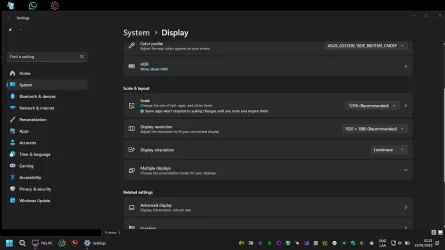
this is a screenshot of windows settings interface at 1080p and it occupies almost the entire screen. Idk maybe is me that im used to 1440p but it looks huge in person.


scaling 1080p.webp
 

My Computer My Computer

At a glance

Windows 11Intel Core i9 12900h16GB DDR5 4800Mhz SamsungNvidia RTX 3070 TI
OS
Windows 11
Computer type
Laptop
Manufacturer/Model
Asus Strix Scar 15 2022
CPU
Intel Core i9 12900h
Memory
16GB DDR5 4800Mhz Samsung
Graphics Card(s)
Nvidia RTX 3070 TI
Screen Resolution
2560x1440p
Hard Drives
NVME Micron 3400 1TB
Ext SSD Crucial X8 2TB
WD Elements 5TB
Mouse
Steelseries Rival 710
Internet Speed
300 Mbps
Browser
Firefox / Chrome
Antivirus
Windows Defender
I had a similar problem when going from a 1080p 32 inch monitor to a 40 inch.... it looked horrible. This utility gave me the ability to choose any resolution I wanted even though the monitor officially shouldn't support it. Custom Resolution Utility (CRU)

Forcing a higher resolution is basically the same as scaling to less than 100%. You'll still have the pixilated look, but the desktop will be larger and icons smaller.

In the end I went to 43 inch 4k monitor set on 2k because I couldn't find 4k in anything 32-40 inches. It's bigger than what I wanted but everything looks great and I have plenty of room.
I tried CRU once but forced a bad resolution or scale or refresh rate idk and the screen went weird and I couldn't see anything, it was like that until I was able to reset the CRU config and fix it because I dont have a second monitor at hand, so I was traumatized by that program xD.
 

My Computer My Computer

At a glance

Windows 11Intel Core i9 12900h16GB DDR5 4800Mhz SamsungNvidia RTX 3070 TI
OS
Windows 11
Computer type
Laptop
Manufacturer/Model
Asus Strix Scar 15 2022
CPU
Intel Core i9 12900h
Memory
16GB DDR5 4800Mhz Samsung
Graphics Card(s)
Nvidia RTX 3070 TI
Screen Resolution
2560x1440p
Hard Drives
NVME Micron 3400 1TB
Ext SSD Crucial X8 2TB
WD Elements 5TB
Mouse
Steelseries Rival 710
Internet Speed
300 Mbps
Browser
Firefox / Chrome
Antivirus
Windows Defender
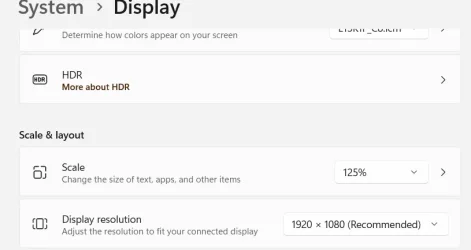
I'm not sure, but try changing something here, if it's on the laptop.

2.webp
 

My Computer My Computer

At a glance

Microsoft Windows 11 HomeIntel Core i5-13490F2 x 16 Patriot Memory (PDP Systems) PSD516G56...GIGABYTE GeForce RTX 4070 WINDFORCE OC 12G (G...
OS
Microsoft Windows 11 Home
Computer type
PC/Desktop
Manufacturer/Model
MSI MS-7D98
CPU
Intel Core i5-13490F
Motherboard
MSI B760 GAMING PLUS WIFI
Memory
2 x 16 Patriot Memory (PDP Systems) PSD516G560081 6400MT (32-37-37-74); 1.35V)
Graphics Card(s)
GIGABYTE GeForce RTX 4070 WINDFORCE OC 12G (GV-N4070WF3OC-12GD)
Sound Card
Bluetooth Аудио
Monitor(s) Displays
INNOCN 15K1F
Screen Resolution
1920 x 1080
Hard Drives
WD_BLACK SN770 250GB
KINGSTON SNV2S1000G (ELFK0S.6)
PSU
Thermaltake Toughpower GF3 1000W
Case
CG560 - DeepCool
Cooling
ID-COOLING SE-224-XTS / 2 x 140Mm Fan - rear and top; 3 x 120Mm - front
Keyboard
Corsair K70 RGB TKL
Mouse
Corsair KATAR PRO XT
Internet Speed
100 Mbps
Browser
Firefox
Antivirus
Microsoft Defender Antivirus
Other Info
https://www.userbenchmark.com/UserRun/66553205
I tried CRU once but forced a bad resolution or scale or refresh rate idk and the screen went weird and I couldn't see anything, it was like that until I was able to reset the CRU config and fix it because I dont have a second monitor at hand, so I was traumatized by that program xD.

I would say just set it to something conservative with a low refresh rate. If you can do 1080 at 60 then maybe 1152 or 1440 at 30.

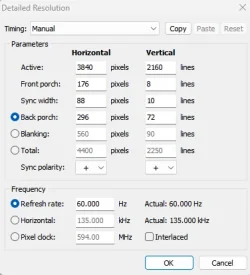
It's not an easy utility to figure out. You have to pick a preset automatic PC or HDTV then input the resolution you want and the refresh rate.

cru.webp

If you pick manual, then you have to figure out what to put in all these boxes, which could be the source of the problem you had last time.

1737612799491.webp

There are lots of ways to undo the changes, but I never had to. The first one I picked happened to work. I couldn't believe it lol.

But if your native resolution is 1080, there is no other way of going higher or scaling below 100%, that I know of. You could try changing the icon and text sizes but that seems to work in some places and not in others.
 

My Computer My Computer

At a glance

Windows 11Intel(R) Core(TM) i9-14900KCorsair 128GB (4x32GB) DDR5 5600MT/S CL40 Mem...Onboard
OS
Windows 11
Computer type
PC/Desktop
Manufacturer/Model
Intel
CPU
Intel(R) Core(TM) i9-14900K
Motherboard
GIGABYTE Z790 AORUS Elite X WIFI7
Memory
Corsair 128GB (4x32GB) DDR5 5600MT/S CL40 Memory Kit
Graphics Card(s)
Onboard
Sound Card
Onboard
Monitor(s) Displays
43 inch 4k
Screen Resolution
2k (2560 x 1440)
Hard Drives
WD_BLACK 1TB NVMe SSD with Heatsink 7300 mb/s
PSU
MEG Ai1300P PCIE 5 & ATX 3.0 PSU 1300 watts
Case
Phanteks (PH-ES614PTG_BK) Enthoo Pro ATX , Tempered Glass, Integrated RGB Lighting
Cooling
ENERMAX LIQMAXFLO 360mm A-RGB AIO CPU Liquid Cooler
Keyboard
Wireless logitech
Mouse
Wireless logitech
Hi I think this is the correct place to post this "issue" of mine. I have a laptop that when using 1080P Resolution (native) at 100% scale on windows 11 23H2 v22361.4751, Windows Looks very big, taskbar are huge and also tabs and windows interfaces looks pixelated, is this normal or is something wrong ? I don't remember 1080p being so bad on a 24" monitor. Recently I have been using 1440p (Nvidia DSR) and everything seems to look much better and scaling works great, but are all 15.6" screens so bad at 1080p ? Is there a way to downscale 1080p lower than 100% ?
I would like to know if some other people is using this kind of resolution and screen combo and what do you guys think about it?
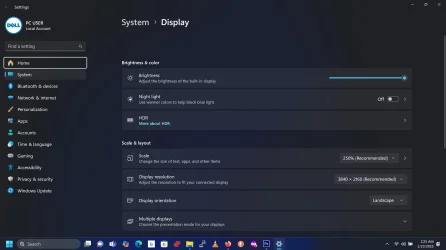
I have a 15.6" screen. I replaced the original with a used 4k 15.6". With the original screen, my settings were about 125% and screen resolution 1920x1200.
After swapping out the original for the 4K (like performing laptop surgery), my resolution settings changed dramatically.
My current 15.6" 4K screen resolution is 3840x2160 with 250% scale (recommended).

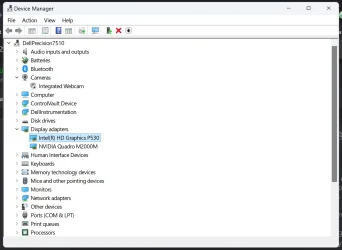
My laptop has onboard Intel(R) HD Graphics P530 video and also and NVIDIA Quadro M2000M w/ 4 GB GDDR5. Not a gaming laptop, more of a mobile workstation laptop capable of Photoshop, Video editing, etc. I suppose it would do gaming but not my thing.

Make sure your Display Adapter drivers are updated. This can make a huge difference.


Windows11-display-settings.webp

Windows11-display-adapters.webp
 

My Computers My Computers

  • At a glance

    Windows 11 Pro 25H2 (OS Build 26200.8246)Intel(R) Xeon(R) CPU E3-1535M v5 @ 2.90 Max T...64GB DDR4 ECC (Error-Correcting Code memory)NVIDIA Quadro M2000M 4GB GDDR5 & Intel(R) HD ...
    OS
    Windows 11 Pro 25H2 (OS Build 26200.8246)
    Computer type
    Laptop
    Manufacturer/Model
    Dell Precision Mobile Workstation
    CPU
    Intel(R) Xeon(R) CPU E3-1535M v5 @ 2.90 Max Turbo 3.80
    Motherboard
    00V5FJ
    Memory
    64GB DDR4 ECC (Error-Correcting Code memory)
    Graphics Card(s)
    NVIDIA Quadro M2000M 4GB GDDR5 & Intel(R) HD Graphics P530
    Sound Card
    Realtek Audio
    Monitor(s) Displays
    15.6" 4K UltraHD
    Screen Resolution
    4K UHD 3840x2160
    Hard Drives
    2TB Crucial NVMe & 2TB Seagate SATA
    PSU
    Dell 180W 19.5V-9.23A
    Keyboard
    Backlit
    Mouse
    Logitech G703 & Logitech G305
    Internet Speed
    WIFI: Intel(R) Wi-Fi 6E AX210NGW(Gig+) 160MHz Bands 2.4GHz(574Mbps), 5GHz 2.4Gbps, 6 GHz (160MHz) 2.4Gbps
    Browser
    Mozilla Firefox
    Antivirus
    Windows Defender/Microsoft Security + additional Anti Spyware, Anti Malware, etc.
    Other Info
    Thunderbolt 3
  • At a glance

    Windows 11 Pro 24H2 (OS Build 26100.6725)Dual (X2) Intel(R) Xeon(R) CPU E5-2690 0 @ 2....64GB DDR3 ECC (Error-Correcting Code memory)NVIDIA GeForce GTX 970 4GB of GDDR5
    Operating System
    Windows 11 Pro 24H2 (OS Build 26100.6725)
    Computer type
    PC/Desktop
    Manufacturer/Model
    Dell Precision Workstation T5610
    CPU
    Dual (X2) Intel(R) Xeon(R) CPU E5-2690 0 @ 2.90GHz Max Turbo 3.80
    Motherboard
    0WN7Y6
    Memory
    64GB DDR3 ECC (Error-Correcting Code memory)
    Graphics card(s)
    NVIDIA GeForce GTX 970 4GB of GDDR5
    Sound Card
    Realtek Audio & NVIDIA High Definition Audio
    Monitor(s) Displays
    3 Acer Monitors
    Screen Resolution
    1920x1080
    Hard Drives
    2 Seagate Barracuda ST2000DM008-2UB102 (RAID)
    Mouse
    Logitech G305
I'm not sure, but try changing something here, if it's on the laptop.

View attachment 122944

Yeah im using this already at 1440p and works great but the only way for these options to appear are when using dGpu via deactivating Intel integrated graphics, my problem is not about the resolution but the scaling itself of 1080p but anyway I think iI will stay with 1440p and next time get a laptop with native QHD.
 

My Computer My Computer

At a glance

Windows 11Intel Core i9 12900h16GB DDR5 4800Mhz SamsungNvidia RTX 3070 TI
OS
Windows 11
Computer type
Laptop
Manufacturer/Model
Asus Strix Scar 15 2022
CPU
Intel Core i9 12900h
Memory
16GB DDR5 4800Mhz Samsung
Graphics Card(s)
Nvidia RTX 3070 TI
Screen Resolution
2560x1440p
Hard Drives
NVME Micron 3400 1TB
Ext SSD Crucial X8 2TB
WD Elements 5TB
Mouse
Steelseries Rival 710
Internet Speed
300 Mbps
Browser
Firefox / Chrome
Antivirus
Windows Defender
Looks perfectly normal post #4. Well nigh identical to my Laptop screen 2560 x 1600 150%(Recommended).

Allowing for the 16:10 aspect ratio giving a bit more vertical room.

For a 1920 x 1080 screen the recommended would be 125%.
Going to lower values make things bigger which is contrary to what you want.

"Is there a way to downscale 1080p lower than 100% ?"

As I said, to get smaller appearance you need to go to higher scale values which you have available as standard.

Sounds a bit counter intuitive but Windows display scaling has always been like that. I am very surprised you have not sussed that out by now.
 

My Computer My Computer

At a glance

Windows 11
OS
Windows 11
I have a 15.6” and it's fine.

View attachment 122942


I set mine at 105% on a 17" and everything now looks normal. The default drop-down scaling doesn't support granular adjustment. You click scale instead to set a custom value, you input what you like, click apply and sign out and sign in agaIn for the change to take effect. Finally, everything looked normal than appearing too small at 100% or too oversized at 125%.
 

My Computers My Computers

  • At a glance

    Windows 11 Education For 25H2Intel® Core i7 5500u8 GBIntel HD Family Graphics 5500 AMD Firepro 4150M
    OS
    Windows 11 Education For 25H2
    Computer type
    Laptop
    Manufacturer/Model
    HP ZBook G2
    CPU
    Intel® Core i7 5500u
    Motherboard
    HP
    Memory
    8 GB
    Graphics Card(s)
    Intel HD Family Graphics 5500 AMD Firepro 4150M
    Sound Card
    Realtek High Audio
    Hard Drives
    1 TB SSD
    Mouse
    HP USB Mouse
    Antivirus
    Windows Defender
  • At a glance

    Windows 11 Pro For Workstations 25H2Xeon 1535m v632 GBAMD Quadro Pro 4100
    Operating System
    Windows 11 Pro For Workstations 25H2
    Computer type
    Laptop
    Manufacturer/Model
    HP Zbook G4
    CPU
    Xeon 1535m v6
    Motherboard
    HP
    Memory
    32 GB
    Graphics card(s)
    AMD Quadro Pro 4100
    Sound Card
    Bang and Olufson Audio
    Hard Drives
    1TB SSD
    Mouse
    HP USB Mouse
    Antivirus
    Windows Defender
Your specs say 1440p resolution. If that's the native resolution no wonder 1080p looks blurry and large. Set the maximum resolution supported by the monitor and set scaling to 100. This should be as sharp as possible with normal Taskbar thickness.
 

My Computers My Computers

  • At a glance

    Windows 11 Pro 23H2 (7582), 25H2 (9457)Mobile DualCore Intel Core 2 Duo T7250, 2000 MHz4GBMobile Intel(R) GMA 4500M (Mobile 4 series)
    OS
    Windows 11 Pro 23H2 (7582), 25H2 (9457)
    Computer type
    Laptop
    Manufacturer/Model
    Acer Extensa 5630EZ
    CPU
    Mobile DualCore Intel Core 2 Duo T7250, 2000 MHz
    Motherboard
    Acer Extensa 5630
    Memory
    4GB
    Graphics Card(s)
    Mobile Intel(R) GMA 4500M (Mobile 4 series)
    Sound Card
    Realtek ALC268 @ Intel 82801IB ICH9 - High Definition Audio Controller
    Monitor(s) Displays
    1
    Screen Resolution
    1280x800
    Hard Drives
    Samsung SSD 850 EVO 250GB SATA Device (250 GB, SATA-III)
    Internet Speed
    802.11g wireless 54 Mbps
    Browser
    MICROSOFT EDGE
    Antivirus
    WINDOWS DEFENDER
    Other Info
    Legacy MBR installation, no TPM, no Secure Boot, no WDDM 2.0 graphics drivers, no SSE4.2, cannot get more unsupported ;) This is only my test laptop. I had installed Windows 11 here before upgrading my main PC. For my main PC I use everyday see my 2nd system specs.
  • At a glance

    Windows 11 Pro 25H2 (build 26200.9457)Intel Core-i7 3770 3.40GHz s1155 (3rd generat...2x Kingston Hyper-X Blu 8GB DDR3-1600GIGABYTE GeForce RTX 3050 WINDFORCE OC V2 6GB...
    Operating System
    Windows 11 Pro 25H2 (build 26200.9457)
    Computer type
    PC/Desktop
    Manufacturer/Model
    Custom-built PC
    CPU
    Intel Core-i7 3770 3.40GHz s1155 (3rd generation)
    Motherboard
    Asus P8H61 s1155 ATX
    Memory
    2x Kingston Hyper-X Blu 8GB DDR3-1600
    Graphics card(s)
    GIGABYTE GeForce RTX 3050 WINDFORCE OC V2 6GB (GV-N3050WF2OCV2-6GD)
    Sound Card
    Realtek HD audio (ALC887)
    Monitor(s) Displays
    Sony Bravia KDL-19L4000 19" LCD TV via VGA
    Screen Resolution
    1440x900 32-bit 60Hz
    Hard Drives
    WD Blue SA510 2.5 1000GB SSD as system disk, Western Digital Caviar Purple 4TB SATA III (WD40PURZ) as second
    PSU
    Thermaltake Litepower RGB 550W Full Wired
    Case
    SUPERCASE MIDI-TOWER
    Cooling
    Deepcool Gamma Archer CPU cooler, 1x 8cm fan at the back
    Keyboard
    Mitsumi 101-key PS/2
    Mouse
    Microsoft Compact Optical Mouse
    Internet Speed
    802.11ac 5GHz wireless 260Mpbs
    Browser
    Microsoft Edge, Mozilla Firefox
    Antivirus
    Microsoft Windows Defender
    Other Info
    Legacy BIOS (MBR) installation, no TPM, no Secure Boot, WDDM 3.0 graphics drivers, WEI score 7.4

Latest Support Threads

Back
Top Bottom