This tutorial will show you how to add items to run automatically at startup for your account, specific user(s), or all users in Windows 11.
Startup apps are the apps that start automatically when you sign in to Windows 11.
You can have any app, shortcut, folder, drive, file, script, etc.. items automatically open or run at startup.
Reference:
Configure Startup applications in Windows | Microsoft Support
 support.microsoft.com
An item that requires to Run as administrator (elevated) will not be allowed to run at startup by default for security reasons.
As a workaround, you can create an elevated shortcut for this item, and copy/move this elevated shortcut into the Startup folder below in this tutorial.
- Option One: Add Item to Run Automatically at Startup for Current User (your account)
- Option Two: Add Item to Run Automatically at Startup for Specific User
- Option Three: Add Item to Run Automatically at Startup for All Users
1 Open File Explorer (Win+E).
2 Copy and paste
shell:startup into the address bar of File Explorer, and press Enter to open your account's Startup folder. (see screenshot below)3 Add or create a shortcut of any app, folder, drive, file, script, etc... you want to run at startup for your account into this Startup folder.
If you want to run a Microsoft Store app at startup, you can drag and drop the app from Start menu > All apps into this Startup folder to create a shortcut of the Microsoft Store app in the Startup folder.
You must be signed in as an administrator to use this option.
1 Open File Explorer (Win+E).
2 Navigate to the hidden folder below in File Explorer. (see screenshot below)
Substitute <user profile folder> in the path above with the actual profile folder name (ex: "Brink") for the account you want.
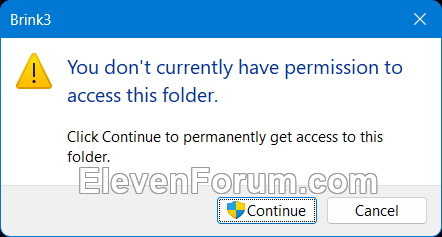
You may be prompted to click/tap on Continue to approve opening the <user profile folder>.
3 Add or create a shortcut of any app, folder, drive, file, script, etc... you want to run at startup for this account into this Startup folder.
If you want to run a Microsoft Store app at startup, you can drag and drop the app from Start menu > All apps into this Startup folder to create a shortcut of the Microsoft Store app into the Startup folder.
You must be signed in as an administrator to use this option.
1 Open File Explorer (Win+E).
2 Navigate to the hidden folder below in File Explorer. (see screenshot below step 3)
3 Copy or move a shortcut of any app, folder, drive, file, script, etc... you want to run at startup for all users into this Startup folder. (see screenshot below)
If you want to run a Microsoft Store app at startup, you can drag and drop the app from Start menu > All apps to your desktop to create a shortcut of the Microsoft Store app on your desktop. Copy or move this app shortcut on your desktop into the Startup folder.
4 Click/tap on Continue to approve copy/move the shortcut into this Startup folder. (see screenshot below)
That's it,
Shawn Brink
- Enable or Disable Startup Apps in Windows 11
- See Impact of Startup Apps in Windows 11
- Enable or Disable Delay of Running Startup Apps in Windows 11
- Turn On or Off OneDrive Run at Startup in Windows 11
- Automatically Run Hyper-V Virtual Machines at Startup in Windows 11
- Turn On or Off Automatically Restart Apps when Sign back in Windows 11
- Turn On or Off Restore previous folder windows at logon in Windows 11
- Enable or Disable Automatically Open Microsoft Edge Bar at Windows Startup
- Enable or Disable Automatically Start Magnifier before Sign-in in Windows 11
- Enable or Disable Automatically Start Magnifier after Sign-in in Windows 11
- Enable or Disable Automatically Start Narrator before Sign-in in Windows 11
- Enable or Disable Automatically Start Narrator after Sign-in in Windows 11