This tutorial will show you how to add "Control Panel" to the Desktop context menu for all users in Windows 10 and Windows 11.
The Control Panel Desktop context menu allows you to quickly open the Control Panel in either the Category view, Icons view (large or small), or All Tasks (God Mode) on demand.
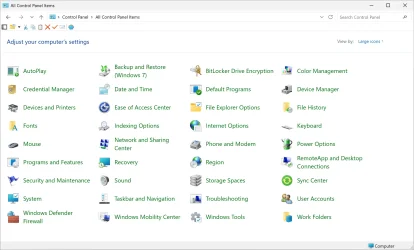
You can use Control Panel to change settings for Windows. These settings control nearly everything about how Windows looks and works, and you can use them to set up Windows so that it's just right for you.
While you must be signed in as an administrator to add or remove the "Control Panel" context menu, all users can use the context menu if added.
The Control Panel is in the process of being deprecated in favor of the Settings app, which offers a more modern and streamlined experience.
While the Control Panel still exists for compatibility reasons and to provide access to some settings that have not yet migrated, you're encouraged to use the Settings app, whenever possible.
EXAMPLE: Control Panel context menu
In Windows 11, you will need to click/tap on Show more options first by default, then click/tap on Control Panel.
Here's How:
1 Do step 2 (add) or step 3 (remove) below for what you want.
2 Add "Control Panel" Desktop Context Menu
A) Click/tap on the Download button below to download the file below, and go to step 4 below.
Add_Control_Panel_to_desktop_context_menu.reg
Download
(Contents of REG file for reference)
Code:
Windows Registry Editor Version 5.00

[HKEY_CLASSES_ROOT\DesktopBackground\Shell\ControlPanel]
"MUIVerb"="Control Panel"
"SubCommands"=""
"Icon"="imageres.dll,-27"
"Position"="Bottom"

[HKEY_CLASSES_ROOT\DesktopBackground\Shell\ControlPanel\shell\001menu]
@="Category view"

[HKEY_CLASSES_ROOT\DesktopBackground\Shell\ControlPanel\shell\001menu\command]
@="explorer.exe shell:::{26EE0668-A00A-44D7-9371-BEB064C98683}"


[HKEY_CLASSES_ROOT\DesktopBackground\Shell\ControlPanel\shell\002menu]
@="Icons view"

[HKEY_CLASSES_ROOT\DesktopBackground\Shell\ControlPanel\shell\002menu\command]
@="explorer.exe shell:::{21EC2020-3AEA-1069-A2DD-08002B30309D}"

[HKEY_CLASSES_ROOT\DesktopBackground\Shell\ControlPanel\shell\003menu]
@="All Tasks (God mode)"

[HKEY_CLASSES_ROOT\DesktopBackground\Shell\ControlPanel\shell\003menu\command]
@="explorer.exe shell:::{ED7BA470-8E54-465E-825C-99712043E01C}"
3 Remove "Control Panel" Desktop Context Menu
This is the default setting.
A) Click/tap on the Download button below to download the file below, and go to step 4 below.
Remove_Control_Panel_from_desktop_context_menu.reg
Download
(Contents of REG file for reference)
Code:
Windows Registry Editor Version 5.00

[-HKEY_CLASSES_ROOT\DesktopBackground\Shell\ControlPanel]
4 Save the .reg file to your desktop.
5 Double click/tap on the downloaded .reg file to merge it.
6 When prompted, click/tap on Run, Yes (UAC), Yes, and OK to approve the merge.
7 You can now delete the downloaded .reg file if you like.
That's it,
Shawn Brink
Attachments
Last edited: