This tutorial will show you how to setup and show up to two additional clocks for different time zones on the taskbar for your account in Windows 11.
Windows can display up to three clocks on the taskbar: one for the local time and two additional clocks for different time zones. After you set up additional clocks, you can view them by clicking on or hover the pointer over the taskbar clock.
Starting with Windows 11 build 26040 (Canary), when you hover over the date and time in the system tray, the tooltip will now always show a clock even when you only have a single clock added.
Each addition clock is saved to the registry keys below:
Clock 1 = HKEY_CURRENT_USER\Control Panel\TimeDate\AdditionalClocks\1
Clock 2 = HKEY_CURRENT_USER\Control Panel\TimeDate\AdditionalClocks\2
Additional clocks requires Show time and date in the System tray turned on.
Contents
- Option One: Add or Remove Additional Clocks in Control Panel
- Option Two: Add or Remove Additional Clocks in Settings
EXAMPLE: Additional clocks for different time zones on taskbar
1 Open the Control Panel (icons view), and click/tap on Date and Time.
2 Click/tap on the Additional Clocks (control timedate.cpl,,1) tab. (see screenshot below)
3 Do step 4 (add/change) or step 5 (remove) below for what you want.
4 Add or Change Additional Clock(s)
A) Check Show this clock for the clock(s) you want to add or change. (see screenshot below)
B) Select time zone you want for the clock(s).
C) Enter display name you want for the clock(s).
D) Click/tap on OK.
5 Remove Additional Clock(s)
This is the default setting.
A) Uncheck Show this clock for the clock(s) you want to remove, and click/tap on OK. (see screenshot below)
This option is currently only available to Windows 11 build 26200.5742 (Dev 25H2), build 26120.5742 (Beta 24H2), build 27928 (Canary), and build 2610.5061 (RP 24H2).
If you don't have this setting available in the build above yet, then you can enable it using the ViVeTool command below.
vivetool /enable /id:57159238

Enable or Disable Hidden Feature Flags in Windows 11
This tutorial will show you how to enable or disable hidden experimental feature flags in Windows 11. ViVeTool is an open source tool that can be used to enable hidden features that are part of controlled feature roll-outs or A/B testing in Insider builds of Windows 11. Starting with Windows...
 www.elevenforum.com
1 Open Settings (Win+I).
2 Click/tap on Time & language on the left side, and click/tap on Date & time on the right side. (see screenshot below)
3 Do step 4 (add/change) or step 5 (remove) below for what you want.
4. Add or Change Additional Clock(s)
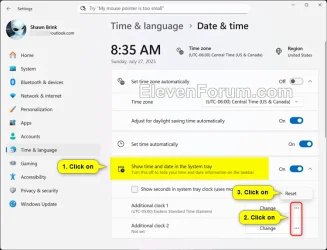
A) Click/tap on Show time and date in the System tray to expand it open. (see screenshot below step 4B)
B) Click/tap on the Change button for the "Additional Clock 1" or "Additional Clock 2" you want to add or change. (see screenshot below)
C) Select a Time zone you want for the additional clock in the drop menu. (see screenshot below step 4E)
D) Enter a Display name you want for the additional clock. (see screenshot below step 4E)
E) Click/tap on Change to apply. (see screenshot below)
5. Remove Additional Clock(s)
A) Click/tap on Show time and date in the System tray to expand it open. (see screenshot below)
B) Click/tap on the More options (3 dots) button for the "Additional Clock 1" or "Additional Clock 2" you want to remove.
C) Click/tap on Reset.
That's it,
Shawn Brink
Attachments
Last edited: