Personalization Add or Remove App Extensions on Context Menu in Windows 11


Apps_banner.webp

This tutorial will show you how to add or remove App extensions on the modern context menu for your account in Windows 11.

Starting with Windows 11 build 26340.9212 (Experimental 26H2) for Insiders, Microsoft is beginning to roll out an updated Customize menu context menu experience in File Explorer, designed to feel faster, cleaner, and easier to tailor to the way you work. The new design reduces top-level clutter, keeps commonly used actions easy to access, and adds a new Settings experience that gives you more control over what appears in the menu. As Microsoft continues refining this experience with Insider feedback, their goal is to make right-click feel more responsive, predictable, and personal.

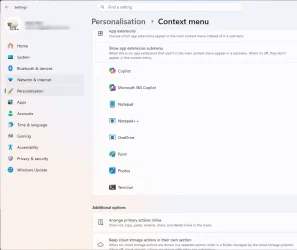
The App actions section on the modern context menu is about options for app extensibility, so you can choose which app extensions appear in the main menu or submenu, including hiding the submenu altogether.

You can turn on or off the Show app extensions submenu setting to add (on) or remove (off) the App extensions submenu on the modern context menu.

You can turn on or off app extensions to either show them in the App extensions submenu when turned off or show inline on the main modern context menu when turned on.

This does not affect the Shift + Right Click classic context menu.


If you don't have the new Customize menu context menu settings feature in the build above and would like to test it now, then you can use the vivetool command below to enable this feature.

vivetool.exe /enable /id:60813048



Contents

  • Option One: Add or Remove "App extensions" Submenu on Context Menu in Settings
  • Option Two: Add or Remove "App extensions" Submenu on Context Menu using REG file
  • Option Three: Turn On or Off Show App Extensions Inline on Context Menu in Settings
  • Option Four: Turn On or Off Show App Extensions Inline on Context Menu in Registry Editor


EXAMPLE: "App extensions" submenu and inline app extensions on modern context menu

App_extensions_submenu-ON.webp
App_extensions_submenu-OFF.webp
App_extensions_inline.webp


Option One

Add or Remove "App extensions" Submenu on Context Menu in Settings


1 Open Settings (Win+I).

2 Click/tap on Personalization in the left pane, and click/tap on Context menu. (see screenshot below)


Context_menu_Settings-1.webp

3 Under File actions, click/tap on App extensions to expand it open. (see screenshot below step 4)

4 Turn On (add - default) or Off (remove) Show app extensions submenu for what you want. (see screenshot below)

Context_menu_Settings-2.webp

5 You can now close Settings if you like.


Option Two

Add or Remove "App extensions" Submenu on Context Menu using REG file


1 Do step 2 (on) or step 3 (off) below for what you would like to do.

2 Add "App extensions" Submenu to Context Menu

This is the default setting.


A) Click/tap on the Download button below to download the REG file below, and go to step 4 below.​

Add_App_extensions_submenu_to_context_menu.reg


(Contents of REG file for reference)
Code:
Windows Registry Editor Version 5.00

[HKEY_CURRENT_USER\Software\Microsoft\Windows\CurrentVersion\Explorer\ContextMenu\Preferences\ShowExtensions]
"Enabled"=dword:00000001

3 Remove "App extensions" Submenu from Context Menu

A) Click/tap on the Download button below to download the REG file below, and go to step 4 below.​

Remove_App_extensions_submenu_from_context_menu.reg


(Contents of REG file for reference)
Code:
Windows Registry Editor Version 5.00

[HKEY_CURRENT_USER\Software\Microsoft\Windows\CurrentVersion\Explorer\ContextMenu\Preferences\ShowExtensions]
"Enabled"=dword:00000000

4 Save the .reg file to your desktop.

5 If you have Smart App Control turned on, you will need to unblock the downloaded REG file.

6 Double click/tap on the downloaded .reg file to merge it.

7 When prompted, click/tap on Run, Yes (UAC), Yes, and OK to approve the merge.

8 You can now delete the downloaded .reg file if you like.


Option Three

Turn On or Off Show App Extensions Inline on Context Menu in Settings


1 Open Settings (Win+I).

2 Click/tap on Personalization in the left pane, and click/tap on Context menu. (see screenshot below)


Context_menu_Settings-1.webp

3 Under File actions, click/tap on App extensions to expand it open. (see screenshot below step 4)

4 Turn On (show on main context menu) or Off (show in "App extensions" submenu) listed app extensions for what you want. (see screenshot below)

Context_menu_Settings-3.webp

5 You can now close Settings if you like.


Option Four

Turn On or Off Show App Extensions Inline on Context Menu in Registry Editor


1 Open Registry Editor (regedit.exe).

2 Navigate to and expand open the key below in the left pane of Registry Editor. (see screenshot below)

HKEY_CURRENT_USER\Software\Microsoft\Windows\CurrentVersion\Explorer\ContextMenu\Preferences\extensions

App_extensions_context_menu_regedit-1.webp

3 Under the extensions key in the left pane, click/tap on a listed app extension you want to turn on (show on main context menu) or off (show in "App extensions" submenu). (see screenshot below step 4)

App extensions will only be listed here after they have been toggled on/off for the first time in Settings in Option Three.


4 In the right pane of the selected app extension (ex: "Windows Terminal"), double click/tap on the Enabled DWORD value to modify it. (see screenshot below)

App_extensions_context_menu_regedit-2.webp

5 Type 0 (off - show in "App extensions" submenu) or 1 (on - show on main context menu) for what you want, and click/tap on OK. (see screenshot below)

App_extensions_context_menu_regedit-3.webp

6 When finished, you can close Registry Editor if you like.


That's it,
Shawn Brink


Attachments

Last edited:
  • Like
Reactions: OAT
@Brink , Thanks for that Shawn.
I've been testing the new context menu and I am not yet totally convinced.
I have been using NileSoft menu ,which is in my view, the best.
I have never liked the standard Win11 menu with the actions buttons on top; I can't get into the habit of using those.
I must say that the extension config is a good addition and allows for some serious customization.
So we shall see and it's still early days.
 

My Computers My Computers

  • At a glance

    All Branches but StableAMD Ryzen 7 7735HS 3200-4500 Mhz 8 cores x 232 GB DDR5Radeon Graphic / NVIDIA GeForce RTX 4060 8 GB...
    OS
    All Branches but Stable
    Computer type
    Laptop
    Manufacturer/Model
    Acer Nitro ANV15-51
    CPU
    AMD Ryzen 7 7735HS 3200-4500 Mhz 8 cores x 2
    Motherboard
    Sportage_RBH
    Memory
    32 GB DDR5
    Graphics Card(s)
    Radeon Graphic / NVIDIA GeForce RTX 4060 8 GB GDDR6
    Sound Card
    AMD/Realtek(R) Audio
    Monitor(s) Displays
    Integrated Monitor (15.3"vis)
    Screen Resolution
    FHD 1920X1080 16:9 144Hz
    Hard Drives
    KINGSTON OM8SEP4512Q-AA 1TB
    Western Digital 256GB
    PSU
    19V DC 6.32 A 120 W
    Cooling
    Dual Fans
    Mouse
    MS Bluetooth
    Internet Speed
    Fiber 1GB Cox -us & 1GB Orange-fr
    Browser
    Edge Canary- Firefox Nightly-Chrome Dev-Chrome Dev
    Antivirus
    Windows Defender
  • At a glance

    Windows 11 BetaAMD A9-94208 GB of DDR4AMD Radeon R5
    Operating System
    Windows 11 Beta
    Computer type
    Laptop
    Manufacturer/Model
    Asus X751BP
    CPU
    AMD A9-9420
    Memory
    8 GB of DDR4
    Graphics card(s)
    AMD Radeon R5
    Screen Resolution
    1600x900
    Hard Drives
    Seagate 1 TB
under personalization there is no context menu option
 

My Computer My Computer

At a glance

Windows 11Ryzen 78+16 total 24GB
OS
Windows 11
Computer type
Laptop
Manufacturer/Model
Asus
CPU
Ryzen 7
Memory
8+16 total 24GB
Other Info
Asus Vivobook 15 M513U
under personalization there is no context menu option

Hey mate, :alien:

That is only gradually rolling out starting with Windows 11 build 26340.9212 (Experimental 26H2) for now.
 

My Computers My Computers

  • At a glance

    Windows 11 Pro for WorkstationsIntel i7-8700K 5 GHz64 GB (4x16GB) G.SKILL TridentZ RGB DDR4 3600...ASUS ROG-STRIX-GTX1080TI-O11G-GAMING (11GB GD...
    OS
    Windows 11 Pro for Workstations
    Computer type
    PC/Desktop
    Manufacturer/Model
    Custom self build
    CPU
    Intel i7-8700K 5 GHz
    Motherboard
    ASUS ROG Maximus XI Formula Z390
    Memory
    64 GB (4x16GB) G.SKILL TridentZ RGB DDR4 3600 MHz (F4-3600C18D-32GTZR)
    Graphics Card(s)
    ASUS ROG-STRIX-GTX1080TI-O11G-GAMING (11GB GDDR5X)
    Sound Card
    Integrated Digital Audio (S/PDIF)
    Monitor(s) Displays
    2 x Samsung Odyssey G75 27"
    Screen Resolution
    2560x1440
    Hard Drives
    1TB Samsung 990 PRO M.2,
    4TB Samsung 990 PRO M.2,
    TerraMaster F8 SSD Plus NAS
    PSU
    Seasonic Prime Titanium 850W
    Case
    Thermaltake Core P3 wall mounted
    Cooling
    Corsair Hydro H115i
    Keyboard
    Amazon Basics Wired Full Keyboard MD005
    Mouse
    Logitech MX Master 4
    Internet Speed
    2 Gbps Download and 100 Mbps Upload
    Browser
    Chrome and Edge
    Antivirus
    Microsoft Defender
    Other Info
    Logitech Z625 speaker system,
    Logitech BRIO 4K Pro webcam,
    HP Color LaserJet Pro MFP M477fdn,
    CyberPower CP1500PFCLCD
    Galaxy S23 Plus phone
  • At a glance

    Windows 11 ProSnapdragon X Elite (12 core) 3.42 GHz16 GB LPDDR5x-7467 MHz
    Operating System
    Windows 11 Pro
    Computer type
    Laptop
    Manufacturer/Model
    Surface Laptop 7 Copilot+ PC
    CPU
    Snapdragon X Elite (12 core) 3.42 GHz
    Memory
    16 GB LPDDR5x-7467 MHz
    Monitor(s) Displays
    15" HDR
    Screen Resolution
    2496 x 1664
    Hard Drives
    1 TB SSD
    Internet Speed
    Wi-Fi 7 and Bluetooth 5.4
    Browser
    Chrome and Edge
    Antivirus
    Microsoft Defender
Hi, is there a way to add custom apps to the "Show App Extensions Submenu"?

I have VLC media player already installed, but it does not show up in the list of apps in aforementioned submenu. I regularly used the right click option to open media folders using VLC but cannot use this method at the moment.

Many thanks in advance.
 

Attachments

  • 2026-09-04_09h40_55.webp
    2026-09-04_09h40_55.webp
    40.8 KB · Views: 1
Last edited:

My Computer My Computer

At a glance

Windows 11 Pro Insider PreviewIntel 14th Gen32gb
OS
Windows 11 Pro Insider Preview
Computer type
PC/Desktop
CPU
Intel 14th Gen
Motherboard
ASUS_Prime_Z790-P_D4
Memory
32gb

My Computers My Computers

  • At a glance

    Windows 11 Pro
    OS
    Windows 11 Pro
    Computer type
    PC/Desktop
    Manufacturer/Model
    ASUS ROG Strix
  • At a glance

    Windows 11 Pro
    Operating System
    Windows 11 Pro
    Computer type
    Laptop
    Manufacturer/Model
    ASUS VivoBook
  • ASUS VivoBook 'Lite' ~ Windows 11 Home
Hi, it is the classic desktop version.

VLC_Media_Player_(64bit)_v3.0.23 if that is of any use.

Thanks
 

My Computer My Computer

At a glance

Windows 11 Pro Insider PreviewIntel 14th Gen32gb
OS
Windows 11 Pro Insider Preview
Computer type
PC/Desktop
CPU
Intel 14th Gen
Motherboard
ASUS_Prime_Z790-P_D4
Memory
32gb
it is the classic desktop version.
I'm thinking, if it's the UWP Store version, it would show up in that list...,
if the Desktop version, it won't.
 

My Computers My Computers

  • At a glance

    Windows 11 Pro
    OS
    Windows 11 Pro
    Computer type
    PC/Desktop
    Manufacturer/Model
    ASUS ROG Strix
  • At a glance

    Windows 11 Pro
    Operating System
    Windows 11 Pro
    Computer type
    Laptop
    Manufacturer/Model
    ASUS VivoBook
  • ASUS VivoBook 'Lite' ~ Windows 11 Home
Many thanks for the thought, i will certainly give it a go and get back to you.

I did try uninstalling/reinstalling but this didn't make any difference.
 

My Computer My Computer

At a glance

Windows 11 Pro Insider PreviewIntel 14th Gen32gb
OS
Windows 11 Pro Insider Preview
Computer type
PC/Desktop
CPU
Intel 14th Gen
Motherboard
ASUS_Prime_Z790-P_D4
Memory
32gb
Righty ho, gave that a blast.

Uninstalled the classic version using Revo. Hard reset.
Installed VLC through the MS Store.
The new version has the same version number as the classic. Soft reset.
Sadly, it is still not showing in the App Extensions Submenu.

The W11 version I am using is:
Windows 11 Pro Insider Preview
Evaluation copy. Build 26340.9233.ge_prerelease_im.260815-0716

I will flag it up to them and see if that gets any feedback.

Many thanks for your support.
 

My Computer My Computer

At a glance

Windows 11 Pro Insider PreviewIntel 14th Gen32gb
OS
Windows 11 Pro Insider Preview
Computer type
PC/Desktop
CPU
Intel 14th Gen
Motherboard
ASUS_Prime_Z790-P_D4
Memory
32gb
Sadly, it is still not showing in the App Extensions Submenu.
Out of curiosity, is there anything VLC related if you click Show more options at the bottom?
 

My Computers My Computers

  • At a glance

    Windows 11 Pro
    OS
    Windows 11 Pro
    Computer type
    PC/Desktop
    Manufacturer/Model
    ASUS ROG Strix
  • At a glance

    Windows 11 Pro
    Operating System
    Windows 11 Pro
    Computer type
    Laptop
    Manufacturer/Model
    ASUS VivoBook
  • ASUS VivoBook 'Lite' ~ Windows 11 Home
Hi, that is something I hadn't considered.

VLC is showing in the Show More Options submenu. Whether that is a natural entry or maybe because of some Registry tweaks I had previously applied I am not sure. But it is certainly there and something I had overlooked.

Many thanks for identifying this for me, I am very grateful.
 

My Computer My Computer

At a glance

Windows 11 Pro Insider PreviewIntel 14th Gen32gb
OS
Windows 11 Pro Insider Preview
Computer type
PC/Desktop
CPU
Intel 14th Gen
Motherboard
ASUS_Prime_Z790-P_D4
Memory
32gb

Latest Support Threads

Back
Top Bottom