Personalization Add or Remove Folders under This PC in File Explorer in Windows 11


Display_banner.png

This tutorial will show you how to add or remove the 3D Objects, Desktop, Documents, Downloads, Music, Pictures, and/or Videos folder(s) in File Explorer > This PC for all users in Windows 11.

Starting with Windows 11 build 25136 and build 22621.160, Microsoft is introducing a refreshed layout of the left navigation pane in File Explorer which makes it easy for you to navigate to folders that matter to you.

Known Windows Folders which are available by default in the navigation pane are no longer displayed as a "Folders" group under This PC to keep that view focused for your PC’s drives.

If you like, you can add the 3D Objects, Desktop, Documents, Downloads, Music, Pictures, and/or Videos folder(s) back under "Folders" in File Explorer > This PC.


You must be signed in as an administrator to add or remove folders in File Explorer > This PC.

This does not add folders under "This PC" in the navigation pane of File Explorer.

This does not affect folders in the navigation pane.


Contents

  • Option One: Add Folders under This PC in File Explorer
  • Option Two: Remove Folders under This PC in File Explorer


EXAMPLE: Add Folders group under This PC in File Explorer

This_PC_Folders.png


Option One

Add Folders under This PC in File Explorer


1 Do step 2 (all), step 3 (3D Objects), step 4 (Desktop), step 5 (Documents), step 6 (Downloads), step 7 (Music), step 8 (Pictures), or step 9 (Videos) for the folder(s) you want to add.


 2. Add All Folders to This PC

A) Click/tap on the Download button below to download the .reg file below, and go to step 10 below.​

Add_all_folders_to_This_PC_in_File_Explorer.reg


(Contents of REG file for reference)
Code:
Windows Registry Editor Version 5.00

; 3D Folders
[HKEY_LOCAL_MACHINE\SOFTWARE\Microsoft\Windows\CurrentVersion\Explorer\MyComputer\NameSpace\{0DB7E03F-FC29-4DC6-9020-FF41B59E513A}]

; Desktop
[HKEY_LOCAL_MACHINE\SOFTWARE\Microsoft\Windows\CurrentVersion\Explorer\MyComputer\NameSpace\{B4BFCC3A-DB2C-424C-B029-7FE99A87C641}]
"HideIfEnabled"=-

[HKEY_LOCAL_MACHINE\SOFTWARE\Microsoft\Windows\CurrentVersion\Explorer\MyComputer\NameSpace\{B4BFCC3A-DB2C-424C-B029-7FE99A87C641}]
"HiddenByDefault"=dword:00000000

; Documents
[HKEY_LOCAL_MACHINE\SOFTWARE\Microsoft\Windows\CurrentVersion\Explorer\MyComputer\NameSpace\{d3162b92-9365-467a-956b-92703aca08af}]
"HideIfEnabled"=-

[HKEY_LOCAL_MACHINE\SOFTWARE\Microsoft\Windows\CurrentVersion\Explorer\MyComputer\NameSpace\{d3162b92-9365-467a-956b-92703aca08af}]
"HiddenByDefault"=dword:00000000

; Downloads
[HKEY_LOCAL_MACHINE\SOFTWARE\Microsoft\Windows\CurrentVersion\Explorer\MyComputer\NameSpace\{088e3905-0323-4b02-9826-5d99428e115f}]
"HideIfEnabled"=-

[HKEY_LOCAL_MACHINE\SOFTWARE\Microsoft\Windows\CurrentVersion\Explorer\MyComputer\NameSpace\{088e3905-0323-4b02-9826-5d99428e115f}]
"HiddenByDefault"=dword:00000000

; Music
[HKEY_LOCAL_MACHINE\SOFTWARE\Microsoft\Windows\CurrentVersion\Explorer\MyComputer\NameSpace\{3dfdf296-dbec-4fb4-81d1-6a3438bcf4de}]
"HideIfEnabled"=-

[HKEY_LOCAL_MACHINE\SOFTWARE\Microsoft\Windows\CurrentVersion\Explorer\MyComputer\NameSpace\{1CF1260C-4DD0-4ebb-811F-33C572699FDE}]
"HiddenByDefault"=dword:00000000

[HKEY_LOCAL_MACHINE\SOFTWARE\Microsoft\Windows\CurrentVersion\Explorer\MyComputer\NameSpace\{3dfdf296-dbec-4fb4-81d1-6a3438bcf4de}]
"HiddenByDefault"=dword:00000000

; Pictures
[HKEY_LOCAL_MACHINE\SOFTWARE\Microsoft\Windows\CurrentVersion\Explorer\MyComputer\NameSpace\{24ad3ad4-a569-4530-98e1-ab02f9417aa8}]
"HideIfEnabled"=-

[HKEY_LOCAL_MACHINE\SOFTWARE\Microsoft\Windows\CurrentVersion\Explorer\MyComputer\NameSpace\{24ad3ad4-a569-4530-98e1-ab02f9417aa8}]
"HiddenByDefault"=dword:00000000

; Videos
[HKEY_LOCAL_MACHINE\SOFTWARE\Microsoft\Windows\CurrentVersion\Explorer\MyComputer\NameSpace\{f86fa3ab-70d2-4fc7-9c99-fcbf05467f3a}]
"HideIfEnabled"=-

[HKEY_LOCAL_MACHINE\SOFTWARE\Microsoft\Windows\CurrentVersion\Explorer\MyComputer\NameSpace\{f86fa3ab-70d2-4fc7-9c99-fcbf05467f3a}]
"HiddenByDefault"=dword:00000000


 3. Add 3D Objects folder to This PC

A) Click/tap on the Download button below to download the .reg file below, and go to step 10 below.​

Add_3D_Objects_folder_to_This_PC_in_File_Explorer.reg


(Contents of REG file for reference)
Code:
Windows Registry Editor Version 5.00

[HKEY_LOCAL_MACHINE\SOFTWARE\Microsoft\Windows\CurrentVersion\Explorer\MyComputer\NameSpace\{0DB7E03F-FC29-4DC6-9020-FF41B59E513A}]


 4. Add Desktop folder to This PC

A) Click/tap on the Download button below to download the .reg file below, and go to step 10 below.​

Add_Desktop_folder_to_This_PC_in_File_Explorer.reg


(Contents of REG file for reference)
Code:
Windows Registry Editor Version 5.00

[HKEY_LOCAL_MACHINE\SOFTWARE\Microsoft\Windows\CurrentVersion\Explorer\MyComputer\NameSpace\{B4BFCC3A-DB2C-424C-B029-7FE99A87C641}]
"HideIfEnabled"=-

[HKEY_LOCAL_MACHINE\SOFTWARE\Microsoft\Windows\CurrentVersion\Explorer\MyComputer\NameSpace\{B4BFCC3A-DB2C-424C-B029-7FE99A87C641}]
"HiddenByDefault"=dword:00000000


 5. Add Documents folder to This PC

A) Click/tap on the Download button below to download the .reg file below, and go to step 10 below.​

Add_Documents_folder_to_This_PC_in_File_Explorer.reg


(Contents of REG file for reference)
Code:
Windows Registry Editor Version 5.00

[HKEY_LOCAL_MACHINE\SOFTWARE\Microsoft\Windows\CurrentVersion\Explorer\MyComputer\NameSpace\{d3162b92-9365-467a-956b-92703aca08af}]
"HideIfEnabled"=-

[HKEY_LOCAL_MACHINE\SOFTWARE\Microsoft\Windows\CurrentVersion\Explorer\MyComputer\NameSpace\{d3162b92-9365-467a-956b-92703aca08af}]
"HiddenByDefault"=dword:00000000


 6. Add Downloads folder to This PC

A) Click/tap on the Download button below to download the .reg file below, and go to step 10 below.​

Add_Downloads_folder_to_This_PC_in_File_Explorer.reg


(Contents of REG file for reference)
Code:
Windows Registry Editor Version 5.00

[HKEY_LOCAL_MACHINE\SOFTWARE\Microsoft\Windows\CurrentVersion\Explorer\MyComputer\NameSpace\{088e3905-0323-4b02-9826-5d99428e115f}]
"HideIfEnabled"=-

[HKEY_LOCAL_MACHINE\SOFTWARE\Microsoft\Windows\CurrentVersion\Explorer\MyComputer\NameSpace\{088e3905-0323-4b02-9826-5d99428e115f}]
"HiddenByDefault"=dword:00000000


 7. Add Music folder to This PC

A) Click/tap on the Download button below to download the .reg file below, and go to step 10 below.​

Add_Music_folder_to_This_PC_in_File_Explorer.reg


(Contents of REG file for reference)
Code:
Windows Registry Editor Version 5.00

[HKEY_LOCAL_MACHINE\SOFTWARE\Microsoft\Windows\CurrentVersion\Explorer\MyComputer\NameSpace\{3dfdf296-dbec-4fb4-81d1-6a3438bcf4de}]
"HideIfEnabled"=-

[HKEY_LOCAL_MACHINE\SOFTWARE\Microsoft\Windows\CurrentVersion\Explorer\MyComputer\NameSpace\{1CF1260C-4DD0-4ebb-811F-33C572699FDE}]
"HiddenByDefault"=dword:00000000

[HKEY_LOCAL_MACHINE\SOFTWARE\Microsoft\Windows\CurrentVersion\Explorer\MyComputer\NameSpace\{3dfdf296-dbec-4fb4-81d1-6a3438bcf4de}]
"HiddenByDefault"=dword:00000000


 8. Add Pictures folder to This PC

A) Click/tap on the Download button below to download the .reg file below, and go to step 10 below.​

Add_Pictures_folder_to_This_PC_in_File_Explorer.reg


(Contents of REG file for reference)
Code:
Windows Registry Editor Version 5.00

[HKEY_LOCAL_MACHINE\SOFTWARE\Microsoft\Windows\CurrentVersion\Explorer\MyComputer\NameSpace\{24ad3ad4-a569-4530-98e1-ab02f9417aa8}]
"HideIfEnabled"=-

[HKEY_LOCAL_MACHINE\SOFTWARE\Microsoft\Windows\CurrentVersion\Explorer\MyComputer\NameSpace\{24ad3ad4-a569-4530-98e1-ab02f9417aa8}]
"HiddenByDefault"=dword:00000000


 8. Add Videos folder to This PC

A) Click/tap on the Download button below to download the .reg file below, and go to step 10 below.​

Add_Videos_folder_to_This_PC_in_File_Explorer.reg


(Contents of REG file for reference)
Code:
Windows Registry Editor Version 5.00

[HKEY_LOCAL_MACHINE\SOFTWARE\Microsoft\Windows\CurrentVersion\Explorer\MyComputer\NameSpace\{f86fa3ab-70d2-4fc7-9c99-fcbf05467f3a}]
"HideIfEnabled"=-

[HKEY_LOCAL_MACHINE\SOFTWARE\Microsoft\Windows\CurrentVersion\Explorer\MyComputer\NameSpace\{f86fa3ab-70d2-4fc7-9c99-fcbf05467f3a}]
"HiddenByDefault"=dword:00000000

10 Save the .reg file to your desktop.

11 If you have Smart App Control turned on, you will need to unblock the downloaded REG file.

12 Double click/tap on the downloaded .reg file to merge it.

13 When prompted, click/tap on Run, Yes (UAC), Yes, and OK to approve the merge.

14 If File Explorer is currently open, then either refresh (F5) or close and reopen File Explorer to apply.

15 You can now delete the downloaded .reg file(s) if you like.


Option Two

Remove Folders under This PC in File Explorer


1 Do step 2 (all), step 3 (3D Objects), step 4 (Desktop), step 5 (Documents), step 6 (Downloads), step 7 (Music), step 8 (Pictures), or step 9 (Videos) for the folder(s) you want to remove.


 2. Remove All Folders from This PC

This is the default setting.


A) Click/tap on the Download button below to download the .reg file below, and go to step 10 below.​

Remove_all_folders_from_This_PC_in_File_Explorer.reg


(Contents of REG file for reference)
Code:
Windows Registry Editor Version 5.00

; 3D Folders
[-HKEY_LOCAL_MACHINE\SOFTWARE\Microsoft\Windows\CurrentVersion\Explorer\MyComputer\NameSpace\{0DB7E03F-FC29-4DC6-9020-FF41B59E513A}]

; Desktop
[HKEY_LOCAL_MACHINE\SOFTWARE\Microsoft\Windows\CurrentVersion\Explorer\MyComputer\NameSpace\{B4BFCC3A-DB2C-424C-B029-7FE99A87C641}]
"HideIfEnabled"=dword:022ab9b9

[HKEY_LOCAL_MACHINE\SOFTWARE\Microsoft\Windows\CurrentVersion\Explorer\MyComputer\NameSpace\{B4BFCC3A-DB2C-424C-B029-7FE99A87C641}]
"HiddenByDefault"=dword:00000001

; Documents
[HKEY_LOCAL_MACHINE\SOFTWARE\Microsoft\Windows\CurrentVersion\Explorer\MyComputer\NameSpace\{d3162b92-9365-467a-956b-92703aca08af}]
"HideIfEnabled"=dword:022ab9b9

[HKEY_LOCAL_MACHINE\SOFTWARE\Microsoft\Windows\CurrentVersion\Explorer\MyComputer\NameSpace\{d3162b92-9365-467a-956b-92703aca08af}]
"HiddenByDefault"=dword:00000001

; Downloads
[HKEY_LOCAL_MACHINE\SOFTWARE\Microsoft\Windows\CurrentVersion\Explorer\MyComputer\NameSpace\{088e3905-0323-4b02-9826-5d99428e115f}]
"HideIfEnabled"=dword:022ab9b9

[HKEY_LOCAL_MACHINE\SOFTWARE\Microsoft\Windows\CurrentVersion\Explorer\MyComputer\NameSpace\{088e3905-0323-4b02-9826-5d99428e115f}]
"HiddenByDefault"=dword:00000001

; Music
[HKEY_LOCAL_MACHINE\SOFTWARE\Microsoft\Windows\CurrentVersion\Explorer\MyComputer\NameSpace\{3dfdf296-dbec-4fb4-81d1-6a3438bcf4de}]
"HideIfEnabled"=dword:022ab9b9

[HKEY_LOCAL_MACHINE\SOFTWARE\Microsoft\Windows\CurrentVersion\Explorer\MyComputer\NameSpace\{1CF1260C-4DD0-4ebb-811F-33C572699FDE}]
"HiddenByDefault"=dword:00000001

[HKEY_LOCAL_MACHINE\SOFTWARE\Microsoft\Windows\CurrentVersion\Explorer\MyComputer\NameSpace\{3dfdf296-dbec-4fb4-81d1-6a3438bcf4de}]
"HiddenByDefault"=dword:00000001

; Pictures
[HKEY_LOCAL_MACHINE\SOFTWARE\Microsoft\Windows\CurrentVersion\Explorer\MyComputer\NameSpace\{24ad3ad4-a569-4530-98e1-ab02f9417aa8}]
"HideIfEnabled"=dword:022ab9b9

[HKEY_LOCAL_MACHINE\SOFTWARE\Microsoft\Windows\CurrentVersion\Explorer\MyComputer\NameSpace\{24ad3ad4-a569-4530-98e1-ab02f9417aa8}]
"HiddenByDefault"=dword:00000001

; Videos
[HKEY_LOCAL_MACHINE\SOFTWARE\Microsoft\Windows\CurrentVersion\Explorer\MyComputer\NameSpace\{f86fa3ab-70d2-4fc7-9c99-fcbf05467f3a}]
"HideIfEnabled"=dword:022ab9b9

[HKEY_LOCAL_MACHINE\SOFTWARE\Microsoft\Windows\CurrentVersion\Explorer\MyComputer\NameSpace\{f86fa3ab-70d2-4fc7-9c99-fcbf05467f3a}]
"HiddenByDefault"=dword:00000001


 3. Remove 3D Objects folder from This PC

A) Click/tap on the Download button below to download the .reg file below, and go to step 10 below.​

Remove_3D_Objects_folder_from_This_PC_in_File_Explorer.reg


(Contents of REG file for reference)
Code:
Windows Registry Editor Version 5.00

[-HKEY_LOCAL_MACHINE\SOFTWARE\Microsoft\Windows\CurrentVersion\Explorer\MyComputer\NameSpace\{0DB7E03F-FC29-4DC6-9020-FF41B59E513A}]


 4. Remove Desktop folder from This PC

A) Click/tap on the Download button below to download the .reg file below, and go to step 10 below.​

Remove_Desktop_folder_from_This_PC_in_File_Explorer.reg


(Contents of REG file for reference)
Code:
Windows Registry Editor Version 5.00

[HKEY_LOCAL_MACHINE\SOFTWARE\Microsoft\Windows\CurrentVersion\Explorer\MyComputer\NameSpace\{B4BFCC3A-DB2C-424C-B029-7FE99A87C641}]
"HideIfEnabled"=dword:022ab9b9

[HKEY_LOCAL_MACHINE\SOFTWARE\Microsoft\Windows\CurrentVersion\Explorer\MyComputer\NameSpace\{B4BFCC3A-DB2C-424C-B029-7FE99A87C641}]
"HiddenByDefault"=dword:00000001


 5. Remove Documents folder from This PC

A) Click/tap on the Download button below to download the .reg file below, and go to step 10 below.​

Remove_Documents_folder_from_This_PC_in_File_Explorer.reg


(Contents of REG file for reference)
Code:
Windows Registry Editor Version 5.00

[HKEY_LOCAL_MACHINE\SOFTWARE\Microsoft\Windows\CurrentVersion\Explorer\MyComputer\NameSpace\{d3162b92-9365-467a-956b-92703aca08af}]
"HideIfEnabled"=dword:022ab9b9

[HKEY_LOCAL_MACHINE\SOFTWARE\Microsoft\Windows\CurrentVersion\Explorer\MyComputer\NameSpace\{d3162b92-9365-467a-956b-92703aca08af}]
"HiddenByDefault"=dword:00000001


 6. Remove Downloads folder from This PC

A) Click/tap on the Download button below to download the .reg file below, and go to step 10 below.​

Remove_Downloads_folder_from_This_PC_in_File_Explorer.reg


(Contents of REG file for reference)
Code:
Windows Registry Editor Version 5.00

[HKEY_LOCAL_MACHINE\SOFTWARE\Microsoft\Windows\CurrentVersion\Explorer\MyComputer\NameSpace\{088e3905-0323-4b02-9826-5d99428e115f}]
"HideIfEnabled"=dword:022ab9b9

[HKEY_LOCAL_MACHINE\SOFTWARE\Microsoft\Windows\CurrentVersion\Explorer\MyComputer\NameSpace\{088e3905-0323-4b02-9826-5d99428e115f}]
"HiddenByDefault"=dword:00000001


 7. Remove Music folder from This PC

A) Click/tap on the Download button below to download the .reg file below, and go to step 10 below.​

Remove_Music_folder_from_This_PC_in_File_Explorer.reg


(Contents of REG file for reference)
Code:
Windows Registry Editor Version 5.00

[HKEY_LOCAL_MACHINE\SOFTWARE\Microsoft\Windows\CurrentVersion\Explorer\MyComputer\NameSpace\{3dfdf296-dbec-4fb4-81d1-6a3438bcf4de}]
"HideIfEnabled"=dword:022ab9b9

[HKEY_LOCAL_MACHINE\SOFTWARE\Microsoft\Windows\CurrentVersion\Explorer\MyComputer\NameSpace\{1CF1260C-4DD0-4ebb-811F-33C572699FDE}]
"HiddenByDefault"=dword:00000001

[HKEY_LOCAL_MACHINE\SOFTWARE\Microsoft\Windows\CurrentVersion\Explorer\MyComputer\NameSpace\{3dfdf296-dbec-4fb4-81d1-6a3438bcf4de}]
"HiddenByDefault"=dword:00000001


 8. Remove Pictures folder from This PC

A) Click/tap on the Download button below to download the .reg file below, and go to step 10 below.​

Remove_Pictures_folder_from_This_PC_in_File_Explorer.reg


(Contents of REG file for reference)
Code:
Windows Registry Editor Version 5.00

[HKEY_LOCAL_MACHINE\SOFTWARE\Microsoft\Windows\CurrentVersion\Explorer\MyComputer\NameSpace\{24ad3ad4-a569-4530-98e1-ab02f9417aa8}]
"HideIfEnabled"=dword:022ab9b9

[HKEY_LOCAL_MACHINE\SOFTWARE\Microsoft\Windows\CurrentVersion\Explorer\MyComputer\NameSpace\{24ad3ad4-a569-4530-98e1-ab02f9417aa8}]
"HiddenByDefault"=dword:00000001


 8. Remove Videos folder from This PC

A) Click/tap on the Download button below to download the .reg file below, and go to step 10 below.​

Remove_Videos_folder_from_This_PC_in_File_Explorer.reg


(Contents of REG file for reference)
Code:
Windows Registry Editor Version 5.00

[HKEY_LOCAL_MACHINE\SOFTWARE\Microsoft\Windows\CurrentVersion\Explorer\MyComputer\NameSpace\{f86fa3ab-70d2-4fc7-9c99-fcbf05467f3a}]
"HideIfEnabled"=dword:022ab9b9

[HKEY_LOCAL_MACHINE\SOFTWARE\Microsoft\Windows\CurrentVersion\Explorer\MyComputer\NameSpace\{f86fa3ab-70d2-4fc7-9c99-fcbf05467f3a}]
"HiddenByDefault"=dword:00000001

10 Save the .reg file to your desktop.

11 If you have Smart App Control turned on, you will need to unblock the downloaded REG file.

12 Double click/tap on the downloaded .reg file to merge it.

13 When prompted, click/tap on Run, Yes (UAC), Yes, and OK to approve the merge.

14 If File Explorer is currently open, then either refresh (F5) or close and reopen File Explorer to apply.

15 You can now delete the downloaded .reg file(s) if you like.


That's it,
Shawn Brink


Attachments

Last edited:
My answer is no, I don't show all folders.
 

My Computer My Computer

At a glance

Windows 11AMD Ryzen 7 5700U16GB
OS
Windows 11
Computer type
Laptop
Manufacturer/Model
Acer Aspire 3 15
CPU
AMD Ryzen 7 5700U
Memory
16GB
Monitor(s) Displays
Sceptre 24"
If all else fails, you could use WinaeroTweaker to add any folder to the Nav Pane...

9284.webp
 

My Computers My Computers

  • At a glance

    Windows 11 Pro
    OS
    Windows 11 Pro
    Computer type
    PC/Desktop
    Manufacturer/Model
    ASUS ROG Strix
  • At a glance

    Windows 11 Pro
    Operating System
    Windows 11 Pro
    Computer type
    Laptop
    Manufacturer/Model
    ASUS VivoBook
  • ASUS VivoBook 'Lite' ~ Windows 11 Home

My Computers My Computers

  • At a glance

    Windows 11 Pro 25H2 Build 26200.8655Intel(R) Core(TM) i7-4770K CPU @ 3.50GHz32.0 GB of I forget and the box is in storage.Gigabyte nVidia GeForce GTX 1660 Super OC 6GB
    OS
    Windows 11 Pro 25H2 Build 26200.8655
    Computer type
    PC/Desktop
    Manufacturer/Model
    Sin-built 2013
    CPU
    Intel(R) Core(TM) i7-4770K CPU @ 3.50GHz
    Motherboard
    ASUS ROG Maximus VI Formula
    Memory
    32.0 GB of I forget and the box is in storage.
    Graphics Card(s)
    Gigabyte nVidia GeForce GTX 1660 Super OC 6GB
    Sound Card
    ROG SupremeFX Formula 8-Channel High Definition Audio
    Monitor(s) Displays
    5 x LG 25MS500-B - 1 x 24MK430H-B - 1 x Wacom Pro 22" Touch Screen Tablet
    Screen Resolution
    All over the place
    Hard Drives
    Too many to list. OS on Samsung 1TB 870 QVO SATA
    PSU
    Silverstone 1500
    Case
    NZXT Phantom 820 Full-Tower Case
    Cooling
    Noctua NH-D15 Elite Class Dual Tower CPU Cooler / 6 x EziDIY 120mm / 2 x Corsair 140mm somethings / 1 x 140mm Thermaltake something / 2 x 200mm Corsair.
    Keyboard
    Corsair K95 / Logitech diNovo Edge Wireless
    Mouse
    Logitech: G402 / G502 / Mx Masters / Mx Air Cordless
    Internet Speed
    2000/500Mbps
    Browser
    All sorts
    Antivirus
    Kaspersky Premium
    Other Info
    ㅤㅤㅤㅤㅤㅤㅤㅤㅤㅤㅤㅤㅤㅤㅤㅤㅤㅤㅤㅤㅤㅤㅤㅤㅤㅤㅤㅤㅤㅤㅤㅤㅤㅤㅤㅤㅤㅤㅤㅤ⠀⠀⠀⠀⠀⠀⠀⠀⠀⠀
    TP-Link BE9300 WiFi 7 Bluetooth 5.4 (Archer TBE550E)
    TP-Link TX201 V1 2.5GB Lan

    Grandstream HT812 - VoIP
    ASUS DSL-AX82U - Mesh
    ASUS RT-AC68U - Mesh
    ASUS RT-BE88U Router

    Brother MFC-L2880DW Printer

    I’m on a horse.
  • At a glance

    Windows 11 Pro 25H2 Build 26200.8655 (Wifes)13th Generation Intel® Core™ i5-1340P Process...16GB LPDDR5-52001x Intel® Iris® Xe Graphics
    Operating System
    Windows 11 Pro 25H2 Build 26200.8655 (Wifes)
    Computer type
    Laptop
    Manufacturer/Model
    LENOVO Yoga 7 14IRL8 - Type 82YL
    CPU
    13th Generation Intel® Core™ i5-1340P Processor(Core™ i5-1340P)
    Memory
    16GB LPDDR5-5200
    Graphics card(s)
    1x Intel® Iris® Xe Graphics
    Sound Card
    Optimized with Dolby Atmos®
    Screen Resolution
    QHD 2880 x 1800 OLED
    Hard Drives
    M.2 512 GB SSD PCIe
    Mouse
    Logiteck MX Master 3S
    Internet Speed
    2000/500
    Antivirus
    Defender / Malwarebytes
    Other Info
    …still on a horse.


    Wireless Network: Wi-Fi 6E 2x2 AX; Bluetooth® 5.1 or above
    Ports: 1x 1 Novo button; 2 in 1 Audio Combo jack; Micro SD Card Reader; HDMI 1.4b; 2 x USB Type-C (TBT4)
    USB 3.2 Gen 2 DP 1.4a
    PD 3.0); 1 x USB 3.2 Gen1 Type A
    Camera
    1x 1080P FHD IR/RGB Hybrid with Privacy Shutter and Dual Array Microphone
    Graphics
    1x Intel® Iris® Xe Graphics
    Monitor
    14" WUXGA
    Form Factor
    Convertible Notebook
  • Windows 11 Pro 25H2 Build 26200.8655 (Wifes)

    Yoga 7 2-in-1 14IML9 - Type 83DJ

    Processor: Intel® Core™ Ultra 7 155H Processor(Core™ Ultra 7 155H)

    Memory: 32GB LPD5X-7467

    Hard Drive: 1 TB SSD PCIe

    Wireless Network: 1x Wi-Fi 6E 2x2 AX; Bluetooth® 5.1 or above

    Ports: 1 x HDMI 2.1 TMDS; 1 x Novo Button; 1 x Combo Audio Jack
    2 x USB-C (USB 4.0)
    1 x USB-A 3.2 Gen 1

    Camera: 1080P FHD IR Hybrid with Dual Microphone

    Graphics: Intel® Arc™ Graphics

    Monitor: 14" 2.8K

    ...Where's my horse?
If you’re interested in how I setup File Explorer to show particular foldrs in the Navigation Pane, and to envoke Expand To Folder in the right pane when using this customisation — It may not be right for you though,it’s a personal preferece:

Using Winaero Tweaker

1 - Navigate to Customize This PC Folders
2 - Selected the User Folder ex Music
3 - Remove it
4/5/6/7 - Add a Custom folder (same folder ex Music)

(Repeat the process for all user folders and any other folder you want to add to the top of This PC so as to "expand to")

Win-1086.png


8 - The folder now appears at the top of This PC
9 - Remove the User Folder/s from Quick Access.
There isn't any point in having them in there in my opinion as they are just below, now under This PC

Clicking on a folder in section 8 in the image, utilizes/allows the process of "Expand to folder" in the right pane of File Explorer


Win-1084.png
 

My Computers My Computers

  • At a glance

    Windows 11 Pro 25H2 Build 26200.8655Intel(R) Core(TM) i7-4770K CPU @ 3.50GHz32.0 GB of I forget and the box is in storage.Gigabyte nVidia GeForce GTX 1660 Super OC 6GB
    OS
    Windows 11 Pro 25H2 Build 26200.8655
    Computer type
    PC/Desktop
    Manufacturer/Model
    Sin-built 2013
    CPU
    Intel(R) Core(TM) i7-4770K CPU @ 3.50GHz
    Motherboard
    ASUS ROG Maximus VI Formula
    Memory
    32.0 GB of I forget and the box is in storage.
    Graphics Card(s)
    Gigabyte nVidia GeForce GTX 1660 Super OC 6GB
    Sound Card
    ROG SupremeFX Formula 8-Channel High Definition Audio
    Monitor(s) Displays
    5 x LG 25MS500-B - 1 x 24MK430H-B - 1 x Wacom Pro 22" Touch Screen Tablet
    Screen Resolution
    All over the place
    Hard Drives
    Too many to list. OS on Samsung 1TB 870 QVO SATA
    PSU
    Silverstone 1500
    Case
    NZXT Phantom 820 Full-Tower Case
    Cooling
    Noctua NH-D15 Elite Class Dual Tower CPU Cooler / 6 x EziDIY 120mm / 2 x Corsair 140mm somethings / 1 x 140mm Thermaltake something / 2 x 200mm Corsair.
    Keyboard
    Corsair K95 / Logitech diNovo Edge Wireless
    Mouse
    Logitech: G402 / G502 / Mx Masters / Mx Air Cordless
    Internet Speed
    2000/500Mbps
    Browser
    All sorts
    Antivirus
    Kaspersky Premium
    Other Info
    ㅤㅤㅤㅤㅤㅤㅤㅤㅤㅤㅤㅤㅤㅤㅤㅤㅤㅤㅤㅤㅤㅤㅤㅤㅤㅤㅤㅤㅤㅤㅤㅤㅤㅤㅤㅤㅤㅤㅤㅤ⠀⠀⠀⠀⠀⠀⠀⠀⠀⠀
    TP-Link BE9300 WiFi 7 Bluetooth 5.4 (Archer TBE550E)
    TP-Link TX201 V1 2.5GB Lan

    Grandstream HT812 - VoIP
    ASUS DSL-AX82U - Mesh
    ASUS RT-AC68U - Mesh
    ASUS RT-BE88U Router

    Brother MFC-L2880DW Printer

    I’m on a horse.
  • At a glance

    Windows 11 Pro 25H2 Build 26200.8655 (Wifes)13th Generation Intel® Core™ i5-1340P Process...16GB LPDDR5-52001x Intel® Iris® Xe Graphics
    Operating System
    Windows 11 Pro 25H2 Build 26200.8655 (Wifes)
    Computer type
    Laptop
    Manufacturer/Model
    LENOVO Yoga 7 14IRL8 - Type 82YL
    CPU
    13th Generation Intel® Core™ i5-1340P Processor(Core™ i5-1340P)
    Memory
    16GB LPDDR5-5200
    Graphics card(s)
    1x Intel® Iris® Xe Graphics
    Sound Card
    Optimized with Dolby Atmos®
    Screen Resolution
    QHD 2880 x 1800 OLED
    Hard Drives
    M.2 512 GB SSD PCIe
    Mouse
    Logiteck MX Master 3S
    Internet Speed
    2000/500
    Antivirus
    Defender / Malwarebytes
    Other Info
    …still on a horse.


    Wireless Network: Wi-Fi 6E 2x2 AX; Bluetooth® 5.1 or above
    Ports: 1x 1 Novo button; 2 in 1 Audio Combo jack; Micro SD Card Reader; HDMI 1.4b; 2 x USB Type-C (TBT4)
    USB 3.2 Gen 2 DP 1.4a
    PD 3.0); 1 x USB 3.2 Gen1 Type A
    Camera
    1x 1080P FHD IR/RGB Hybrid with Privacy Shutter and Dual Array Microphone
    Graphics
    1x Intel® Iris® Xe Graphics
    Monitor
    14" WUXGA
    Form Factor
    Convertible Notebook
  • Windows 11 Pro 25H2 Build 26200.8655 (Wifes)

    Yoga 7 2-in-1 14IML9 - Type 83DJ

    Processor: Intel® Core™ Ultra 7 155H Processor(Core™ Ultra 7 155H)

    Memory: 32GB LPD5X-7467

    Hard Drive: 1 TB SSD PCIe

    Wireless Network: 1x Wi-Fi 6E 2x2 AX; Bluetooth® 5.1 or above

    Ports: 1 x HDMI 2.1 TMDS; 1 x Novo Button; 1 x Combo Audio Jack
    2 x USB-C (USB 4.0)
    1 x USB-A 3.2 Gen 1

    Camera: 1080P FHD IR Hybrid with Dual Microphone

    Graphics: Intel® Arc™ Graphics

    Monitor: 14" 2.8K

    ...Where's my horse?
My File Explorer is exactly how I want it.
Damn right! These are Tools, man..., the Toolbox should be full!
Getting tired of MS's one wrench fits all attitude!
 

My Computers My Computers

  • At a glance

    Windows 11 Pro
    OS
    Windows 11 Pro
    Computer type
    PC/Desktop
    Manufacturer/Model
    ASUS ROG Strix
  • At a glance

    Windows 11 Pro
    Operating System
    Windows 11 Pro
    Computer type
    Laptop
    Manufacturer/Model
    ASUS VivoBook
  • ASUS VivoBook 'Lite' ~ Windows 11 Home
Interesting, but beyond what I want at this time. I have way too many irons in the fire right now.
 

My Computer My Computer

At a glance

Windows 11AMD Ryzen 7 5700U16GB
OS
Windows 11
Computer type
Laptop
Manufacturer/Model
Acer Aspire 3 15
CPU
AMD Ryzen 7 5700U
Memory
16GB
Monitor(s) Displays
Sceptre 24"
Explorer is just a frame..., excuse me, WAS just frame..., capable of all kinds of :poop:!
If it's possible, just do it!

9756.webp
 

My Computers My Computers

  • At a glance

    Windows 11 Pro
    OS
    Windows 11 Pro
    Computer type
    PC/Desktop
    Manufacturer/Model
    ASUS ROG Strix
  • At a glance

    Windows 11 Pro
    Operating System
    Windows 11 Pro
    Computer type
    Laptop
    Manufacturer/Model
    ASUS VivoBook
  • ASUS VivoBook 'Lite' ~ Windows 11 Home
If you’re interested in how I setup File Explorer to show particular foldrs in the Navigation Pane, and to envoke Expand To Folder in the right pane when using this customisation — It may not be right for you though,it’s a personal preferece:

Using Winaero Tweaker

1 - Navigate to Customize This PC Folders
2 - Selected the User Folder ex Music
3 - Remove it
4/5/6/7 - Add a Custom folder (same folder ex Music)

(Repeat the process for all user folders and any other folder you want to add to the top of This PC so as to "expand to")

Win-1086.png


8 - The folder now appears at the top of This PC
9 - Remove the User Folder/s from Quick Access.
There isn't any point in having them in there in my opinion as they are just below, now under This PC

Clicking on a folder in section 8 in the image, utilizes/allows the process of "Expand to folder" in the right pane of File Explorer


Win-1084.png
Thanks for that, interesting and useful program .
 

My Computer My Computer

At a glance

Windows 11AMD Ryzen 7 5700U16GB
OS
Windows 11
Computer type
Laptop
Manufacturer/Model
Acer Aspire 3 15
CPU
AMD Ryzen 7 5700U
Memory
16GB
Monitor(s) Displays
Sceptre 24"
Thanks for that, interesting and useful program .

It is, many features that are worth using, many that to me, are not.
 

My Computers My Computers

  • At a glance

    Windows 11 Pro 25H2 Build 26200.8655Intel(R) Core(TM) i7-4770K CPU @ 3.50GHz32.0 GB of I forget and the box is in storage.Gigabyte nVidia GeForce GTX 1660 Super OC 6GB
    OS
    Windows 11 Pro 25H2 Build 26200.8655
    Computer type
    PC/Desktop
    Manufacturer/Model
    Sin-built 2013
    CPU
    Intel(R) Core(TM) i7-4770K CPU @ 3.50GHz
    Motherboard
    ASUS ROG Maximus VI Formula
    Memory
    32.0 GB of I forget and the box is in storage.
    Graphics Card(s)
    Gigabyte nVidia GeForce GTX 1660 Super OC 6GB
    Sound Card
    ROG SupremeFX Formula 8-Channel High Definition Audio
    Monitor(s) Displays
    5 x LG 25MS500-B - 1 x 24MK430H-B - 1 x Wacom Pro 22" Touch Screen Tablet
    Screen Resolution
    All over the place
    Hard Drives
    Too many to list. OS on Samsung 1TB 870 QVO SATA
    PSU
    Silverstone 1500
    Case
    NZXT Phantom 820 Full-Tower Case
    Cooling
    Noctua NH-D15 Elite Class Dual Tower CPU Cooler / 6 x EziDIY 120mm / 2 x Corsair 140mm somethings / 1 x 140mm Thermaltake something / 2 x 200mm Corsair.
    Keyboard
    Corsair K95 / Logitech diNovo Edge Wireless
    Mouse
    Logitech: G402 / G502 / Mx Masters / Mx Air Cordless
    Internet Speed
    2000/500Mbps
    Browser
    All sorts
    Antivirus
    Kaspersky Premium
    Other Info
    ㅤㅤㅤㅤㅤㅤㅤㅤㅤㅤㅤㅤㅤㅤㅤㅤㅤㅤㅤㅤㅤㅤㅤㅤㅤㅤㅤㅤㅤㅤㅤㅤㅤㅤㅤㅤㅤㅤㅤㅤ⠀⠀⠀⠀⠀⠀⠀⠀⠀⠀
    TP-Link BE9300 WiFi 7 Bluetooth 5.4 (Archer TBE550E)
    TP-Link TX201 V1 2.5GB Lan

    Grandstream HT812 - VoIP
    ASUS DSL-AX82U - Mesh
    ASUS RT-AC68U - Mesh
    ASUS RT-BE88U Router

    Brother MFC-L2880DW Printer

    I’m on a horse.
  • At a glance

    Windows 11 Pro 25H2 Build 26200.8655 (Wifes)13th Generation Intel® Core™ i5-1340P Process...16GB LPDDR5-52001x Intel® Iris® Xe Graphics
    Operating System
    Windows 11 Pro 25H2 Build 26200.8655 (Wifes)
    Computer type
    Laptop
    Manufacturer/Model
    LENOVO Yoga 7 14IRL8 - Type 82YL
    CPU
    13th Generation Intel® Core™ i5-1340P Processor(Core™ i5-1340P)
    Memory
    16GB LPDDR5-5200
    Graphics card(s)
    1x Intel® Iris® Xe Graphics
    Sound Card
    Optimized with Dolby Atmos®
    Screen Resolution
    QHD 2880 x 1800 OLED
    Hard Drives
    M.2 512 GB SSD PCIe
    Mouse
    Logiteck MX Master 3S
    Internet Speed
    2000/500
    Antivirus
    Defender / Malwarebytes
    Other Info
    …still on a horse.


    Wireless Network: Wi-Fi 6E 2x2 AX; Bluetooth® 5.1 or above
    Ports: 1x 1 Novo button; 2 in 1 Audio Combo jack; Micro SD Card Reader; HDMI 1.4b; 2 x USB Type-C (TBT4)
    USB 3.2 Gen 2 DP 1.4a
    PD 3.0); 1 x USB 3.2 Gen1 Type A
    Camera
    1x 1080P FHD IR/RGB Hybrid with Privacy Shutter and Dual Array Microphone
    Graphics
    1x Intel® Iris® Xe Graphics
    Monitor
    14" WUXGA
    Form Factor
    Convertible Notebook
  • Windows 11 Pro 25H2 Build 26200.8655 (Wifes)

    Yoga 7 2-in-1 14IML9 - Type 83DJ

    Processor: Intel® Core™ Ultra 7 155H Processor(Core™ Ultra 7 155H)

    Memory: 32GB LPD5X-7467

    Hard Drive: 1 TB SSD PCIe

    Wireless Network: 1x Wi-Fi 6E 2x2 AX; Bluetooth® 5.1 or above

    Ports: 1 x HDMI 2.1 TMDS; 1 x Novo Button; 1 x Combo Audio Jack
    2 x USB-C (USB 4.0)
    1 x USB-A 3.2 Gen 1

    Camera: 1080P FHD IR Hybrid with Dual Microphone

    Graphics: Intel® Arc™ Graphics

    Monitor: 14" 2.8K

    ...Where's my horse?
Edit 2: I solved the issue by going to the Computer\HKEY_CLASSES_ROOT\CLSID\{B4BFCC3A-DB2C-424C-B029-7FE99A87C641}\ShellFolder, right clicking it and clicking Permissions. Then I clicked Advanced, Change (at the top to change the owner), then changed it from SYSTEM to Administrators (just typed "administrators" the box then clicked "Check Names"). Clicked OK, then OK again. Then I clicked on Administrators and checked the Full Control check box on the Allow column, then OK again. I then double clicked on the SortOrderIndex DWORD, and changed it to 0 (was 0x48 (72) initially). Then I reversed the permission changes by right clicking the Key (the ShellFolder folder in the left pane), clicking Permissions, then clicking Administrators and unchecking the Full Control checkbox in the Allow column. Then clicked Advanced, then Change at the top, then typed "SYSTEM" in the text box, then clicked Check Names, then clicked OK, then OK, then OK, and that was it, Desktop is now the first folder as it should be.

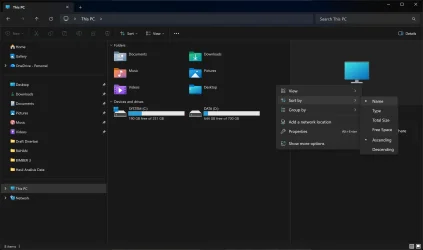
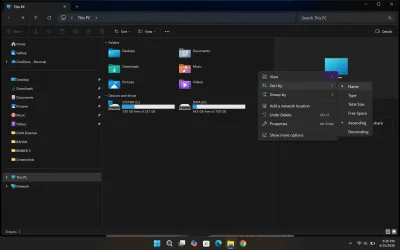
Edit 1: unfortunately it seems that the Folders section doesn't respect the Sort by option, however it does respect Ascending vs Descending, and the Group by option. So the question is how to make the Folders section respect the Sort type, however knowing that Microsoft is deprecating the Folders section, maybe the section will be gone for good before this bug gets fixed.

Hello, this works, however there is a new problem. Earlier (before the tabbed layout) the Desktop folder was the first folder (top left) (ignoring 3D Objects folder which I disable). After applying these registry keys, the Desktop folder is now the last folder (bottom right). I don't see any way I could change the order. I tried to add and remove the DWORDS in different orders to no avail. Do you know of any way to make the Desktop folder the first folder again? Version 22621.675
Thanks to this I wondered if this is not possible on system level, or at least not without some hackery, why not just enforce the sorting on a Current_User level.

I am an extreeeeme noob so this needs testing for potential side effects, but so far it seems that adding the the keys from the root into the HKEY_CURRENT_USER seems to work just fine.
What I did is that I copied Attributes, FloderValuesFlags and SortOrderIndex from the ShellFolder subkey of each key from HKEY_CLASSES_ROOT to the corresponding key in HKEY_CURRENT_USER. Then I set the SortOrderIndex DWORD from 48 to 0, as it was the only one that had it hat way. Others already had 0. In fact all the folders have the exact same values except for this one.
Unfortunatelly this only moved Desktop to the bottom left corner. This puzzles me cos' they should've benn on the same level, but oh well.
So in my last ditch effort I just went for it and set the SortOrderIndex for all the other folders to 1, and voila... Desktop is now in the first place in top left.

Code:
Windows Registry Editor Version 5.00

[HKEY_CURRENT_USER\SOFTWARE\Classes\CLSID\{B4BFCC3A-DB2C-424C-B029-7FE99A87C641}\ShellFolder]
"Attributes"=dword:f080004d
"FolderValueFlags"=dword:00000029
"SortOrderIndex"=dword:00000000

[HKEY_CURRENT_USER\SOFTWARE\Classes\CLSID\{d3162b92-9365-467a-956b-92703aca08af}\ShellFolder]
"Attributes"=dword:f080004d
"FolderValueFlags"=dword:00000029
"SortOrderIndex"=dword:00000001

[HKEY_CURRENT_USER\SOFTWARE\Classes\CLSID\{088e3905-0323-4b02-9826-5d99428e115f}\ShellFolder]
"Attributes"=dword:f080004d
"FolderValueFlags"=dword:00000029
"SortOrderIndex"=dword:00000001

[HKEY_CURRENT_USER\SOFTWARE\Classes\CLSID\{3dfdf296-dbec-4fb4-81d1-6a3438bcf4de}\ShellFolder]
"Attributes"=dword:f080004d
"FolderValueFlags"=dword:00000029
"SortOrderIndex"=dword:00000001

[HKEY_CURRENT_USER\SOFTWARE\Classes\CLSID\{24ad3ad4-a569-4530-98e1-ab02f9417aa8}\ShellFolder]
"Attributes"=dword:f080004d
"FolderValueFlags"=dword:00000029
"SortOrderIndex"=dword:00000001

[HKEY_CURRENT_USER\SOFTWARE\Classes\CLSID\{f86fa3ab-70d2-4fc7-9c99-fcbf05467f3a}\ShellFolder]
"Attributes"=dword:f080004d
"FolderValueFlags"=dword:00000029
"SortOrderIndex"=dword:00000001


Please I ask someone more knowledgable to test this as I have no idea if what I did is safe.
 

My Computer My Computer

At a glance

Windows 11Intel Core i5-13450HX2x Samsung 8GB M425R1GB4PB0-CWMODIntel UHD Graphics 710 ; NVIDIA GeForce RTX 4...
OS
Windows 11
Computer type
Laptop
Manufacturer/Model
LENOVO LOQ 15IRX9 83DV
CPU
Intel Core i5-13450HX
Motherboard
LENOVO LNVNB161216
Memory
2x Samsung 8GB M425R1GB4PB0-CWMOD
Graphics Card(s)
Intel UHD Graphics 710 ; NVIDIA GeForce RTX 4050 Laptop
Screen Resolution
1-3x FHD (144Hz all)
Hard Drives
NVMe SAMSUNG MZAMX1T0HCLD-00BL2
Keyboard
cz/sk + num pad

My Computer My Computer

At a glance

Windows 11 Pro 64-bit (22621.2283)Intel(R) Core(TM) i7-8750H CPU @ 2.20GHz
OS
Windows 11 Pro 64-bit (22621.2283)
Computer type
Laptop
Manufacturer/Model
Acer Aspire 7
CPU
Intel(R) Core(TM) i7-8750H CPU @ 2.20GHz
Hi Brink,

I have tried to use your tutorial in my laptop. The thing is that the folders are not sorted correctly. You can see from the screenshot that the Desktop folder always at the end of the group even it was sorted ascending by name. I also have tried to add those folders one by one (instead of using the "Add All Folders to This PC") with the same results.

Is it possible to "fix" this? And is it possible to seperate this "Add and Remove Folder" for different Groups (Folders and Devices and drives)? Thank you.


Screenshot 2026-04-15 085742.webp
 

My Computer My Computer

At a glance

Windows 11
OS
Windows 11
Computer type
Laptop
Manufacturer/Model
Lenovo
Hi Brink,

I have tried to use your tutorial in my laptop. The thing is that the folders are not sorted correctly. You can see from the screenshot that the Desktop folder always at the end of the group even it was sorted ascending by name. I also have tried to add those folders one by one (instead of using the "Add All Folders to This PC") with the same results.

Is it possible to "fix" this? And is it possible to seperate this "Add and Remove Folder" for different Groups (Folders and Devices and drives)? Thank you.


View attachment 168852
its somewhere in this massive thread.. but yeah you can fix it:

Set Ownership of KEY to Administrators (group):

HKEY_CLASSES_ROOT\CLSID\{B4BFCC3A-DB2C-424C-B029-7FE99A87C641}\ShellFolder

Give Full Control to Administrators in Properties > Security Tab

Change DWORD "SortOrderIndex" value from "72" to "0"

Remove Full Control from Administrators in Properties > Security Tab
 

My Computer My Computer

At a glance

Windows 11 Pro
OS
Windows 11 Pro
Yess it works dacrone! (y)


Screenshot 2026-04-15 181630.webp

Thanks a ton!
 

My Computer My Computer

At a glance

Windows 11
OS
Windows 11
Computer type
Laptop
Manufacturer/Model
Lenovo
here ya go. no editing permissions in the registry necessary. either extract attached zip and run .bat inside (it self elevates to admin, so just double click it)... or compile it yourself. it will restore Desktop, Documents, Downloads, Music, Pictures, Videos to ThisPC and navigation pane... and in that alphabetical order too.
save the .bat to your DESKTOP, or change the location in this line :
SchTasks /Create /SC MONTHLY /TN "This PC Folders" /TR "%USERPROFILE%\Desktop\Add_all_folders_to_This_PC.bat" /RL HIGHEST /f"

Script:

Code:
::::::::::::::::::::::::::::::::::::::::::::
:: Automatically check & get admin rights V2
::::::::::::::::::::::::::::::::::::::::::::
@echo off
CLS
ECHO.
ECHO =============================
ECHO Running Admin shell
ECHO =============================

:init
setlocal DisableDelayedExpansion
set "batchPath=%~0"
for %%k in (%0) do set batchName=%%~nk
set "vbsGetPrivileges=%temp%\OEgetPriv_%batchName%.vbs"
setlocal EnableDelayedExpansion

:checkPrivileges
NET FILE 1>NUL 2>NUL
if '%errorlevel%' == '0' ( goto gotPrivileges ) else ( goto getPrivileges )

:getPrivileges
if '%1'=='ELEV' (echo ELEV & shift /1 & goto gotPrivileges)
ECHO.
ECHO **************************************
ECHO Invoking UAC for Privilege Escalation
ECHO **************************************

ECHO Set UAC = CreateObject^("Shell.Application"^) > "%vbsGetPrivileges%"
ECHO args = "ELEV " >> "%vbsGetPrivileges%"
ECHO For Each strArg in WScript.Arguments >> "%vbsGetPrivileges%"
ECHO args = args ^& strArg ^& " "  >> "%vbsGetPrivileges%"
ECHO Next >> "%vbsGetPrivileges%"
ECHO UAC.ShellExecute "!batchPath!", args, "", "runas", 1 >> "%vbsGetPrivileges%"
"%SystemRoot%\System32\WScript.exe" "%vbsGetPrivileges%" %*
exit /B

:gotPrivileges
setlocal & pushd .
cd /d %~dp0
if '%1'=='ELEV' (del "%vbsGetPrivileges%" 1>nul 2>nul  &  shift /1)

::::::::::::::::::::::::::::
::START
::::::::::::::::::::::::::::
REM Run shell as admin (example) - put here code as you like
ECHO %batchName% Arguments: %1 %2 %3 %4 %5 %6 %7 %8 %9
@Echo Off
SchTasks /Create /SC MONTHLY /TN "This PC Folders" /TR "%USERPROFILE%\Desktop\Add_all_folders_to_This_PC.bat" /RL HIGHEST /f
schtasks /Run /TN "This PC Folders" /f

cd %systemroot%\system32

REM ; Desktop
Reg.exe delete "HKLM\SOFTWARE\Microsoft\Windows\CurrentVersion\Explorer\MyComputer\NameSpace\{B4BFCC3A-DB2C-424C-B029-7FE99A87C641}" /v "HideIfEnabled" /f
Reg.exe add "HKLM\SOFTWARE\Microsoft\Windows\CurrentVersion\Explorer\MyComputer\NameSpace\{B4BFCC3A-DB2C-424C-B029-7FE99A87C641}" /f
Reg.exe add "HKLM\SOFTWARE\Microsoft\Windows\CurrentVersion\Explorer\MyComputer\NameSpace\{B4BFCC3A-DB2C-424C-B029-7FE99A87C641}" /v "HiddenByDefault" /t REG_DWORD /d "0" /f
REM ; Documents
Reg.exe delete "HKLM\SOFTWARE\Microsoft\Windows\CurrentVersion\Explorer\MyComputer\NameSpace\{d3162b92-9365-467a-956b-92703aca08af}" /v "HideIfEnabled" /f
Reg.exe add "HKLM\SOFTWARE\Microsoft\Windows\CurrentVersion\Explorer\MyComputer\NameSpace\{d3162b92-9365-467a-956b-92703aca08af}" /f
Reg.exe add "HKLM\SOFTWARE\Microsoft\Windows\CurrentVersion\Explorer\MyComputer\NameSpace\{d3162b92-9365-467a-956b-92703aca08af}" /v "HiddenByDefault" /t REG_DWORD /d "0" /f
REM ; Downloads
Reg.exe delete "HKLM\SOFTWARE\Microsoft\Windows\CurrentVersion\Explorer\MyComputer\NameSpace\{088e3905-0323-4b02-9826-5d99428e115f}" /v "HideIfEnabled" /f
Reg.exe add "HKLM\SOFTWARE\Microsoft\Windows\CurrentVersion\Explorer\MyComputer\NameSpace\{088e3905-0323-4b02-9826-5d99428e115f}" /f
Reg.exe add "HKLM\SOFTWARE\Microsoft\Windows\CurrentVersion\Explorer\MyComputer\NameSpace\{088e3905-0323-4b02-9826-5d99428e115f}" /v "HiddenByDefault" /t REG_DWORD /d "0" /f
REM ; Music
Reg.exe delete "HKLM\SOFTWARE\Microsoft\Windows\CurrentVersion\Explorer\MyComputer\NameSpace\{3dfdf296-dbec-4fb4-81d1-6a3438bcf4de}" /v "HideIfEnabled" /f
Reg.exe add "HKLM\SOFTWARE\Microsoft\Windows\CurrentVersion\Explorer\MyComputer\NameSpace\{3dfdf296-dbec-4fb4-81d1-6a3438bcf4de}" /f
Reg.exe add "HKLM\SOFTWARE\Microsoft\Windows\CurrentVersion\Explorer\MyComputer\NameSpace\{1CF1260C-4DD0-4ebb-811F-33C572699FDE}" /v "HiddenByDefault" /t REG_DWORD /d "0" /f
Reg.exe add "HKLM\SOFTWARE\Microsoft\Windows\CurrentVersion\Explorer\MyComputer\NameSpace\{3dfdf296-dbec-4fb4-81d1-6a3438bcf4de}" /v "HiddenByDefault" /t REG_DWORD /d "0" /f
REM ; Pictures
Reg.exe delete "HKLM\SOFTWARE\Microsoft\Windows\CurrentVersion\Explorer\MyComputer\NameSpace\{24ad3ad4-a569-4530-98e1-ab02f9417aa8}" /v "HideIfEnabled" /f
Reg.exe add "HKLM\SOFTWARE\Microsoft\Windows\CurrentVersion\Explorer\MyComputer\NameSpace\{24ad3ad4-a569-4530-98e1-ab02f9417aa8}" /f
Reg.exe add "HKLM\SOFTWARE\Microsoft\Windows\CurrentVersion\Explorer\MyComputer\NameSpace\{24ad3ad4-a569-4530-98e1-ab02f9417aa8}" /v "HiddenByDefault" /t REG_DWORD /d "0" /f
REM ; Videos
Reg.exe delete "HKLM\SOFTWARE\Microsoft\Windows\CurrentVersion\Explorer\MyComputer\NameSpace\{f86fa3ab-70d2-4fc7-9c99-fcbf05467f3a}" /v "HideIfEnabled" /f
Reg.exe add "HKLM\SOFTWARE\Microsoft\Windows\CurrentVersion\Explorer\MyComputer\NameSpace\{f86fa3ab-70d2-4fc7-9c99-fcbf05467f3a}" /f
Reg.exe add "HKLM\SOFTWARE\Microsoft\Windows\CurrentVersion\Explorer\MyComputer\NameSpace\{f86fa3ab-70d2-4fc7-9c99-fcbf05467f3a}" /v "HiddenByDefault" /t REG_DWORD /d "0" /f
REM ; FixOrderDesktop
Reg.exe add "HKCR\CLSID\{B4BFCC3A-DB2C-424C-B029-7FE99A87C641}\ShellFolder" /v "SortOrderIndex" /t REG_DWORD /d "0" /f
SchTasks /Delete /TN "This PC Folders" /f
Exit
Quick question @dacrone : Am I misunderstanding or your script is completing the tutorial, also adding the folders under "This PC" in the Navigation pane, while the tutorial is only adding them in the File Explorer?

And if I'm correct, is it possible to have a version in a .reg file or is it mandatory to go via a .bat file?
 

My Computer My Computer

At a glance

Windows 11
OS
Windows 11
SS_20260702_134856288.webp


I am good like this.
 

My Computer My Computer

At a glance

Windows 11 25H2 Home Single Language (26200.8...Intel Core i3-1115G48GBon-board
OS
Windows 11 25H2 Home Single Language (26200.8037)
Computer type
Laptop
Manufacturer/Model
LENOVO IdeaPad 5 15ITL05
CPU
Intel Core i3-1115G4
Motherboard
There is no such a God, I only know mother-Earth
Memory
8GB
Graphics Card(s)
on-board
Sound Card
on-board
Monitor(s) Displays
(s) is too ambitious for me
Screen Resolution
1920*1080
Hard Drives
256GB (SSD)
PSU
I was very young when I last saw a PSU
Case
...
Cooling
My coldness is enough to cool the computer
Keyboard
A broken and very clean keyboard
Mouse
Rat
Internet Speed
Slowest internet connection in Europe
Browser
ChromePortable / FirefoxPortable / TorBrowser
Antivirus
G-Virus
Other Info
I can simply say that I took the red pill and I am not happy with it.
Quick question @dacrone : Am I misunderstanding or your script is completing the tutorial, also adding the folders under "This PC" in the Navigation pane, while the tutorial is only adding them in the File Explorer?

And if I'm correct, is it possible to have a version in a .reg file or is it mandatory to go via a .bat file?

to answer your questions:

1) yes it restores to This PC Folders category and the Navigation Pane below This PC
2) no, a .bat is not Necessary, but due to the SortOrderIndex key requiring permissions to be modified, you will have to do it a little differently for the .reg
3) here is the .reg to restore them all and in the proper order, BUT you must run Command Prompt as TrustedInstaller to avoid permissions issues. This can be done via @LesFerch RightClickTools or PowerRun

Code:
Windows Registry Editor Version 5.00

; --- Desktop ---
[HKEY_LOCAL_MACHINE\SOFTWARE\Microsoft\Windows\CurrentVersion\Explorer\MyComputer\NameSpace\{B4BFCC3A-DB2C-424C-B029-7FE99A87C641}]
"HiddenByDefault"=dword:00000000
"HideIfEnabled"=-

[HKEY_LOCAL_MACHINE\SOFTWARE\Classes\CLSID\{B4BFCC3A-DB2C-424C-B029-7FE99A87C641}]
"System.IsPinnedToNameSpaceTree"=dword:00000001

; --- Fix Desktop Sort Order ---
[HKEY_CLASSES_ROOT\CLSID\{B4BFCC3A-DB2C-424C-B029-7FE99A87C641}\ShellFolder]
"SortOrderIndex"=dword:00000000

; --- Remove Desktop Shell Above ThisPC in NavPane ---
[HKEY_LOCAL_MACHINE\SOFTWARE\Microsoft\Windows\CurrentVersion\Explorer\Desktop\NameSpace\{B4BFCC3A-DB2C-424C-B029-7FE99A87C641}]
@"CLSID_ThisPCDesktopRegFolder"
"HiddenByDefault"=dword:00000001
[HKEY_LOCAL_MACHINE\SOFTWARE\WOW6432Node\Microsoft\Windows\CurrentVersion\Explorer\Desktop\NameSpace\{B4BFCC3A-DB2C-424C-B029-7FE99A87C641}]
@"CLSID_ThisPCDesktopRegFolder"
"HiddenByDefault"=dword:00000001

; --- Documents ---
[HKEY_LOCAL_MACHINE\SOFTWARE\Microsoft\Windows\CurrentVersion\Explorer\MyComputer\NameSpace\{d3162b92-9365-467a-956b-92703aca08af}]
"HiddenByDefault"=dword:00000000
"HideIfEnabled"=-

[HKEY_LOCAL_MACHINE\SOFTWARE\Classes\CLSID\{d3162b92-9365-467a-956b-92703aca08af}]
"oldSystem.IsPinnedToNameSpaceTree"=dword:ffffffff
"System.IsPinnedToNameSpaceTree"=dword:00000001

; --- Downloads ---
[HKEY_LOCAL_MACHINE\SOFTWARE\Microsoft\Windows\CurrentVersion\Explorer\MyComputer\NameSpace\{088e3905-0323-4b02-9826-5d99428e115f}]
"HiddenByDefault"=dword:00000000
"HideIfEnabled"=-
"System.IsPinnedToNameSpaceTree"=dword:00000001

[HKEY_LOCAL_MACHINE\SOFTWARE\Classes\CLSID\{088e3905-0323-4b02-9826-5d99428e115f}]
"oldSystem.IsPinnedToNameSpaceTree"=dword:ffffffff
"System.IsPinnedToNameSpaceTree"=dword:00000001

; --- Music ---
[HKEY_LOCAL_MACHINE\SOFTWARE\Microsoft\Windows\CurrentVersion\Explorer\MyComputer\NameSpace\{3dfdf296-dbec-4fb4-81d1-6a3438bcf4de}]
"HiddenByDefault"=dword:00000000
"HideIfEnabled"=-
"System.IsPinnedToNameSpaceTree"=dword:00000001

[HKEY_LOCAL_MACHINE\SOFTWARE\Classes\CLSID\{3dfdf296-dbec-4fb4-81d1-6a3438bcf4de}]
"oldSystem.IsPinnedToNameSpaceTree"=dword:ffffffff
"System.IsPinnedToNameSpaceTree"=dword:00000001

; --- Pictures ---
[HKEY_LOCAL_MACHINE\SOFTWARE\Microsoft\Windows\CurrentVersion\Explorer\MyComputer\NameSpace\{24ad3ad4-a569-4530-98e1-ab02f9417aa8}]
"HiddenByDefault"=dword:00000000
"HideIfEnabled"=-
"System.IsPinnedToNameSpaceTree"=dword:00000001

[HKEY_LOCAL_MACHINE\SOFTWARE\Classes\CLSID\{24ad3ad4-a569-4530-98e1-ab02f9417aa8}]
"oldSystem.IsPinnedToNameSpaceTree"=dword:ffffffff
"System.IsPinnedToNameSpaceTree"=dword:00000001

; --- Videos ---
[HKEY_LOCAL_MACHINE\SOFTWARE\Microsoft\Windows\CurrentVersion\Explorer\MyComputer\NameSpace\{f86fa3ab-70d2-4fc7-9c99-fcbf05467f3a}]
"HiddenByDefault"=dword:00000000
"HideIfEnabled"=-
"System.IsPinnedToNameSpaceTree"=dword:00000001

[HKEY_LOCAL_MACHINE\SOFTWARE\Classes\CLSID\{f86fa3ab-70d2-4fc7-9c99-fcbf05467f3a}]
"oldSystem.IsPinnedToNameSpaceTree"=dword:ffffffff
"System.IsPinnedToNameSpaceTree"=dword:00000001
 

My Computer My Computer

At a glance

Windows 11 Pro
OS
Windows 11 Pro
to answer your questions:

1) yes it restores to This PC Folders category and the Navigation Pane below This PC
2) no, a .bat is not Necessary, but due to the SortOrderIndex key requiring permissions to be modified, you will have to do it a little differently for the .reg
3) here is the .reg to restore them all and in the proper order, BUT you must run Command Prompt as TrustedInstaller to avoid permissions issues. This can be done via @LesFerch RightClickTools or PowerRun

Code:
Windows Registry Editor Version 5.00

; --- Desktop ---
[HKEY_LOCAL_MACHINE\SOFTWARE\Microsoft\Windows\CurrentVersion\Explorer\MyComputer\NameSpace\{B4BFCC3A-DB2C-424C-B029-7FE99A87C641}]
"HiddenByDefault"=dword:00000000
"HideIfEnabled"=-

[HKEY_LOCAL_MACHINE\SOFTWARE\Classes\CLSID\{B4BFCC3A-DB2C-424C-B029-7FE99A87C641}]
"System.IsPinnedToNameSpaceTree"=dword:00000001

; --- Fix Desktop Sort Order ---
[HKEY_CLASSES_ROOT\CLSID\{B4BFCC3A-DB2C-424C-B029-7FE99A87C641}\ShellFolder]
"SortOrderIndex"=dword:00000000

; --- Remove Desktop Shell Above ThisPC in NavPane ---
[HKEY_LOCAL_MACHINE\SOFTWARE\Microsoft\Windows\CurrentVersion\Explorer\Desktop\NameSpace\{B4BFCC3A-DB2C-424C-B029-7FE99A87C641}]
@"CLSID_ThisPCDesktopRegFolder"
"HiddenByDefault"=dword:00000001
[HKEY_LOCAL_MACHINE\SOFTWARE\WOW6432Node\Microsoft\Windows\CurrentVersion\Explorer\Desktop\NameSpace\{B4BFCC3A-DB2C-424C-B029-7FE99A87C641}]
@"CLSID_ThisPCDesktopRegFolder"
"HiddenByDefault"=dword:00000001

; --- Documents ---
[HKEY_LOCAL_MACHINE\SOFTWARE\Microsoft\Windows\CurrentVersion\Explorer\MyComputer\NameSpace\{d3162b92-9365-467a-956b-92703aca08af}]
"HiddenByDefault"=dword:00000000
"HideIfEnabled"=-

[HKEY_LOCAL_MACHINE\SOFTWARE\Classes\CLSID\{d3162b92-9365-467a-956b-92703aca08af}]
"oldSystem.IsPinnedToNameSpaceTree"=dword:ffffffff
"System.IsPinnedToNameSpaceTree"=dword:00000001

; --- Downloads ---
[HKEY_LOCAL_MACHINE\SOFTWARE\Microsoft\Windows\CurrentVersion\Explorer\MyComputer\NameSpace\{088e3905-0323-4b02-9826-5d99428e115f}]
"HiddenByDefault"=dword:00000000
"HideIfEnabled"=-
"System.IsPinnedToNameSpaceTree"=dword:00000001

[HKEY_LOCAL_MACHINE\SOFTWARE\Classes\CLSID\{088e3905-0323-4b02-9826-5d99428e115f}]
"oldSystem.IsPinnedToNameSpaceTree"=dword:ffffffff
"System.IsPinnedToNameSpaceTree"=dword:00000001

; --- Music ---
[HKEY_LOCAL_MACHINE\SOFTWARE\Microsoft\Windows\CurrentVersion\Explorer\MyComputer\NameSpace\{3dfdf296-dbec-4fb4-81d1-6a3438bcf4de}]
"HiddenByDefault"=dword:00000000
"HideIfEnabled"=-
"System.IsPinnedToNameSpaceTree"=dword:00000001

[HKEY_LOCAL_MACHINE\SOFTWARE\Classes\CLSID\{3dfdf296-dbec-4fb4-81d1-6a3438bcf4de}]
"oldSystem.IsPinnedToNameSpaceTree"=dword:ffffffff
"System.IsPinnedToNameSpaceTree"=dword:00000001

; --- Pictures ---
[HKEY_LOCAL_MACHINE\SOFTWARE\Microsoft\Windows\CurrentVersion\Explorer\MyComputer\NameSpace\{24ad3ad4-a569-4530-98e1-ab02f9417aa8}]
"HiddenByDefault"=dword:00000000
"HideIfEnabled"=-
"System.IsPinnedToNameSpaceTree"=dword:00000001

[HKEY_LOCAL_MACHINE\SOFTWARE\Classes\CLSID\{24ad3ad4-a569-4530-98e1-ab02f9417aa8}]
"oldSystem.IsPinnedToNameSpaceTree"=dword:ffffffff
"System.IsPinnedToNameSpaceTree"=dword:00000001

; --- Videos ---
[HKEY_LOCAL_MACHINE\SOFTWARE\Microsoft\Windows\CurrentVersion\Explorer\MyComputer\NameSpace\{f86fa3ab-70d2-4fc7-9c99-fcbf05467f3a}]
"HiddenByDefault"=dword:00000000
"HideIfEnabled"=-
"System.IsPinnedToNameSpaceTree"=dword:00000001

[HKEY_LOCAL_MACHINE\SOFTWARE\Classes\CLSID\{f86fa3ab-70d2-4fc7-9c99-fcbf05467f3a}]
"oldSystem.IsPinnedToNameSpaceTree"=dword:ffffffff
"System.IsPinnedToNameSpaceTree"=dword:00000001
Great, thanks!

I think you should discuss with @Brink to update his tutorial (he has put a thumb up under your post), as IMO people looking at this tutorial are mostly after restoring the behavior of Windows 10, where those folders are under This PC in the navigation pane and can be expanded as any normal folder.

Having them only in the File Explorer is not really different than having them in Quick Access ; in both cases we can"t expand them and that's not what we want. On the other hand, we can enable "Show all folders" and then remove some folders but then there are too many to remove and not all the commands are provided...

Your contribution is the only one that allows to come back to the behavior of Windows 10 :-)
 

My Computer My Computer

At a glance

Windows 11
OS
Windows 11
@dacrone Humm... didn't work for me.
I tried the .bat file, from the Desktop as advised, on Windows 11 25H2, it ran, but the folders have been restored only on the File Explorer side, not the Navigation pane, even after reboot :unsure:
FYI, the only update I did is to remove the lines for the Download folder, I don't need it. Don't know if this action had an impact...
REM ; Downloads<br>Reg.exe delete "HKLM\SOFTWARE\Microsoft\Windows\CurrentVersion\Explorer\MyComputer\NameSpace\{088e3905-0323-4b02-9826-5d99428e115f}" /v "HideIfEnabled" /f<br>Reg.exe add "HKLM\SOFTWARE\Microsoft\Windows\CurrentVersion\Explorer\MyComputer\NameSpace\{088e3905-0323-4b02-9826-5d99428e115f}" /f<br>Reg.exe add "HKLM\SOFTWARE\Microsoft\Windows\CurrentVersion\Explorer\MyComputer\NameSpace\{088e3905-0323-4b02-9826-5d99428e115f}" /v "HiddenByDefault" /t REG_DWORD /d "0" /f<br>
 

My Computer My Computer

At a glance

Windows 11
OS
Windows 11
@dacrone Humm... didn't work for me.
I tried the .bat file, from the Desktop as advised, on Windows 11 25H2, it ran, but the folders have been restored only on the File Explorer side, not the Navigation pane, even after reboot :unsure:
FYI, the only update I did is to remove the lines for the Download folder, I don't need it. Don't know if this action had an impact...
run the reg then. i'll have to check the .bat. havent used that since 24h2. not sure why it didnt function but i'll look at it in a few
 

My Computer My Computer

At a glance

Windows 11 Pro
OS
Windows 11 Pro

Latest Support Threads

Back
Top Bottom