Administrator Protection recommended settings?


Just a quick question for all the Security experts out here regarding the new Administrator Protection feature on Windows 11.

From the Group Policy settings, which one would be the more secure setting?

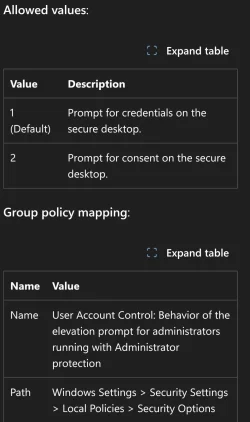
User Account Control: Behavior of the elevation prompt for administrators running with Administrator protection >>> Prompt for Consent on the Secure Desktop

Or

Prompt for Credentials on the Secure Desktop?


The reason why I am asking because suppose a malware might compromise a system and may capture the account credential password or the Windows Hello PIN using a keystroke logger.

So in that case or scenario, would a setting of Prompt for Consent on the Secure Desktop be more secure just by clicking Yes/No from the prompt?

My standalone Windows machine is running as a local Admin account using a Windows Hello PIN.

I also do not reuse passwords.
 
Last edited:
Administrator Protection acts as a passkey, it lowers the overall security. It merely asks Yes/No, no WindowsHello/PIN.
It also allows lolbins, for example, you will get no admin prompt, when launching task manager, because it is "trusted".

From the Group Policy settings, which one would be the more secure setting?
I prefer UAC at full with max restrictions:
Code:
rem =================================== Windows Policies ===================================
rem --------------------------------- User Account Control ---------------------------------

rem https://learn.microsoft.com/en-us/previous-versions/windows/it-pro/windows-server-2008-R2-and-2008/dd835564(v=ws.10)
rem Reason to set UAC to Always Notify - https://learn.microsoft.com/en-us/previous-versions/technet-magazine/dd822916(v=msdn.10)
rem https://daniels-it-blog.blogspot.com/2020/07/uac-bypass-via-dll-hijacking-and-mock.html
rem https://www.bleepingcomputer.com/news/security/bypassing-windows-10-uac-with-mock-folders-and-dll-hijacking/
rem There are really only two effectively distinct settings for the UAC slider - https://devblogs.microsoft.com/oldnewthing/20160816-00/?p=94105

rem 0 - Elevate without prompting / 1 - Prompt for credentials on the secure desktop / 2 - Prompt for consent on the secure desktop / 3 - Prompt for credentials / 4 - Prompt for consent / 5 (Default) - Prompt for consent for non-Windows binaries
reg add "HKLM\Software\Microsoft\Windows\CurrentVersion\Policies\System" /v "ConsentPromptBehaviorAdmin" /t REG_DWORD /d "1" /f

rem 0 - Automatically deny elevation requests / 1 - Prompt for credentials on the secure desktop / 3 (Default) - Prompt for credentials
reg add "HKLM\Software\Microsoft\Windows\CurrentVersion\Policies\System" /v "ConsentPromptBehaviorUser" /t REG_DWORD /d "0" /f

rem 2 (Default)
rem reg add "HKLM\Software\Microsoft\Windows\CurrentVersion\Policies\System" /v "EnableFullTrustStartupTasks" /t REG_DWORD /d "0" /f

rem Detect application installations and prompt for elevation / 1 - Enabled (default for home) / 0 - Disabled (default for enterprise)
reg add "HKLM\Software\Microsoft\Windows\CurrentVersion\Policies\System" /v "EnableInstallerDetection" /t REG_DWORD /d "1" /f

rem Run all administrators in Admin Approval Mode / 0 - Disabled (UAC) / 1 - Enabled (UAC)
reg add "HKLM\Software\Microsoft\Windows\CurrentVersion\Policies\System" /v "EnableLUA" /t REG_DWORD /d "1" /f

rem Only elevate UIAccess applications that are installed in secure locations / 0 - Disabled / 1 (Default) - Enabled
reg add "HKLM\Software\Microsoft\Windows\CurrentVersion\Policies\System" /v "EnableSecureUIAPaths" /t REG_DWORD /d "1" /f

rem 0 (Default) = Disabled / 1 - Enabled
rem reg add "HKLM\Software\Microsoft\Windows\CurrentVersion\Policies\System" /v "EnableUwpStartupTasks" /t REG_DWORD /d "0" /f

rem Allow UIAccess applications to prompt for elevation without using the secure desktop / 0 (Default) = Disabled / 1 - Enabled
reg add "HKLM\Software\Microsoft\Windows\CurrentVersion\Policies\System" /v "EnableUIADesktopToggle" /t REG_DWORD /d "0" /f

rem https://learn.microsoft.com/en-us/openspecs/windows_protocols/ms-gpsb/932a34b5-48e7-44c0-b6d2-a57aadef1799
rem 0 - Disabled / 1 - Enabled (Default)
reg add "HKLM\Software\Microsoft\Windows\CurrentVersion\Policies\System" /v "EnableVirtualization" /t REG_DWORD /d "0" /f

rem 2 - Enable Administrator Protection for Admin Approval Mode / 1 - Disable
reg add "HKLM\Software\Microsoft\Windows\CurrentVersion\Policies\System" /v "FilterAdministratorToken" /t REG_DWORD /d "1" /f

rem Allow UIAccess applications to prompt for elevation without using the secure desktop / 0 (Default) - Disabled / 1 - Enabled
reg add "HKLM\Software\Microsoft\Windows\CurrentVersion\Policies\System" /v "PromptOnSecureDesktop" /t REG_DWORD /d "1" /f

rem Administrator Protection for Admin Approval Mode / 1 - Disable / 2 - Enable
reg add "HKLM\Software\Microsoft\Windows\CurrentVersion\Policies\System" /v "TypeOfAdminApprovalMode" /t REG_DWORD /d "1" /f

rem Display highly detailed status messages / 0 (Default) - Disabled / 1 - Enabled
reg add "HKLM\Software\Microsoft\Windows\CurrentVersion\Policies\System" /v "VerboseStatus" /t REG_DWORD /d "1" /f

rem 1 - Enable command-line auditing
reg add "HKLM\Software\Microsoft\Windows\CurrentVersion\Policies\System\Audit" /v "ProcessCreationIncludeCmdLine_Enabled" /t REG_DWORD /d "1" /f


rem 1 - The device does not store the user's credentials for automatic sign-in after a Windows Update restart. The users' lock screen apps are not restarted after the system restarts.
reg add "HKLM\Software\Microsoft\Windows\CurrentVersion\Policies\System" /v "DisableAutomaticRestartSignOn" /t REG_DWORD /d "1" /f

rem Determines how many user account entries Windows saves in the logon cache on the local computer.
reg add "HKLM\Software\Microsoft\Windows NT\CurrentVersion\Winlogon" /v "CachedLogonsCount" /t REG_DWORD /d "0" /f

rem 1 - Do not allow storage of passwords and credentials for network authentication in the Credential Manager
reg add "HKLM\System\CurrentControlSet\Control\Lsa" /v "DisableDomainCreds" /t REG_DWORD /d "1" /f

rem Digest Security Provider is disabled by default, but malware can enable it to recover the plain text passwords from the system’s memory (+CachedLogonsCount/+DisableDomainCreds/+DisableAutomaticRestartSignOn)
reg add "HKLM\System\CurrentControlSet\Control\SecurityProviders\WDigest" /v "Negotiate" /t REG_DWORD /d "0" /f
reg add "HKLM\System\CurrentControlSet\Control\SecurityProviders\WDigest" /v "UseLogonCredential" /t REG_DWORD /d "0" /f
 

My Computer My Computer

At a glance

Home2FH2CanAMD Ryzen 5 8600G (07/24)2x32GB Kingston FURY DDR5 5600 MHz CL36 @5200...ASROCK Radeon RX 6600 Challenger D 8G @48FPS ...
OS
Home2FH2Can
Computer type
PC/Desktop
CPU
AMD Ryzen 5 8600G (07/24)
Motherboard
ASROCK B650M-HDV/M.2 (07/24) BIOS 4.43 AGESA ComboAM5 1.3.0.1b Patch A (07/26)
Memory
2x32GB Kingston FURY DDR5 5600 MHz CL36 @5200 CL40 (07/24)
Graphics Card(s)
ASROCK Radeon RX 6600 Challenger D 8G @48FPS (08/24)
Sound Card
Creative Sound BlasterX AE-5 Plus (05/24)
Monitor(s) Displays
24" Philips 24M1N3200ZS/00 (05/24)
Screen Resolution
1920×1080@165Hz via DP1.4
Hard Drives
Kingston KC3000 NVMe 2TB (05/24)
ADATA XPG GAMMIX S11 Pro 512GB (07/19)
PSU
Seasonic Core GM 550 Gold (04/24)
Case
Fractal Design Define 7 Mini with 3x Noctua NF-P14s/12@555rpm (04/24)
Cooling
Noctua NH-U12S with Noctua NF-P12 (04/24)
Keyboard
HP Pavilion Wired Keyboard 300 (07/24) + Rabalux 76017 Parker (01/24)
Mouse
Logitech M330 Silent Plus (07/26)
Internet Speed
500/100 Mbps via RouterOS (05/21) & TCP Optimizer
Browser
Edge, Brave for YouTube, LibreWolf for FB
Antivirus
NextDNS blocking 50% Traffic
Other Info
Phone: Motorola Moto G86 (02/26)
Backup: Hasleo Backup Suite (PreOS)
Headphones: Sennheiser RS170 (09/10)
Chair: Huzaro Force 4.4 Grey Mesh (05/24)
Notifier: Xiaomi Mi Band 9 Milanese (10/24)
FlexCore USB-C 3.2 Gen 1 (M) to LAN (F) (08/25)
Administrator Protection acts as a passkey, it lowers the overall security. It merely asks Yes/No, no WindowsHello/PIN.
It also allows lolbins, for example, you will get no admin prompt, when launching task manager, because it is "trusted".

Administrator Protection does not lower security. It increases it by requiring Windows Hello/PIN for every elevation, isolating the admin token, enforcing elevation policies, and eliminating silent elevations.

You have described classic UAC, not Administrator Protection.

See What’s Different with Administrator Protection
 
Last edited:

My Computer My Computer

At a glance

Windows 11
OS
Windows 11
Computer type
Laptop
So which setting is preferred and more secure?

Prompt for Consent on the Secure Desktop Or Prompt for Credentials on the Secure Desktop?
 

My Computer My Computer

At a glance

Windows 11 Pro 22H2
OS
Windows 11 Pro 22H2
Administrator Protection ... also allows lolbins, for example, you will get no admin prompt, when launching task manager, because it is "trusted".

Task manager requires a prompt [UAC prompt] on my Windows 11 computer [on which I have not enabled Admin protection].
Are you saying that Admin protection would stop that, in other words, Admin protection would cause Task mgr to be trusted so bypassing any prompt?


Denis
 

My Computer My Computer

At a glance

Windows 11 Home x64 Version 26H2 Build 26300....
OS
Windows 11 Home x64 Version 26H2 Build 26300.9457
Prompt for Consent on the Secure Desktop Or Prompt for Credentials on the Secure Desktop
Admin protection insists on a Credential prompt.
UAC allows for a Credential prompt to be enforced even for Admin accounts *** but, by default, allows a Consent prompt - which opens up the possibility of an intruder achieving Consent by forcing a Return key action whereas the intruder would not [at first] know the Admin account's password/PIN so would be stopped - so a Credential prompt is more secure.

*** see Change UAC Behavior for Administrators ElevenForumTutorials


Denis
 

My Computer My Computer

At a glance

Windows 11 Home x64 Version 26H2 Build 26300....
OS
Windows 11 Home x64 Version 26H2 Build 26300.9457
Task manager requires a prompt [UAC prompt] on my Windows 11 computer [on which I have not enabled Admin protection].
Are you saying that Admin protection would stop that, in other words, Admin protection would cause Task mgr to be trusted so bypassing any prompt?

Post #2 is totally incorrect.
 

My Computer My Computer

At a glance

Windows 11 Enterprise 25H2
OS
Windows 11 Enterprise 25H2

My Computer My Computer

At a glance

Windows 11 Home x64 Version 26H2 Build 26300....
OS
Windows 11 Home x64 Version 26H2 Build 26300.9457
Yeah auto-elevation is basically removed, with the exception of the HKLM Run and RunOnce keys, but those keys are ACL'd so that only Admins and System can modify them.
 

My Computer My Computer

At a glance

Windows 11 Enterprise 25H2
OS
Windows 11 Enterprise 25H2
The default setting from the link below is: Prompt for Credentials on the Secure Desktop.


Attachments

  • Screenshot_20261004_205826_Chrome.webp
    Screenshot_20261004_205826_Chrome.webp
    62.8 KB · Views: 1

My Computer My Computer

At a glance

Windows 11 Pro 22H2
OS
Windows 11 Pro 22H2
The default settings from my link below are: Prompt for Credentials on the Secure Desktop.


That's the way it should be, unless it's just too annoying to enter creds. I could see home users doing this for example, believing they are less of a target. But they're probably less likely to turn Admin Protection on in the first place, and they'll only be affected if the plan to make it the default comes to fruition.

Consent prompting was left as an option for just those kind of situations.

With Administrator protection, auto-elevation is removed. Users will notice an increase in consent prompts, though many fewer than the Vista days as much work has been done to clean up elevation points in most workflows. Additionally, users and administrators will have the option to configure elevation prompts as “credentialed” (biometric/password/PIN) via Windows Hello or simply confirmation prompts. This simple change trades some user convenience for a reduction in attack surface of roughly 92 auto-elevating COM interfaces, 11 DLL Hijacks, and 23 auto-elevating apps. Of the 79 known UAC bypasses tested, all but one are now fully or partially mitigated. The remaining open issue around token manipulation attacks has been assigned MSRC cases and will be addressed.

from : Evolving the Windows User Model – Introducing Administrator Protection | Microsoft Community Hub
 

My Computer My Computer

At a glance

Windows 11 Enterprise 25H2
OS
Windows 11 Enterprise 25H2
auto-elevation is basically removed
I have not been able to find an example of auto-elevation on my [still-UAC, Windows 11 Home] computers.
Do you know one? [I just want to be able to do before & after comparisons if I do set up Admin protection.]


Denis
 

My Computer My Computer

At a glance

Windows 11 Home x64 Version 26H2 Build 26300....
OS
Windows 11 Home x64 Version 26H2 Build 26300.9457
I have not been able to find an example of auto-elevation on my [still-UAC, Windows 11 Home] computers.
Do you know one? [I just want to be able to do before & after comparisons if I do set up Admin protection.]

You're going to have to give that a Goog yourself. I'm not going to mention any techniques on this forum, but they are well known and searchable.
 

My Computer My Computer

At a glance

Windows 11 Enterprise 25H2
OS
Windows 11 Enterprise 25H2
I guess you're referring to malwares that manage to achieve elevation without a UAC prompt.
I never did find one that could get past UAC at its maximum level - but several claimed to be able to do so.


Thanks,
Denis
 

My Computer My Computer

At a glance

Windows 11 Home x64 Version 26H2 Build 26300....
OS
Windows 11 Home x64 Version 26H2 Build 26300.9457

Latest Tutorials

Back
Top Bottom