Announcing Native NVMe in Windows Server 2025


 Windows Server News and Best Practices:

Native NVMe support in Windows Server 2025 is a leap forward in storage innovation that will redefine what’s possible for your most demanding workloads. Enable Native NVMe today using a registry key after applying October’s latest cumulative update for WS2025!

We’re thrilled to announce the arrival of Native NVMe support in Windows Server 2025—a leap forward in storage innovation that will redefine what’s possible for your most demanding workloads. Modern NVMe (Non-Volatile Memory Express) SSDs now operate more efficiently with Windows Server. This improvement comes from a redesigned Windows storage stack that no longer treats all storage devices as SCSI (Small Computer System Interface) devices—a method traditionally used for older, slower drives. By eliminating the need to convert NVMe commands into SCSI commands, Windows Server reduces processing overhead and latency. Additionally, the whole I/O processing workflow is redesigned for extreme performance. This release is the result of close collaboration between our engineering teams and hardware partners, and it serves as a cornerstone in modernizing our storage stack.

Native NVMe is now generally available (GA) with an opt-in model (disabled by default as of October’s latest cumulative update for WS2025). Switch onto Native NVMe as soon as possible or you are leaving performance gains on the table! Stay tuned for more updates from our team as we transition to a dramatically faster, more efficient storage future.

Why Native NVMe and why now?

Modern NVMe devices—like PCIe Gen5 enterprise SSDs capable of 3.3 million IOPS, or HBAs delivering over 10 million IOPS on a single disk—are pushing the boundaries of what storage can do. SCSI-based I/O processing can’t keep up because it uses a single-queue model, originally designed for rotational disks, where protocols like SATA support just one queue with up to 32 commands. In contrast, NVMe was designed from the ground up for flash storage and supports up to 64,000 queues, with each queue capable of handling up to 64,000 commands simultaneously.

With Native NVMe in Windows Server 2025, the storage stack is purpose-built for modern hardware—eliminating translation layers and legacy constraints. Here’s what that means for you:
  • Massive IOPS Gains: Direct, multi-queue access to NVMe devices means you can finally reach the true limits of your hardware.
  • Lower Latency: Traditional SCSI-based stacks rely on shared locks and synchronization mechanisms in the kernel I/O path to manage resources. Native NVMe enables streamlined, lock-free I/O paths that slash round-trip times for every operation.
  • CPU Efficiency: A leaner, optimized stack frees up compute for your workloads instead of storage overhead.
  • Future-Ready Features: Native support for advanced NVMe capabilities like multi-queue and direct submission ensures you’re ready for next-gen storage innovation.
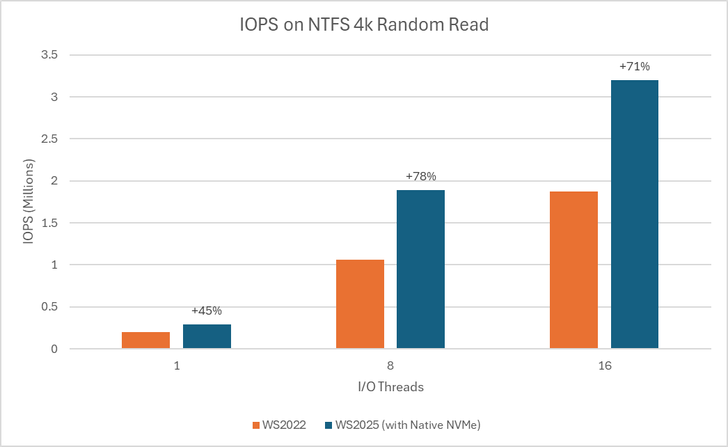
Performance Data

bS00NDc3MzUzLXA3ckVyag

Graph showing IOPS gains on WS2025 (with Native NVMe) compared to WS2022 on 1, 8, and 16-threaded 4K random read tests using an NTFS-formatted volume.
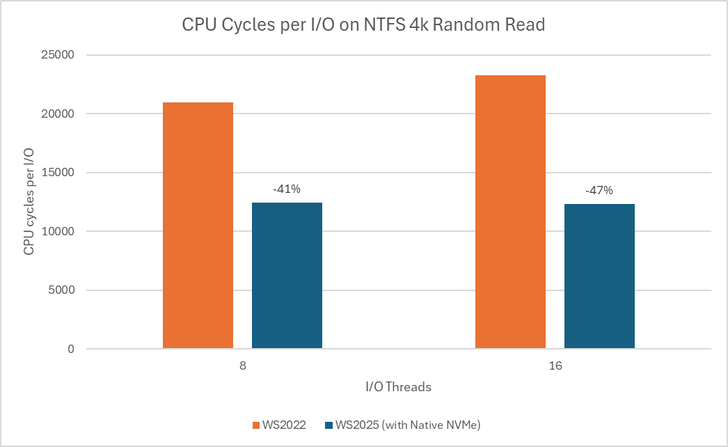
bS00NDc3MzUzLWJ6aUo3UQ

Graph showing reduction in CPU cycles per I/O on WS2025 (with Native NVMe) compared to WS2022 on 8 and 16-threaded 4K random read tests using an NTFS-formatted volume.

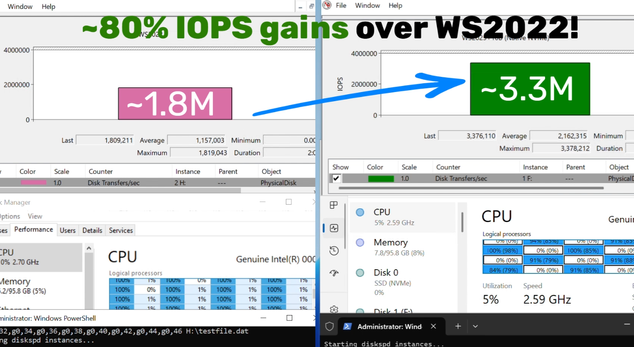
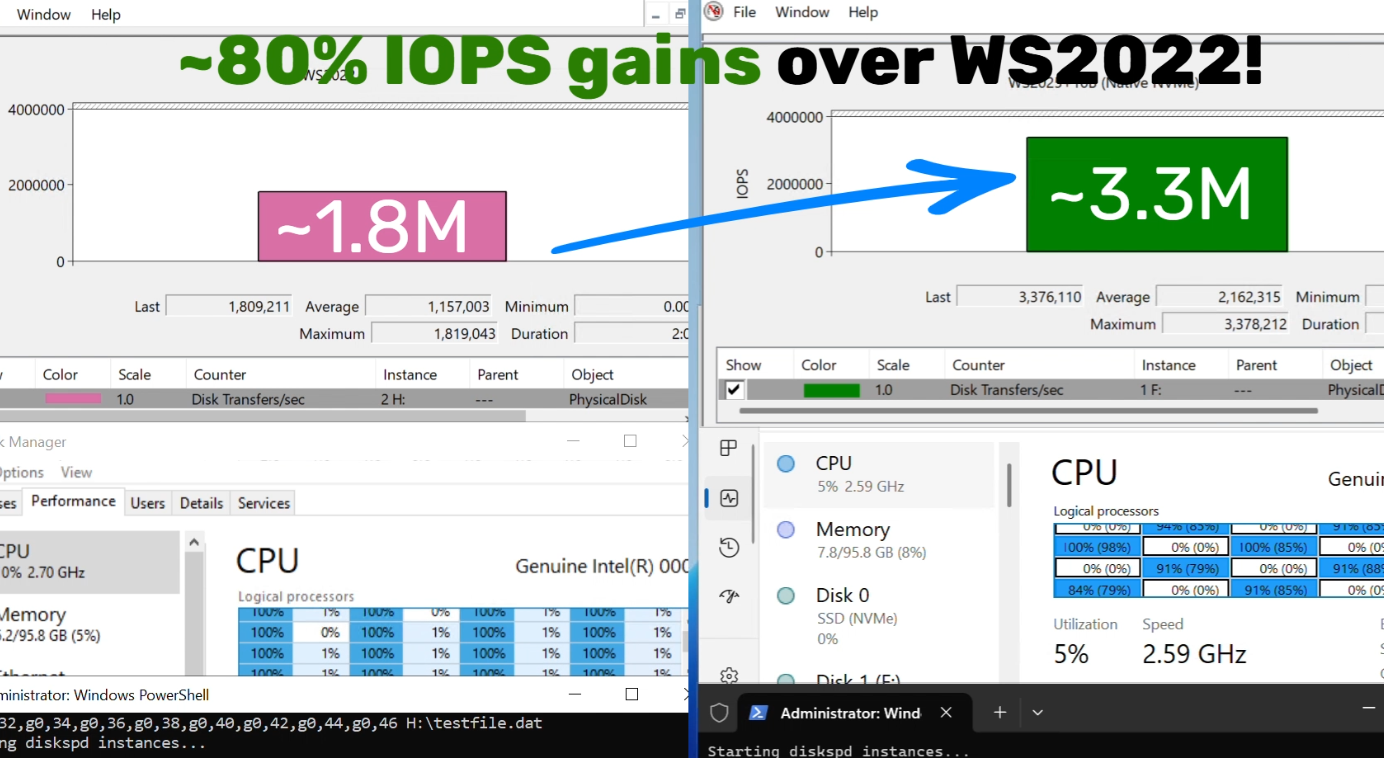
Using DiskSpd.exe, basic performance testing shows that with Native NVMe enabled, WS2025 systems can deliver up to ~80% more IOPS and a ~45% savings in CPU cycles per I/O on 4K random read workloads on NTFS volumes when compared to WS2022. This test ran on a host with Intel Dual Socket CPU (208 logical processors, 128GB RAM) and a Solidigm SB5PH27X038T 3.5TB NVMe device. The test can be recreated by running "diskspd.exe -b4k -r -Su –t8 -L -o32 -W10 -d30" and modifying the parameters as desired. Results may vary.

Top Use Cases: Where You’ll See the Difference

Try Native NVMe on servers running your enterprise applications. These gains are not just for synthetic benchmarks—they translate directly to faster database transactions, quicker VM operations, and more responsive file and analytics workloads.
  • SQL Server and OLTP: Shorter transaction times, higher IOPS, and lower tail latency under mixed read/write workloads.
  • Hyper‑V and virtualization: Faster VM boot, checkpoint operations, and live migration with reduced storage contention.
  • High‑performance file servers: Faster large‑file reads/writes and quicker metadata operations (copy, backup, restore).
  • AI/ML and analytics: Low‑latency access to large datasets and faster ETL, shuffle, and cache/scratch I/O.
How to Get Started
  1. Check your hardware: Ensure you have NVMe-capable devices that are currently using the Windows NVMe driver (StorNVMe.sys). Note that some NVMe device vendors provide their own drivers, so unless using the in-box Windows NVMe driver, you will not notice any differences.
  2. Enable Native NVMe: After applying the 2510-B Latest Cumulative Update (or most recent), add the registry key with the following PowerShell command:

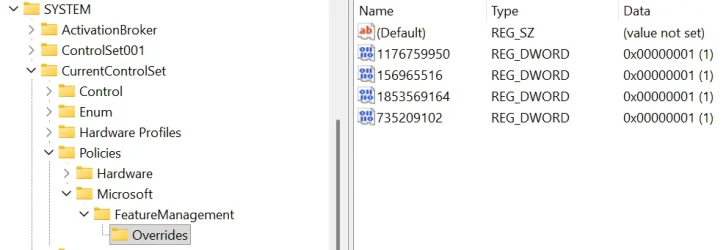
    reg add HKEY_LOCAL_MACHINE\SYSTEM\CurrentControlSet\Policies\Microsoft\FeatureManagement\Overrides /v 1176759950 /t REG_DWORD /d 1 /f

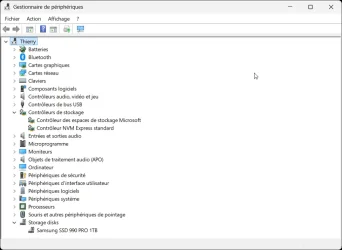
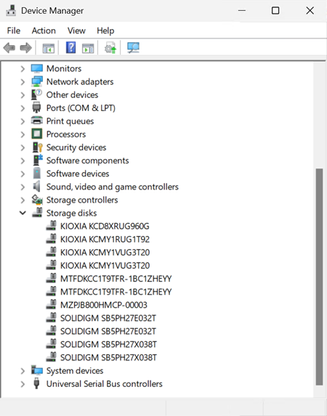
    Alternatively, use this Group Policy MSI to add the policy that controls the feature then run the local Group Policy Editor to enable the policy (found under Local Computer Policy > Computer Configuration > Administrative Templates > KB5066835 251014_21251 Feature Preview > Windows 11, version 24H2, 25H2). Once Native NVMe is enabled, open Device Manager and ensure that all attached NVMe devices are displayed under the “Storage disks” section.

    bS00NDc3MzUzLWtwMjRoRQ

    Screenshot of Device Manager where NVMe devices show up under the Storage disks section.
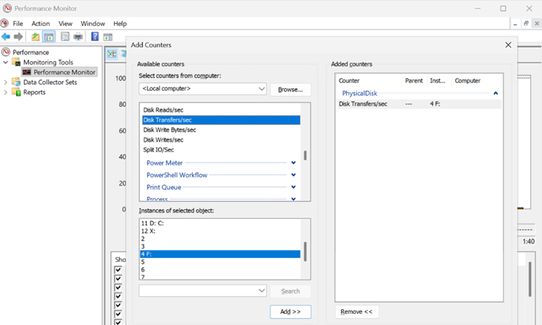
  3. Monitor and Validate: Use Performance Monitor and Windows Admin Center to see the gains for yourself. Or try DiskSpd.exe yourself to measure microbenchmarks in your own environment! A quick way to measure IOPS in Performance Monitor is to set up a histogram chart and add a counter for Physical Disk>Disk Transfers/sec (where the selected instance is a drive that corresponds to one of your attached NVMe devices) then run a synthetic workload with DiskSpd. Compare the numbers before and after enabling Native NVMe to see the realized difference in your real environment!

    bS00NDc3MzUzLUlqa3QwOQ

    Screenshot of Performance Monitor, showing how to add a counter for Disk Transfers/sec to measure IOPS of an NVMe drive.

    bS00NDc3MzUzLW96WUFGeg

    Screenshot of higher IOPS when running Native NVMe stack on Windows Server 2025.
Join the Storage Revolution

This is more than just a feature—it’s a new foundation for Windows Server storage, built for the future. We can’t wait for you to experience the difference.

Share your feedback, ask questions, and join the conversation. Let’s build the future of high-performance Windows Server storage together. Send us your feedback or questions at [email protected]!


Yash Shekar (and the Windows Server team)


 Source:
 
As a note if you use ntfs compression on your drive, bypassio will not be supported
 

My Computers

System One System Two

  • OS
    Windows 11 25H2
    Computer type
    PC/Desktop
    Manufacturer/Model
    Custom Built
    CPU
    Intel i9 14900KF
    Motherboard
    ASUS Z790 ProArt Creator WiFi
    Memory
    64GB Corsair Vengeance RGB
    Graphics Card(s)
    MSI 4090 Suprim X
    Sound Card
    Onboard
    Monitor(s) Displays
    1 x Asus 24". 1 x Asus 32"
    Screen Resolution
    1920 x 1080 & 2560 x 1440
    Hard Drives
    Multiple
    PSU
    Corsair 1200HX
    Case
    Corsair 7000D RGB
    Cooling
    Corsair H150I Capellix XT
    Keyboard
    Corsair K70 RGB PRO
    Mouse
    Corsair M55 RGB Pro
    Internet Speed
    1000Mbps
    Browser
    Edge
    Antivirus
    Windows Default
  • Operating System
    Windows 11 25H2
    Computer type
    PC/Desktop
    Manufacturer/Model
    Custom Built
    CPU
    Intel i7 6800K
    Motherboard
    ASUS Z99 Deluxe
    Memory
    32GB DDR4 (Corsair)
    Graphics card(s)
    ASUS GTX 1080ti
    Sound Card
    Onboard
    Monitor(s) Displays
    1x Viewsonic 24" 1x LG 19"
    Screen Resolution
    1920 x 1080 & 1600 x 900
    Hard Drives
    3 x SATA SSD
    PSU
    650W Gigabyte Bronze
    Case
    Coolermaster HAF-X
    Cooling
    Noctua NH-15 Chroma black
    Keyboard
    Generic RGB
    Mouse
    Microsoft Basic
    Internet Speed
    1000Mbps
    Browser
    Edge
    Antivirus
    Windows Default
🇬🇧 NVMe Storage Feature Activation Results – Lenovo IdeaPad 5 Pro (AMD)
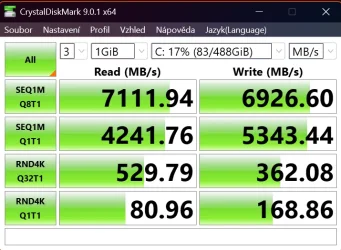
On this device, I enabled all four hidden Feature Management Overrides related to the modern NVMe storage stack in Windows 11. After activating all four features, the system remains completely stable — no BSODs, no Event Viewer errors, and no performance drops. In fact, I recorded the best CrystalDiskMark results I’ve ever seen on this machine, even when running back-to-back tests. CPU usage during benchmarking never exceeded 20%, which I had never observed before.
📊 Benchmark results (CrystalDiskMark 9.0.1 x64, 1GiB, 3 passes):
• SEQ1M Q8T1: Read 7111 MB/s, Write 6926 MB/s
• SEQ1M Q1T1: Read 4241 MB/s, Write 5343 MB/s
• RND4K Q32T1: Read 530 MB/s, Write 362 MB/s
• RND4K Q1T1: Read 81 MB/s, Write 169 MB/s

🖥️ System specifications:
• Model: Lenovo IdeaPad 5 Pro 14ARH7 (82SJ)
• OS: Windows 11 Pro, Build 26220
• CPU: AMD Ryzen 5 6600HS Creator Edition (6 cores / 12 threads, 3.3 GHz)
• RAM: 16 GB
• Disk: NVMe SSD PCIe 4.0 ×4
• BIOS: J8CN39WW (UEFI, 09/2024)
• Security: VBS enabled, DMA protection active, Secure Boot disabled
If there’s interest, I can share the exact registry keys I used and compare results with my second machine (Intel + PCIe 3.0 ×4).
 

Attachments

  • Snímek obrazovky 2025-12-28 135910.webp
    Snímek obrazovky 2025-12-28 135910.webp
    39 KB · Views: 1

My Computer

System One

  • OS
    Windows 11 Garuda Linux
    Computer type
    Laptop
    Manufacturer/Model
    HP, Lenovo
🇬🇧 Additional note
Just to add some extra context to my previous post:
This machine is also configured as a dual‑boot system. Besides Windows 11 Pro (Build 26220), I’m running Garuda Linux on the experimental kernel 6.19‑rc2. Both systems coexist without any issues, and the storage performance improvements I mentioned earlier do not cause any instability on either OS.
I’ll share results from my second device (Intel + PCIe 3.0 ×4) in the next post.
 

My Computer

System One

  • OS
    Windows 11 Garuda Linux
    Computer type
    Laptop
    Manufacturer/Model
    HP, Lenovo
🇬🇧 Follow-up: Intel + PCIe 3.0 ×4 results
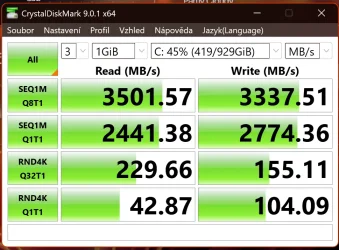
Here are the results from my second device — an HP Elite x2 G8 tablet with an 11th Gen Intel Core i5 and a PCIe 3.0 ×4 NVMe SSD. I activated the same four Feature Management Overrides as before, and again the system remained fully stable: no BSODs, no Event Viewer errors, and no performance degradation.
What surprised me most is that even on this older PCIe 3.0 platform, the performance was exceptional — far beyond typical values seen online for similar setups. And just like on my AMD machine, CPU usage during CrystalDiskMark never exceeded 20%, which strongly suggests that the modern storage stack is active and working efficiently.
📊 Benchmark results (CrystalDiskMark 9.0.1 x64, 1GiB, 3 passes):
• SEQ1M Q8T1: Read 3501 MB/s, Write 3337 MB/s
• SEQ1M Q1T1: Read 2441 MB/s, Write 2774 MB/s
• RND4K Q32T1: Read 230 MB/s, Write 155 MB/s
• RND4K Q1T1: Read 43 MB/s, Write 104 MB/s

🖥️ System specifications:
• Model: HP Elite x2 G8 Tablet
• OS: Windows 11 Pro, Build 26220
• CPU: Intel Core i5‑1145G7 (4 cores / 8 threads, 2.6 GHz)
• RAM: 16 GB
• Disk: NVMe SSD PCIe 3.0 ×4
• BIOS: T91 Ver. 01.21.00 (UEFI, 06/2025)
• Security: VBS enabled, DMA protection active, Secure Boot enabled
These results confirm that the new storage stack can deliver excellent performance even on older platforms — as long as the system is properly configured and the registry overrides are applied.
 

Attachments

  • Snímek obrazovky 2025-12-28 134051.webp
    Snímek obrazovky 2025-12-28 134051.webp
    54.5 KB · Views: 1

My Computer

System One

  • OS
    Windows 11 Garuda Linux
    Computer type
    Laptop
    Manufacturer/Model
    HP, Lenovo
AMD + PCIe 4.0 ×4 results (borrowed message template from @maritom - thank you)

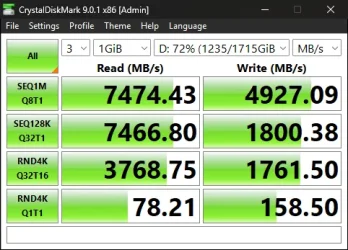
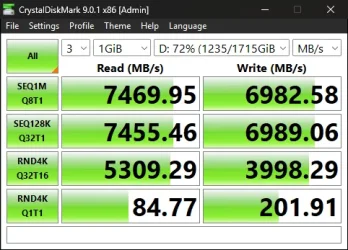
Results from my daily (desktop) driver — an ASUS / AMD AM4 B550 based desktop pc with a AMD Ryzen 7 5800X3D CPU and a PCIe 4.0 ×4 NVMe SSD (Samsung 990 Pro 4TB). I have never really gotten the best out of the 990 Pro, but at first glance it sures seems this implementation did the trick.

📊 Benchmark results [NON-Native] (CrystalDiskMark 9.0.1 x64, 1GiB, 3 passes):
• SEQ1M Q8T1: Read 7474 MB/s, Write 4927 MB/s
• SEQ128K Q32T1: Read 7466 MB/s, Write 1800 MB/s
• RND4K Q32T16: Read 3768 MB/s, Write 1761 MB/s
• RND4K Q1T1: Read 78 MB/s, Write 158 MB/s

📊 Benchmark results [Native] (CrystalDiskMark 9.0.1 x64, 1GiB, 3 passes):
• SEQ1M Q8T1: Read 7469 MB/s, Write 6982 MB/s
• SEQ128K Q32T1: Read 7455 MB/s, Write 6989 MB/s
• RND4K Q32T16: Read 5309 MB/s, Write 3998 MB/s
• RND4K Q1T1: Read 84 MB/s, Write 201 MB/s

🖥️ System specifications:
• Model: ASUS / AMD AM4 B550 desktop pc
• OS: Windows 11 Pro, 25H2, Build 26200.7462
• CPU: AMD Ryzen 7 5800X3D (8 cores / 16 threads, 4.55 GHz)
• RAM: 64 GB
• Disk: Samsung 990 Pro 4TB NVMe SSD PCIe 4.0 ×4
• BIOS: v3607 - AGESA version ComboV2PI 1.2.0.Ca. (UEFI, 04/2024)
• Security: VBS enabled, DMA protection active, Secure Boot enabled

Non-Native:
CrystalDiskMark_20251229012952 - before bypassIO.webp

Native:
CrystalDiskMark_20251229012952 - after bypassIO.webp
 

My Computer

System One

  • OS
    Windows 11 Pro
    Computer type
    PC/Desktop
    Manufacturer/Model
    Self assembled 2019 AMD AM4 build
    CPU
    AMD Ryzen 7 5800X3D (all cores -30 CO)
    Motherboard
    ASUS TUF GAMING B550-PRO, AMD AM4 B550
    Memory
    64GB Corsair Vengeance LPX DDR4 3600MHz (2x32GB)
    Graphics Card(s)
    ASUS ProArt GeForce RTX 4070 Ti SUPER OC 16GB
    Sound Card
    Soundblaster Katana v1 PC soundbar | Fiio K5 ESS Pro DAC for headphones
    Monitor(s) Displays
    LG 38WK95C 38'' WQHD+ | AliX 5" USB-C display (PC-realtime info), AliX 12.3" HDMI display (Mixed realtime info)
    Screen Resolution
    38in 3840x1600, 5in 800x480, 12.3in 1980x720
    Hard Drives
    PCIE4-slot: Samsung 990 Pro 4TB NvME
    PCIE3-slot: Samsung 970 Evo 1TB NvME
    PSU
    Corsair 750W
    Case
    Phanteks Eclipse P500 Air Mesh
    Cooling
    Hydro Series™ H80i v2 High Performance Liquid CPU Cooler + 4 Noctua 120mm
    Keyboard
    Logitech MX3
    Mouse
    Logitech MX3
    Internet Speed
    1 Gbps / 1 Gbps - unfortuately the telco visited us talking about necessary equipment to empowering their new local alreras core upgrade. Unfurtunate because that resulted in CGNAT intruduced, replacing th bridge-hw with 6 years of exceprional hsitory of delivering perofrmance above expectations. They can solve this, but it is not consumer-friendly. Streamlining product lineups are essential. Bu there always will be individuals who knows and spots the differnce. And CGNAT is not best for majority of the consumer market.. Nerds are strenghtening in numbes, or so it seems.
    Browser
    Edge, Firefox, Ungoogled Chrome - Gpgher-based "browsers" on some of the contracts signed 25 years ago, with options of 10+10+10 years after freamework-contract expiration.
    Antivirus
    MS Defender, modded to accept real manual ON / OFF (deal-breaker being reactivating whenever it pleases, ant the principle of me being in cotrol if tech, contrary to tech making AI decisions often based ion LLM training on amobae or also Donkeys, thogh expected steeper montly fees as such)
    Other Info
    - Man pushed 50 - concuring scientific datasets showing stuff insude skull comparatively could be half that, subsidiary half any nymber.
    - Motivation and drive keeping life as exciting as earler days = problem-solving (tech-wise) old school, keeping the young eager to learn the method of keeping two thoughts in the head simoultaneously, not ruling out the actual fact go combined events / problems making stuff fail. Combined uncionciuosly simultainiously, or combination of choices documented ad no-candos or no info available. I could elaborate.
    - Professional experience building wan for worldwide groundstation connectivity (satellite / orbiting wessel payload dumpsites and semi-live datastrams + TT&C)
    - Private experience on years of local self build and self repair gettogethers, built on experience thru timeconsuming relentless fixes and repairs on OS and sonfware setups. And as well as problably many of us - more often than not concluding re-installs and fresh configs are less challenging, consumes less time and could produce more pleasing results, as well as appreciation vs gulilt based summarys om a daily, weekly and / or yearly performance review, where tone or volume of voice could be indicating relating to factors presented.
I applied the registry keys, rebooted and my SSD990 Pro is still listed under Disk drives in Device Manager. I checked the Registry and the new keys are there. I have Device encryption turn on. Could that be the problem?
 

My Computer

System One

  • OS
    Windows 11
    Computer type
    Laptop
    Manufacturer/Model
    Samsung Galaxie Book Pro 360
    CPU
    i7-1165G7
    Motherboard
    Samsung
    Memory
    16 GB
    Hard Drives
    Samsung SSD 970 EVO Plus 1TB
    Browser
    Brave
    Antivirus
    Norton 360
I applied the registry keys, rebooted and my SSD990 Pro is still listed under Disk drives in Device Manager. I checked the Registry and the new keys are there. I have Device encryption turn on. Could that be the problem?

I doubt it. Did you add all 4 keys in post #10?
 

My Computers

System One System Two

  • OS
    Windows 11 Pro x64
    Computer type
    PC/Desktop
    Manufacturer/Model
    📷🔈🎧 🪛 DIY Photoshop/Audio/Game/tinker
    CPU
    i9 14900K P/E 5.8/4.5 GHz, cache 5.0 GHz
    Motherboard
    Asus ROG Maximus Z790 Dark Hero
    Memory
    🐏 96GB (2x48) G.skill Ripjaws 6800 MT/s
    Graphics Card(s)
    Asus ROG Strix 4070 Ti OC
    Sound Card
    🔊Bowers & Wilkins 606 S3 speakers; Audiolabs 7000a integrated amp; RSL 10S Mk2 sub; Creative Pebble Pro Minimilist
    Monitor(s) Displays
    🖥️🖥️ Eizo CG2730 ColorEdge, ViewSonic VP2768
    Screen Resolution
    🖥️🖥️ 2560 x 1440p x 2
    Hard Drives
    💾 WDC SN850X 4TB nvme, SN850 1TB nvme, SK-Hynix 2 TB P41 nvme,. Sabrent USB-C DS-SC5B 5-bay docking station: 6TB WDC Black, 6TB Ironwolf Pro; 2x 2TB WDC Black HDD
    PSU
    ⚡️ 850W Seasonic Vertex PX-850 ATX 3.0/PCI-E 5.0
    Case
    Fractal Design North XL Mesh, Black Walnut
    Cooling
    ❄️ EK Nucleus black 360 AIO w/Phanteks T30-120 fans, 2 Noctua NF-A14 Chromax case fan, 1 T30-120 fan cooling memory
    Keyboard
    ⌨️ Keychron Q3 Max TKL with custom GMK Redsuns Red Samuri keycaps, TX Stabs
    Mouse
    🖱️ Logitech G305 wireless gaming
    Internet Speed
    ⬇️ 500 Mb/s ⬆️ 12 Mb/s
    Browser
    🔥🦊 Firefox
    Antivirus
    🦺 Defender, Macrium Reflect X 🏆
    Other Info
    Phangkey Amaterasu V2 Desk Mat
  • Computer type
    Laptop
    Manufacturer/Model
    💻 Apple 13" Macbook Pro 2020 (m1)
    CPU
    Apple M1
    Screen Resolution
    2560x1600
    Browser
    Firefox
This is what I added:

1767044263908.webp
 

My Computer

System One

  • OS
    Windows 11
    Computer type
    Laptop
    Manufacturer/Model
    Samsung Galaxie Book Pro 360
    CPU
    i7-1165G7
    Motherboard
    Samsung
    Memory
    16 GB
    Hard Drives
    Samsung SSD 970 EVO Plus 1TB
    Browser
    Brave
    Antivirus
    Norton 360

My Computers

System One System Two

  • OS
    Windows 11 Pro x64
    Computer type
    PC/Desktop
    Manufacturer/Model
    📷🔈🎧 🪛 DIY Photoshop/Audio/Game/tinker
    CPU
    i9 14900K P/E 5.8/4.5 GHz, cache 5.0 GHz
    Motherboard
    Asus ROG Maximus Z790 Dark Hero
    Memory
    🐏 96GB (2x48) G.skill Ripjaws 6800 MT/s
    Graphics Card(s)
    Asus ROG Strix 4070 Ti OC
    Sound Card
    🔊Bowers & Wilkins 606 S3 speakers; Audiolabs 7000a integrated amp; RSL 10S Mk2 sub; Creative Pebble Pro Minimilist
    Monitor(s) Displays
    🖥️🖥️ Eizo CG2730 ColorEdge, ViewSonic VP2768
    Screen Resolution
    🖥️🖥️ 2560 x 1440p x 2
    Hard Drives
    💾 WDC SN850X 4TB nvme, SN850 1TB nvme, SK-Hynix 2 TB P41 nvme,. Sabrent USB-C DS-SC5B 5-bay docking station: 6TB WDC Black, 6TB Ironwolf Pro; 2x 2TB WDC Black HDD
    PSU
    ⚡️ 850W Seasonic Vertex PX-850 ATX 3.0/PCI-E 5.0
    Case
    Fractal Design North XL Mesh, Black Walnut
    Cooling
    ❄️ EK Nucleus black 360 AIO w/Phanteks T30-120 fans, 2 Noctua NF-A14 Chromax case fan, 1 T30-120 fan cooling memory
    Keyboard
    ⌨️ Keychron Q3 Max TKL with custom GMK Redsuns Red Samuri keycaps, TX Stabs
    Mouse
    🖱️ Logitech G305 wireless gaming
    Internet Speed
    ⬇️ 500 Mb/s ⬆️ 12 Mb/s
    Browser
    🔥🦊 Firefox
    Antivirus
    🦺 Defender, Macrium Reflect X 🏆
    Other Info
    Phangkey Amaterasu V2 Desk Mat
  • Computer type
    Laptop
    Manufacturer/Model
    💻 Apple 13" Macbook Pro 2020 (m1)

    CPU
    Apple M1
    Screen Resolution
    2560x1600
    Browser
    Firefox
Those did nothing for me on Windows 11—multiple PCs. My guess is they're for Windows Server. You need these (save as a .bat file and run as administrator):
Batch:
reg add HKLM\SYSTEM\CurrentControlSet\Control\FeatureManagement\Overrides\14\156965516 /v EnabledState /t REG_DWORD /d 2 /f
reg add HKLM\SYSTEM\CurrentControlSet\Control\FeatureManagement\Overrides\14\156965516 /v EnabledStateOptions /t REG_DWORD /d 0 /f
reg add HKLM\SYSTEM\CurrentControlSet\Control\FeatureManagement\Overrides\14\735209102 /v EnabledState /t REG_DWORD /d 2 /f
reg add HKLM\SYSTEM\CurrentControlSet\Control\FeatureManagement\Overrides\14\735209102 /v EnabledStateOptions /t REG_DWORD /d 0 /f
reg add HKLM\SYSTEM\CurrentControlSet\Control\FeatureManagement\Overrides\14\1176759950 /v EnabledState /t REG_DWORD /d 2 /f
reg add HKLM\SYSTEM\CurrentControlSet\Control\FeatureManagement\Overrides\14\1176759950 /v EnabledStateOptions /t REG_DWORD /d 0 /f
reg add HKLM\SYSTEM\CurrentControlSet\Control\FeatureManagement\Overrides\14\1853569164 /v EnabledState /t REG_DWORD /d 2 /f
reg add HKLM\SYSTEM\CurrentControlSet\Control\FeatureManagement\Overrides\14\1853569164 /v EnabledStateOptions /t REG_DWORD /d 0 /f
schtasks /run /i /tn \Microsoft\Windows\Flighting\FeatureConfig\ReconcileFeatures
pause
And then reboot after the system settles down (usually takes a few seconds). If your NVMe still hasn't moved down from Disk drives to Storage disks, try executing it once more and rebooting again (sometimes, feature reconciliation removes the feature flags instead of enabling the features). Also, you need to be running a sufficiently recent build of Windows 11; winver shows "Version 25H2 (OS Build 26200.7462)" for me.

The biggest improvement I've seen is on the random 4K with a que of 32, where I've seen speeds go from 629 -> 1017, 847 -> 1284, 1119 -> 1431 MB/s. The rest of the speeds reported by CrystalDiskMark are largely unaffected. I have not run into any compatibility issues thus far.
 
Last edited:

My Computer

System One

  • OS
    Windows 11
    Computer type
    PC/Desktop
    Manufacturer/Model
    Intel i9-14900K
Updated my system with the registry keys and I see a slight speed improvement, which is always good.
 

My Computers

System One System Two

  • OS
    Windows 11 25H2
    Computer type
    PC/Desktop
    Manufacturer/Model
    Custom Built
    CPU
    Intel i9 14900KF
    Motherboard
    ASUS Z790 ProArt Creator WiFi
    Memory
    64GB Corsair Vengeance RGB
    Graphics Card(s)
    MSI 4090 Suprim X
    Sound Card
    Onboard
    Monitor(s) Displays
    1 x Asus 24". 1 x Asus 32"
    Screen Resolution
    1920 x 1080 & 2560 x 1440
    Hard Drives
    Multiple
    PSU
    Corsair 1200HX
    Case
    Corsair 7000D RGB
    Cooling
    Corsair H150I Capellix XT
    Keyboard
    Corsair K70 RGB PRO
    Mouse
    Corsair M55 RGB Pro
    Internet Speed
    1000Mbps
    Browser
    Edge
    Antivirus
    Windows Default
  • Operating System
    Windows 11 25H2
    Computer type
    PC/Desktop
    Manufacturer/Model
    Custom Built
    CPU
    Intel i7 6800K
    Motherboard
    ASUS Z99 Deluxe
    Memory
    32GB DDR4 (Corsair)
    Graphics card(s)
    ASUS GTX 1080ti
    Sound Card
    Onboard
    Monitor(s) Displays
    1x Viewsonic 24" 1x LG 19"
    Screen Resolution
    1920 x 1080 & 1600 x 900
    Hard Drives
    3 x SATA SSD
    PSU
    650W Gigabyte Bronze
    Case
    Coolermaster HAF-X
    Cooling
    Noctua NH-15 Chroma black
    Keyboard
    Generic RGB
    Mouse
    Microsoft Basic
    Internet Speed
    1000Mbps
    Browser
    Edge
    Antivirus
    Windows Default
I decrypted the drive. Made no difference. Ran the .bat and rebooted four times. Still didn't work.
 

My Computer

System One

  • OS
    Windows 11
    Computer type
    Laptop
    Manufacturer/Model
    Samsung Galaxie Book Pro 360
    CPU
    i7-1165G7
    Motherboard
    Samsung
    Memory
    16 GB
    Hard Drives
    Samsung SSD 970 EVO Plus 1TB
    Browser
    Brave
    Antivirus
    Norton 360
Did this work for me or not? Screenshot of Device Managermmc_XNVBj4IPuI.webp
 

My Computer

System One

  • OS
    windows 11 25H2
    Computer type
    Laptop
    Manufacturer/Model
    ASUS Vivobook 15 (X1504)
    Motherboard
    Intel Alder Lake-P PCH
    Memory
    24GB
    Graphics Card(s)
    iris xe
    Sound Card
    realtek
    Screen Resolution
    1920X1080
    Hard Drives
    Samsung SSD 990 PRO 1TB
    Browser
    edge
    Antivirus
    eset anti virus
If on a desktop - i think it's worth it - be it a gaming PC (faster game load times - especially large open world games, better shader compilation, lower I/O latency - even DirectStorage should work better with native NVMe / won't increase FPS - but can help with consistency) or a Workstation (streaming, video editing and such). If on a portable system - unless it's hooked and running mostly on battery - the battery should last less and degrade faster... At least that's how the theory goes (remains to be seen).
 

My Computer

System One

  • OS
    WinDOS 25H2
    Computer type
    Laptop
    CPU
    Intel & AMD
    Memory
    SO-DIMM SK Hynix 15.8 GB Dual-Channel DDR4-2666 (2 x 8 GB) 1329MHz (19-19-19-43)
    Graphics Card(s)
    nVidia RTX 2060 6GB Mobile GPU (TU106M)
    Sound Card
    Onbord Realtek ALC1220
    Screen Resolution
    1920 x 1080
    Hard Drives
    1x Samsung PM981 NVMe PCIe M.2 512GB / 1x Seagate Expansion ST1000LM035 1TB
Did this work for me or not?

Since it activated the Storage Disks section - and Samsung SSD can be seen there, i guess - it did. Not sure if fully (all features) - but you might still see some improvment (in storage benchmarks).
 

My Computer

System One

  • OS
    WinDOS 25H2
    Computer type
    Laptop
    CPU
    Intel & AMD
    Memory
    SO-DIMM SK Hynix 15.8 GB Dual-Channel DDR4-2666 (2 x 8 GB) 1329MHz (19-19-19-43)
    Graphics Card(s)
    nVidia RTX 2060 6GB Mobile GPU (TU106M)
    Sound Card
    Onbord Realtek ALC1220
    Screen Resolution
    1920 x 1080
    Hard Drives
    1x Samsung PM981 NVMe PCIe M.2 512GB / 1x Seagate Expansion ST1000LM035 1TB
Thanks a lot Neves
 

My Computer

System One

  • OS
    windows 11 25H2
    Computer type
    Laptop
    Manufacturer/Model
    ASUS Vivobook 15 (X1504)
    Motherboard
    Intel Alder Lake-P PCH
    Memory
    24GB
    Graphics Card(s)
    iris xe
    Sound Card
    realtek
    Screen Resolution
    1920X1080
    Hard Drives
    Samsung SSD 990 PRO 1TB
    Browser
    edge
    Antivirus
    eset anti virus
I decrypted the drive. Made no difference. Ran the .bat and rebooted four times. Still didn't work.
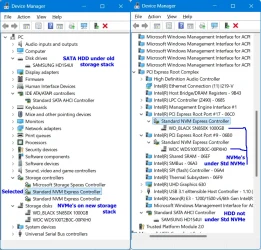
Open Device Manager and expand Storage controllers. Inside, look for Standard NVM Express Controller. Double-click -> Driver -> [Driver Details] and confirm that the driver file is stornvme.sys. If so, back out to Device Manager -> View -> Devices by connection. Is your NVMe drive under that controller? If not and you had more than one Standard NVM Express Controller, poke around and find it. Is your NVMe drive under one of the other ones? If you can't find Standard NVM Express Controller or your NVMe drive is under a different controller, this new storage stack is not applicable to your computer/drive.

But if it looks the same as below except for your NVMe drive still appearing under Disk Drives, then you have a versioning/flighting/enablement issue with the new feature. What build of Windows are you running? Build 26200.7462 works (I'm sure a little older will work too, but not sure how far back). Open Registry Editor and check, are the feature keys+values added by the batch file still present? ReconcileFeatures should have added a third value (TelemetryFlags=1) to each of the feature keys when it ran. Or is 14 an empty registry folder/not even present?

Storage stack.webp

For me it only worked after disabling Intel VMD and setting [execute in an elevated cmd window] sc config stornvme start= boot
Interesting—boot start is the normal setting for stornvme on systems using it. Can't remember if I have VMD enabled or disabled in the UEFI on my PCs.
 
Last edited:

My Computer

System One

  • OS
    Windows 11
    Computer type
    PC/Desktop
    Manufacturer/Model
    Intel i9-14900K
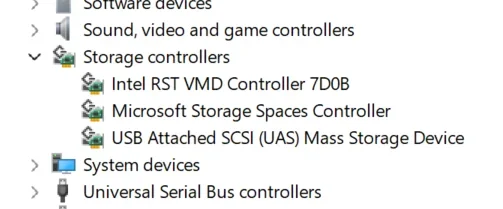
I have this in Device Manager:

1767121000318.webp

When I go into the BIOS and turn VMD off and reboot, Windows begins loading, but stops, indicating it encountered a problem.

1767121234643.webp
 

My Computer

System One

  • OS
    Windows 11
    Computer type
    Laptop
    Manufacturer/Model
    Samsung Galaxie Book Pro 360
    CPU
    i7-1165G7
    Motherboard
    Samsung
    Memory
    16 GB
    Hard Drives
    Samsung SSD 970 EVO Plus 1TB
    Browser
    Brave
    Antivirus
    Norton 360
@msmcintosh Yeah, that's a problem. Try running the command shown in the quote now at the bottom of my previous post (it should return "[SC] ChangeServiceConfig SUCCESS"), then disable VMD again and see if it'll boot. Also, if you have the option for RAID or AHCI, you want the latter (remember the old settings so you can restore them if you can't get it to boot this way). Of course it goes without saying that you can't do this if you're actually using RAID storage volumes on your PC (if you don't know, you're probably not).
 

My Computer

System One

  • OS
    Windows 11
    Computer type
    PC/Desktop
    Manufacturer/Model
    Intel i9-14900K

My Computers

System One System Two

  • OS
    Windows 11 Enterprise 25H2 26200 7462
    Computer type
    PC/Desktop
    Manufacturer/Model
    Custom Build
    CPU
    Intel XEON E5-2699 v3
    Motherboard
    ASUS X99-A
    Memory
    64GB Teamgroup UD4-3600
    Graphics Card(s)
    NVIDIA GeForce GTX 1080 Ti
    Sound Card
    Integrated
    Monitor(s) Displays
    ACER X34 Predator
    Screen Resolution
    3440 x 1440
    Hard Drives
    Crucial CT1000P 3P SSD8 1TB
    Crucial CT1000 BX500 SSD 1TB
    PSU
    GameMax Pro
    Case
    Fractal Design
    Cooling
    Corsair H110iGT + 6 140mm Fans
    Keyboard
    Corsair K4
    Mouse
    G-Skill G502
    Internet Speed
    300MBs
    Browser
    Chrome
    Antivirus
    OEM
    Other Info
    ASUS RT-AC87U Router
  • Operating System
    25H2 26200.5074
    Computer type
    Laptop
    Manufacturer/Model
    ASUS X555LA
    Memory
    8GB
    Browser
    Chrome
    Antivirus
    OEM

Latest Support Threads

Back
Top Bottom