This tutorial will show you how to manually apply a Known Issue Rollback (KIR) for your Windows 11 device.
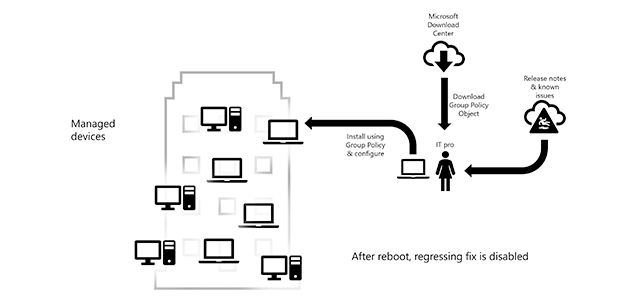
Known Issue Rollback (KIR) is a capability that can quickly return an impacted device back to productive use if an issue arises during a Windows update.
For the supported versions of Windows, a KIR rolls back a specific change that was applied as part of a nonsecurity Windows Update release. All other changes that were made as a part of that release remain intact. By using this technology, if a Windows update causes a regression or other problem, you don't have to uninstall the entire update and return the system to the last known good configuration. You roll back only the change that caused the problem. This rollback is temporary. After Microsoft releases a new update that fixes the problem, the rollback is no longer necessary.
If Microsoft determines that a nonsecurity update has a critical regression or similar issue, Microsoft generates a KIR. Microsoft announces the KIR in the Windows Health Dashboard, and adds the information to the following locations:
- The Known Issues section of the applicable Windows Update KB article. For example: KB5089549
- The Known Issues list on the Windows Health Release Dashboard for the affected versions of Windows (for example, Windows 11, version 25H2)
For enterprise customers, Microsoft provides a policy definition .msi file. Enterprise customers can propagate the KIR to managed systems by using the enterprise Group Policy infrastructure.
References:
Known Issue Rollback: Helping you keep Windows devices protected and productive | Microsoft Community Hub
Learn about this new Windows 10 servicing capability and how you can utilize it in your organization.
 techcommunity.microsoft.com

Use Group Policy to deploy a Known Issue Rollback - Windows Client
Discusses how to configure Group Policy to use a Known Issue Rollback (KIR) policy definition that activates a KIR on managed devices.
learn.microsoft.com
You must be signed in as an administrator to apply a Known Issue Rollback (KIR) for a Windows Update.
Here's How:
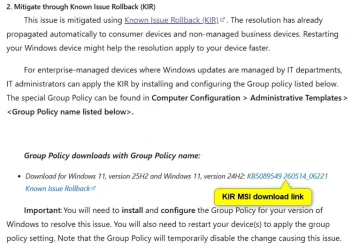
1 You will need to download and install the KIR MSI file on the Windows Health Release Dashboard for the Windows 11 26H1, 25H2, or 24H2 known issue that Microsoft issued a KIR for. (see screenshots below)
The KIR MSI must be for the same version (ex: 25H2) as your Windows 11.
Installing the KIR MSI will add the group policy setting at step 3 to apply the specific rollback.
For example: Download for Windows 11, version 25H2 and Windows 11, version 24H2: KB5089549 260514_06221 Known Issue Rollback
2 Open the Local Group Policy Editor (gpedit.msc).
The Local Group Policy Editor is only available in the Windows 11 Pro, Enterprise, and Education editions.
3 Navigate to the policy location below in the left pane of the Local Group Policy Editor. (see screenshot below step 4)
Computer Configuration >Administrative Templates > KB ####### XXX Known Issue Rollback > Windows 11, version 2452, 25H2
4 In the right pane of Windows 11, version 2452, 25H2 in the Local Group Policy Editor, double click/tap on the KB ####### XXX Known Issue Rollback policy to edit it. (see screenshot below)
5 Select (dot) Disabled, and click/tap on OK. (see screenshot below)
6 Restart the computer to apply the Known Issue Rollback (KIR).
That's it,
Shawn Brink
Last edited: