[Battery]Drain while computer is OFF?!


sucribe

New member
Local time
9:21 PM
Posts
27
OS
Win 11 LTSC
This is happening ONLY a the Dynabook X30L-J i had. Not one, but two, and from different reseller. They were used, but works fine.. Apart this strange thing : battery % goes down while device is POWERED OFF. I have NEVER EVER seen this. I did REPLACE the battery with a supposedly new one i purchased online, SAME. So defective battery isn't the reason i guess..?
 

My Computer

System One

  • OS
    Win 11 LTSC
    Computer type
    Laptop
Is the computer really off?
How are you turning it off?
Have you set Fast start in Power options, Choose what the power buttons do - this sets the computer into a sort-of-hibernate state instead of off when you use Start menu, Power, Shutdown. But the power drain is so slow that I doubt you are referring to this.

battery % goes down
From what level to what new level over what time period?

You can be sure of turning the computer completely off by running this command to turn it off - use Terminal, Cmd window or create a shortcut containing the command
shutdown.exe /s /t 0 /f
I suggest trying this first then you can progress further if needs be.


Denis
 

My Computer

System One

  • OS
    Windows 11 Home x64 Version 25H2 Build 26200.8037
I did disable hibernation and i put it to sleep by selecting the option to shutdown in start menu. I need to measure again how much it looses, but from what i recall it was like 1%/h which is what happens during sleep usually.. There is NO "fast start" option
 

My Computer

System One

  • OS
    Win 11 LTSC
    Computer type
    Laptop
There is NO "fast start" option
There is no Fast start checkbox shown if you right-click on the power/battery icon on the Taskbar then select Power options then Choose what the power buttons do?
 

My Computer

System One

  • OS
    Windows 11 Home x64 Version 25H2 Build 26200.8037
I did disable hibernation and i put it to sleep by selecting the option to shutdown in start menu. I need to measure again how much it looses, but from what i recall it was like 1%/h which is what happens during sleep usually.. There is NO "fast start" option
That makes no sense as Hibernation is the lowest power consumption.
next is Shutdown (Combo of hibernate and sleep), Sleep uses the most power.

There is variation within those depending on your settings.

Ultimately even completely disconnecting the battery leaves it with a self discharge rate depending on temperature and battery chemistry.
 

My Computer

System One

  • OS
    Windows 11
Ultimately even completely disconnecting the battery leaves it with a self discharge rate depending on temperature and battery chemistry.
Sure, but it'll be like very few percent across MONTHS unless defective. Personal note : it's 6:30pm, PC at 61% and i just shutdown using the command provided above. Let's see the % next morning!
 

My Computer

System One

  • OS
    Win 11 LTSC
    Computer type
    Laptop
Batteries drain.

I have the very same problem on my HP EliteBook notebook PC. It was about 6 % per day in the beginning. Then I disabled several settings in BIOS like "Wake on LAN", "Wake on USB", "Deep Sleep", etc. I also uninstalled HP Support assisstant. Now Battery drain has come down to 4% per day. There happens to be battery internal drain as well. By the way my notebook is 7 years old.

I hope your situation is better than mine.
 

My Computers

System One System Two

  • OS
    Windows 11 Pro build 26200.8524
    Computer type
    PC/Desktop
    Manufacturer/Model
    Home Built
    CPU
    Intel i7-4790
    Motherboard
    Asus H97 Pro Gamer with add-on TPM1.2 module
    Memory
    Teams DDR3-1600 4x4 GB
    Graphics Card(s)
    MSI Nvidia GeForce GTX 1050Ti
    Sound Card
    Realtek ALC1150
    Monitor(s) Displays
    Dell P2425D
    Screen Resolution
    2560 by 1440 pixels
    Hard Drives
    Corsair NVMe M.2 Core XT 1000 GB (Windows 11 v.25H2); Samsung SATA Evo 870 500 GB (Windows 11 v.25H2);
    PSU
    Corsair HX850
    Case
    Gigabyte Solo 210
    Cooling
    Zalman CNPS7X Tower
    Keyboard
    Microsoft AIO Wireless (includes touchpad)
    Mouse
    HP S1000 Plus Wireless
    Internet Speed
    500 Mb fiber optic
    Browser
    Chrome; MS Edge
    Antivirus
    Windows Defender
  • Operating System
    MacOS 12 Monterey
    Computer type
    Laptop
    Manufacturer/Model
    Apple Macbook Air
    CPU
    Intel Core i5
    Memory
    8 GB
    Graphics card(s)
    Intel integrated
    Screen Resolution
    1440 by 900 pixels
    Hard Drives
    128 GB
    Keyboard
    Built-in
    Mouse
    Microsoft Wireless
    Internet Speed
    802.11 ac
    Browser
    Chrome; Safari
    Antivirus
    N/A
I did disable hibernation ... There is NO "fast start" option
There is no Fast start checkbox shown if you right-click on the power/battery icon on the Taskbar then select Power options then Choose what the power buttons do?
Fast Startup won't appear in Power options when hibernation has been turned off. It requires hibernation to be enabled for it to work.

I have the very same problem on my HP EliteBook notebook PC. It was about 6 % per day in the beginning. Then I disabled several settings in BIOS like "Wake on LAN", "Wake on USB", "Deep Sleep", etc.
Another one to disable, if possible, would be the 'always on' USB port that can be used to charge other devices while the PC is turned off. You should find this in the BIOS. If you routinely leave any USB device plugged in, try unplugging while turned off.

The Service manual may help: https://aps2.support.emea.dynabook.com/kb0/MAN0C03ZK0002R01_MM_X30L-J_Rev01.pdf
 

My Computers

System One System Two

  • OS
    Windows 11 Home
    Computer type
    Laptop
    Manufacturer/Model
    Acer Aspire 3 A315-23-R9VY
    CPU
    AMD Athlon Silver 3050U
    Memory
    8GB
    Graphics Card(s)
    Radeon Graphics
    Monitor(s) Displays
    laptop screen
    Screen Resolution
    1366x768 native resolution, up to 2560x1440 with Radeon Virtual Super Resolution
    Hard Drives
    1TB Samsung EVO 870 SSD (from April 2026: 250GB EVO 850)
    Internet Speed
    150 Mbps
    Browser
    Edge, Firefox
    Antivirus
    Defender
    Other Info
    fully 'Windows 11 ready' laptop. Windows 10 C: partition migrated from my old unsupported 'main machine' then upgraded to 11. A test migration ran Insider builds for 2 months. When 11 was released on 5th October 2021 it was re-imaged back to 10 and was offered the upgrade in Windows Update on 20th October. Windows Update offered the 22H2 Feature Update on 20th September 2022. It got the 23H2 Feature Update on 4th November 2023 through Windows Update, 24H2 on 3rd October 2024 through Windows Update by setting the Target Release Version for 24H2, and 25H2 on 30th September 2025 through Windows Update by setting the Target Release Version for 25H2.

    UPDATE - 11 April 2026: due to mechanical deterioration this PC has been retired from active duty. The OS with all software and files has been migrated to my System Seven below to carry on as my general purpose 'main machine'.

    My SYSTEM THREE is a Dell Latitude 5410, i7-10610U, 32GB RAM, 512GB NVMe ssd, supported device running Windows 11 Pro.

    My SYSTEM FOUR is a 2-in-1 convertible Lenovo Yoga 11e 20DA, Celeron N2930, 8GB RAM, 256GB ssd. Unsupported device: currently running Win10 Pro, plus Win11 Pro RTM and Insider Dev, Beta, and RP 24H2 as native boot vhdx.

    My SYSTEM FIVE is a Dell Latitude 3190 2-in-1, Pentium Silver N5030, 8GB RAM, 1TB NVMe ssd, supported device running Windows 11 Pro, plus Insider Beta, Dev, and Canary builds (and a few others) as a native boot .vhdx.

    My SYSTEM SIX is a Dell Latitude 5550, Core Ultra 7 165H, 64GB RAM, 1TB NVMe SSD, supported device, Windows 11 Pro 24H2, Hyper-V host machine. Updated to 25H2 on 30th September 2025.

    My SYSTEM SEVEN is a Lenovo Thinkpad T580, Intel Core i7-8650U, 16GB RAM, 512GB NVMe SSD + 2nd 512GB NVMe SSD, a supported device for Windows 11. This is my current general purpose 'main machine'. The installed Windows 11 Home from my System One has been migrated to this machine.
  • Operating System
    Windows 11 Pro
    Computer type
    Laptop
    Manufacturer/Model
    Dell Latitude E4310
    CPU
    Intel® Core™ i5-520M
    Motherboard
    0T6M8G
    Memory
    8GB
    Graphics card(s)
    (integrated graphics) Intel HD Graphics
    Screen Resolution
    1366x768
    Hard Drives
    500GB Crucial MX500 SSD
    Browser
    Firefox, Edge
    Antivirus
    Defender
    Other Info
    unsupported machine: Legacy bios, MBR, TPM 1.2, upgraded from W10 to W11 using W10/W11 hybrid install media workaround. In-place upgrade to 22H2 using ISO and a workaround. Feature Update to 23H2 by manually installing the Enablement Package. In-place upgrade to 24H2 using hybrid 23H2/24H2 install media. Upgraded to 25H2 by Enablement Package. Also running Insider Dev, and Canary builds and Windows 10 as native boot .vhdx.

    My SYSTEM THREE is a Dell Latitude 5410, i7-10610U, 32GB RAM, 512GB NVMe ssd, supported device running Windows 11 Pro.

    My SYSTEM FOUR is a 2-in-1 convertible Lenovo Yoga 11e 20DA, Celeron N2930, 8GB RAM, 256GB ssd. Unsupported device: currently running Win10 Pro, plus Win11 Pro RTM and Insider Dev, Beta, and RP 24H2 as native boot vhdx.

    My SYSTEM FIVE is a Dell Latitude 3190 2-in-1, Pentium Silver N5030, 8GB RAM, 1TB NVMe ssd, supported device running Windows 11 Pro, plus Insider Beta, Dev, and Canary builds (and a few others) as a native boot .vhdx.

    My SYSTEM SIX is a Dell Latitude 5550, Core Ultra 7 165H, 64GB RAM, 1TB NVMe SSD, supported device, Windows 11 Pro 24H2, Hyper-V host machine. Updated to 25H2 on 30th September 2025.

    My SYSTEM SEVEN is a Lenovo Thinkpad T580, Intel Core i7-8650U, 16GB RAM, 512GB NVMe SSD + 2nd 512GB NVMe SSD, a supported device for Windows 11. This is my current general purpose 'main machine'. The installed Windows 11 Home from my System One has been migrated to this machine.
I expect to have some follow-on questions, depending on the information that's about to be posted, so I might as well state them now.

1 Are there any yellow warning triangles in Device manager?

2 What power-sleep states are reported by this command?
PowerCfg -a

3 What is the ratio of Full charge capacity to Design capacity reported by a BatteryReport?
You can have the report saved to any of your folders e.g.
PowerCfg /batteryreport /output "F:\Records\BatteryReport.html" /Duration 1
battery report main parameters.webp


Denis
 

My Computer

System One

  • OS
    Windows 11 Home x64 Version 25H2 Build 26200.8037
According to Service Manual whose link is given by @Bree , sleep mode takes 6 to 8 days to deplete the new battery while full shutdown gives you 45 days.

Is this the manual of your notebook ?
 

My Computers

System One System Two

  • OS
    Windows 11 Pro build 26200.8524
    Computer type
    PC/Desktop
    Manufacturer/Model
    Home Built
    CPU
    Intel i7-4790
    Motherboard
    Asus H97 Pro Gamer with add-on TPM1.2 module
    Memory
    Teams DDR3-1600 4x4 GB
    Graphics Card(s)
    MSI Nvidia GeForce GTX 1050Ti
    Sound Card
    Realtek ALC1150
    Monitor(s) Displays
    Dell P2425D
    Screen Resolution
    2560 by 1440 pixels
    Hard Drives
    Corsair NVMe M.2 Core XT 1000 GB (Windows 11 v.25H2); Samsung SATA Evo 870 500 GB (Windows 11 v.25H2);
    PSU
    Corsair HX850
    Case
    Gigabyte Solo 210
    Cooling
    Zalman CNPS7X Tower
    Keyboard
    Microsoft AIO Wireless (includes touchpad)
    Mouse
    HP S1000 Plus Wireless
    Internet Speed
    500 Mb fiber optic
    Browser
    Chrome; MS Edge
    Antivirus
    Windows Defender
  • Operating System
    MacOS 12 Monterey
    Computer type
    Laptop
    Manufacturer/Model
    Apple Macbook Air
    CPU
    Intel Core i5
    Memory
    8 GB
    Graphics card(s)
    Intel integrated
    Screen Resolution
    1440 by 900 pixels
    Hard Drives
    128 GB
    Keyboard
    Built-in
    Mouse
    Microsoft Wireless
    Internet Speed
    802.11 ac
    Browser
    Chrome; Safari
    Antivirus
    N/A
It appears to be so.. Anyway, just checked now through battery report : 60% @6:30pm yesterday, 54% now @10:30am : booting device definitely wouldn't take off 6% straight. Just put it back to SLEEP this time at 52% after checking what's below.

I expect to have some follow-on questions, depending on the information that's about to be posted, so I might as well state them now.

1 Are there any yellow warning triangles in Device manager?

2 What power-sleep states are reported by this command?
PowerCfg -a

3 What is the ratio of Full charge capacity to Design capacity reported by a BatteryReport?
You can have the report saved to any of your folders e.g.
PowerCfg /batteryreport /output "F:\Records\BatteryReport.html" /Duration 1
View attachment 171494


Denis
1/ Yes, one, relates to "WINDOWSHELLOFACESOFTWAREDRIVER"

2/ Result is S0, all other unavailable

3/ Design 53,130, FullCharge 41,410
 

My Computer

System One

  • OS
    Win 11 LTSC
    Computer type
    Laptop
Result is S0, all other unavailable
That is a Modern Standby machine, also known as 'connected standby' as it will still be network connected while sleeping. I have a couple of Modern Standby machines and had the same battery issues as you until I tamed them. I like all my laptops to sleep when I close the lid, then hibernate after 20 minutes if I don't return. Hibernation consumes zero power.

Your first step should be to re-enable hibernation, and in 'Control Panel > Power options > Choose what closing the lid does' click on 'Change settings that are currently unavailable'. Now turn off 'Fast Startup' and turn on 'Show in Power menu' for Hibernate.

Now you can set it to hibernate from the Start menu's power button. If you want to hibernate after after a set time, as I do, then there are a few more steps to take. I first set out how I did that here:

How to disable Modern Standby? I want regular Sleep again! - post #9
 

My Computers

System One System Two

  • OS
    Windows 11 Home
    Computer type
    Laptop
    Manufacturer/Model
    Acer Aspire 3 A315-23-R9VY
    CPU
    AMD Athlon Silver 3050U
    Memory
    8GB
    Graphics Card(s)
    Radeon Graphics
    Monitor(s) Displays
    laptop screen
    Screen Resolution
    1366x768 native resolution, up to 2560x1440 with Radeon Virtual Super Resolution
    Hard Drives
    1TB Samsung EVO 870 SSD (from April 2026: 250GB EVO 850)
    Internet Speed
    150 Mbps
    Browser
    Edge, Firefox
    Antivirus
    Defender
    Other Info
    fully 'Windows 11 ready' laptop. Windows 10 C: partition migrated from my old unsupported 'main machine' then upgraded to 11. A test migration ran Insider builds for 2 months. When 11 was released on 5th October 2021 it was re-imaged back to 10 and was offered the upgrade in Windows Update on 20th October. Windows Update offered the 22H2 Feature Update on 20th September 2022. It got the 23H2 Feature Update on 4th November 2023 through Windows Update, 24H2 on 3rd October 2024 through Windows Update by setting the Target Release Version for 24H2, and 25H2 on 30th September 2025 through Windows Update by setting the Target Release Version for 25H2.

    UPDATE - 11 April 2026: due to mechanical deterioration this PC has been retired from active duty. The OS with all software and files has been migrated to my System Seven below to carry on as my general purpose 'main machine'.

    My SYSTEM THREE is a Dell Latitude 5410, i7-10610U, 32GB RAM, 512GB NVMe ssd, supported device running Windows 11 Pro.

    My SYSTEM FOUR is a 2-in-1 convertible Lenovo Yoga 11e 20DA, Celeron N2930, 8GB RAM, 256GB ssd. Unsupported device: currently running Win10 Pro, plus Win11 Pro RTM and Insider Dev, Beta, and RP 24H2 as native boot vhdx.

    My SYSTEM FIVE is a Dell Latitude 3190 2-in-1, Pentium Silver N5030, 8GB RAM, 1TB NVMe ssd, supported device running Windows 11 Pro, plus Insider Beta, Dev, and Canary builds (and a few others) as a native boot .vhdx.

    My SYSTEM SIX is a Dell Latitude 5550, Core Ultra 7 165H, 64GB RAM, 1TB NVMe SSD, supported device, Windows 11 Pro 24H2, Hyper-V host machine. Updated to 25H2 on 30th September 2025.

    My SYSTEM SEVEN is a Lenovo Thinkpad T580, Intel Core i7-8650U, 16GB RAM, 512GB NVMe SSD + 2nd 512GB NVMe SSD, a supported device for Windows 11. This is my current general purpose 'main machine'. The installed Windows 11 Home from my System One has been migrated to this machine.
  • Operating System
    Windows 11 Pro
    Computer type
    Laptop
    Manufacturer/Model
    Dell Latitude E4310
    CPU
    Intel® Core™ i5-520M
    Motherboard
    0T6M8G
    Memory
    8GB
    Graphics card(s)
    (integrated graphics) Intel HD Graphics
    Screen Resolution
    1366x768
    Hard Drives
    500GB Crucial MX500 SSD
    Browser
    Firefox, Edge
    Antivirus
    Defender
    Other Info
    unsupported machine: Legacy bios, MBR, TPM 1.2, upgraded from W10 to W11 using W10/W11 hybrid install media workaround. In-place upgrade to 22H2 using ISO and a workaround. Feature Update to 23H2 by manually installing the Enablement Package. In-place upgrade to 24H2 using hybrid 23H2/24H2 install media. Upgraded to 25H2 by Enablement Package. Also running Insider Dev, and Canary builds and Windows 10 as native boot .vhdx.

    My SYSTEM THREE is a Dell Latitude 5410, i7-10610U, 32GB RAM, 512GB NVMe ssd, supported device running Windows 11 Pro.

    My SYSTEM FOUR is a 2-in-1 convertible Lenovo Yoga 11e 20DA, Celeron N2930, 8GB RAM, 256GB ssd. Unsupported device: currently running Win10 Pro, plus Win11 Pro RTM and Insider Dev, Beta, and RP 24H2 as native boot vhdx.

    My SYSTEM FIVE is a Dell Latitude 3190 2-in-1, Pentium Silver N5030, 8GB RAM, 1TB NVMe ssd, supported device running Windows 11 Pro, plus Insider Beta, Dev, and Canary builds (and a few others) as a native boot .vhdx.

    My SYSTEM SIX is a Dell Latitude 5550, Core Ultra 7 165H, 64GB RAM, 1TB NVMe SSD, supported device, Windows 11 Pro 24H2, Hyper-V host machine. Updated to 25H2 on 30th September 2025.

    My SYSTEM SEVEN is a Lenovo Thinkpad T580, Intel Core i7-8650U, 16GB RAM, 512GB NVMe SSD + 2nd 512GB NVMe SSD, a supported device for Windows 11. This is my current general purpose 'main machine'. The installed Windows 11 Home from my System One has been migrated to this machine.
Remember i told you i TURN OFF the device. Are you saying that on these machine turning off is just not possible?! Sounds crazy.. I have a modern macbook and battery doesn't go down much if at all when i TURN IT OFF.
 

My Computer

System One

  • OS
    Win 11 LTSC
    Computer type
    Laptop
I do wonder if you have a Bios setting for keeping the USB connections powered when the computer is turned off [some people use this setting so they can always charge their phones up].
Somebody else suggested some other Bios settings worth checking a few posts back [Wake on Lan, ...].
But I would be really surprised if these Bios settings could account for the charge loss you are experiencing.

The only other thing I can think of is that both your old & new batteries have hardware defects causing the loss but that would be a great coincidence. You could check for this by removing the battery from the computer overnight then see how its before & after charges compare - your service manual should tell you how to remove & replace a battery.


Denis
 

My Computer

System One

  • OS
    Windows 11 Home x64 Version 25H2 Build 26200.8037
I do wonder if you have a Bios setting for keeping the USB connections powered when the computer is turned off [some people use this setting so they can always charge their phones up].
Somebody else suggested some other Bios settings worth checking a few posts back [Wake on Lan, ...].
But I would be really surprised if these Bios settings could account for the charge loss you are experiencing.

The only other thing I can think of is that both your old & new batteries have hardware defects causing the loss but that would be a great coincidence. You could check for this by removing the battery from the computer overnight then see how its before & after charges compare - your service manual should tell you how to remove & replace a battery.


Denis
Remove battery and put it back next morning, great idea! The BIOS settings just can't eat up that much battery, let's be realistic. All battery defective would be such a coincidence indeed.. So i'm gonna test with all them!
 

My Computer

System One

  • OS
    Win 11 LTSC
    Computer type
    Laptop
Remove battery and put it back next morning, great idea! The BIOS settings just can't eat up that much battery, let's be realistic. All battery defective would be such a coincidence indeed.. So i'm gonna test with all them!
This test might very well tell you if your battery has an internal leak, discharging itself slowly. Good test but you have to open up your notebook to take off the battery connector. If you have a voltage meter, you can test the output of the battery at several hours intervals when it is out of the notebook.

Another thing to try: Do a battery calibration task if you have not done it recently.
 

My Computers

System One System Two

  • OS
    Windows 11 Pro build 26200.8524
    Computer type
    PC/Desktop
    Manufacturer/Model
    Home Built
    CPU
    Intel i7-4790
    Motherboard
    Asus H97 Pro Gamer with add-on TPM1.2 module
    Memory
    Teams DDR3-1600 4x4 GB
    Graphics Card(s)
    MSI Nvidia GeForce GTX 1050Ti
    Sound Card
    Realtek ALC1150
    Monitor(s) Displays
    Dell P2425D
    Screen Resolution
    2560 by 1440 pixels
    Hard Drives
    Corsair NVMe M.2 Core XT 1000 GB (Windows 11 v.25H2); Samsung SATA Evo 870 500 GB (Windows 11 v.25H2);
    PSU
    Corsair HX850
    Case
    Gigabyte Solo 210
    Cooling
    Zalman CNPS7X Tower
    Keyboard
    Microsoft AIO Wireless (includes touchpad)
    Mouse
    HP S1000 Plus Wireless
    Internet Speed
    500 Mb fiber optic
    Browser
    Chrome; MS Edge
    Antivirus
    Windows Defender
  • Operating System
    MacOS 12 Monterey
    Computer type
    Laptop
    Manufacturer/Model
    Apple Macbook Air
    CPU
    Intel Core i5
    Memory
    8 GB
    Graphics card(s)
    Intel integrated
    Screen Resolution
    1440 by 900 pixels
    Hard Drives
    128 GB
    Keyboard
    Built-in
    Mouse
    Microsoft Wireless
    Internet Speed
    802.11 ac
    Browser
    Chrome; Safari
    Antivirus
    N/A
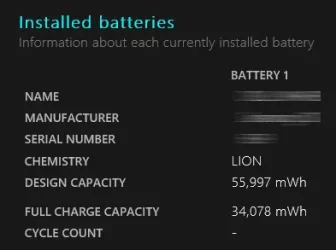
Ok so i checked all 3 batteries this morning after about 10hours : first, just to clarify, two of them are original and old/not new, in battery report "cycles" is always empty while "serial number" has a number that looks like very much the actual battery cycle count, though it's a bit strange the one shown here (lowest actual capacity/most used) has only 388 while another has close to 1000 but a much higher full charge capacity (quite close to the brand new one).

The last one was purchased by myself as brand new and it seems to be : the design & full charge capacity are almost same and "serial number" shows 10. I did leave that last one plugged on the MB and it had -1% this morning. So did the others actually. And that -1% could be just from booting (since it take some times to after you unplug/replug battery).. Now i need to test all of them by leaving them sometimes IN the pc while OFF.

Another thing that striked me was charging speed : using same charger/cable, it appears that the non original brand new one was charging MUCH faster. Last thing : i noticed the PC just CAN'T go to sleep; i choose sleep from power menu and wait.. It NEVER goes off, the screen actually even turns back on itself after a minute or so. Perhaps that tells you something? Of course i'd like to know how to fix this..
 

My Computer

System One

  • OS
    Win 11 LTSC
    Computer type
    Laptop
There are some articles from large companies such as Dell, HP. You may refer to their articles for a solution to your Sleep issue.

Hope you find these articles useful.


My Computers

System One System Two

  • OS
    Windows 11 Pro build 26200.8524
    Computer type
    PC/Desktop
    Manufacturer/Model
    Home Built
    CPU
    Intel i7-4790
    Motherboard
    Asus H97 Pro Gamer with add-on TPM1.2 module
    Memory
    Teams DDR3-1600 4x4 GB
    Graphics Card(s)
    MSI Nvidia GeForce GTX 1050Ti
    Sound Card
    Realtek ALC1150
    Monitor(s) Displays
    Dell P2425D
    Screen Resolution
    2560 by 1440 pixels
    Hard Drives
    Corsair NVMe M.2 Core XT 1000 GB (Windows 11 v.25H2); Samsung SATA Evo 870 500 GB (Windows 11 v.25H2);
    PSU
    Corsair HX850
    Case
    Gigabyte Solo 210
    Cooling
    Zalman CNPS7X Tower
    Keyboard
    Microsoft AIO Wireless (includes touchpad)
    Mouse
    HP S1000 Plus Wireless
    Internet Speed
    500 Mb fiber optic
    Browser
    Chrome; MS Edge
    Antivirus
    Windows Defender
  • Operating System
    MacOS 12 Monterey
    Computer type
    Laptop
    Manufacturer/Model
    Apple Macbook Air
    CPU
    Intel Core i5
    Memory
    8 GB
    Graphics card(s)
    Intel integrated
    Screen Resolution
    1440 by 900 pixels
    Hard Drives
    128 GB
    Keyboard
    Built-in
    Mouse
    Microsoft Wireless
    Internet Speed
    802.11 ac
    Browser
    Chrome; Safari
    Antivirus
    N/A
in battery report "cycles" is always empty
Yes, that's a common experience.

"serial number" has a number that looks like very much the actual battery cycle count
No, that is incorrect.

i noticed the PC just CAN'T go to sleep
You do not have any sleep states. Your PowerCfg -a results said so.
I suggest you tackle this issue in a separate thread.


Best of luck,
Denis
 

My Computer

System One

  • OS
    Windows 11 Home x64 Version 25H2 Build 26200.8037
You do not have any sleep states. Your PowerCfg -a results said so.
I suggest you tackle this issue in a separate thread.
I can make another thread yes.. Anyway, so far, it appears that the 2original battery i got are too old/defective; saying that even though testing is not over! However, even though the "brand new" one charges very fast (as it should), battery life seems very low in compare to what online reviews suggests..
 

My Computer

System One

  • OS
    Win 11 LTSC
    Computer type
    Laptop

Latest Support Threads

Back
Top Bottom