Solved BitLocker recovery key prompt on every reboot after power outage


Flash

New member
Local time
8:30 PM
Posts
9
OS
Windows 11
After a recent power outage, my Windows 11 Home PC asked for my BitLocker recovery key to start up. Now, it prompts for the key on every single restart or reboot.

After doing some research, I found that I have both of these suspect updates installed:
- KB 5083769
- KB 5082052

My question is: if I turn off Device Encryption in Settings (which notes that it may take a long time), reboot the system, and then turn encryption back on, will that solve this problem? Or am I on the wrong path?
 
Windows Build/Version
OS build 26200.8875, Ver.25H2

My Computer My Computer

At a glance

Windows 11
OS
Windows 11
Computer type
PC/Desktop
Manufacturer/Model
HP
If you turn encryption off, that will prevent the Recovery Key prompt. However, if you turn it back on, you may still have a problem, depending on what the underlying cause was.

Can you open an administrative command prompt, run the following commands, and post the results? Redact the recovery key, if it is shown.

manage-bde -status
manage-bde -protectors -get C:
 

My Computer My Computer

At a glance

Windows 11 Enterprise 25H2
OS
Windows 11 Enterprise 25H2
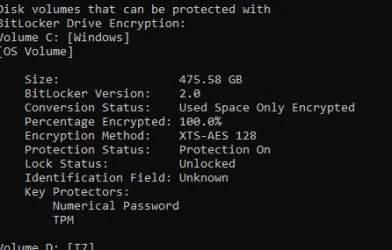
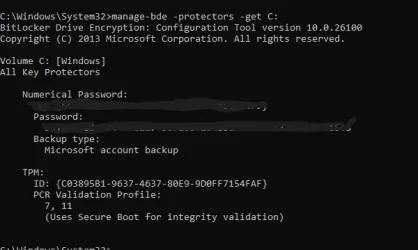
These are the results from the above commands.
 

Attachments

  • Screenshot 2026-07-27 081707.webp
    Screenshot 2026-07-27 081707.webp
    17 KB · Views: 3
  • Screenshot 2026-07-27 081841-e.webp
    Screenshot 2026-07-27 081841-e.webp
    22.6 KB · Views: 3

My Computer My Computer

At a glance

Windows 11
OS
Windows 11
Computer type
PC/Desktop
Manufacturer/Model
HP
Okay, this looks like encryption is setup correctly (makes sense, since it was fine previously), but the TPM is not releasing the key at boot.

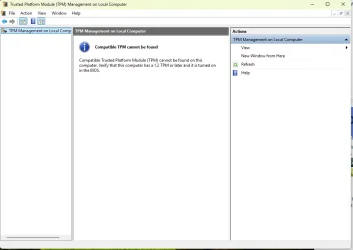
  • Verify the TPM is healthy.
    • Press Win + R, type tpm.msc, and press Enter.
    • At the top, it should say something like "The TPM is ready for use."
    • If it reports errors or that the TPM isn't ready, that's no bueno.
  • Check whether Windows is recording BitLocker recovery events.
    • Open Event Viewer.
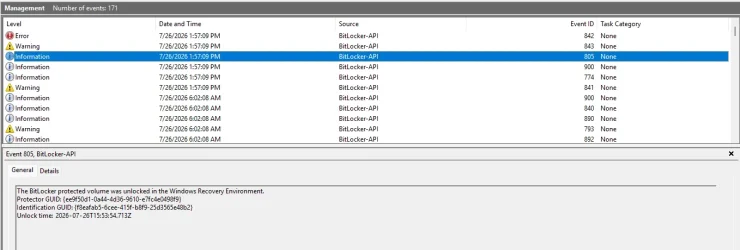
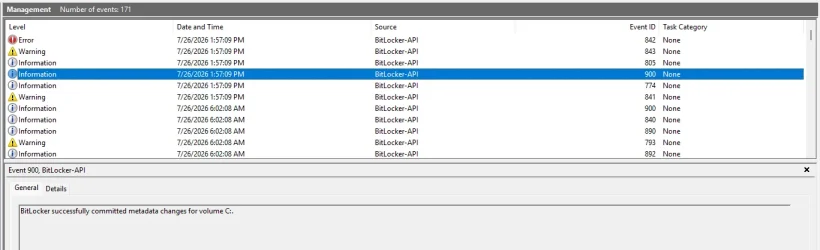
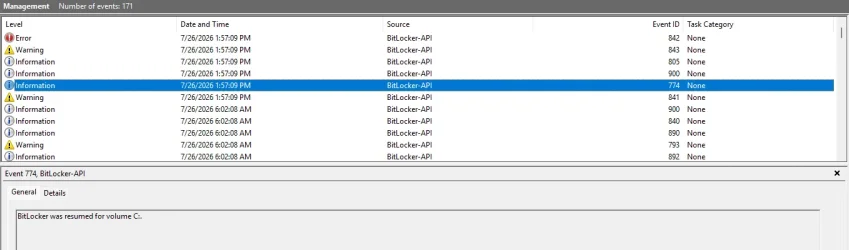
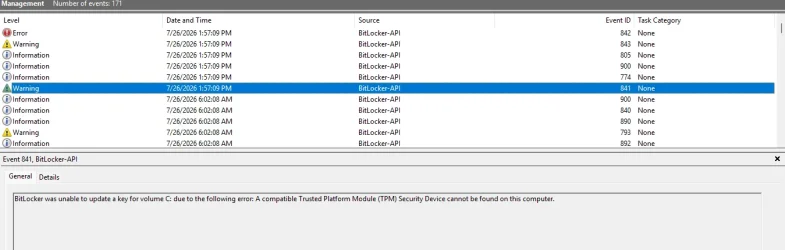
    • Go to Applications and Services Logs → Microsoft → Windows → BitLocker-API → Management.
    • Look for events that occur at the time of boot. That usually tells you why BitLocker entered recovery mode.
 

My Computer My Computer

At a glance

Windows 11 Enterprise 25H2
OS
Windows 11 Enterprise 25H2
After a recent power outage, my Windows 11 Home PC asked for my BitLocker recovery key to start up. Now, it prompts for the key on every single restart or reboot.

After doing some research, I found that I have both of these suspect updates installed:
- KB 5083769
- KB 5082052

What's suspect about them?
 

My Computer My Computer

At a glance

Windows 11
OS
Windows 11
Computer type
Laptop
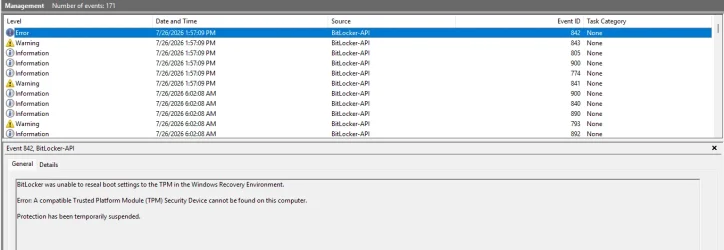
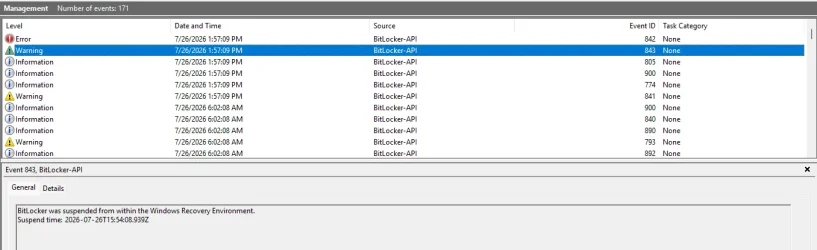
Here is a list of events from the power outage to present.
 

Attachments

  • Screenshot 2026-07-27 090715.webp
    Screenshot 2026-07-27 090715.webp
    49.5 KB · Views: 2
  • Screenshot 2026-07-27 090659.webp
    Screenshot 2026-07-27 090659.webp
    45.9 KB · Views: 2
  • Screenshot 2026-07-27 090642.webp
    Screenshot 2026-07-27 090642.webp
    50.9 KB · Views: 2
  • Screenshot 2026-07-27 090629.webp
    Screenshot 2026-07-27 090629.webp
    43.4 KB · Views: 3
  • Screenshot 2026-07-27 090613.webp
    Screenshot 2026-07-27 090613.webp
    41.8 KB · Views: 3
  • Screenshot 2026-07-27 090553.webp
    Screenshot 2026-07-27 090553.webp
    47.8 KB · Views: 1
  • Screenshot 2026-07-27 085644.webp
    Screenshot 2026-07-27 085644.webp
    26.8 KB · Views: 2

My Computer My Computer

At a glance

Windows 11
OS
Windows 11
Computer type
PC/Desktop
Manufacturer/Model
HP
Okay, so Windows can see that the drive was configured to use a TPM (TPM is listed as a key protector), but it can no longer communicate with the TPM. In that situation, BitLocker has no choice but to ask for the recovery key on every boot.
  • Restart the computer and enter the BIOS/UEFI setup.
    • Look for TPM, Intel PTT or AMD fTPM. Maybe it says something like "security device."
    • Make sure it is Enabled.
    • Resist any urge to clear the TPM. Do not.

By the way, if you open Device Manager and expand Security devices, do you see Trusted Platform Module 2.0, or is there no "Security devices" category at all?
 

My Computer My Computer

At a glance

Windows 11 Enterprise 25H2
OS
Windows 11 Enterprise 25H2
I suspect that the power failure reset BIOS to default settings with TPM disabled. Or that the BIOS battery is dead and doesn't retain settings. You could replace the battery, if that's the case.
 

My Computers My Computers

  • At a glance

    Windows 11 Pro 23H2 (7582), 25H2 (9457)Mobile DualCore Intel Core 2 Duo T7250, 2000 MHz4GBMobile Intel(R) GMA 4500M (Mobile 4 series)
    OS
    Windows 11 Pro 23H2 (7582), 25H2 (9457)
    Computer type
    Laptop
    Manufacturer/Model
    Acer Extensa 5630EZ
    CPU
    Mobile DualCore Intel Core 2 Duo T7250, 2000 MHz
    Motherboard
    Acer Extensa 5630
    Memory
    4GB
    Graphics Card(s)
    Mobile Intel(R) GMA 4500M (Mobile 4 series)
    Sound Card
    Realtek ALC268 @ Intel 82801IB ICH9 - High Definition Audio Controller
    Monitor(s) Displays
    1
    Screen Resolution
    1280x800
    Hard Drives
    Samsung SSD 850 EVO 250GB SATA Device (250 GB, SATA-III)
    Internet Speed
    802.11g wireless 54 Mbps
    Browser
    MICROSOFT EDGE
    Antivirus
    WINDOWS DEFENDER
    Other Info
    Legacy MBR installation, no TPM, no Secure Boot, no WDDM 2.0 graphics drivers, no SSE4.2, cannot get more unsupported ;) This is only my test laptop. I had installed Windows 11 here before upgrading my main PC. For my main PC I use everyday see my 2nd system specs.
  • At a glance

    Windows 11 Pro 25H2 (build 26200.9457)Intel Core-i7 3770 3.40GHz s1155 (3rd generat...2x Kingston Hyper-X Blu 8GB DDR3-1600GIGABYTE GeForce RTX 3050 WINDFORCE OC V2 6GB...
    Operating System
    Windows 11 Pro 25H2 (build 26200.9457)
    Computer type
    PC/Desktop
    Manufacturer/Model
    Custom-built PC
    CPU
    Intel Core-i7 3770 3.40GHz s1155 (3rd generation)
    Motherboard
    Asus P8H61 s1155 ATX
    Memory
    2x Kingston Hyper-X Blu 8GB DDR3-1600
    Graphics card(s)
    GIGABYTE GeForce RTX 3050 WINDFORCE OC V2 6GB (GV-N3050WF2OCV2-6GD)
    Sound Card
    Realtek HD audio (ALC887)
    Monitor(s) Displays
    Sony Bravia KDL-19L4000 19" LCD TV via VGA
    Screen Resolution
    1440x900 32-bit 60Hz
    Hard Drives
    WD Blue SA510 2.5 1000GB SSD as system disk, Western Digital Caviar Purple 4TB SATA III (WD40PURZ) as second
    PSU
    Thermaltake Litepower RGB 550W Full Wired
    Case
    SUPERCASE MIDI-TOWER
    Cooling
    Deepcool Gamma Archer CPU cooler, 1x 8cm fan at the back
    Keyboard
    Mitsumi 101-key PS/2
    Mouse
    Microsoft Compact Optical Mouse
    Internet Speed
    802.11ac 5GHz wireless 260Mpbs
    Browser
    Microsoft Edge, Mozilla Firefox
    Antivirus
    Microsoft Windows Defender
    Other Info
    Legacy BIOS (MBR) installation, no TPM, no Secure Boot, WDDM 3.0 graphics drivers, WEI score 7.4
No "security devices" category. This PC is less than a year old.
 

My Computer My Computer

At a glance

Windows 11
OS
Windows 11
Computer type
PC/Desktop
Manufacturer/Model
HP
I navigated to the BIOS/UEFI using the advanced start up in settings. TPM state is "enabled". TPM device is "available". How do I switch the device to "enabled"? It's been a while since I've had to change these settings.
 

My Computer My Computer

At a glance

Windows 11
OS
Windows 11
Computer type
PC/Desktop
Manufacturer/Model
HP
Your TPM is enabled if the firmware says so; it's just that Windows doesn't see it. Windows Security

If you go to Windows Security, then Device Security, does it show a Security Processor section?

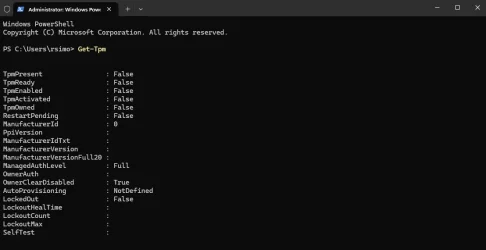
What do you get if you open an administrative PowerShell and type Get-Tpm?
 

My Computer My Computer

At a glance

Windows 11 Enterprise 25H2
OS
Windows 11 Enterprise 25H2
Power shell result.
 

Attachments

  • Screenshot 2026-07-27 102344.webp
    Screenshot 2026-07-27 102344.webp
    26.3 KB · Views: 3

My Computer My Computer

At a glance

Windows 11
OS
Windows 11
Computer type
PC/Desktop
Manufacturer/Model
HP
Alright so Windows isn't seeing the TPM at all.

Stuff I would try next:
  1. Shut the device down, unplug power, remove the battery if present, and hold down the power button for about 60 seconds. This will drain any residual power. Plug everything back in, power up, and make sure the UEFI still shows the TPM is available and enabled. Then check Windows again.
  2. Check for a UEFI update from your computer or motherboard manufacturer. A power failure can expose an existing firmware bug or leave firmware in an inconsistent state. Updating (or, in some cases, reflashing the same version) often restores TPM detection.
  3. Load UEFI defaults. Save and reboot. Re-enter the UEFI. Verify TPM is still enabled. Boot Windows and check Get-Tpm again.
 

My Computer My Computer

At a glance

Windows 11 Enterprise 25H2
OS
Windows 11 Enterprise 25H2
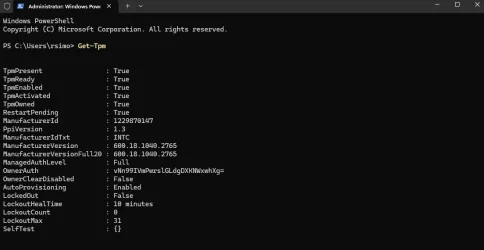
Finally, success! I couldn't find any updates on HP Support, but when I ran the Support Assistant it found 4. One was for BIOS and that solved the problem.
 

Attachments

  • Screenshot 2026-07-28 071924.webp
    Screenshot 2026-07-28 071924.webp
    31.3 KB · Views: 3

My Computer My Computer

At a glance

Windows 11
OS
Windows 11
Computer type
PC/Desktop
Manufacturer/Model
HP
Delicious. So BitLocker is happy again, I take it?
 

My Computer My Computer

At a glance

Windows 11 Enterprise 25H2
OS
Windows 11 Enterprise 25H2
Yep, all good. Thanks for your help! I learned a few things in the process. :-)
 

My Computer My Computer

At a glance

Windows 11
OS
Windows 11
Computer type
PC/Desktop
Manufacturer/Model
HP

Latest Support Threads

Back
Top Bottom