Solved Can I somehow activate the screen snipping tool like it was in Win10?


SJMaye

Member
Member
Local time
11:36 AM
Posts
79
OS
Windows 11 Pro
For a quick screen snip I just wanted saved to the clipboard in Win10 I used to just click on the date/time area and click on the snipping tool. To do the same in Win11 there is the Windows+L Shift+S . At least with my hands I find that cumbersome. Is there a way to add a shortcut on the taskbar or something that contains the that 3-keyed shortcut?
 

My Computer

System One

  • OS
    Windows 11 Pro
    Computer type
    PC/Desktop
    Manufacturer/Model
    Custom
    CPU
    AMD Ryzen 7 9800X3D
    Motherboard
    Gigabyte X870 Aorus Elite WIFI7
    Memory
    32GB DDR5
    Graphics Card(s)
    AMD Radeon 9070 XT
    Monitor(s) Displays
    Acer Predator 27"
    Screen Resolution
    1080P
    PSU
    Corsair HX1000
    Case
    Cooler Master HAF-X
    Cooling
    ID-Cooling A620
Hello, :alien:

You could use only the Print Screen key if Use the Print screen button to open screen snipping is turned on.


My Computers

System One System Two

  • OS
    Windows 11 Pro for Workstations
    Computer type
    PC/Desktop
    Manufacturer/Model
    Custom self build
    CPU
    Intel i7-8700K 5 GHz
    Motherboard
    ASUS ROG Maximus XI Formula Z390
    Memory
    64 GB (4x16GB) G.SKILL TridentZ RGB DDR4 3600 MHz (F4-3600C18D-32GTZR)
    Graphics Card(s)
    ASUS ROG-STRIX-GTX1080TI-O11G-GAMING (11GB GDDR5X)
    Sound Card
    Integrated Digital Audio (S/PDIF)
    Monitor(s) Displays
    2 x Samsung Odyssey G75 27"
    Screen Resolution
    2560x1440
    Hard Drives
    1TB Samsung 990 PRO M.2,
    4TB Samsung 990 PRO M.2,
    TerraMaster F8 SSD Plus NAS
    PSU
    Seasonic Prime Titanium 850W
    Case
    Thermaltake Core P3 wall mounted
    Cooling
    Corsair Hydro H115i
    Keyboard
    Amazon Basics Wired Full Keyboard MD005
    Mouse
    Logitech MX Master 4
    Internet Speed
    2 Gbps Download and 100 Mbps Upload
    Browser
    Chrome and Edge
    Antivirus
    Microsoft Defender
    Other Info
    Logitech Z625 speaker system,
    Logitech BRIO 4K Pro webcam,
    HP Color LaserJet Pro MFP M477fdn,
    CyberPower CP1500PFCLCD
    Galaxy S23 Plus phone
  • Operating System
    Windows 11 Pro
    Computer type
    Laptop
    Manufacturer/Model
    Surface Laptop 7 Copilot+ PC
    CPU
    Snapdragon X Elite (12 core) 3.42 GHz
    Memory
    16 GB LPDDR5x-7467 MHz
    Monitor(s) Displays
    15" HDR
    Screen Resolution
    2496 x 1664
    Hard Drives
    1 TB SSD
    Internet Speed
    Wi-Fi 7 and Bluetooth 5.4
    Browser
    Chrome and Edge
    Antivirus
    Microsoft Defender
Using the printcreen works well for most people but not for me since most of mine are screenshots of a portion of the screen rather than of full screen or individual windows. If you do not want to use the KB shortcut to snipping tool, you can pin it to the taskbar. Right click on the snipping tool in the all apps list, select more, select pin to taskbar.

If you do a lot of markups on your screenshots, Brink turned me on to a neat app called Screenpresso that is a replacement for the snipping tool.
 

My Computers

System One System Two

  • OS
    Windows 11 Pro 25H2
    Computer type
    PC/Desktop
    Manufacturer/Model
    Dell Optiplex 7080
    CPU
    i9-10900 10 core 20 threads
    Motherboard
    DELL 0J37VM
    Memory
    32 gb
    Graphics Card(s)
    none-Intel UHD Graphics 630
    Sound Card
    Integrated Realtek
    Monitor(s) Displays
    Benq 27
    Screen Resolution
    2560x1440
    Hard Drives
    2x1tb Solidigm m.2 nvme /External drives 512gb Samsung m.2 sata+2tb Kingston m2.nvme
    PSU
    500w
    Case
    MT
    Cooling
    Dell Premium
    Keyboard
    Logitech wired
    Mouse
    Logitech wireless
    Internet Speed
    so slow I'm too embarrassed to tell
    Browser
    #1 Edge #2 Firefox
    Antivirus
    Defender+MWB Premium
  • Operating System
    Windows 11 Pro 24H2 26200.8457
    Computer type
    PC/Desktop
    Manufacturer/Model
    Beelink Mini PC SER5
    CPU
    AMD Ryzen 7 6800U
    Memory
    32 gb
    Graphics card(s)
    integrated
    Sound Card
    integrated
    Monitor(s) Displays
    Benq 27
    Screen Resolution
    2560x1440
    Hard Drives
    1TB Crucial nvme
    Keyboard
    Logitech wired
    Mouse
    Logitech wireless
    Internet Speed
    still too embarrassed to tell
    Browser
    Firefox
    Antivirus
    Defender
    Other Info
    System 3 is non compliant Dell 9020 i7-4770/24gb ram Win11 PRO 26200.8457
Using the printcreen works well for most people but not for me since most of mine are screenshots of a portion of the screen rather than of full screen or individual windows. If you do not want to use the KB shortcut to snipping tool, you can pin it to the taskbar. Right click on the snipping tool in the all apps list, select more, select pin to taskbar.

If you do a lot of markups on your screenshots, Brink turned me on to a neat app called Screenpresso that is a replacement for the snipping tool.

Print Screen to open Snipping Tool will still allow you to take a screenshot of a selected area on the screen like at step 3 below.


I do like Screenpresso better.
 

My Computers

System One System Two

  • OS
    Windows 11 Pro for Workstations
    Computer type
    PC/Desktop
    Manufacturer/Model
    Custom self build
    CPU
    Intel i7-8700K 5 GHz
    Motherboard
    ASUS ROG Maximus XI Formula Z390
    Memory
    64 GB (4x16GB) G.SKILL TridentZ RGB DDR4 3600 MHz (F4-3600C18D-32GTZR)
    Graphics Card(s)
    ASUS ROG-STRIX-GTX1080TI-O11G-GAMING (11GB GDDR5X)
    Sound Card
    Integrated Digital Audio (S/PDIF)
    Monitor(s) Displays
    2 x Samsung Odyssey G75 27"
    Screen Resolution
    2560x1440
    Hard Drives
    1TB Samsung 990 PRO M.2,
    4TB Samsung 990 PRO M.2,
    TerraMaster F8 SSD Plus NAS
    PSU
    Seasonic Prime Titanium 850W
    Case
    Thermaltake Core P3 wall mounted
    Cooling
    Corsair Hydro H115i
    Keyboard
    Amazon Basics Wired Full Keyboard MD005
    Mouse
    Logitech MX Master 4
    Internet Speed
    2 Gbps Download and 100 Mbps Upload
    Browser
    Chrome and Edge
    Antivirus
    Microsoft Defender
    Other Info
    Logitech Z625 speaker system,
    Logitech BRIO 4K Pro webcam,
    HP Color LaserJet Pro MFP M477fdn,
    CyberPower CP1500PFCLCD
    Galaxy S23 Plus phone
  • Operating System
    Windows 11 Pro
    Computer type
    Laptop
    Manufacturer/Model
    Surface Laptop 7 Copilot+ PC
    CPU
    Snapdragon X Elite (12 core) 3.42 GHz
    Memory
    16 GB LPDDR5x-7467 MHz
    Monitor(s) Displays
    15" HDR
    Screen Resolution
    2496 x 1664
    Hard Drives
    1 TB SSD
    Internet Speed
    Wi-Fi 7 and Bluetooth 5.4
    Browser
    Chrome and Edge
    Antivirus
    Microsoft Defender
. Is there a way to add a shortcut on the taskbar or something that contains the that 3-keyed shortcut?

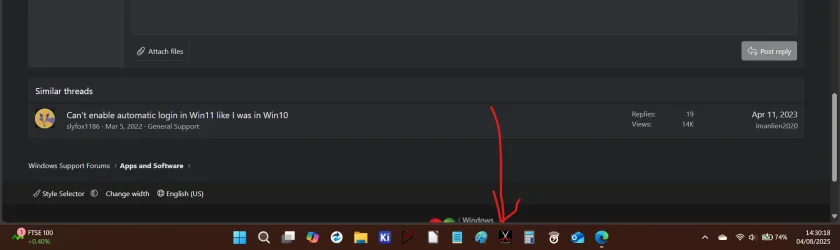
I do it like this:

Screenshot 2025-08-04 143021.webp

Create Snip shortcut using this file path (no quotes) "explorer.exe ms-screenclip:" and add your own suitable icon to suit by right clicking the shorting, selecting 'properties' and 'change icon'.

Attached is the icon as a zipped file (a .ico image) if you decide to try it (forum does not accept .ico as an extension).

Screenshot 2025-08-04 143809.webp
 

Attachments

My Computer

System One

  • OS
    W11 Pro x64 ongoing Canary 29500 latest builds
    Computer type
    Laptop
    Manufacturer/Model
    Dell 7760 Mobile Precision 17"
    CPU
    Intel i5
    Motherboard
    Unknown
    Memory
    8Gb
    Graphics Card(s)
    Intel HD Graphics
    Sound Card
    Realtek
    Monitor(s) Displays
    Internal
    Hard Drives
    2 x 256Gb SSD
    PSU
    Dell 240 watt
    Mouse
    Dell Premier Bluetooth
    Internet Speed
    50Mbps
    Browser
    Edge
    Antivirus
    Default Microsoft Security
I do it like this:

View attachment 141308

Create Snip shortcut using this file path (no quotes) "explorer.exe ms-screenclip:" and add your own suitable icon to suit by right clicking the shorting, selecting 'properties' and 'change icon'.

Attached is the icon as a zipped file (a .ico image) if you decide to try it (forum does not accept .ico as an extension).

View attachment 141310
Exactly what I needed. Even one click less that Win10. Thank you!
 

My Computer

System One

  • OS
    Windows 11 Pro
    Computer type
    PC/Desktop
    Manufacturer/Model
    Custom
    CPU
    AMD Ryzen 7 9800X3D
    Motherboard
    Gigabyte X870 Aorus Elite WIFI7
    Memory
    32GB DDR5
    Graphics Card(s)
    AMD Radeon 9070 XT
    Monitor(s) Displays
    Acer Predator 27"
    Screen Resolution
    1080P
    PSU
    Corsair HX1000
    Case
    Cooler Master HAF-X
    Cooling
    ID-Cooling A620
Back
Top Bottom