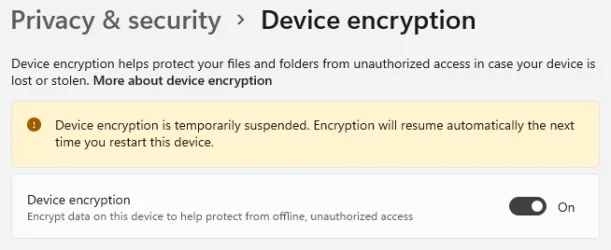
Unlike BitLocker Drive Encryption, Device Encryption does not have an option to let you suspend/resume it. ..........
Not true, Not true, Not true a hundred times

............Device Encryption can only be turned on/off.
True. A normal, average user has only this visible option to turn on or turn off Device encryption. But ........that does not preclude or mean that there is no option to suspend/resume. I would repeat what I said in my last post "
The Device encryption must be suspended before flashing the system BIOS and when a motherboard or system drive replacement is expected. Note: If the Device encryption is not suspended before any troubleshooting, you or the technician will only have limited repair options and cannot analyze and diagnose OS/software related issues".
This is what
@Brink states in his tutorial
Suspend or Resume BitLocker Protection for Drive in Windows 11
quote, “
You can suspend BitLocker protection for an unlocked drive encrypted by BitLocker or
Device Encryption,
and resume BitLocker protection for the drive at any time. " (emphasis added)"
Sometimes you may need to suspend BitLocker protection on an operating system drive to prevent certain problems and allow successful firmware and hardware updates.
Suspend keeps the data encrypted but encrypts the BitLocker volume master key with a clear key. The clear key is a cryptographic key stored unencrypted and unprotected on the disk drive. By storing this key unencrypted, the Suspend option allows for changes or upgrades to the computer
without the time and cost of decrypting and re-encrypting the entire drive "(emphasis added)". After the changes are made and BitLocker is again enabled, BitLocker will reseal the encryption key to the new values of the measured components that changed as a part of the upgrade, the volume master key is changed, the protectors are updated to match and the clear key is erased.”
Unquote
And here is the AI overview:
You should suspend or disable BitLocker/
Device Encryption before a BIOS update because the update changes system security settings, causing BitLocker to fail to recognize the security key (Trusted Platform Module or TPM) and trigger recovery mode, which demands a recovery key or risks data loss/reinstallation. Suspending it allows the update to proceed without this security check interruption, and you can easily re-enable it afterward.
Why it happens:
Security Changes: BIOS updates modify fundamental hardware security configurations (like TPM settings).
Key Mismatch: BitLocker relies on these hardware settings; a change triggers a security alert, as the system sees an unauthorized modification to its secure environment.
Recovery Mode: The system then asks for the BitLocker recovery key on every boot,
which can be inconvenient or lead to data loss if the key isn't readily available.
And so it is: Device encryption can be suspended/resumed when needed rather than the time consuming decryption and re-encryption. Users who want to retain Device encryption are well advised to save the recovery keys to files in an external media - flash drive, external HDD/SSD. (If not the user has to log into his Microsoft account on another PC and fetch the Recovery key/s under his listed device.)
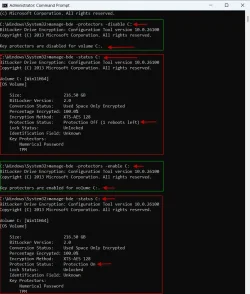
Command prompt commands to suspend, resume, find the status:
To be "run as administrator"
manage-bde -protectors -disable C: ........ Suspends
manage-bde -protectors -enable C: ......... Unsuspends
manage-bde -status C: '''''''''' indicates Protection On/Protection Off as the case may be.
PowerShell commands:
To be "run as administrator"
Suspend-Bitlocker -MountPoint “C:” ........ Suspends
Resume-Bitlocker -MountPoint “C:” ......... Unsuspends
Get-BitLockerVolume .............. indicates protection On /protection Off as the case may be for all the internal disks and drives in the PC
Command prompt Screenshots:
Run on my PC (Windows 11 Home 64bit 25H2 26200:7462)
in which Device Encryption is On and is in encrypted state
PowerShell Commands:
Run on my PC (Windows 11 Home 64bit 25H2 26200:7462)
in which Device Encryption is On and is in encrypted state
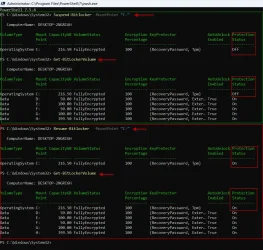
Note: My system disk, a 1 TB SSD, has C: (system) and data drives D:, E:, F:, G:, and H: . No need to perform suspend/unsuspend operations on the data drives
Device Encryption encrypts the whole disk. Total Data in the disk ( system drive C: + 5 data drives in the disk) is 490GB. It takes about three hours to decrypt and three hours to re-encrypt. And so just use disable (suspend) and enable (unsuspend) instead of fiddling fingers for 6 hours.