Personalization Change Default System Font in Windows 11

  • Thread starter Thread starter Brink
  • Start date Published: Start date Updated Updated:
  • Tags Tags
    fonts

text_size_banner.png

This tutorial will show you how to change the default system font for all users in Windows10 and Windows 11.

A font is a graphical representation of text that may include a different typeface, point size, weight, color, or design.

Windows 11 uses the Segoe UI font as the default system font. This font is used for icons, menus, title bar text, File Explorer, and more.


You must be signed in as an administrator to change the default system font.

Changing the default system font will not affect Microsoft Store apps and modern UI items like Settings and Start menu.


Contents


EXAMPLE: Default "Segoe UI" vs changed "Arial Bold" system font in File Explorer

Default_Segoe_UI_font.png
Arial_Bold_font.png


Option One

Change Default System Font


1 Click/tap on the Download button below to download the .reg file below.

Change_default_system_font.reg


2 Save the .reg file to your desktop.

3 Unblock the .reg file.

4 Right click or press and hold on the .reg file, and click/tap on Edit to open it in Notepad.

5 In Notepad, replace ENTER FONT NAME HERE at the bottom with the name of the font (ex: "Arial Bold") you want to have as the default system font. (see screenshots below)

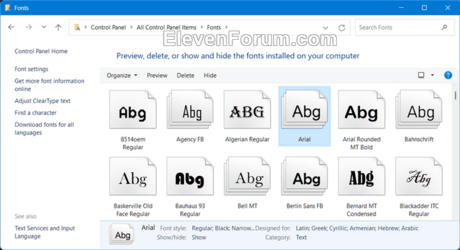
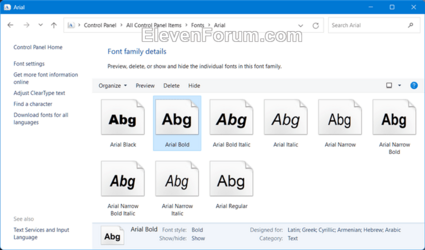
To see available fonts and their names:

A) Open the C:\Windows\Font folder.

B) You can click/tap on a font family (ex: "Arial") to open it and see the individual font names (ex: "Arial Bold") in the family.
Fonts-1.png Fonts-2.png


Change_default_system_font-1.png
Change_default_system_font-2.png

6 Click/tap on File, and click/tap on Save to save the changes you made to the Change_default_system_font.reg file. (see screenshot below)

Change_default_system_font-3.png

7 Double click/tap on the modified Change_default_system_font.reg file to merge it.

8 When prompted, click/tap on Yes (UAC), Yes, and OK to approve the merge.

9 Restart the computer to apply.


Option Two

Restore Default System Font


1 Click/tap on the Download button below to download the file below.

Restore_default_system_font.reg


(Contents of REG file for reference)
Code:
Windows Registry Editor Version 5.00

[HKEY_LOCAL_MACHINE\SOFTWARE\Microsoft\Windows NT\CurrentVersion\Fonts]
"Segoe MDL2 Assets (TrueType)"="segmdl2.ttf"
"Segoe Print (TrueType)"="segoepr.ttf"
"Segoe Print Bold (TrueType)"="segoeprb.ttf"
"Segoe Script (TrueType)"="segoesc.ttf"
"Segoe Script Bold (TrueType)"="segoescb.ttf"
"Segoe UI (TrueType)"="segoeui.ttf"
"Segoe UI Black (TrueType)"="seguibl.ttf"
"Segoe UI Black Italic (TrueType)"="seguibli.ttf"
"Segoe UI Bold (TrueType)"="segoeuib.ttf"
"Segoe UI Bold Italic (TrueType)"="segoeuiz.ttf"
"Segoe UI Emoji (TrueType)"="seguiemj.ttf"
"Segoe UI Historic (TrueType)"="seguihis.ttf"
"Segoe UI Italic (TrueType)"="segoeuii.ttf"
"Segoe UI Light (TrueType)"="segoeuil.ttf"
"Segoe UI Light Italic (TrueType)"="seguili.ttf"
"Segoe UI Semibold (TrueType)"="seguisb.ttf"
"Segoe UI Semibold Italic (TrueType)"="seguisbi.ttf"
"Segoe UI Semilight (TrueType)"="segoeuisl.ttf"
"Segoe UI Semilight Italic (TrueType)"="seguisli.ttf"
"Segoe UI Symbol (TrueType)"="seguisym.ttf"

[HKEY_LOCAL_MACHINE\SOFTWARE\Microsoft\Windows NT\CurrentVersion\FontSubstitutes]
"Segoe UI"=-

2 Save the .reg file to your desktop.

3 If you have Smart App Control turned on, you will need to unblock the downloaded REG file.

4 Double click/tap on the downloaded .reg file to merge it.

5 When prompted, click/tap on Run, Yes (UAC), Yes, and OK to approve the merge.

6 Restart the computer to apply.

7 You can now delete the downloaded .reg file if you like.


That's it,
Shawn Brink


Attachments

Last edited:
Hey Brink,
Thanks so much for getting back to me so quickly!

So I did change the font in Firefox, however, since there isn't a bold option, it's still very light. I wasn't sure if there was anything else I could do to adjust this on the back end of things.
As for Outlook, apologies if I didn't explain myself well. I know how to change the default font for my emails in Outlook, however, the interface of the actual program itself, not within the email creation, is where the big blocky bold font is, and that's what I'm trying to change.

Is there anyway to know what font Windows is substituting where there is bold font, and then be able to change that within font substitutes?

Thank you so much for your help, and apologies for all of the questions, this is new to me.

You could trial and error by restoring the default system font, remove one of them (ex: "Segoe UI (TrueType)"="") from the REG file, then merge the REG to see if Outlook was still changed or not. Repeat until one you removed is the culprit.
 

My Computers My Computers

  • At a glance

    Windows 11 Pro for WorkstationsIntel i7-8700K 5 GHz64 GB (4x16GB) G.SKILL TridentZ RGB DDR4 3600...ASUS ROG-STRIX-GTX1080TI-O11G-GAMING (11GB GD...
    OS
    Windows 11 Pro for Workstations
    Computer type
    PC/Desktop
    Manufacturer/Model
    Custom self build
    CPU
    Intel i7-8700K 5 GHz
    Motherboard
    ASUS ROG Maximus XI Formula Z390
    Memory
    64 GB (4x16GB) G.SKILL TridentZ RGB DDR4 3600 MHz (F4-3600C18D-32GTZR)
    Graphics Card(s)
    ASUS ROG-STRIX-GTX1080TI-O11G-GAMING (11GB GDDR5X)
    Sound Card
    Integrated Digital Audio (S/PDIF)
    Monitor(s) Displays
    2 x Samsung Odyssey G75 27"
    Screen Resolution
    2560x1440
    Hard Drives
    1TB Samsung 990 PRO M.2,
    4TB Samsung 990 PRO M.2,
    TerraMaster F8 SSD Plus NAS
    PSU
    Seasonic Prime Titanium 850W
    Case
    Thermaltake Core P3 wall mounted
    Cooling
    Corsair Hydro H115i
    Keyboard
    Amazon Basics Wired Full Keyboard MD005
    Mouse
    Logitech MX Master 4
    Internet Speed
    2 Gbps Download and 100 Mbps Upload
    Browser
    Chrome and Edge
    Antivirus
    Microsoft Defender
    Other Info
    Logitech Z625 speaker system,
    Logitech BRIO 4K Pro webcam,
    HP Color LaserJet Pro MFP M477fdn,
    CyberPower CP1500PFCLCD
    Galaxy S23 Plus phone
  • At a glance

    Windows 11 ProSnapdragon X Elite (12 core) 3.42 GHz16 GB LPDDR5x-7467 MHz
    Operating System
    Windows 11 Pro
    Computer type
    Laptop
    Manufacturer/Model
    Surface Laptop 7 Copilot+ PC
    CPU
    Snapdragon X Elite (12 core) 3.42 GHz
    Memory
    16 GB LPDDR5x-7467 MHz
    Monitor(s) Displays
    15" HDR
    Screen Resolution
    2496 x 1664
    Hard Drives
    1 TB SSD
    Internet Speed
    Wi-Fi 7 and Bluetooth 5.4
    Browser
    Chrome and Edge
    Antivirus
    Microsoft Defender
You could trial and error by restoring the default system font, remove one of them (ex: "Segoe UI (TrueType)"="") from the REG file, then merge the REG to see if Outlook was still changed or not. Repeat until one you removed is the culprit.
Awesome, I'll give that a try and see how it goes. Thank you so much, I appreciate your expertise :)
 

My Computer My Computer

At a glance

Windows 11 Pro
OS
Windows 11 Pro
Computer type
Laptop
Manufacturer/Model
Lenovo
@Brink Hey! I've got a few questions for you and I'm hoping you might be able to help :)

I was never able to figure out which font change was the culprit that caused Outlook to start to display bold lettering after changing the system font (I tried multiple fonts not just one, it happened each time.)

In doing some research, someone said if you find Outlook in the registry editor, you can modify the key there.
It was said to be located in: HKEY\_CURRENT\_USER\Software\Microsoft\Office\16.0\Common\Identity\Font - However, I don't have a "font" folder once I click on identity.

I was wondering if you might know where else it can be found within the registry? (I'm using New Outlook)

Secondly, something else I read said that the default font for the categories, mail list, etc. Is Calibri, but someone else said they thought it was now Aptos.
Do you happen to know what font they are currently using?
If so, do you think there's anyway to substitute whatever that font is with the font I've changed my system font to, via the registry key?

This is what the font looks like in New Outlook:
1755451528400.webp


I'm on a mission now to try to get this tweaked because I feel like there has to be a way haha.

Thank you for your help I really appreciate it!
 

My Computer My Computer

At a glance

Windows 11 Pro
OS
Windows 11 Pro
Computer type
Laptop
Manufacturer/Model
Lenovo
@Brink Hey! I've got a few questions for you and I'm hoping you might be able to help :)

I was never able to figure out which font change was the culprit that caused Outlook to start to display bold lettering after changing the system font (I tried multiple fonts not just one, it happened each time.)

In doing some research, someone said if you find Outlook in the registry editor, you can modify the key there.
It was said to be located in: HKEY\_CURRENT\_USER\Software\Microsoft\Office\16.0\Common\Identity\Font - However, I don't have a "font" folder once I click on identity.

I was wondering if you might know where else it can be found within the registry? (I'm using New Outlook)

Secondly, something else I read said that the default font for the categories, mail list, etc. Is Calibri, but someone else said they thought it was now Aptos.
Do you happen to know what font they are currently using?
If so, do you think there's anyway to substitute whatever that font is with the font I've changed my system font to, via the registry key?

This is what the font looks like in New Outlook:
View attachment 142644

I'm on a mission now to try to get this tweaked because I feel like there has to be a way haha.

Thank you for your help I really appreciate it!

I'm afraid I don't know for the new Outlook. :(
 

My Computers My Computers

  • At a glance

    Windows 11 Pro for WorkstationsIntel i7-8700K 5 GHz64 GB (4x16GB) G.SKILL TridentZ RGB DDR4 3600...ASUS ROG-STRIX-GTX1080TI-O11G-GAMING (11GB GD...
    OS
    Windows 11 Pro for Workstations
    Computer type
    PC/Desktop
    Manufacturer/Model
    Custom self build
    CPU
    Intel i7-8700K 5 GHz
    Motherboard
    ASUS ROG Maximus XI Formula Z390
    Memory
    64 GB (4x16GB) G.SKILL TridentZ RGB DDR4 3600 MHz (F4-3600C18D-32GTZR)
    Graphics Card(s)
    ASUS ROG-STRIX-GTX1080TI-O11G-GAMING (11GB GDDR5X)
    Sound Card
    Integrated Digital Audio (S/PDIF)
    Monitor(s) Displays
    2 x Samsung Odyssey G75 27"
    Screen Resolution
    2560x1440
    Hard Drives
    1TB Samsung 990 PRO M.2,
    4TB Samsung 990 PRO M.2,
    TerraMaster F8 SSD Plus NAS
    PSU
    Seasonic Prime Titanium 850W
    Case
    Thermaltake Core P3 wall mounted
    Cooling
    Corsair Hydro H115i
    Keyboard
    Amazon Basics Wired Full Keyboard MD005
    Mouse
    Logitech MX Master 4
    Internet Speed
    2 Gbps Download and 100 Mbps Upload
    Browser
    Chrome and Edge
    Antivirus
    Microsoft Defender
    Other Info
    Logitech Z625 speaker system,
    Logitech BRIO 4K Pro webcam,
    HP Color LaserJet Pro MFP M477fdn,
    CyberPower CP1500PFCLCD
    Galaxy S23 Plus phone
  • At a glance

    Windows 11 ProSnapdragon X Elite (12 core) 3.42 GHz16 GB LPDDR5x-7467 MHz
    Operating System
    Windows 11 Pro
    Computer type
    Laptop
    Manufacturer/Model
    Surface Laptop 7 Copilot+ PC
    CPU
    Snapdragon X Elite (12 core) 3.42 GHz
    Memory
    16 GB LPDDR5x-7467 MHz
    Monitor(s) Displays
    15" HDR
    Screen Resolution
    2496 x 1664
    Hard Drives
    1 TB SSD
    Internet Speed
    Wi-Fi 7 and Bluetooth 5.4
    Browser
    Chrome and Edge
    Antivirus
    Microsoft Defender

My Computer My Computer

At a glance

Windows 11 Pro
OS
Windows 11 Pro
Computer type
Laptop
Manufacturer/Model
Lenovo
@Brink Hey! I've got a few questions for you and I'm hoping you might be able to help :)

I was never able to figure out which font change was the culprit that caused Outlook to start to display bold lettering after changing the system font (I tried multiple fonts not just one, it happened each time.)

In doing some research, someone said if you find Outlook in the registry editor, you can modify the key there.
It was said to be located in: HKEY\_CURRENT\_USER\Software\Microsoft\Office\16.0\Common\Identity\Font - However, I don't have a "font" folder once I click on identity.

I was wondering if you might know where else it can be found within the registry? (I'm using New Outlook)

Secondly, something else I read said that the default font for the categories, mail list, etc. Is Calibri, but someone else said they thought it was now Aptos.
Do you happen to know what font they are currently using?
If so, do you think there's anyway to substitute whatever that font is with the font I've changed my system font to, via the registry key?

This is what the font looks like in New Outlook:
View attachment 142644

I'm on a mission now to try to get this tweaked because I feel like there has to be a way haha.

Thank you for your help I really appreciate it!

Some Classic Outlook's UI fonts are the same with some Windows.
E.g if you change Windows menu or icon font , you will see some changes.
You could easy check that with programs like Winaero Tweaker.
Note that these changes will affect at many different system's elements.
E.g Windows Icon font change the font at File explorer view.
So create a Restore Point and and a System Image Backup before your tests.
 

My Computer My Computer

At a glance

Windows 11 ProIntel 113700H16GBNVIDIA RTX 3050 ti
OS
Windows 11 Pro
Computer type
Laptop
Manufacturer/Model
HP Pavilion 17 cd2205nw
CPU
Intel 113700H
Memory
16GB
Graphics Card(s)
NVIDIA RTX 3050 ti
Screen Resolution
1980x1020
Hard Drives
Micron 512GB
Mouse
Logitech
Internet Speed
100Mbs
Browser
Vivaldi , Edge
Antivirus
Windows defender
@Brink I figure it out :)

Figured I'd post it for anyone else who might run into the same issue.
After changing the system font to something else, Outlook, Word, etc. might display dark bold lettering. It's actually Segoe UI Black, so that needs to be added to the registry file that someone uses when they want to change the default font (I used yours). So that Segoe UI Black is substituted out for whatever the desired font is.
 

My Computer My Computer

At a glance

Windows 11 Pro
OS
Windows 11 Pro
Computer type
Laptop
Manufacturer/Model
Lenovo
@ALC the absolute BEST system font I have tried (and I've tried a lot of them) is Google's Roboto Medium. (There's also a Roboto Bold but that was too bold for me)
You can download Google fonts here. Browse Fonts - Google Fonts

Once you have the font pack, unzip it. Right click on each of the fonts you want to install and select "install".
You shoud then see the fonts in Control Panel>Fonts.

Then just follow Brinks tutorial to change the system font. These fonts can be used in MS Office as well.

Here's what it looks like.
Screenshot 2025-08-17 140052.webp
 

My Computers My Computers

  • At a glance

    Windows 11 Pro 25H2 26200.8875i9-10900 10 core 20 threads32 gbnone-Intel UHD Graphics 630
    OS
    Windows 11 Pro 25H2 26200.8875
    Computer type
    PC/Desktop
    Manufacturer/Model
    Dell Optiplex 7080
    CPU
    i9-10900 10 core 20 threads
    Motherboard
    DELL 0J37VM
    Memory
    32 gb
    Graphics Card(s)
    none-Intel UHD Graphics 630
    Sound Card
    Integrated Realtek
    Monitor(s) Displays
    Benq 27
    Screen Resolution
    2560x1440
    Hard Drives
    2x1tb Solidigm m.2 nvme /External drives 512gb Samsung m.2 sata+2tb Kingston m2.nvme
    PSU
    500w
    Case
    MT
    Cooling
    Dell Premium
    Keyboard
    Logitech wired
    Mouse
    Logitech wireless
    Internet Speed
    so slow I'm too embarrassed to tell
    Browser
    #1 Edge #2 Firefox
    Antivirus
    Defender+MWB Premium
  • At a glance

    Windows 11 Pro 24H2 26200.8875AMD Ryzen 7 6800U32 gbintegrated
    Operating System
    Windows 11 Pro 24H2 26200.8875
    Computer type
    PC/Desktop
    Manufacturer/Model
    Beelink Mini PC SER5
    CPU
    AMD Ryzen 7 6800U
    Memory
    32 gb
    Graphics card(s)
    integrated
    Sound Card
    integrated
    Monitor(s) Displays
    Benq 27
    Screen Resolution
    2560x1440
    Hard Drives
    1TB Crucial nvme
    Keyboard
    Logitech wired
    Mouse
    Logitech wireless
    Internet Speed
    still too embarrassed to tell
    Browser
    Firefox
    Antivirus
    Defender
    Other Info
    System 3 is non compliant Dell 9020 i7-4770/24gb ram Win11 PRO 26200.8875
@glasskuter Hi!

Thank you for sharing this :) I've never tried that font, it's definitely super clear. I have a small obsession with the Quicksand Medium font.

I had already downloaded it and all of the things, however, as we know Microsoft likes to make its own rules, so the font wasn't displaying correctly in Outlook, or Word. I didn't realize the font used for categories and such in word is Segoe UI since they now defaulted to Aptos for the apps. But I did use Brink's script, and then tweaked it. I'd be lost without @Brink's scripts haha.

I wish Microsoft would just make it easier to change the UI for users, people enjoy customizing things.

Thanks again!
 

My Computer My Computer

At a glance

Windows 11 Pro
OS
Windows 11 Pro
Computer type
Laptop
Manufacturer/Model
Lenovo
so the font wasn't displaying correctly in Outlook, or Word.
I guess it has to do with one's eyes because Roboto Medium displays fine for me in both Word and Outlook Classic.

As far as a system font goes, fonts have NEVER displayed crisply in 11 in any of my machines and my old eyes had a lot of trouble until I settled on Roboto Medium. (Another decent font is Google's Noto Sans) It's not perfect but as close as I could get it to being acceptable. I've had to do a lot of tweaking in font size too. File explorer was especially bad.
 

My Computers My Computers

  • At a glance

    Windows 11 Pro 25H2 26200.8875i9-10900 10 core 20 threads32 gbnone-Intel UHD Graphics 630
    OS
    Windows 11 Pro 25H2 26200.8875
    Computer type
    PC/Desktop
    Manufacturer/Model
    Dell Optiplex 7080
    CPU
    i9-10900 10 core 20 threads
    Motherboard
    DELL 0J37VM
    Memory
    32 gb
    Graphics Card(s)
    none-Intel UHD Graphics 630
    Sound Card
    Integrated Realtek
    Monitor(s) Displays
    Benq 27
    Screen Resolution
    2560x1440
    Hard Drives
    2x1tb Solidigm m.2 nvme /External drives 512gb Samsung m.2 sata+2tb Kingston m2.nvme
    PSU
    500w
    Case
    MT
    Cooling
    Dell Premium
    Keyboard
    Logitech wired
    Mouse
    Logitech wireless
    Internet Speed
    so slow I'm too embarrassed to tell
    Browser
    #1 Edge #2 Firefox
    Antivirus
    Defender+MWB Premium
  • At a glance

    Windows 11 Pro 24H2 26200.8875AMD Ryzen 7 6800U32 gbintegrated
    Operating System
    Windows 11 Pro 24H2 26200.8875
    Computer type
    PC/Desktop
    Manufacturer/Model
    Beelink Mini PC SER5
    CPU
    AMD Ryzen 7 6800U
    Memory
    32 gb
    Graphics card(s)
    integrated
    Sound Card
    integrated
    Monitor(s) Displays
    Benq 27
    Screen Resolution
    2560x1440
    Hard Drives
    1TB Crucial nvme
    Keyboard
    Logitech wired
    Mouse
    Logitech wireless
    Internet Speed
    still too embarrassed to tell
    Browser
    Firefox
    Antivirus
    Defender
    Other Info
    System 3 is non compliant Dell 9020 i7-4770/24gb ram Win11 PRO 26200.8875
Back
Top Bottom