This tutorial will show you how to change the number format used for your account in Windows 10 and Windows 11.
Your regional format settings will influence how your date/time, numeric, and currency data types appear when you apply formatting options. Windows supports a variety of languages, plus currency and date/time formats for the countries/regions that use those languages.
Every country/region has its own standards and conventions for representing numbers. Differences include the character used for the decimal separator, how negative numbers are represented, and how currencies are displayed.
You can change the number format to a custom format you want used and displayed in Windows.
References:
Change the Windows regional settings to modify the appearance of some data types in Access databases. | Microsoft Support
Change the Windows regional settings to modify the appearance of some data types in Access databases.
 support.microsoft.com

Format numbers - Globalization
Format numeric values based on region standards using locale-aware methods, including decimal separators, grouping, and symbols.
learn.microsoft.com
Number formats for the current user are saved to the string values (REG_SZ) in the registry key below:
HKEY_CURRENT_USER\Control Panel\International
Contents
- Option One: Change Number Format in Settings
- Option Two: Change Number Format in Control Panel
1 Open Settings (Win+I).
2 Click/tap on Time & language on the left side, and click/tap on Language & region on the right side. (see screenshot below)
3 Click/tap on Regional format to expand it open, and click/tap on Number format. (see screenshot below)
4 You can now select the number formats in the drop menus you want to change. (see screenshot below)
5 You can now close Settings if you like.
1 Open the Control Panel (icons view), and click/tap on the Region icon.
2 In the Formats tab, click/tap on the Additional settings button. (see screenshot below)
3 In the Numbers tab, select the number formats in the drop menus you want to change, and click/tap on OK when finished. (see screenshot below)
You can click/tap on the Reset button to restore all default number format settings at once.
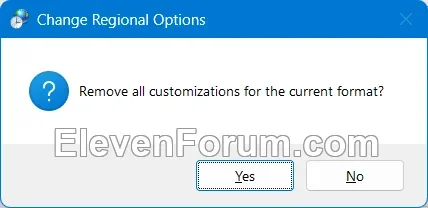
4 Click/tap on OK when finished. (see screenshot below)
That's it,
Shawn Brink
Last edited: