This tutorial will show you how change the power mode for your account in Windows 11.
Power mode allows you to optimize your Windows 11 device based on power use and performance.
Choose the power mode that works for you and what you want to do on your Windows 11 PC. This lets you determine what’s important to you—getting the best battery life, best performance, or a balance between the two.
You can choose between the Best Power Efficiency, Balanced (default), or Best Performance power mode.
- Best power efficiency = Saves power by reducing PC performance and screen brightness. If you're using a laptop, this mode can help you get the most from a single battery charge.
- Balanced = Offers full performance when you need it and saves power when you don't. This is the best mode for most people.
- Best performance = Maximizes screen brightness and might increase PC performance. This mode uses a lot more energy, so your laptop battery won't last as long between charges.
References:
Change the power mode for your Windows PC - Microsoft Support
Learn how to change the power mode on your Windows PC to preserve your battery, limit notifications, and background activity.
 support.microsoft.com
Power settings in Windows 11 | Microsoft Support
You can use Screen and sleep settings to save energy and make your battery last longer.
support.microsoft.com
Power mode is only available when you are using the Balanced power plan on a PC with a battery.
Power mode is set automatically and cannot be changed while using Game mode.
This option is only available starting with Windows 11 build 26340.9577 (Experimental 26H2).
1 Open Quick Settings (Win+A).
2 Click/tap on the Power or Power & Battery button. (see screenshots below)
3 Turn On or Off (default) Power mode for best energy efficiency.
1 Open Settings (Win+I).
2 Click/tap on System on the left side, and click/tap on Power & battery on the right side. (see screenshot below)
3 Click/tap on Power Mode to expand it open. (see screenshot below step 4)
4 Under Power Mode, select Best Power Efficiency, Balanced (default), or Best Performance in the Plugged in (AC) and/or On battery (DC) drop menus for what you want. (see screenshot below)
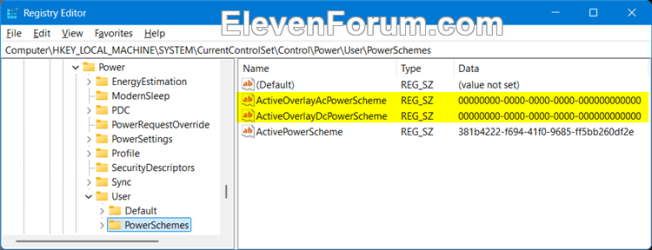
The Power Mode setting is saved to the ActiveOverlayAcPowerScheme (Plugged in) and ActiveOverlayDcPowerScheme (On battery) string values (REG_SZ) in the protected registry key below:
HKEY_LOCAL_MACHINE\SYSTEM\CurrentControlSet\Control\Power\User\PowerSchemes
00000000-0000-0000-0000-000000000000 = Balanced (default)
ded574b5-45a0-4f42-8737-46345c09c238 = Best Performance
961cc777-2547-4f9d-8174-7d86181b8a7a = Best Power Efficiency
4 You can now close Settings if you like.
That's it,
Shawn Brink
Last edited: