- Local time
- 5:49 AM
- Posts
- 787
- OS
- W11 Pro x64 ongoing Canary 29500 latest builds
In a nutshell... and the first intro bit is just for background info...
Following on from this self inflicted problem (many thanks @OAT , that install went without hitch, all good, no great in fact )
)
Unable to download Dev Build ISO's from Microsoft... this was self inflicted. How do I resolve this?
I thought I would update my old unsupported laptop to the latest public release. Even after two weeks it seems Microsoft still don't like me and I get the same errors now when trying to download the official Microsoft ISO's. Error codes confirm they think I've been naughty. Even leaving the router off for several hours to get a new IP did not fix it.
I 'spoke' (web chat) to MS and they confirm that is what the codes mean. Have to say the support was good, no waiting. Wow. They did say it should only be temporary though although they could not give a time frame.
So on to what happened. I downloaded the ISO from UUPDUMP and used RUFUS to create a bootable drive for unsupported hardware. All good.
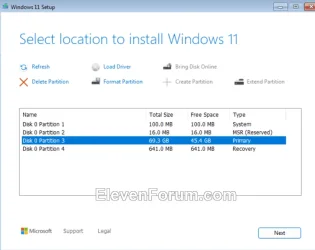
Onto the install and I've done this many many times over the years using the install media to delete all partitions and take the drive down to unallocated space and then reinstall. This time a big problem, not all the partitions could be deleted (it is a single 500Gb SSD). Some of my partitions seemed duplicated too as viewed in the install media's management screen. One entry line showed 0Gb of 0Gb used or something bizarre.
It all had a bit of a wrong look to it all.
Anyhow I deleted all I could and realised that the 170Gb partition that would not delete was in fact the C drive containing the previous Windows install. Why would that be non delete-able? The option to delete was greyed out every time I selected this partition for deletion. All I could do was carry on and Windows did actually install OK although I was curious just where exactly.
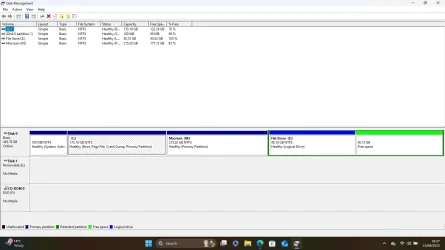
It seems it installed onto the partition that had the previous install. The 170Gb partition was now showing 169.3Gb. The disk management console shows a 100Mb first partition as expected, then the now 169.3Gb containing windows and then all the rest unallocated. No Windows recovery partition in sight.
reagentc /info says disabled and when enabling it says 'can not be found'.
Opening the C drive shows a Windows Old folder but that is totally empty and does not show as delete-able on a disk clean although it deletes manually OK.
So what the heck has happened?
Could the file table have been corrupt in some way. I do recall months ago playing around with moving, deleting, recreating and re-enabling the recovery partition as a learning exercise. Why would the install media not let me delete all partitions?
Just all a bit of a puzzle.
Following on from this self inflicted problem (many thanks @OAT , that install went without hitch, all good, no great in fact
) Unable to download Dev Build ISO's from Microsoft... this was self inflicted. How do I resolve this?
I thought I would update my old unsupported laptop to the latest public release. Even after two weeks it seems Microsoft still don't like me and I get the same errors now when trying to download the official Microsoft ISO's. Error codes confirm they think I've been naughty. Even leaving the router off for several hours to get a new IP did not fix it.
I 'spoke' (web chat) to MS and they confirm that is what the codes mean. Have to say the support was good, no waiting. Wow. They did say it should only be temporary though although they could not give a time frame.
So on to what happened. I downloaded the ISO from UUPDUMP and used RUFUS to create a bootable drive for unsupported hardware. All good.
Onto the install and I've done this many many times over the years using the install media to delete all partitions and take the drive down to unallocated space and then reinstall. This time a big problem, not all the partitions could be deleted (it is a single 500Gb SSD). Some of my partitions seemed duplicated too as viewed in the install media's management screen. One entry line showed 0Gb of 0Gb used or something bizarre.
It all had a bit of a wrong look to it all.
Anyhow I deleted all I could and realised that the 170Gb partition that would not delete was in fact the C drive containing the previous Windows install. Why would that be non delete-able? The option to delete was greyed out every time I selected this partition for deletion. All I could do was carry on and Windows did actually install OK although I was curious just where exactly.
It seems it installed onto the partition that had the previous install. The 170Gb partition was now showing 169.3Gb. The disk management console shows a 100Mb first partition as expected, then the now 169.3Gb containing windows and then all the rest unallocated. No Windows recovery partition in sight.
reagentc /info says disabled and when enabling it says 'can not be found'.
Opening the C drive shows a Windows Old folder but that is totally empty and does not show as delete-able on a disk clean although it deletes manually OK.
So what the heck has happened?
Could the file table have been corrupt in some way. I do recall months ago playing around with moving, deleting, recreating and re-enabling the recovery partition as a learning exercise. Why would the install media not let me delete all partitions?
Just all a bit of a puzzle.
My Computer
At a glance
W11 Pro x64 ongoing Canary 29500 latest buildsIntel i58GbIntel HD Graphics
- OS
- W11 Pro x64 ongoing Canary 29500 latest builds
- Computer type
- Laptop
- Manufacturer/Model
- Dell 7760 Mobile Precision 17"
- CPU
- Intel i5
- Motherboard
- Unknown
- Memory
- 8Gb
- Graphics Card(s)
- Intel HD Graphics
- Sound Card
- Realtek
- Monitor(s) Displays
- Internal
- Hard Drives
- 2 x 256Gb SSD
- PSU
- Dell 240 watt
- Mouse
- Dell Premier Bluetooth
- Internet Speed
- 50Mbps
- Browser
- Edge
- Antivirus
- Default Microsoft Security