Installation and Upgrade Clean Install Windows 11

  • Thread starter Thread starter Brink
  • Start date Published: Start date Updated Updated:
  • Featured

Windows_11_banner.png

This tutorial will show you step by step on how to clean install Windows 11 at boot on your PC with or without an Internet connection and setup with a local account or Microsoft account.

Windows 11 has all the power and security of Windows 10 with a redesigned and refreshed look. It also comes with new tools, sounds, and apps. Every detail has been considered. All of it comes together to bring you a refreshing experience on your PC.

A clean install of Windows 11 will wipe out everything on the drive you select to install Windows 11 on giving you a completely new default installation of Windows 11.

Starting with Windows 11 build 25905, Microsoft have adjusted the prerequisites (removal of Modern Standby/HSTI validation and untrusted DMA ports check) for enabling device encryption so that it is automatically enabled when doing clean installs of Windows 11.

References:

If you’d like to see if your current PC meets the minimum requirements, download and run the PC Health Check app.


It is required to be connected to the Internet if you want to set up a Microsoft account during Windows Setup.

It is not required to be connected to the Internet if you want to set up a local account during Windows Setup.


If you set up a Microsoft account during Windows Setup, it will get linked to OneDrive to backup and sync your files by default. You can either set up a local account instead to avoid this, or stop the backup and sync of your files to OneDrive when the installation is complete.

If you set up a Microsoft account during Windows Setup, your user profile folder in the "C:\Users" folder will be named with the first 5 characters of the email address used for your Microsoft account. If you want to specify the name of your user profile folder in the "C:\Users" folder, then you will need to set up a local account during Windows Setup instead of a Microsoft account so your user profile folder will have the same name you enter as the local account name. When Windows 11 has finished installing, you can switch to a Microsoft account from the local account (if wanted) without the user profile folder name getting changed.


You can still use either step below when you get to them in this tutorial to create a local account instead of a Microsoft account during Windows Setup.

step 15 = This step uses the start ms-cxh:localonly or start ms-cxh://setaddlocalonly command to set up a local account with network.

step 17 = The red warning box under this step uses the reg add HKLM\SOFTWARE\Microsoft\Windows\CurrentVersion\OOBE /v BypassNRO /t REG_DWORD /d 1 /f command to bypass network requirements to then be able to set up a local account.

step 22 = The blue tip box under this step has you use the Domain join instead option that allows you to set up a local account with network.


Here's How:

1 If you have not already, you will need to create a bootable Windows 11 installation USB with UEFI support.

2 It is recommended to temporarily disconnect or disable all non OS hard drives until Windows installation has finished for the following reasons:
  • To avoid you mistakenly deleting or formatting the wrong disk or drive.
  • To prevent Windows Setup from installing the boot configuration files (bootloader) to a different connected hard drive instead of on the disk Windows will be installed on.
3 Boot to the UEFI firmware settings for your motherboard, and enable UEFI or disable Legacy BIOS (CSM) mode.

Usually it will already be set to UEFI mode by default unless you have an old system. You may need to read your PC's or motherboard's manual for its specific instructions on how to change this setting.


4 Boot from the Windows 11 installation USB flash drive on your computer.

5 Perform the following steps to select your language and keyboard settings: (see screenshots below)
  1. Select your Language to install.
  2. Select your Time and currency format.
  3. Click/tap on Next.
  4. Select your Keyboard or input method.
  5. Click/tap on Next.
New_select_language.png
New_select_keyboard.png

6 Select (dot) Install Windows 11, check I agree everything will be deleted including files, apps, an settings, and click/tap on Next.

Clean_install_Windows_11-2.png

7 Enter your Windows 11 product key, and click/tap on Next. (see screenshot below)

The product key you enter will determine which edition of Windows 11 gets installed, and is required to activate Windows 11 unless you activate with a digital license instead. If you don't enter a product key and click/tap on I don't have a product key, you will be able to select the Windows 11 edition you want to install at step 8 below, but Windows 11 will not be activated.

You can enter an official Windows 7, Windows 8.1, or Windows 10 retail product key (OEM keys will not work) not currently used to activate Windows on another PC, and click/tap on Next to activate Windows 11.

⚠️ Free Activation from Windows 7/8 key or upgrade to Windows 10/11 Ends

If you do not have a product key available right now, click/tap on the I don't have a product key link, select the Windows 11 edition you want to install at step 8. You will be able to manually activate Windows 11 with your product key when you want later after the Windows 11 installation has finished.

If you want to activate with a digital license linked to your Microsoft account, click/tap on the I don't have a product key link, select the Windows 11 edition you want to install at step 8, and add your linked Microsoft account at step 20 .

You will not be asked to enter a product key if installing Windows 11 Enterprise. You will need to manually activate later after installation has finished.

If this is an OEM PC that has a valid product key embedded in its UEFI firmware chip, then you will not be prompted to enter a product key. Windows 11 will automatically use the embedded product key if its valid for the edition being installed. If needed, you can change the product key after installation has finished.


Clean_install_Windows_11-3.png

8 If you clicked on I don't have a product key in step 7 above, then select the Windows 11 edition you want to install, and click/tap on Next. (see screenshot below)

Clean_install_select_image.webp

9 Click/tap on Accept for applicable notices and license terms. (see screenshot below)

Clean_install_Windows_11-6.png

10 Perform one of the following actions to select a drive or disk to install Windows 11 on: (see screenshots below)

  • Delete all partitions on the Drive # (ex: Drive 0) you want to install Windows 11 until that Drive # shows only as one Unallocated Space, select the unallocated space, and click/tap on Next.

    Starting with Windows 11 build 27774.1000 (Canary), you will now see a confirmation dialog when formatting or deleting partitions.

  • Select a Primary or unallocated partition on a drive you want to install Windows 11, Delete the partition/volume if not already unallocated, click/tap on OK to confirm, and click/tap on Next.

If RAID is enabled in UEFI/BIOS, Windows Setup may not see any drive(s) available to select to install on.

In this situation, you could either disable RAID in BIOS/UEFI or select to "Add driver" to install the RAID driver from your OEM/motherboard manufacturer's chipset.

AMD Quick Start Guide- Chapter 5: Install AMD-RAID Drivers (PDF)

Intel Support - Installing the Operating System onto a RAID Volume—F6 Install Method

If no drives can be found during Windows 11 or Windows 10 installation (Intel 11th Generation processors)


Clean_install_Windows_11-8.png
Clean_install_Windows_11-8B.png

11 Click/tap on Install when ready. (see screenshot below)

Clean_install_Windows_11-7.png

12 The installation of Windows 11 will now begin. (see screenshots below)

During the installation process, your screen may flash and the computer may restart a few times.


Clean_install_Windows_11-9.png
Clean_install_Windows_11-9b.webp

13 When installation has finished, select your country or region (ex: "United States"), and click/tap on Yes. (see screenshot below)

If you would like to set up this PC to have an OOBE (Out-of-box Experience) so another user/owner can pick up at this step to finish setting up Windows on the PC with their own account and preferences the next time the PC it turned on, then:

1. Press the Shift + F10 keys when you see the screenshot below to open a command prompt.
2. Type C:\Windows\System32\shutdown -s -t 0 -f into the command prompt, and press Enter to shut down Windows.


Clean_install_Windows_11-11.jpg

14 Select the keyboard layout (ex: "US") you want, and click/tap on Yes. (see screenshot below)

Clean_install_Windows_11-12.jpg

15 If you are installing a Windows 11 Home or Pro edition and want to set up a local account, then do not click/tap on Skip and follow the steps below: (see screenshot below)

If you want to set up a Microsoft account or Work or School account, then skip this step 15, and go to step 16 instead.


A) Press the Shift + F10 keys to open a command prompt.​

You may need to press the Shift + Fn + F10 keys on some devices instead.


B) Type either command below in the command prompt, and press Enter.​

start ms-cxh:localonly

OR​

start ms-cxh://setaddlocalonly


New_local_account-1.webp

C) Enter a user name you want for this local account. (see screenshots below)​

D) Enter and Re-enter to confirm a password you want for this local account.​

If you do not want this local account to have a password, leave the password field empty, and go to step 15H below.


E) Select a security question (1 of 3) you want from the drop menu, and type your answer.​

F) Select a security question (2 of 3) you want from the drop menu, and type your answer.​

G) Select a security question (3 of 3) you want from the drop menu, and type your answer.​

H) Click/tap on Next, and go to step 21G to finish setting up your local account after a restart.​

New_local_account-2.webp
New_local_account-3.webp

16 Select Add layout or Skip depending on if you want to add a second keyboard layout or not. (see screenshot below)

Clean_install_Windows_11-13.jpg

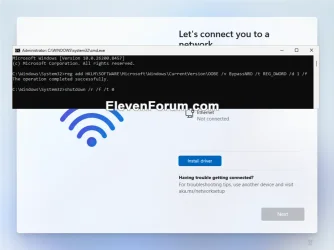
17 Windows Setup will now check for an Internet connection. If an Internet connection is not detected, it will prompt you to connect and select an Ethernet network and/or setup and connect to a Wi-Fi network (if available), and click/tap on Next. (see screenshots below)

If needed, you can click/tap on the Install Driver button to install any required network drivers you have previously downloaded (ex: on USB) to connect afterwards.


It is required to have an Internet connection if you want to set up a Microsoft account, or work or school account.

If you do not have an Internet connection, you will only be able to set up a local account instead of a Microsoft account during Windows Setup.

If installing a Windows 11 Education edition and you currently do not have an Internet connection available, you can click/tap on I don't have Internet and go to step 21 to set up a local account.


If you are installing a Windows 11 Home or Pro edition and want to bypass the network requirements to set up a local account, you can still do this:

A) Press the Shift + F10 keys to open a command prompt.
B) Type the command below in the command prompt, and press Enter.

reg add HKLM\SOFTWARE\Microsoft\Windows\CurrentVersion\OOBE /v BypassNRO /t REG_DWORD /d 1 /f

C) Type shutdown /r /f /t 0 in the command prompt, and press Enter to Restart the computer.
D) After the computer restarts, you will now go back to step 13. Be sure to skip step 15.
E) When you get back to this step 17, click/tap on I don't have internet, and go to step 21 to set up a local account.
BypassNRO.webp


I_dont_have_internet.webp
No_internet.webp

18 If installing a Windows 11 Home or Pro edition, type a name you want for the PC, and click/tap on Next. (see screenshots below)

You can always rename the PC at anytime if needed.

Your PC name cannot have more then 15 characters.

Your PC name cannot have spaces or any of the following special characters: " /\ [] : | <> + + ; , ?


Starting with Windows 11 build 26100.8524 (24H2) and build 26200.8524 (25H2), you can now choose a custom name for your user folder on the Device Name page when going through Windows setup. This most recent update now makes it easier to choose a custom name. The naming option is available during setup only. If you skip this step, Windows will use the default folder name and continue setup as usual. User folder names must follow standard Windows naming requirements.


ComputerName.jpg
User_folder_name.webp

19 Perform an action below for which type of account you want to set up: (see screenshot below)

You will not see this step if installing a Windows 11 Home edition. You will see step 20 instead.

You will not see this step if installing a Windows 11 Education edition. You will see step 22 instead.


  • Click/tap on Set up for personal use, click/tap on Next, and go to step 20 to set up a Microsoft account on your personal PC.
  • Click/tap on Set up for work or school, click/tap on Next, and go to step 22 to set up a work or school account on your PC to join a domain.
Clean_install_Windows_11-14.jpg

20 Set Up Windows 11 with a Microsoft Account

For more details about a Microsoft account, see: Microsoft account | Microsoft Docs


A) Click/tap on Sign in. (see screenshot below)​

MSA_required.jpg

B) Type in the email address for your Microsoft account, and click/tap on Next. (see screenshot below)​

If you do not have a Microsoft account and would like to use one, click/tap on the Create one link to create a new Microsoft account.


Clean_install_Windows_11_Microsoft_account-1.jpg

C) Type in the password for your Microsoft account, and click/tap on Sign in. (see screenshot below)​

Clean_install_Windows_11_Microsoft_account-3.jpg

D) If you have two-step verification turned on for your Microsoft account, select how (ex: email or text) you would like to get a code sent to you. (see screenshots below)​

Clean_install_Windows_11_Microsoft_account-4.jpg
Clean_install_Windows_11_Microsoft_account-5.jpg

E) Provide any other required information based on how you selected to get a code, and click/tap on Send code. (see screenshot below)​

Clean_install_Windows_11_Microsoft_account-6.jpg

F) Enter the code you received from Microsoft, and click/tap on Verify. (see screenshot below)​

Clean_install_Windows_11_Microsoft_account-7.jpg

G) Click/tap on Create PIN. (see screenshot below)​

Clean_install_Windows_11_Microsoft_account-8.jpg

H) Enter a PIN you want to use to sign in with, and click/tap on OK. (see screenshot below)​

Clean_install_Windows_11_Microsoft_account-9.jpg

I) Turn On (default) or Off the privacy settings you want, and click/tap on Accept when finished. (see screenshots below)​

You will be able to change these privacy settings at anytime in Windows 11.

Clean_install_Windows_11-_privacy_settings-1.jpg
Clean_install_Windows_11-_privacy_settings-4.jpg
Clean_install_Windows_11-_privacy_settings-2.jpg
Clean_install_Windows_11-_privacy_settings-5.jpg
Clean_install_Windows_11-_privacy_settings-3.jpg
Clean_install_Windows_11-_privacy_settings-6.jpg

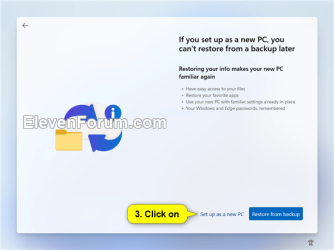
J) If you don't want to use Restore from this PC from a selected PC, then click/tap on More options, click/tap on Set up as a new PC, and click/tap on Set up as a new PC again to confirm. (see screenshots below)​

You can select to restore your settings, preferences, Microsoft Store apps, and synced OneDrive files from another device instead of setting up as a new device.


Clean_install_Windows_11_Microsoft_account-10A.png Clean_install_Windows_11_Microsoft_account-10b.png Clean_install_Windows_11_Microsoft_account-10c.png


K) Check all the ways you plan to use this device, and click/tap on Accept. (see screenshot below)​

Click/tap on Skip instead if you do not want to select (check) any device usages.

You can change your device usage options at any time in Windows 11.

Clean_install_Windows_11_Microsoft_account-11.jpg
Clean_install_Windows_11_Microsoft_account-12.jpg

L) Scan the QR code with your Android phone to link it if wanted, and click/tap on Continue. (see screenshot below)​


Click/tap on Skip instead if you do not want to link an Android phone.

This option is only available starting with Windows 11 build 22567.


Clean_install_Windows_11_Microsoft_account-14.jpg

M) If prompted to "Always have access to your recent browsing data" for Microsoft Edge, click/tap on Now now or Accept for what you want. (see screenshot below)​

edge.jpg

N) If prompted to "Join PC Game Pass for only $$ a month", click/tap on Skip for now or Join for what you want. (see screenshot below)​

GamePass.jpg

O) If prompted to "Try premium Office apps for free with Microsoft 365", click/tap on Decline or Continue for what you want. (see screenshot below)​

Microsoft_365.png

P) If prompted to "Get 100 GB more cloud storage" for OneDrive, click/tap on Decline or Continue for what you want. (see screenshot below)​

Cloud_storage.png

Q) Go to step 23.​


21 Set Up Windows 11 with a Local Account

For more details about a local account, see: Local account | Microsoft Docs:


A) Enter a user name you want for this local account, and click/tap on Next. (see screenshot below)​

Clean_install_Windows_11-_local_account-4.jpg

B) Enter a password you want for this local account, and click/tap on Next. (see screenshot below)​

If you do not want this local account to have a password, leave the password field empty, click/tap on Next, and go to step G below.


Clean_install_Windows_11-_local_account-5.jpg

C) Enter the password again to confirm, and click/tap on Next. (see screenshot below)​

Clean_install_Windows_11-_local_account-6.jpg

D) Select a security question (1 of 3) you want from the drop menu, type your answer, and click/tap on Next. (see screenshot below)​

Clean_install_Windows_11-_local_account-7.jpg

E) Select a security question (2 of 3) you want from the drop menu, type your answer, and click/tap on Next. (see screenshot below)​

Clean_install_Windows_11-_local_account-8.jpg

F) Select a security question (3 of 3) you want from the drop menu, type your answer, and click/tap on Next. (see screenshot below)​

Clean_install_Windows_11-_local_account-9.jpg

G) Turn On (default) or Off the privacy settings you want, and click/tap on Accept when finished. (see screenshots below)​

You will be able to change these privacy settings at anytime in Windows 11.

Clean_install_Windows_11-_privacy_settings-1.jpg
Clean_install_Windows_11-_privacy_settings-4.jpg
Clean_install_Windows_11-_privacy_settings-2.jpg
Clean_install_Windows_11-_privacy_settings-5.jpg
Clean_install_Windows_11-_privacy_settings-3.jpg
Clean_install_Windows_11-_privacy_settings-6.jpg

H) Go to step 23.​

22 Set Up Windows 11 with a Work or School Account

A) Type in the email address for your work or school account, and click/tap on Next. (see screenshot below)​

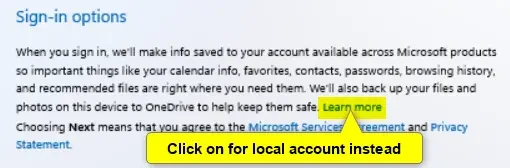
If you wanted to set up a local account, you can click/tap on Sign-in options instead, click/tap on Domain join instead, and go to step 21.


W11_clean_install_work_or_school_account-1.png

B) Type in the password for your work or school account, and click/tap on Sign in. (see screenshot below)​

W11_clean_install_work_or_school_account-2.png

C) Turn On (default) or Off the privacy settings you want, and click/tap on Accept when finished. (see screenshots below)​

You will be able to change these privacy settings at anytime in Windows 11.

Clean_install_Windows_11-_privacy_settings-1.jpg
Clean_install_Windows_11-_privacy_settings-4.jpg
Clean_install_Windows_11-_privacy_settings-2.jpg
Clean_install_Windows_11-_privacy_settings-5.jpg
Clean_install_Windows_11-_privacy_settings-3.jpg
Clean_install_Windows_11-_privacy_settings-6.jpg

D) Windows Setup will check for updates. (see screenshot below)​

W11_clean_install_work_or_school_account-4.png

E) If prompted to use Windows Hello with your account, click/tap on OK. (see screenshot below)​

W11_clean_install_work_or_school_account-5.png

F) If your organization requires additional security information, click/tap on Next, and follow any other given instructions to verify. (see screenshot below)​

W11_clean_install_work_or_school_account-6.png

G) When finished, go to step 23.​

23 When the clean install has finished, you will be on your desktop in Windows 11 with the Start menu open. (see screenshot below)

Desktop.png

24 Make sure the correct time zone, date, and time is set.

25 Most likely, BitLocker or Device Encryption has been automatically turned on for the Windows drive. You can turn this off if wanted, otherwise be sure to back up the BitLocker Recovery Key.

26 If you set up a Microsoft account during Windows Setup, it will get linked to OneDrive to backup and sync your files by default. You can stop the backup and sync of your files to OneDrive if wanted.


27 Check for and install any available Windows Updates.

28 Check for any app and game updates in the Microsoft Store app.

29 Install any needed drivers for your devices.


That's it,
Shawn Brink


Attachments

  • Windows.png
    Windows.png
    3.6 KB · Views: 1,875
Last edited:
even if i create a fake hotmail/outlook account with my password, will they let me create a local account?

It'll have to be a valid Microsoft account.

However, you can use step 15 now to directly set up a local account while doing a clean install of Windows 11.
 

My Computers

System One System Two

  • OS
    Windows 11 Pro for Workstations
    Computer type
    PC/Desktop
    Manufacturer/Model
    Custom self build
    CPU
    Intel i7-8700K 5 GHz
    Motherboard
    ASUS ROG Maximus XI Formula Z390
    Memory
    64 GB (4x16GB) G.SKILL TridentZ RGB DDR4 3600 MHz (F4-3600C18D-32GTZR)
    Graphics Card(s)
    ASUS ROG-STRIX-GTX1080TI-O11G-GAMING (11GB GDDR5X)
    Sound Card
    Integrated Digital Audio (S/PDIF)
    Monitor(s) Displays
    2 x Samsung Odyssey G75 27"
    Screen Resolution
    2560x1440
    Hard Drives
    1TB Samsung 990 PRO M.2,
    4TB Samsung 990 PRO M.2,
    TerraMaster F8 SSD Plus NAS
    PSU
    Seasonic Prime Titanium 850W
    Case
    Thermaltake Core P3 wall mounted
    Cooling
    Corsair Hydro H115i
    Keyboard
    Amazon Basics Wired Full Keyboard MD005
    Mouse
    Logitech MX Master 4
    Internet Speed
    2 Gbps Download and 100 Mbps Upload
    Browser
    Chrome and Edge
    Antivirus
    Microsoft Defender
    Other Info
    Logitech Z625 speaker system,
    Logitech BRIO 4K Pro webcam,
    HP Color LaserJet Pro MFP M477fdn,
    CyberPower CP1500PFCLCD
    Galaxy S23 Plus phone
  • Operating System
    Windows 11 Pro
    Computer type
    Laptop
    Manufacturer/Model
    Surface Laptop 7 Copilot+ PC
    CPU
    Snapdragon X Elite (12 core) 3.42 GHz
    Memory
    16 GB LPDDR5x-7467 MHz
    Monitor(s) Displays
    15" HDR
    Screen Resolution
    2496 x 1664
    Hard Drives
    1 TB SSD
    Internet Speed
    Wi-Fi 7 and Bluetooth 5.4
    Browser
    Chrome and Edge
    Antivirus
    Microsoft Defender
It'll have to be a valid Microsoft account.

However, you can use step 15 now to directly set up a local account while doing a clean install of Windows 11.
yeah lol, I meant "fake" not giving any real date (birth, name, surnames etc). Then all is ok. Thank you!
 

My Computer

System One

  • OS
    win7, 10 and 11
    Computer type
    PC/Desktop
    Manufacturer/Model
    amd
In this link tranas had reported an error in post #13


Typo for step 17 I

I) Type shutdown /r /f/ t/ 0 in the command prompt, and press Enter to Restart the computer.

shutdown /r /f/ t/ 0 > shutdown /r /f / t/ 0
 

My Computer

System One

  • OS
    Windows 10
    Computer type
    Laptop
    Manufacturer/Model
    HP
    CPU
    Intel(R) Core(TM) i7-4800MQ CPU @ 2.70GHz
    Motherboard
    Product : 190A Version : KBC Version 94.56
    Memory
    16 GB Total: Manufacturer : Samsung MemoryType : DDR3 FormFactor : SODIMM Capacity : 8GB Speed : 1600
    Graphics Card(s)
    NVIDIA Quadro K3100M; Intel(R) HD Graphics 4600
    Sound Card
    IDT High Definition Audio CODEC; PNP Device ID HDAUDIO\FUNC_01&VEN_111D&DEV_76E0
    Hard Drives
    Model Hitachi HTS727575A9E364
    Antivirus
    Microsoft Defender
    Other Info
    Mobile Workstation
In this link tranas had reported an error in post #13


Typo for step 17 I

I) Type shutdown /r /f/ t/ 0 in the command prompt, and press Enter to Restart the computer.

shutdown /r /f/ t/ 0 > shutdown /r /f / t/ 0

Oops. Now corrected. Thank you. :shawn:
 

My Computers

System One System Two

  • OS
    Windows 11 Pro for Workstations
    Computer type
    PC/Desktop
    Manufacturer/Model
    Custom self build
    CPU
    Intel i7-8700K 5 GHz
    Motherboard
    ASUS ROG Maximus XI Formula Z390
    Memory
    64 GB (4x16GB) G.SKILL TridentZ RGB DDR4 3600 MHz (F4-3600C18D-32GTZR)
    Graphics Card(s)
    ASUS ROG-STRIX-GTX1080TI-O11G-GAMING (11GB GDDR5X)
    Sound Card
    Integrated Digital Audio (S/PDIF)
    Monitor(s) Displays
    2 x Samsung Odyssey G75 27"
    Screen Resolution
    2560x1440
    Hard Drives
    1TB Samsung 990 PRO M.2,
    4TB Samsung 990 PRO M.2,
    TerraMaster F8 SSD Plus NAS
    PSU
    Seasonic Prime Titanium 850W
    Case
    Thermaltake Core P3 wall mounted
    Cooling
    Corsair Hydro H115i
    Keyboard
    Amazon Basics Wired Full Keyboard MD005
    Mouse
    Logitech MX Master 4
    Internet Speed
    2 Gbps Download and 100 Mbps Upload
    Browser
    Chrome and Edge
    Antivirus
    Microsoft Defender
    Other Info
    Logitech Z625 speaker system,
    Logitech BRIO 4K Pro webcam,
    HP Color LaserJet Pro MFP M477fdn,
    CyberPower CP1500PFCLCD
    Galaxy S23 Plus phone
  • Operating System
    Windows 11 Pro
    Computer type
    Laptop
    Manufacturer/Model
    Surface Laptop 7 Copilot+ PC
    CPU
    Snapdragon X Elite (12 core) 3.42 GHz
    Memory
    16 GB LPDDR5x-7467 MHz
    Monitor(s) Displays
    15" HDR
    Screen Resolution
    2496 x 1664
    Hard Drives
    1 TB SSD
    Internet Speed
    Wi-Fi 7 and Bluetooth 5.4
    Browser
    Chrome and Edge
    Antivirus
    Microsoft Defender
Apologies in advance if I'm being a bit dumb...if I purchased a new Windows 11 Laptop and wanted only a Local Account, which are the salient parts of the Tutorial would I need to adhere to, please?
I think when I first set up my current machine, some time ago, I stayed offline but can't remember having to fudge the account and password barrier - maybe I did, but from memory it seemed to be relatively quick and painless.
 

My Computer

System One

  • OS
    Windows 11 Pro 25H2 26200.8524
    Computer type
    Laptop
    Manufacturer/Model
    PC Specialist 15.6" Initia
    CPU
    Intel(R) Core(TM) i7-1195G7 @ 2.90GHz
    Memory
    16GB
    Graphics Card(s)
    Intel Iris Xe
    Screen Resolution
    1920 x 1080
    Hard Drives
    M2 PCIe NVMe 250GB
    Internet Speed
    910/105 Mbps
    Browser
    Ecosia Version 148.1.7778.13 (PROD) (64-bit)
    Antivirus
    Microsoft Defender
    Other Info
    Macrium Reflect Home v10.0.8843
To find what your seeking in the tutorial you can search typing: ctrl + f
Then enter "local" and view each find result.


One or more of these tutorials may also be useful:


Last edited:

My Computer

System One

  • OS
    Windows 10
    Computer type
    Laptop
    Manufacturer/Model
    HP
    CPU
    Intel(R) Core(TM) i7-4800MQ CPU @ 2.70GHz
    Motherboard
    Product : 190A Version : KBC Version 94.56
    Memory
    16 GB Total: Manufacturer : Samsung MemoryType : DDR3 FormFactor : SODIMM Capacity : 8GB Speed : 1600
    Graphics Card(s)
    NVIDIA Quadro K3100M; Intel(R) HD Graphics 4600
    Sound Card
    IDT High Definition Audio CODEC; PNP Device ID HDAUDIO\FUNC_01&VEN_111D&DEV_76E0
    Hard Drives
    Model Hitachi HTS727575A9E364
    Antivirus
    Microsoft Defender
    Other Info
    Mobile Workstation

Starting with Windows 11 build 26220.6772 (Dev 25H2) and build 26120.6772 (Beta (24H2), Microsoft is removing known mechanisms for creating a local account in the Windows Setup experience (OOBE). While these mechanisms were often used to bypass Microsoft account setup, they also inadvertently skip critical setup screens, potentially causing users to exit OOBE with a device that is not fully configured for use. Users will need to complete OOBE with internet and a Microsoft account, to ensure device is setup correctly.


You can still use either step below when you get to them in this tutorial to create a local account instead of a Microsoft account during Windows Setup.

step 15 = This step uses the start ms-cxh:localonly or start ms-cxh://setaddlocalonly command to set up a local account with network.

step 17 = The red warning box under this step uses the reg add HKLM\SOFTWARE\Microsoft\Windows\CurrentVersion\OOBE /v BypassNRO /t REG_DWORD /d 1 /f command to bypass network requirements to then be able to set up a local account.

step 22 = The blue tip box under this step has you use the Domain join instead option that allows you to set up a local account with network.

 
Last edited:

My Computers

System One System Two

  • OS
    Windows 11 Pro for Workstations
    Computer type
    PC/Desktop
    Manufacturer/Model
    Custom self build
    CPU
    Intel i7-8700K 5 GHz
    Motherboard
    ASUS ROG Maximus XI Formula Z390
    Memory
    64 GB (4x16GB) G.SKILL TridentZ RGB DDR4 3600 MHz (F4-3600C18D-32GTZR)
    Graphics Card(s)
    ASUS ROG-STRIX-GTX1080TI-O11G-GAMING (11GB GDDR5X)
    Sound Card
    Integrated Digital Audio (S/PDIF)
    Monitor(s) Displays
    2 x Samsung Odyssey G75 27"
    Screen Resolution
    2560x1440
    Hard Drives
    1TB Samsung 990 PRO M.2,
    4TB Samsung 990 PRO M.2,
    TerraMaster F8 SSD Plus NAS
    PSU
    Seasonic Prime Titanium 850W
    Case
    Thermaltake Core P3 wall mounted
    Cooling
    Corsair Hydro H115i
    Keyboard
    Amazon Basics Wired Full Keyboard MD005
    Mouse
    Logitech MX Master 4
    Internet Speed
    2 Gbps Download and 100 Mbps Upload
    Browser
    Chrome and Edge
    Antivirus
    Microsoft Defender
    Other Info
    Logitech Z625 speaker system,
    Logitech BRIO 4K Pro webcam,
    HP Color LaserJet Pro MFP M477fdn,
    CyberPower CP1500PFCLCD
    Galaxy S23 Plus phone
  • Operating System
    Windows 11 Pro
    Computer type
    Laptop
    Manufacturer/Model
    Surface Laptop 7 Copilot+ PC
    CPU
    Snapdragon X Elite (12 core) 3.42 GHz
    Memory
    16 GB LPDDR5x-7467 MHz
    Monitor(s) Displays
    15" HDR
    Screen Resolution
    2496 x 1664
    Hard Drives
    1 TB SSD
    Internet Speed
    Wi-Fi 7 and Bluetooth 5.4
    Browser
    Chrome and Edge
    Antivirus
    Microsoft Defender

Starting with Windows 11 build 26220.6772 (Dev 25H2) and build 26120.6772 (Beta (24H2), Microsoft is removing known mechanisms for creating a local account in the Windows Setup experience (OOBE). While these mechanisms were often used to bypass Microsoft account setup, they also inadvertently skip critical setup screens, potentially causing users to exit OOBE with a device that is not fully configured for use. Users will need to complete OOBE with internet and a Microsoft account, to ensure device is setup correctly.

RIP BypassNRO.cmd. 💀💀💀

[You can still use Rufus to enable the reg key]
 

My Computer

System One

  • OS
    Windows 7

Starting with Windows 11 build 26220.6772 (Dev 25H2) and build 26120.6772 (Beta (24H2), Microsoft is removing known mechanisms for creating a local account in the Windows Setup experience (OOBE). While these mechanisms were often used to bypass Microsoft account setup, they also inadvertently skip critical setup screens, potentially causing users to exit OOBE with a device that is not fully configured for use. Users will need to complete OOBE with internet and a Microsoft account, to ensure device is setup correctly.


@Bree has tested this build's clean installation and the news is good.
See Bree post #17 for a solution that still works for 26220.6772 - running the BypassNRO.cmd contents ourselves:-
reg add HKLM\SOFTWARE\Microsoft\Windows\CurrentVersion\OOBE /v BypassNRO /t REG_DWORD /d 1 /f
then reboot.

Denis
 
Last edited:

My Computer

System One

  • OS
    Windows 11 Home x64 Version 25H2 Build 26200.8037
Which is what Rufus does when you ask it (via a hidden unattended file with the same "reg add" command).


My Computer

System One

  • OS
    Windows 7
  • Like
Reactions: OAT
Starting with Windows 11 build 26220.6772 (Dev 25H2) and build 26120.6772 (Beta (24H2), Microsoft is removing known mechanisms for creating a local account in the Windows Setup experience (OOBE). While these mechanisms were often used to bypass Microsoft account setup, they also inadvertently skip critical setup screens, potentially causing users to exit OOBE with a device that is not fully configured for use. Users will need to complete OOBE with internet and a Microsoft account, to ensure device is setup correctly.
Hi all,

Would like to know if the above statement remains true at this time?

I want to try to download the latest ISO that does not include this limitation, so knowing the build version will hopefully help.

Any help greatly appreciated,

Loo
 

My Computer

System One

  • OS
    Win11 Pro 23H2 Final?...
    Computer type
    PC/Desktop
    Manufacturer/Model
    DIY
    CPU
    i3 gen 10
    Motherboard
    MSI
    Memory
    8G
    Graphics Card(s)
    NVidia GTX
    Sound Card
    Integrated
    Monitor(s) Displays
    TV
    Screen Resolution
    HD
    Hard Drives
    SSD
    Other Info
    System fully W11 compliant (per WhyNotWin11 2.7.0.0.)
    It is Local Account only and never knowingly been attached to a MS Account.

My Computer

System One

  • OS
    Windows 11 Home x64 Version 25H2 Build 26200.8037

My Computer

System One

  • OS
    Win11 Pro 23H2 Final?...
    Computer type
    PC/Desktop
    Manufacturer/Model
    DIY
    CPU
    i3 gen 10
    Motherboard
    MSI
    Memory
    8G
    Graphics Card(s)
    NVidia GTX
    Sound Card
    Integrated
    Monitor(s) Displays
    TV
    Screen Resolution
    HD
    Hard Drives
    SSD
    Other Info
    System fully W11 compliant (per WhyNotWin11 2.7.0.0.)
    It is Local Account only and never knowingly been attached to a MS Account.
I suspect the question asked above (#240) is about creating a local account afterwards, once the installation is complete.

Can someone clarify whether the following installation approach still works without requiring the user to jump through extra hoops:

1. Install Windows 11 Pro while complying with all Microsoft requests, i.e. install it with a Microsoft online account
2. After installation go to "Local Users & Groups" and create an additional local user
3. Delete the initial online user (the one from step 1)
4. Continue to use the installation with local account created at step 2

Does this still work? And if it does, does Microsoft take steps to block this approach as well? Is it even possible to delete the online user used for the initial install? Are there any residual side effects caused by the fact that the original installation was performed with an online account?
 

My Computer

System One

  • OS
    Windows 11 Pro
    Computer type
    PC/Desktop
    CPU
    Intel(R) Core(TM) i7-5930K CPU @ 3.50GHz
    Motherboard
    EVGA X99 Micro
    Graphics Card(s)
    NVIDIA GeForce GTX 970
I suspect the question asked above (#240) is about creating a local account afterwards, once the installation is complete.

Can someone clarify whether the following installation approach still works without requiring the user to jump through extra hoops:

1. Install Windows 11 Pro while complying with all Microsoft requests, i.e. install it with a Microsoft online account
2. After installation go to "Local Users & Groups" and create an additional local user
3. Delete the initial online user (the one from step 1)
4. Continue to use the installation with local account created at step 2

Does this still work? And if it does, does Microsoft take steps to block this approach as well? Is it even possible to delete the online user used for the initial install? Are there any residual side effects caused by the fact that the original installation was performed with an online account?

Hello Andrey, :alien:

You could do that, or switch the Microsoft account to a local account instead of creating a new one.


If wanted, you could use step 15 in the tutorial to set up a local account during Windows Setup to start off with it instead.
 

My Computers

System One System Two

  • OS
    Windows 11 Pro for Workstations
    Computer type
    PC/Desktop
    Manufacturer/Model
    Custom self build
    CPU
    Intel i7-8700K 5 GHz
    Motherboard
    ASUS ROG Maximus XI Formula Z390
    Memory
    64 GB (4x16GB) G.SKILL TridentZ RGB DDR4 3600 MHz (F4-3600C18D-32GTZR)
    Graphics Card(s)
    ASUS ROG-STRIX-GTX1080TI-O11G-GAMING (11GB GDDR5X)
    Sound Card
    Integrated Digital Audio (S/PDIF)
    Monitor(s) Displays
    2 x Samsung Odyssey G75 27"
    Screen Resolution
    2560x1440
    Hard Drives
    1TB Samsung 990 PRO M.2,
    4TB Samsung 990 PRO M.2,
    TerraMaster F8 SSD Plus NAS
    PSU
    Seasonic Prime Titanium 850W
    Case
    Thermaltake Core P3 wall mounted
    Cooling
    Corsair Hydro H115i
    Keyboard
    Amazon Basics Wired Full Keyboard MD005
    Mouse
    Logitech MX Master 4
    Internet Speed
    2 Gbps Download and 100 Mbps Upload
    Browser
    Chrome and Edge
    Antivirus
    Microsoft Defender
    Other Info
    Logitech Z625 speaker system,
    Logitech BRIO 4K Pro webcam,
    HP Color LaserJet Pro MFP M477fdn,
    CyberPower CP1500PFCLCD
    Galaxy S23 Plus phone
  • Operating System
    Windows 11 Pro
    Computer type
    Laptop
    Manufacturer/Model
    Surface Laptop 7 Copilot+ PC
    CPU
    Snapdragon X Elite (12 core) 3.42 GHz
    Memory
    16 GB LPDDR5x-7467 MHz
    Monitor(s) Displays
    15" HDR
    Screen Resolution
    2496 x 1664
    Hard Drives
    1 TB SSD
    Internet Speed
    Wi-Fi 7 and Bluetooth 5.4
    Browser
    Chrome and Edge
    Antivirus
    Microsoft Defender
Does this still work? And if it does, does Microsoft take steps to block this approach as well? Is it even possible to delete the online user used for the initial install? Are there any residual side effects caused by the fact that the original installation was performed with an online account?

Yes.

No.

Yes, but many users will want a Microsoft account to use the Store, OneDrive, Feedback Hub, etc.

No.
 

My Computer

System One

  • OS
    Windows 10/11
    Computer type
    Laptop
    Manufacturer/Model
    Acer
Yes, but many users will want a Microsoft account to use the Store, OneDrive, Feedback Hub, etc.
Yes, but that's how we still use it today: we use Microsoft account to log into specific Microsoft apps - Store, OneDrive, Feedback Hub, etc. - but we still stick to a local user account for Windows itself.

Yes, when one performs the initial login into a Microsoft app Windows usually suggests something along the lines of "let's switch your entire Windows user account to an online Microsoft account", but there's always been an option to ignore/reject this suggestion.

BTW, if Microsoft is working hard on forcing everyone into online accounts, I'd expect this opportunity (i.e. log into apps while keeping a local account) to be phased out as well. Are there any signs/news it is happening?
 

My Computer

System One

  • OS
    Windows 11 Pro
    Computer type
    PC/Desktop
    CPU
    Intel(R) Core(TM) i7-5930K CPU @ 3.50GHz
    Motherboard
    EVGA X99 Micro
    Graphics Card(s)
    NVIDIA GeForce GTX 970
To clarify, if I want to install a local account only, can I do EITHER the step 15 process OR the step 17 process, or are both necessary - it sounds as though they are different ways of getting the same result? If so, what is the advantage of 17, if any?

I recall with the bypassnro process you didn't get a 'I don't have internet' option unless you did it. Is that still the case now unless you do the registry edit? If the option always appears, and no internet = local account, is the red box process necessary?

The tutorial suggests step 15 or step 17 red box process takes you to 21G, so skips the user name and password for a local account - I must be misreading. surely?

Thanks, and thanks @Brink for the tutorial.
 

My Computer

System One

  • OS
    Windows 11 24H2
    Computer type
    Laptop
    Manufacturer/Model
    MSI Prestige C1MG 0077UK
    CPU
    Intel core i5 Ultra 135H
    Motherboard
    MSI
    Memory
    16GB LPRDDR5
    Graphics Card(s)
    Integral (Intel Arc)
    Sound Card
    Integral
    Monitor(s) Displays
    BOE IPS NE140WUM-NX1 (BOE0A3A) 144 Hz full sRGB
    Screen Resolution
    1920 x 1200
    Hard Drives
    512GB SSD
    Antivirus
    Windows Defender
To clarify, if I want to install a local account only, can I do EITHER the step 15 process OR the step 17 process, or are both necessary - it sounds as though they are different ways of getting the same result? If so, what is the advantage of 17, if any?

Does the 'I don't have internet' option always appear, if you have no Ethernet, or does it depend on whether Windows detects any WiFi networks or not, or whether you do the registry edit? If the option always appears, and no internet = local account, is the red box process necessary?

The tutorial suggests step 15 or step 17 red box process takes you to 21G, so skips the user name and password for a local account - I must be misreading. surely?

Thanks, and thanks @Brink for the tutorial.

Hello, :alien:

You can use either step 15 (recommended) or step 17. They are indeed just different ways to do this.

"I don't have Internet" will only appear at step 17 if you do not have an Internet connection (Ethernet or WiFi) with an Education edition, otherwise you have to run the red box command first.

The red box in step 17 takes you to step 21A to setup a local account. It doesn't take you to step 21G.
 

My Computers

System One System Two

  • OS
    Windows 11 Pro for Workstations
    Computer type
    PC/Desktop
    Manufacturer/Model
    Custom self build
    CPU
    Intel i7-8700K 5 GHz
    Motherboard
    ASUS ROG Maximus XI Formula Z390
    Memory
    64 GB (4x16GB) G.SKILL TridentZ RGB DDR4 3600 MHz (F4-3600C18D-32GTZR)
    Graphics Card(s)
    ASUS ROG-STRIX-GTX1080TI-O11G-GAMING (11GB GDDR5X)
    Sound Card
    Integrated Digital Audio (S/PDIF)
    Monitor(s) Displays
    2 x Samsung Odyssey G75 27"
    Screen Resolution
    2560x1440
    Hard Drives
    1TB Samsung 990 PRO M.2,
    4TB Samsung 990 PRO M.2,
    TerraMaster F8 SSD Plus NAS
    PSU
    Seasonic Prime Titanium 850W
    Case
    Thermaltake Core P3 wall mounted
    Cooling
    Corsair Hydro H115i
    Keyboard
    Amazon Basics Wired Full Keyboard MD005
    Mouse
    Logitech MX Master 4
    Internet Speed
    2 Gbps Download and 100 Mbps Upload
    Browser
    Chrome and Edge
    Antivirus
    Microsoft Defender
    Other Info
    Logitech Z625 speaker system,
    Logitech BRIO 4K Pro webcam,
    HP Color LaserJet Pro MFP M477fdn,
    CyberPower CP1500PFCLCD
    Galaxy S23 Plus phone
  • Operating System
    Windows 11 Pro
    Computer type
    Laptop
    Manufacturer/Model
    Surface Laptop 7 Copilot+ PC
    CPU
    Snapdragon X Elite (12 core) 3.42 GHz
    Memory
    16 GB LPDDR5x-7467 MHz
    Monitor(s) Displays
    15" HDR
    Screen Resolution
    2496 x 1664
    Hard Drives
    1 TB SSD
    Internet Speed
    Wi-Fi 7 and Bluetooth 5.4
    Browser
    Chrome and Edge
    Antivirus
    Microsoft Defender
@Brink cheers, that clarifies. Setting up a new laptop and want to make sure I understand what I'm doing beforehand instead of when I've done it wrong.

I've done Win11 local account before with bypassnro, but it was a year ago and I've forgotten.
 

My Computer

System One

  • OS
    Windows 11 24H2
    Computer type
    Laptop
    Manufacturer/Model
    MSI Prestige C1MG 0077UK
    CPU
    Intel core i5 Ultra 135H
    Motherboard
    MSI
    Memory
    16GB LPRDDR5
    Graphics Card(s)
    Integral (Intel Arc)
    Sound Card
    Integral
    Monitor(s) Displays
    BOE IPS NE140WUM-NX1 (BOE0A3A) 144 Hz full sRGB
    Screen Resolution
    1920 x 1200
    Hard Drives
    512GB SSD
    Antivirus
    Windows Defender

Latest Support Threads

Back
Top Bottom