Installation and Upgrade Clean Install Windows 11

  • Thread starter Thread starter Brink
  • Start date Published: Start date Updated Updated:
  • Featured

Windows_11_banner.png

This tutorial will show you step by step on how to clean install Windows 11 at boot on your PC with or without an Internet connection and setup with a local account or Microsoft account.

Windows 11 has all the power and security of Windows 10 with a redesigned and refreshed look. It also comes with new tools, sounds, and apps. Every detail has been considered. All of it comes together to bring you a refreshing experience on your PC.

A clean install of Windows 11 will wipe out everything on the drive you select to install Windows 11 on giving you a completely new default installation of Windows 11.

Starting with Windows 11 build 25905, Microsoft have adjusted the prerequisites (removal of Modern Standby/HSTI validation and untrusted DMA ports check) for enabling device encryption so that it is automatically enabled when doing clean installs of Windows 11.

References:

If you’d like to see if your current PC meets the minimum requirements, download and run the PC Health Check app.


It is required to be connected to the Internet if you want to set up a Microsoft account during Windows Setup.

It is not required to be connected to the Internet if you want to set up a local account during Windows Setup.


If you set up a Microsoft account during Windows Setup, it will get linked to OneDrive to backup and sync your files by default. You can either set up a local account instead to avoid this, or stop the backup and sync of your files to OneDrive when the installation is complete.

If you set up a Microsoft account during Windows Setup, your user profile folder in the "C:\Users" folder will be named with the first 5 characters of the email address used for your Microsoft account. If you want to specify the name of your user profile folder in the "C:\Users" folder, then you will need to set up a local account during Windows Setup instead of a Microsoft account so your user profile folder will have the same name you enter as the local account name. When Windows 11 has finished installing, you can switch to a Microsoft account from the local account (if wanted) without the user profile folder name getting changed.


You can still use either step below when you get to them in this tutorial to create a local account instead of a Microsoft account during Windows Setup.

step 15 = This step uses the start ms-cxh:localonly or start ms-cxh://setaddlocalonly command to set up a local account with network.

step 17 = The red warning box under this step uses the reg add HKLM\SOFTWARE\Microsoft\Windows\CurrentVersion\OOBE /v BypassNRO /t REG_DWORD /d 1 /f command to bypass network requirements to then be able to set up a local account.

step 22 = The blue tip box under this step has you use the Domain join instead option that allows you to set up a local account with network.


Here's How:

1 If you have not already, you will need to create a bootable Windows 11 installation USB with UEFI support.

2 It is recommended to temporarily disconnect or disable all non OS hard drives until Windows installation has finished for the following reasons:
  • To avoid you mistakenly deleting or formatting the wrong disk or drive.
  • To prevent Windows Setup from installing the boot configuration files (bootloader) to a different connected hard drive instead of on the disk Windows will be installed on.
3 Boot to the UEFI firmware settings for your motherboard, and enable UEFI or disable Legacy BIOS (CSM) mode.

Usually it will already be set to UEFI mode by default unless you have an old system. You may need to read your PC's or motherboard's manual for its specific instructions on how to change this setting.


4 Boot from the Windows 11 installation USB flash drive on your computer.

5 Perform the following steps to select your language and keyboard settings: (see screenshots below)
  1. Select your Language to install.
  2. Select your Time and currency format.
  3. Click/tap on Next.
  4. Select your Keyboard or input method.
  5. Click/tap on Next.
New_select_language.png
New_select_keyboard.png

6 Select (dot) Install Windows 11, check I agree everything will be deleted including files, apps, an settings, and click/tap on Next.

Clean_install_Windows_11-2.png

7 Enter your Windows 11 product key, and click/tap on Next. (see screenshot below)

The product key you enter will determine which edition of Windows 11 gets installed, and is required to activate Windows 11 unless you activate with a digital license instead. If you don't enter a product key and click/tap on I don't have a product key, you will be able to select the Windows 11 edition you want to install at step 8 below, but Windows 11 will not be activated.

You can enter an official Windows 7, Windows 8.1, or Windows 10 retail product key (OEM keys will not work) not currently used to activate Windows on another PC, and click/tap on Next to activate Windows 11.

⚠️ Free Activation from Windows 7/8 key or upgrade to Windows 10/11 Ends

If you do not have a product key available right now, click/tap on the I don't have a product key link, select the Windows 11 edition you want to install at step 8. You will be able to manually activate Windows 11 with your product key when you want later after the Windows 11 installation has finished.

If you want to activate with a digital license linked to your Microsoft account, click/tap on the I don't have a product key link, select the Windows 11 edition you want to install at step 8, and add your linked Microsoft account at step 20 .

You will not be asked to enter a product key if installing Windows 11 Enterprise. You will need to manually activate later after installation has finished.

If this is an OEM PC that has a valid product key embedded in its UEFI firmware chip, then you will not be prompted to enter a product key. Windows 11 will automatically use the embedded product key if its valid for the edition being installed. If needed, you can change the product key after installation has finished.


Clean_install_Windows_11-3.png

8 If you clicked on I don't have a product key in step 7 above, then select the Windows 11 edition you want to install, and click/tap on Next. (see screenshot below)

Clean_install_select_image.webp

9 Click/tap on Accept for applicable notices and license terms. (see screenshot below)

Clean_install_Windows_11-6.png

10 Perform one of the following actions to select a drive or disk to install Windows 11 on: (see screenshots below)

  • Delete all partitions on the Drive # (ex: Drive 0) you want to install Windows 11 until that Drive # shows only as one Unallocated Space, select the unallocated space, and click/tap on Next.

    Starting with Windows 11 build 27774.1000 (Canary), you will now see a confirmation dialog when formatting or deleting partitions.

  • Select a Primary or unallocated partition on a drive you want to install Windows 11, Delete the partition/volume if not already unallocated, click/tap on OK to confirm, and click/tap on Next.

If RAID is enabled in UEFI/BIOS, Windows Setup may not see any drive(s) available to select to install on.

In this situation, you could either disable RAID in BIOS/UEFI or select to "Add driver" to install the RAID driver from your OEM/motherboard manufacturer's chipset.

AMD Quick Start Guide- Chapter 5: Install AMD-RAID Drivers (PDF)

Intel Support - Installing the Operating System onto a RAID Volume—F6 Install Method

If no drives can be found during Windows 11 or Windows 10 installation (Intel 11th Generation processors)


Clean_install_Windows_11-8.png
Clean_install_Windows_11-8B.png

11 Click/tap on Install when ready. (see screenshot below)

Clean_install_Windows_11-7.png

12 The installation of Windows 11 will now begin. (see screenshots below)

During the installation process, your screen may flash and the computer may restart a few times.


Clean_install_Windows_11-9.png
Clean_install_Windows_11-9b.webp

13 When installation has finished, select your country or region (ex: "United States"), and click/tap on Yes. (see screenshot below)

If you would like to set up this PC to have an OOBE (Out-of-box Experience) so another user/owner can pick up at this step to finish setting up Windows on the PC with their own account and preferences the next time the PC it turned on, then:

1. Press the Shift + F10 keys when you see the screenshot below to open a command prompt.
2. Type C:\Windows\System32\shutdown -s -t 0 -f into the command prompt, and press Enter to shut down Windows.


Clean_install_Windows_11-11.jpg

14 Select the keyboard layout (ex: "US") you want, and click/tap on Yes. (see screenshot below)

Clean_install_Windows_11-12.jpg

15 If you are installing a Windows 11 Home or Pro edition and want to set up a local account, then do not click/tap on Skip and follow the steps below: (see screenshot below)

If you want to set up a Microsoft account or Work or School account, then skip this step 15, and go to step 16 instead.


A) Press the Shift + F10 keys to open a command prompt.​

You may need to press the Shift + Fn + F10 keys on some devices instead.


B) Type either command below in the command prompt, and press Enter.​

start ms-cxh:localonly

OR​

start ms-cxh://setaddlocalonly


New_local_account-1.webp

C) Enter a user name you want for this local account. (see screenshots below)​

D) Enter and Re-enter to confirm a password you want for this local account.​

If you do not want this local account to have a password, leave the password field empty, and go to step 15H below.


E) Select a security question (1 of 3) you want from the drop menu, and type your answer.​

F) Select a security question (2 of 3) you want from the drop menu, and type your answer.​

G) Select a security question (3 of 3) you want from the drop menu, and type your answer.​

H) Click/tap on Next, and go to step 21G to finish setting up your local account after a restart.​

New_local_account-2.webp
New_local_account-3.webp

16 Select Add layout or Skip depending on if you want to add a second keyboard layout or not. (see screenshot below)

Clean_install_Windows_11-13.jpg

17 Windows Setup will now check for an Internet connection. If an Internet connection is not detected, it will prompt you to connect and select an Ethernet network and/or setup and connect to a Wi-Fi network (if available), and click/tap on Next. (see screenshots below)

If needed, you can click/tap on the Install Driver button to install any required network drivers you have previously downloaded (ex: on USB) to connect afterwards.


It is required to have an Internet connection if you want to set up a Microsoft account, or work or school account.

If you do not have an Internet connection, you will only be able to set up a local account instead of a Microsoft account during Windows Setup.

If installing a Windows 11 Education edition and you currently do not have an Internet connection available, you can click/tap on I don't have Internet and go to step 21 to set up a local account.


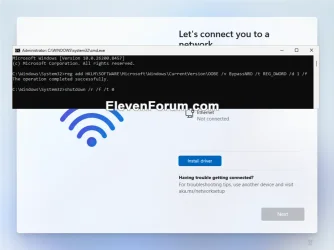
If you are installing a Windows 11 Home or Pro edition and want to bypass the network requirements to set up a local account, you can still do this:

A) Press the Shift + F10 keys to open a command prompt.
B) Type the command below in the command prompt, and press Enter.

reg add HKLM\SOFTWARE\Microsoft\Windows\CurrentVersion\OOBE /v BypassNRO /t REG_DWORD /d 1 /f

C) Type shutdown /r /f /t 0 in the command prompt, and press Enter to Restart the computer.
D) After the computer restarts, you will now go back to step 13. Be sure to skip step 15.
E) When you get back to this step 17, click/tap on I don't have internet, and go to step 21 to set up a local account.
BypassNRO.webp


I_dont_have_internet.webp
No_internet.webp

18 If installing a Windows 11 Home or Pro edition, type a name you want for the PC, and click/tap on Next. (see screenshots below)

You can always rename the PC at anytime if needed.

Your PC name cannot have more then 15 characters.

Your PC name cannot have spaces or any of the following special characters: " /\ [] : | <> + + ; , ?


Starting with Windows 11 build 26100.8524 (24H2) and build 26200.8524 (25H2), you can now choose a custom name for your user folder on the Device Name page when going through Windows setup. This most recent update now makes it easier to choose a custom name. The naming option is available during setup only. If you skip this step, Windows will use the default folder name and continue setup as usual. User folder names must follow standard Windows naming requirements.


ComputerName.jpg
User_folder_name.webp

19 Perform an action below for which type of account you want to set up: (see screenshot below)

You will not see this step if installing a Windows 11 Home edition. You will see step 20 instead.

You will not see this step if installing a Windows 11 Education edition. You will see step 22 instead.


  • Click/tap on Set up for personal use, click/tap on Next, and go to step 20 to set up a Microsoft account on your personal PC.
  • Click/tap on Set up for work or school, click/tap on Next, and go to step 22 to set up a work or school account on your PC to join a domain.
Clean_install_Windows_11-14.jpg

20 Set Up Windows 11 with a Microsoft Account

For more details about a Microsoft account, see: Microsoft account | Microsoft Docs


A) Click/tap on Sign in. (see screenshot below)​

MSA_required.jpg

B) Type in the email address for your Microsoft account, and click/tap on Next. (see screenshot below)​

If you do not have a Microsoft account and would like to use one, click/tap on the Create one link to create a new Microsoft account.


Clean_install_Windows_11_Microsoft_account-1.jpg

C) Type in the password for your Microsoft account, and click/tap on Sign in. (see screenshot below)​

Clean_install_Windows_11_Microsoft_account-3.jpg

D) If you have two-step verification turned on for your Microsoft account, select how (ex: email or text) you would like to get a code sent to you. (see screenshots below)​

Clean_install_Windows_11_Microsoft_account-4.jpg
Clean_install_Windows_11_Microsoft_account-5.jpg

E) Provide any other required information based on how you selected to get a code, and click/tap on Send code. (see screenshot below)​

Clean_install_Windows_11_Microsoft_account-6.jpg

F) Enter the code you received from Microsoft, and click/tap on Verify. (see screenshot below)​

Clean_install_Windows_11_Microsoft_account-7.jpg

G) Click/tap on Create PIN. (see screenshot below)​

Clean_install_Windows_11_Microsoft_account-8.jpg

H) Enter a PIN you want to use to sign in with, and click/tap on OK. (see screenshot below)​

Clean_install_Windows_11_Microsoft_account-9.jpg

I) Turn On (default) or Off the privacy settings you want, and click/tap on Accept when finished. (see screenshots below)​

You will be able to change these privacy settings at anytime in Windows 11.

Clean_install_Windows_11-_privacy_settings-1.jpg
Clean_install_Windows_11-_privacy_settings-4.jpg
Clean_install_Windows_11-_privacy_settings-2.jpg
Clean_install_Windows_11-_privacy_settings-5.jpg
Clean_install_Windows_11-_privacy_settings-3.jpg
Clean_install_Windows_11-_privacy_settings-6.jpg

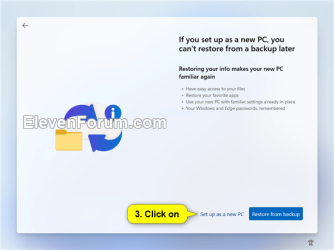
J) If you don't want to use Restore from this PC from a selected PC, then click/tap on More options, click/tap on Set up as a new PC, and click/tap on Set up as a new PC again to confirm. (see screenshots below)​

You can select to restore your settings, preferences, Microsoft Store apps, and synced OneDrive files from another device instead of setting up as a new device.


Clean_install_Windows_11_Microsoft_account-10A.png Clean_install_Windows_11_Microsoft_account-10b.png Clean_install_Windows_11_Microsoft_account-10c.png


K) Check all the ways you plan to use this device, and click/tap on Accept. (see screenshot below)​

Click/tap on Skip instead if you do not want to select (check) any device usages.

You can change your device usage options at any time in Windows 11.


Clean_install_Windows_11_Microsoft_account-11.jpg
Clean_install_Windows_11_Microsoft_account-12.jpg

L) Scan the QR code with your Android phone to link it if wanted, and click/tap on Continue. (see screenshot below)​


Click/tap on Skip instead if you do not want to link an Android phone.

This option is only available starting with Windows 11 build 22567.


Clean_install_Windows_11_Microsoft_account-14.jpg

M) If prompted to "Always have access to your recent browsing data" for Microsoft Edge, click/tap on Now now or Accept for what you want. (see screenshot below)​

edge.jpg

N) If prompted to "Join PC Game Pass for only $$ a month", click/tap on Skip for now or Join for what you want. (see screenshot below)​

GamePass.jpg

O) If prompted to "Try premium Office apps for free with Microsoft 365", click/tap on Decline or Continue for what you want. (see screenshot below)​

Microsoft_365.png

P) If prompted to "Get 100 GB more cloud storage" for OneDrive, click/tap on Decline or Continue for what you want. (see screenshot below)​

Cloud_storage.png

Q) Go to step 23.​


21 Set Up Windows 11 with a Local Account

For more details about a local account, see: Local account | Microsoft Docs:


A) Enter a user name you want for this local account, and click/tap on Next. (see screenshot below)​

Clean_install_Windows_11-_local_account-4.jpg

B) Enter a password you want for this local account, and click/tap on Next. (see screenshot below)​

If you do not want this local account to have a password, leave the password field empty, click/tap on Next, and go to step G below.


Clean_install_Windows_11-_local_account-5.jpg

C) Enter the password again to confirm, and click/tap on Next. (see screenshot below)​

Clean_install_Windows_11-_local_account-6.jpg

D) Select a security question (1 of 3) you want from the drop menu, type your answer, and click/tap on Next. (see screenshot below)​

Clean_install_Windows_11-_local_account-7.jpg

E) Select a security question (2 of 3) you want from the drop menu, type your answer, and click/tap on Next. (see screenshot below)​

Clean_install_Windows_11-_local_account-8.jpg

F) Select a security question (3 of 3) you want from the drop menu, type your answer, and click/tap on Next. (see screenshot below)​

Clean_install_Windows_11-_local_account-9.jpg

G) Turn On (default) or Off the privacy settings you want, and click/tap on Accept when finished. (see screenshots below)​

You will be able to change these privacy settings at anytime in Windows 11.

Clean_install_Windows_11-_privacy_settings-1.jpg
Clean_install_Windows_11-_privacy_settings-4.jpg
Clean_install_Windows_11-_privacy_settings-2.jpg
Clean_install_Windows_11-_privacy_settings-5.jpg
Clean_install_Windows_11-_privacy_settings-3.jpg
Clean_install_Windows_11-_privacy_settings-6.jpg

H) Go to step 23.​

22 Set Up Windows 11 with a Work or School Account

A) Type in the email address for your work or school account, and click/tap on Next. (see screenshot below)​

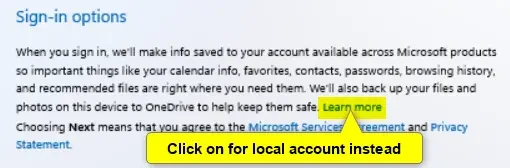
If you wanted to set up a local account, you can click/tap on Sign-in options instead, click/tap on Domain join instead, and go to step 21.


W11_clean_install_work_or_school_account-1.png

B) Type in the password for your work or school account, and click/tap on Sign in. (see screenshot below)​

W11_clean_install_work_or_school_account-2.png

C) Turn On (default) or Off the privacy settings you want, and click/tap on Accept when finished. (see screenshots below)​

You will be able to change these privacy settings at anytime in Windows 11.

Clean_install_Windows_11-_privacy_settings-1.jpg
Clean_install_Windows_11-_privacy_settings-4.jpg
Clean_install_Windows_11-_privacy_settings-2.jpg
Clean_install_Windows_11-_privacy_settings-5.jpg
Clean_install_Windows_11-_privacy_settings-3.jpg
Clean_install_Windows_11-_privacy_settings-6.jpg

D) Windows Setup will check for updates. (see screenshot below)​

W11_clean_install_work_or_school_account-4.png

E) If prompted to use Windows Hello with your account, click/tap on OK. (see screenshot below)​

W11_clean_install_work_or_school_account-5.png

F) If your organization requires additional security information, click/tap on Next, and follow any other given instructions to verify. (see screenshot below)​

W11_clean_install_work_or_school_account-6.png

G) When finished, go to step 23.​

23 When the clean install has finished, you will be on your desktop in Windows 11 with the Start menu open. (see screenshot below)

Desktop.png

24 Make sure the correct time zone, date, and time is set.

25 Most likely, BitLocker or Device Encryption has been automatically turned on for the Windows drive. You can turn this off if wanted, otherwise be sure to back up the BitLocker Recovery Key.

26 If you set up a Microsoft account during Windows Setup, it will get linked to OneDrive to backup and sync your files by default. You can stop the backup and sync of your files to OneDrive if wanted.


27 Check for and install any available Windows Updates.

28 Check for any app and game updates in the Microsoft Store app.

29 Install any needed drivers for your devices.


That's it,
Shawn Brink


Attachments

  • Windows.png
    Windows.png
    3.6 KB · Views: 1,876
Last edited:
@Brink cheers, that clarifies. Setting up a new laptop and want to make sure I understand what I'm doing beforehand instead of when I've done it wrong.

I've done Win11 local account before with bypassnro, but it was a year ago and I've forgotten.

You're most welcome. Please feel free to ask any other questions you may have. :shawn:
 

My Computers

System One System Two

  • OS
    Windows 11 Pro for Workstations
    Computer type
    PC/Desktop
    Manufacturer/Model
    Custom self build
    CPU
    Intel i7-8700K 5 GHz
    Motherboard
    ASUS ROG Maximus XI Formula Z390
    Memory
    64 GB (4x16GB) G.SKILL TridentZ RGB DDR4 3600 MHz (F4-3600C18D-32GTZR)
    Graphics Card(s)
    ASUS ROG-STRIX-GTX1080TI-O11G-GAMING (11GB GDDR5X)
    Sound Card
    Integrated Digital Audio (S/PDIF)
    Monitor(s) Displays
    2 x Samsung Odyssey G75 27"
    Screen Resolution
    2560x1440
    Hard Drives
    1TB Samsung 990 PRO M.2,
    4TB Samsung 990 PRO M.2,
    TerraMaster F8 SSD Plus NAS
    PSU
    Seasonic Prime Titanium 850W
    Case
    Thermaltake Core P3 wall mounted
    Cooling
    Corsair Hydro H115i
    Keyboard
    Amazon Basics Wired Full Keyboard MD005
    Mouse
    Logitech MX Master 4
    Internet Speed
    2 Gbps Download and 100 Mbps Upload
    Browser
    Chrome and Edge
    Antivirus
    Microsoft Defender

    Other Info
    Logitech Z625 speaker system,
    Logitech BRIO 4K Pro webcam,
    HP Color LaserJet Pro MFP M477fdn,
    CyberPower CP1500PFCLCD
    Galaxy S23 Plus phone
  • Operating System
    Windows 11 Pro
    Computer type
    Laptop
    Manufacturer/Model
    Surface Laptop 7 Copilot+ PC
    CPU
    Snapdragon X Elite (12 core) 3.42 GHz
    Memory
    16 GB LPDDR5x-7467 MHz
    Monitor(s) Displays
    15" HDR
    Screen Resolution
    2496 x 1664
    Hard Drives
    1 TB SSD
    Internet Speed
    Wi-Fi 7 and Bluetooth 5.4
    Browser
    Chrome and Edge
    Antivirus
    Microsoft Defender
Many here, including myself, use Rufus. Just click the options you want, such as a local account.
 

My Computer

System One

  • OS
    Windows 10/11
    Computer type
    Laptop
    Manufacturer/Model
    Acer
Followed the process using step 15 red box process and it worked really smoothly, local account set up with no problem.

It seems to skip some steps you get with account set up, such as drive encryption and naming the 'puter, but it seems those can be done later.

I have read that MS are removing the step 15 processes in the latest preview releases.

Many here, including myself, use Rufus. Just click the options you want, such as a local account.

Thanks. I've tried Rufus before, when trying to do a Win 10 clean install, and struggled with it; I found it difficult to set up and seemed OTT for what I wanted to do vs. the step 15 process above. That's not to say I won't try it in the future at some point when I feel I'll get more out of it.
 

My Computer

System One

  • OS
    Windows 11 24H2
    Computer type
    Laptop
    Manufacturer/Model
    MSI Prestige C1MG 0077UK
    CPU
    Intel core i5 Ultra 135H
    Motherboard
    MSI
    Memory
    16GB LPRDDR5
    Graphics Card(s)
    Integral (Intel Arc)
    Sound Card
    Integral
    Monitor(s) Displays
    BOE IPS NE140WUM-NX1 (BOE0A3A) 144 Hz full sRGB
    Screen Resolution
    1920 x 1200
    Hard Drives
    512GB SSD
    Antivirus
    Windows Defender
Followed the process using step 15 red box process and it worked really smoothly, local account set up with no problem.

It seems to skip some steps you get with account set up, such as drive encryption and naming the 'puter, but it seems those can be done later.

I have read that MS are removing the step 15 processes in the latest preview releases.

I'm happy to hear it went smoothly for you. :shawn:

We'll see what may get blocked by Microsoft, but there will usually always be a workaround. This tutorial will stay updated for it.
 

My Computers

System One System Two

  • OS
    Windows 11 Pro for Workstations
    Computer type
    PC/Desktop
    Manufacturer/Model
    Custom self build
    CPU
    Intel i7-8700K 5 GHz
    Motherboard
    ASUS ROG Maximus XI Formula Z390
    Memory
    64 GB (4x16GB) G.SKILL TridentZ RGB DDR4 3600 MHz (F4-3600C18D-32GTZR)
    Graphics Card(s)
    ASUS ROG-STRIX-GTX1080TI-O11G-GAMING (11GB GDDR5X)
    Sound Card
    Integrated Digital Audio (S/PDIF)
    Monitor(s) Displays
    2 x Samsung Odyssey G75 27"
    Screen Resolution
    2560x1440
    Hard Drives
    1TB Samsung 990 PRO M.2,
    4TB Samsung 990 PRO M.2,
    TerraMaster F8 SSD Plus NAS
    PSU
    Seasonic Prime Titanium 850W
    Case
    Thermaltake Core P3 wall mounted
    Cooling
    Corsair Hydro H115i
    Keyboard
    Amazon Basics Wired Full Keyboard MD005
    Mouse
    Logitech MX Master 4
    Internet Speed
    2 Gbps Download and 100 Mbps Upload
    Browser
    Chrome and Edge
    Antivirus
    Microsoft Defender
    Other Info
    Logitech Z625 speaker system,
    Logitech BRIO 4K Pro webcam,
    HP Color LaserJet Pro MFP M477fdn,
    CyberPower CP1500PFCLCD
    Galaxy S23 Plus phone
  • Operating System
    Windows 11 Pro
    Computer type
    Laptop
    Manufacturer/Model
    Surface Laptop 7 Copilot+ PC
    CPU
    Snapdragon X Elite (12 core) 3.42 GHz
    Memory
    16 GB LPDDR5x-7467 MHz
    Monitor(s) Displays
    15" HDR
    Screen Resolution
    2496 x 1664
    Hard Drives
    1 TB SSD
    Internet Speed
    Wi-Fi 7 and Bluetooth 5.4
    Browser
    Chrome and Edge
    Antivirus
    Microsoft Defender
Until recently I did not know that Windows and Microsoft 365 used the Language Setting stored in your Microsoft Account to add the options when Windows and Microsoft 365 are installed.

By default when my Microsoft Account was set to US English and I had no idea you could change the language preference in the account.
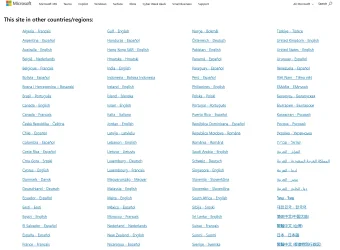
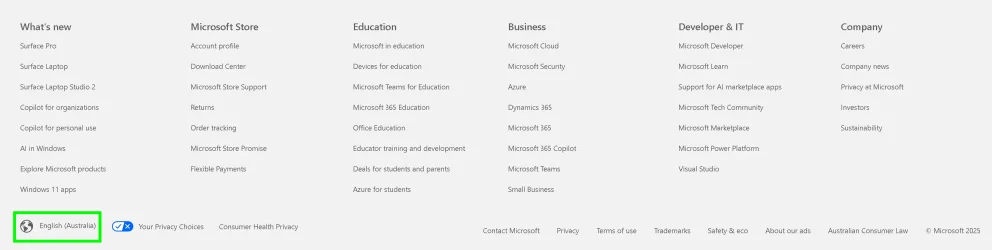
Log into microsoft.com with your Microsoft account credentials and scroll to the bottom left of the page the current language for the account is displayed. If you need to change your language click on the current language see the first screengrab I have added a green frame to highlight the current langauge and a Window opens up with your language locale options as the second image.

I am in Australia so I chose United Kingdom - English and now my Account Displays as English (Australia).
If you are located in an English Speaking Country outside of the United States and your Country uses the D-M-Y Date Format, select United Kingdom - English.

As I am outside the United States I download the Windows 11 English (United Kingdom) ISO and Installed.
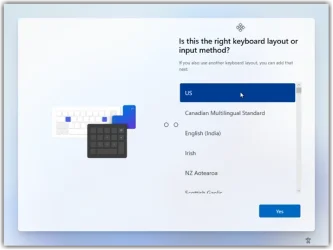
Select the correct keyboard layout for your country it makes life a lot easier.
Australia uses the same keyboard as the United States so I chose US as per the third image.

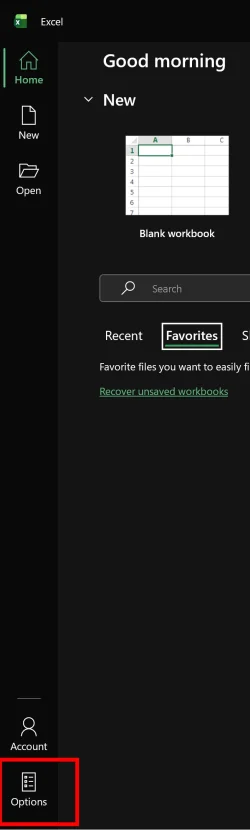
If you have any language issues after installing Microsoft 365, open an App Excel, Word etc select options on the bottom left of the screen, see image 4 icon in the red frame.
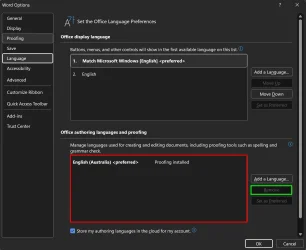
Select language and look for any extra unwanted languages in the Window I highlighted with a red frame in image 5. Select the unwanted language and the delete button on the right in the Green Frame will be active and delete the unwanted language.
 

Attachments

  • Options.webp
    Options.webp
    26.1 KB · Views: 26
  • Windows+11+Keyboard+UI-104094525.webp
    Windows+11+Keyboard+UI-104094525.webp
    11.5 KB · Views: 30
  • Locale.webp
    Locale.webp
    263 KB · Views: 23
  • Microsoft Account.webp
    Microsoft Account.webp
    84.1 KB · Views: 30
  • Langauge.webp
    Langauge.webp
    72.5 KB · Views: 23

My Computer

System One

  • OS
    Windows 11
    Computer type
    PC/Desktop
    Manufacturer/Model
    Generic
    CPU
    AMD Ryzen 8700G
    Motherboard
    Gigabyte B650 UD AC
    Memory
    64 GB
    Graphics Card(s)
    Onboard
    Sound Card
    Onboard
    Monitor(s) Displays
    Del U2723QE
    Screen Resolution
    3840 x 2160
    Hard Drives
    Corsiar MP600 1TB
    PSU
    Silverstone 750 GOLD
    Case
    Silverstone FARA 513
Thank you very much.
 

My Computers

System One System Two

  • OS
    Windows 11 Pro. 25H2
    Computer type
    PC/Desktop
    Manufacturer/Model
    2013 MSI MSI-7850 (I also have an old HP ENVY, and an old ASUS Laptop.)
    CPU
    Intel Core i7 4770k @ 3.50 Ghz. (Over 5GHz capable.)
    Motherboard
    2013 MSI-7850.
    Memory
    32 GB 1600 Mhz DDR3.
    Graphics Card(s)
    2GB NVIDIA DDR5 GTX 660 (It says MSI on the bottom. It has a large fan on the bottom.)
    Sound Card
    NVIDIA HD Audio on motherboard.
    Monitor(s) Displays
    My old 2014 Samsung 46" HDTV with (4) HDMI inputs.
    Screen Resolution
    1080p. Capable oF 2160p. My TV is 1080p.
    Hard Drives
    (2) Internal 4 TB Western Digital 6Gb/s 7200 rpm Hard Drives. (Externally (2) USB3.2 Oracle hot-swappable Enclosures. The motherboard only supports USB3.0. (So 3.0.) (Many H.D.s Over 100 TBs in total.) SSDs SUCK! They are faster but limited in terms of total reads and writes. They're similar to flash drives. They wear out quickly. H.D.s are the most durable.
    PSU
    600 watt.
    Case
    A blue 2013 XBLADE gaming tower. Blue LEDs in front and on the side panel.
    Cooling
    Liquid cooled CPU cooler with radiator and fan Fan on back of case. Fan in front to bring air in, and one on the removable side panel.
    Keyboard
    Logitech logi 2.4 Ghz wireless. (One single USB dongle for keyboard and mouse.)
    Mouse
    Logitech logi 2.4 Ghz wireless.
    Internet Speed
    400 mbps. Ethernet from modem to Netgear 8 port unmanaged 300 series switcher.
    Browser
    Firefox, Opera, and of course M.S. Edge.
    Antivirus
    Bitdefender Premium Security.
    Other Info
    You get what you pay for. Except for the keyboard and mouse, my equipment is all old, but all of it still works great. I've had my computers and TVs on 24 hours a day, except for power outages and for cleaning. They still work great.
  • Operating System
    Windows 10 Pro. 22H2
    Computer type
    PC/Desktop
    Manufacturer/Model
    HP ENVY
    CPU
    Intel Core i7 3770k @ 3.50 Ghz Intel Turboboost @3.9 Ghz
    Motherboard
    2013 HP Formosa.
    Memory
    32 GB DDR3 @1600 Mhz.
    Graphics card(s)
    4GB NVIDIA GTX DDR5
    Sound Card
    NVIDIA HD (On Motherboard.)
    Monitor(s) Displays
    My old 2014 Samsung 46" HDTV with (4) HDMI inputs.
    Screen Resolution
    1080p
    Hard Drives
    2TB Seagate 7200 RPM. 4TB 5400 PPM Western Digital.
    PSU
    480 Watt HP.
    Case
    A blue 2013 XBLADE gaming tower. Blue LEDs in front and on the side panel.
    Cooling
    CPU cooler with fan Fan Fan on back of case. Fan in front to bring air in, and one on the removable side panel.
    Keyboard
    Logitech logi 2.4 Ghz wireless. (One single USB dongle for keyboard and mouse.)
    Mouse
    Logitech logi 2.4 Ghz wireless. (One single USB dongle for keyboard and mouse.)
    Internet Speed
    400 mbps. Ethernet from modem to Netgear 8 port unmanaged 300 series switcher.
    Browser
    Firefox, Opera, and of course M.S. Edge.
    Antivirus
    Bitdefender Premium Security.

My Computers

System One System Two

  • OS
    Windows 11 Pro for Workstations
    Computer type
    PC/Desktop
    Manufacturer/Model
    Custom self build
    CPU
    Intel i7-8700K 5 GHz
    Motherboard
    ASUS ROG Maximus XI Formula Z390
    Memory
    64 GB (4x16GB) G.SKILL TridentZ RGB DDR4 3600 MHz (F4-3600C18D-32GTZR)
    Graphics Card(s)
    ASUS ROG-STRIX-GTX1080TI-O11G-GAMING (11GB GDDR5X)
    Sound Card
    Integrated Digital Audio (S/PDIF)
    Monitor(s) Displays
    2 x Samsung Odyssey G75 27"
    Screen Resolution
    2560x1440
    Hard Drives
    1TB Samsung 990 PRO M.2,
    4TB Samsung 990 PRO M.2,
    TerraMaster F8 SSD Plus NAS
    PSU
    Seasonic Prime Titanium 850W
    Case
    Thermaltake Core P3 wall mounted
    Cooling
    Corsair Hydro H115i
    Keyboard
    Amazon Basics Wired Full Keyboard MD005
    Mouse
    Logitech MX Master 4
    Internet Speed
    2 Gbps Download and 100 Mbps Upload
    Browser
    Chrome and Edge
    Antivirus
    Microsoft Defender
    Other Info
    Logitech Z625 speaker system,
    Logitech BRIO 4K Pro webcam,
    HP Color LaserJet Pro MFP M477fdn,
    CyberPower CP1500PFCLCD
    Galaxy S23 Plus phone
  • Operating System
    Windows 11 Pro
    Computer type
    Laptop
    Manufacturer/Model
    Surface Laptop 7 Copilot+ PC
    CPU
    Snapdragon X Elite (12 core) 3.42 GHz
    Memory
    16 GB LPDDR5x-7467 MHz
    Monitor(s) Displays
    15" HDR
    Screen Resolution
    2496 x 1664
    Hard Drives
    1 TB SSD
    Internet Speed
    Wi-Fi 7 and Bluetooth 5.4
    Browser
    Chrome and Edge
    Antivirus
    Microsoft Defender
@Brink Thank you dear man, I think the red flags up front and center will help a lot, especially newbies. We old folks need it, too. Heck, I've done clean installs hundreds of times and could do it in my sleep, but nowadays have to pull up the tutorial to remember everything. I know it's not your first rodeo, but I truly can't figure out how you keep it all cohesive.. You are muchly appreciated. ❤️
 

My Computers

System One System Two

  • OS
    Windows 11 Pro 25H2 26200.8655
    Computer type
    PC/Desktop
    Manufacturer/Model
    Dell Optiplex 7080
    CPU
    i9-10900 10 core 20 threads
    Motherboard
    DELL 0J37VM
    Memory
    32 gb
    Graphics Card(s)
    none-Intel UHD Graphics 630
    Sound Card
    Integrated Realtek
    Monitor(s) Displays
    Benq 27
    Screen Resolution
    2560x1440
    Hard Drives
    2x1tb Solidigm m.2 nvme /External drives 512gb Samsung m.2 sata+2tb Kingston m2.nvme
    PSU
    500w
    Case
    MT
    Cooling
    Dell Premium
    Keyboard
    Logitech wired
    Mouse
    Logitech wireless
    Internet Speed
    so slow I'm too embarrassed to tell
    Browser
    #1 Edge #2 Firefox
    Antivirus
    Defender+MWB Premium
  • Operating System
    Windows 11 Pro 24H2 26200.8457
    Computer type
    PC/Desktop
    Manufacturer/Model
    Beelink Mini PC SER5
    CPU
    AMD Ryzen 7 6800U
    Memory
    32 gb
    Graphics card(s)
    integrated
    Sound Card
    integrated
    Monitor(s) Displays
    Benq 27
    Screen Resolution
    2560x1440
    Hard Drives
    1TB Crucial nvme
    Keyboard
    Logitech wired
    Mouse
    Logitech wireless
    Internet Speed
    still too embarrassed to tell
    Browser
    Firefox
    Antivirus
    Defender
    Other Info
    System 3 is non compliant Dell 9020 i7-4770/24gb ram Win11 PRO 26200.8457
Forgive my question - I'm unable to absorb the multiple options here, which are confusing me.

I want to purchase a brand new Windows 11 Pro Laptop and initiate it with only a Local Account.

As the ability to do this seems to change frequently, is it actually still possible?

If so, could anyone summarise the salient points that I'd need to follow, assuming I needed to do it within the next 10 days or so, please?
 

My Computer

System One

  • OS
    Windows 11 Pro 25H2 26200.8655
    Computer type
    Laptop
    Manufacturer/Model
    PC Specialist 15.6" Initia
    CPU
    Intel(R) Core(TM) i7-1195G7 @ 2.90GHz
    Memory
    16GB
    Graphics Card(s)
    Intel Iris Xe
    Screen Resolution
    1920 x 1080
    Hard Drives
    M2 PCIe NVMe 250GB
    Internet Speed
    910/105 Mbps
    Browser
    Ecosia Version 149.1.7827.10 (PROD) (64-bit)
    Antivirus
    Microsoft Defender
    Other Info
    Macrium Reflect Home v10.0.8843
Forgive my question - I'm unable to absorb the multiple options here, which are confusing me.

I want to purchase a brand new Windows 11 Pro Laptop and initiate it with only a Local Account.

As the ability to do this seems to change frequently, is it actually still possible?

If so, could anyone summarise the salient points that I'd need to follow, assuming I needed to do it within the next 10 days or so, please?

Hello Peter, :alien:

I find using step 15 in the tutorial when you get to it easy for setting up a local account.
 

My Computers

System One System Two

  • OS
    Windows 11 Pro for Workstations
    Computer type
    PC/Desktop
    Manufacturer/Model
    Custom self build
    CPU
    Intel i7-8700K 5 GHz
    Motherboard
    ASUS ROG Maximus XI Formula Z390
    Memory
    64 GB (4x16GB) G.SKILL TridentZ RGB DDR4 3600 MHz (F4-3600C18D-32GTZR)
    Graphics Card(s)
    ASUS ROG-STRIX-GTX1080TI-O11G-GAMING (11GB GDDR5X)
    Sound Card
    Integrated Digital Audio (S/PDIF)
    Monitor(s) Displays
    2 x Samsung Odyssey G75 27"
    Screen Resolution
    2560x1440
    Hard Drives
    1TB Samsung 990 PRO M.2,
    4TB Samsung 990 PRO M.2,
    TerraMaster F8 SSD Plus NAS
    PSU
    Seasonic Prime Titanium 850W
    Case
    Thermaltake Core P3 wall mounted
    Cooling
    Corsair Hydro H115i
    Keyboard
    Amazon Basics Wired Full Keyboard MD005
    Mouse
    Logitech MX Master 4
    Internet Speed
    2 Gbps Download and 100 Mbps Upload
    Browser
    Chrome and Edge
    Antivirus
    Microsoft Defender
    Other Info
    Logitech Z625 speaker system,
    Logitech BRIO 4K Pro webcam,
    HP Color LaserJet Pro MFP M477fdn,
    CyberPower CP1500PFCLCD
    Galaxy S23 Plus phone
  • Operating System
    Windows 11 Pro
    Computer type
    Laptop
    Manufacturer/Model
    Surface Laptop 7 Copilot+ PC
    CPU
    Snapdragon X Elite (12 core) 3.42 GHz
    Memory
    16 GB LPDDR5x-7467 MHz
    Monitor(s) Displays
    15" HDR
    Screen Resolution
    2496 x 1664
    Hard Drives
    1 TB SSD
    Internet Speed
    Wi-Fi 7 and Bluetooth 5.4
    Browser
    Chrome and Edge
    Antivirus
    Microsoft Defender
Right then - Step 15 it'll be! Thank you, Brink.
 

My Computer

System One

  • OS
    Windows 11 Pro 25H2 26200.8655
    Computer type
    Laptop
    Manufacturer/Model
    PC Specialist 15.6" Initia
    CPU
    Intel(R) Core(TM) i7-1195G7 @ 2.90GHz
    Memory
    16GB
    Graphics Card(s)
    Intel Iris Xe
    Screen Resolution
    1920 x 1080
    Hard Drives
    M2 PCIe NVMe 250GB
    Internet Speed
    910/105 Mbps
    Browser
    Ecosia Version 149.1.7827.10 (PROD) (64-bit)
    Antivirus
    Microsoft Defender
    Other Info
    Macrium Reflect Home v10.0.8843

My Computers

System One System Two

  • OS
    Windows 11 Pro for Workstations
    Computer type
    PC/Desktop
    Manufacturer/Model
    Custom self build
    CPU
    Intel i7-8700K 5 GHz
    Motherboard
    ASUS ROG Maximus XI Formula Z390
    Memory
    64 GB (4x16GB) G.SKILL TridentZ RGB DDR4 3600 MHz (F4-3600C18D-32GTZR)
    Graphics Card(s)
    ASUS ROG-STRIX-GTX1080TI-O11G-GAMING (11GB GDDR5X)
    Sound Card
    Integrated Digital Audio (S/PDIF)
    Monitor(s) Displays
    2 x Samsung Odyssey G75 27"
    Screen Resolution
    2560x1440
    Hard Drives
    1TB Samsung 990 PRO M.2,
    4TB Samsung 990 PRO M.2,
    TerraMaster F8 SSD Plus NAS
    PSU
    Seasonic Prime Titanium 850W
    Case
    Thermaltake Core P3 wall mounted
    Cooling
    Corsair Hydro H115i
    Keyboard
    Amazon Basics Wired Full Keyboard MD005
    Mouse
    Logitech MX Master 4
    Internet Speed
    2 Gbps Download and 100 Mbps Upload
    Browser
    Chrome and Edge
    Antivirus
    Microsoft Defender
    Other Info
    Logitech Z625 speaker system,
    Logitech BRIO 4K Pro webcam,
    HP Color LaserJet Pro MFP M477fdn,
    CyberPower CP1500PFCLCD
    Galaxy S23 Plus phone
  • Operating System
    Windows 11 Pro
    Computer type
    Laptop
    Manufacturer/Model
    Surface Laptop 7 Copilot+ PC
    CPU
    Snapdragon X Elite (12 core) 3.42 GHz
    Memory
    16 GB LPDDR5x-7467 MHz
    Monitor(s) Displays
    15" HDR
    Screen Resolution
    2496 x 1664
    Hard Drives
    1 TB SSD
    Internet Speed
    Wi-Fi 7 and Bluetooth 5.4
    Browser
    Chrome and Edge
    Antivirus
    Microsoft Defender
I have already done a clean install 3 times on the same computer, once in April, with a Microsoft account and I am not obliged to connect with onedrive during the procedure, I have the choice. I'm in the European Union, which is probably why.
 

My Computer

System One

  • OS
    windows 11
I have already done a clean install 3 times on the same computer, once in April, with a Microsoft account and I am not obliged to connect with onedrive during the procedure, I have the choice. I'm in the European Union, which is probably why.

Hello, :alien:

Correct. Being in the EEA would be why you have the choice.
 

My Computers

System One System Two

  • OS
    Windows 11 Pro for Workstations
    Computer type
    PC/Desktop
    Manufacturer/Model
    Custom self build
    CPU
    Intel i7-8700K 5 GHz
    Motherboard
    ASUS ROG Maximus XI Formula Z390
    Memory
    64 GB (4x16GB) G.SKILL TridentZ RGB DDR4 3600 MHz (F4-3600C18D-32GTZR)
    Graphics Card(s)
    ASUS ROG-STRIX-GTX1080TI-O11G-GAMING (11GB GDDR5X)
    Sound Card
    Integrated Digital Audio (S/PDIF)
    Monitor(s) Displays
    2 x Samsung Odyssey G75 27"
    Screen Resolution
    2560x1440
    Hard Drives
    1TB Samsung 990 PRO M.2,
    4TB Samsung 990 PRO M.2,
    TerraMaster F8 SSD Plus NAS
    PSU
    Seasonic Prime Titanium 850W
    Case
    Thermaltake Core P3 wall mounted
    Cooling
    Corsair Hydro H115i
    Keyboard
    Amazon Basics Wired Full Keyboard MD005
    Mouse
    Logitech MX Master 4
    Internet Speed
    2 Gbps Download and 100 Mbps Upload
    Browser
    Chrome and Edge
    Antivirus
    Microsoft Defender
    Other Info
    Logitech Z625 speaker system,
    Logitech BRIO 4K Pro webcam,
    HP Color LaserJet Pro MFP M477fdn,
    CyberPower CP1500PFCLCD
    Galaxy S23 Plus phone
  • Operating System
    Windows 11 Pro
    Computer type
    Laptop
    Manufacturer/Model
    Surface Laptop 7 Copilot+ PC
    CPU
    Snapdragon X Elite (12 core) 3.42 GHz
    Memory
    16 GB LPDDR5x-7467 MHz
    Monitor(s) Displays
    15" HDR
    Screen Resolution
    2496 x 1664
    Hard Drives
    1 TB SSD
    Internet Speed
    Wi-Fi 7 and Bluetooth 5.4
    Browser
    Chrome and Edge
    Antivirus
    Microsoft Defender
If you're not in the EEA, it's possible to use an unattended file to disable OneDrive.

Code:
<?xml version="1.0" encoding="utf-8"?>
<unattend xmlns="urn:schemas-microsoft-com:unattend">
        <settings pass="windowsPE">
                <component name="Microsoft-Windows-Setup" processorArchitecture="amd64" publicKeyToken="31bf3856ad364e35" language="neutral" versionScope="nonSxS" xmlns:wcm="http://schemas.microsoft.com/WMIConfig/2002/State" xmlns:xsi="http://www.w3.org/2001/XMLSchema-instance">
                        <UserData>
                                <ProductKey>
                                        <Key></Key>
                                </ProductKey>
                        </UserData>
                </component>
        </settings>
        <settings pass="specialize">
                <component name="Microsoft-Windows-Deployment" processorArchitecture="amd64" publicKeyToken="31bf3856ad364e35" language="neutral" versionScope="nonSxS" xmlns:wcm="http://schemas.microsoft.com/WMIConfig/2002/State" xmlns:xsi="http://www.w3.org/2001/XMLSchema-instance">
                        <RunSynchronous>
                                <RunSynchronousCommand>
                                        <Order>1</Order>
                                        <Description>Disable OneDrive</Description>
                                        <Path>reg add HKEY_LOCAL_MACHINE\SOFTWARE\Policies\Microsoft\Windows\OneDrive /v DisableFileSyncNGSC /t REG_DWORD /d 1 /f</Path>
                                </RunSynchronousCommand>
                        </RunSynchronous>
                </component>
        </settings>
</unattend>
 

My Computer

System One

  • OS
    Windows 7
Hello, :alien:

Correct. Being in the EEA would be why you have the choice.
I just remembered, but I'm not sure, the choice during the process is for file synchronization. Today I did a clean install, I chose no, and when I got to the desktop I was connected.

I unlinked immediately.I don't remember if the folders were synchronized. Since I've never used OneDrive, I don't know if it can be used without synchronization.
I'll pay more attention for the next "real" clean install planned for the coming months. Today's clean install wasn't planned.
 

My Computer

System One

  • OS
    windows 11
Has anyone here done step 15 of this tutorial recently on a new computer, first time turned on with OOBE to activate windows on the new computer? I have been tasked with setting up my neighbor's tomorrow. Just wanted to make sure that step 15 still works. Thanks
 

My Computers

System One System Two

  • OS
    Windows 11 Pro 25H2 26200.8655
    Computer type
    PC/Desktop
    Manufacturer/Model
    Dell Tower Plus EBT2250, DOB: 06/15/2025
    CPU
    Intel® Core™ Ultra 7 265 1.8GHz to 5.3GHz (Arrow Lake)
    Motherboard
    Dell Inc. 02D3NT A00 (U3E1)
    Memory
    SK Hynix 32GB DDR5 5600 Desktop RAM UDIMM Non-ECC PC5-5600B
    Graphics Card(s)
    Dell NVIDIA® GeForce RTX™ 4060 8GB GDDR6 & (iGPU) Integrated Intel® UHD Graphics
    Sound Card
    Chipset Realtek High-Definition Audio with Dolby Atmos
    Monitor(s) Displays
    Dell Ultra Sharp U2515H 25-Inch Screen LED-Lit
    Screen Resolution
    2560 X 1440
    Hard Drives
    Samsung (NVMe PM9C1a 1024GB) M.2 PCIe NVMe Solid State Drive (OS), with Samsung Piccolo (S4LY022) 6-Core 4 Channel Controller.

    Samsung T7 500GB SSD, USB-C External Drive
    PSU
    Dell 460W
    Case
    Dell Tower Plus EBT 2250
    Cooling
    Fan
    Keyboard
    Dell Wired Keyboard - KB216
    Mouse
    Logitech M510
    Internet Speed
    Intel Killer E3100G 2.5 Gigabit Ethernet Controller
    Browser
    Microsoft Edge
    Antivirus
    Microsoft Windows Security
    Other Info
    The Samsung NVMe PM9C1a 1024GB SSD does not use a Phison NAND controller. Instead, it uses Samsung's in-house developed Piccolo (S4LY022) 6-Core 4 Channel Controller. The PM9C1a utilizes a controller built using Samsung's 5-nanometer process and seventh-generation V-NAND technology. 🤔
  • Operating System
    Windows 11 Pro 25H2 26200.8655
    Computer type
    Laptop
    Manufacturer/Model
    Dell Inspiron 15 7000 (7591) 2-in-1, DOB: 11/30/2019
    CPU
    10th Generation Intel Core i7-10510U Processor (8MB Cache, up to 4.9 GHz) Comet Lake
    Motherboard
    Dell 0NNW5N
    Memory
    16GB DDR4 RAM
    Graphics card(s)
    NVIDIA® GeForce® MX250 with 2GB GDDR5 graphics memory
    Sound Card
    Chipset Realtek ALC3254 🤔🤣
    Monitor(s) Displays
    Dell 15.6-inch UHD Truelife Touch Narrow Border WVA Display with Active Pen support
    Screen Resolution
    3840 x 2160
    Hard Drives
    Intel NVME 512GB SSD with 32GB Intel Optane Memory, M.2 80mm PCIe 3.0 RAID

    SanDisk 256GB Extreme microSDXC UHS-I Memory Card
    PSU
    Dell 4-Cell Battery, 68 Whr (Integrated), 90 Watt AC Adapter
    Case
    Dell Inspiron 15 7000 2-in-1 (7591)
    Cooling
    Standard Dell Case Fan & Havit HV-F2056 USB Powered (3 Fans) Laptop Cooling Pad.
    Keyboard
    Dell
    Mouse
    Logitech Wireless Mouse M650L
    Internet Speed
    Wireless/Wired connectivity (WiFi 6 - 802.11 ax)
    Browser
    Microsoft Edge
    Antivirus
    Microsoft Windows Security
    Other Info
    From Dell: 512GB NVME Solid State Drive accelerated by 32GB Intel Optane Memory are the fastest as compared to NAND SSDs. Intel Optane H10 with SSD offers speedy storage and accelerates opening your programs.
It worked for me when I set up a new system several months ago.
 

My Computers

System One System Two

  • OS
    Windows 11 Pro 25H2 26200.8655
    Computer type
    PC/Desktop
    Manufacturer/Model
    Dell Optiplex 7080
    CPU
    i9-10900 10 core 20 threads
    Motherboard
    DELL 0J37VM
    Memory
    32 gb
    Graphics Card(s)
    none-Intel UHD Graphics 630
    Sound Card
    Integrated Realtek
    Monitor(s) Displays
    Benq 27
    Screen Resolution
    2560x1440
    Hard Drives
    2x1tb Solidigm m.2 nvme /External drives 512gb Samsung m.2 sata+2tb Kingston m2.nvme
    PSU
    500w
    Case
    MT
    Cooling
    Dell Premium
    Keyboard
    Logitech wired
    Mouse
    Logitech wireless
    Internet Speed
    so slow I'm too embarrassed to tell
    Browser
    #1 Edge #2 Firefox
    Antivirus
    Defender+MWB Premium
  • Operating System
    Windows 11 Pro 24H2 26200.8457
    Computer type
    PC/Desktop
    Manufacturer/Model
    Beelink Mini PC SER5
    CPU
    AMD Ryzen 7 6800U
    Memory
    32 gb
    Graphics card(s)
    integrated
    Sound Card
    integrated
    Monitor(s) Displays
    Benq 27
    Screen Resolution
    2560x1440
    Hard Drives
    1TB Crucial nvme
    Keyboard
    Logitech wired
    Mouse
    Logitech wireless
    Internet Speed
    still too embarrassed to tell
    Browser
    Firefox
    Antivirus
    Defender
    Other Info
    System 3 is non compliant Dell 9020 i7-4770/24gb ram Win11 PRO 26200.8457

My Computers

System One System Two

  • OS
    Windows 11 Pro 25H2 26200.8655
    Computer type
    PC/Desktop
    Manufacturer/Model
    Dell Tower Plus EBT2250, DOB: 06/15/2025
    CPU
    Intel® Core™ Ultra 7 265 1.8GHz to 5.3GHz (Arrow Lake)
    Motherboard
    Dell Inc. 02D3NT A00 (U3E1)
    Memory
    SK Hynix 32GB DDR5 5600 Desktop RAM UDIMM Non-ECC PC5-5600B
    Graphics Card(s)
    Dell NVIDIA® GeForce RTX™ 4060 8GB GDDR6 & (iGPU) Integrated Intel® UHD Graphics
    Sound Card
    Chipset Realtek High-Definition Audio with Dolby Atmos
    Monitor(s) Displays
    Dell Ultra Sharp U2515H 25-Inch Screen LED-Lit
    Screen Resolution
    2560 X 1440
    Hard Drives
    Samsung (NVMe PM9C1a 1024GB) M.2 PCIe NVMe Solid State Drive (OS), with Samsung Piccolo (S4LY022) 6-Core 4 Channel Controller.

    Samsung T7 500GB SSD, USB-C External Drive
    PSU
    Dell 460W
    Case
    Dell Tower Plus EBT 2250
    Cooling
    Fan
    Keyboard
    Dell Wired Keyboard - KB216
    Mouse
    Logitech M510
    Internet Speed
    Intel Killer E3100G 2.5 Gigabit Ethernet Controller
    Browser
    Microsoft Edge
    Antivirus
    Microsoft Windows Security
    Other Info
    The Samsung NVMe PM9C1a 1024GB SSD does not use a Phison NAND controller. Instead, it uses Samsung's in-house developed Piccolo (S4LY022) 6-Core 4 Channel Controller. The PM9C1a utilizes a controller built using Samsung's 5-nanometer process and seventh-generation V-NAND technology. 🤔
  • Operating System
    Windows 11 Pro 25H2 26200.8655
    Computer type
    Laptop
    Manufacturer/Model
    Dell Inspiron 15 7000 (7591) 2-in-1, DOB: 11/30/2019
    CPU
    10th Generation Intel Core i7-10510U Processor (8MB Cache, up to 4.9 GHz) Comet Lake
    Motherboard
    Dell 0NNW5N
    Memory
    16GB DDR4 RAM
    Graphics card(s)
    NVIDIA® GeForce® MX250 with 2GB GDDR5 graphics memory
    Sound Card
    Chipset Realtek ALC3254 🤔🤣
    Monitor(s) Displays
    Dell 15.6-inch UHD Truelife Touch Narrow Border WVA Display with Active Pen support
    Screen Resolution
    3840 x 2160
    Hard Drives
    Intel NVME 512GB SSD with 32GB Intel Optane Memory, M.2 80mm PCIe 3.0 RAID

    SanDisk 256GB Extreme microSDXC UHS-I Memory Card
    PSU
    Dell 4-Cell Battery, 68 Whr (Integrated), 90 Watt AC Adapter
    Case
    Dell Inspiron 15 7000 2-in-1 (7591)
    Cooling
    Standard Dell Case Fan & Havit HV-F2056 USB Powered (3 Fans) Laptop Cooling Pad.
    Keyboard
    Dell
    Mouse
    Logitech Wireless Mouse M650L
    Internet Speed
    Wireless/Wired connectivity (WiFi 6 - 802.11 ax)
    Browser
    Microsoft Edge
    Antivirus
    Microsoft Windows Security
    Other Info
    From Dell: 512GB NVME Solid State Drive accelerated by 32GB Intel Optane Memory are the fastest as compared to NAND SSDs. Intel Optane H10 with SSD offers speedy storage and accelerates opening your programs.
It worked for me when I set up a new system several months ago.

By the way, if I may ask; which code did you use?

step 15 = This step uses the start ms-cxh:localonly or start ms-cxh://setaddlocalonly command to set up a local account with network.

And what should expect to see happen after entering it. Sorry to ask but I am doing this a favor for my very old neighbor, and I really don't want to mess up his new computer. Thank you so much.
 

My Computers

System One System Two

  • OS
    Windows 11 Pro 25H2 26200.8655
    Computer type
    PC/Desktop
    Manufacturer/Model
    Dell Tower Plus EBT2250, DOB: 06/15/2025
    CPU
    Intel® Core™ Ultra 7 265 1.8GHz to 5.3GHz (Arrow Lake)
    Motherboard
    Dell Inc. 02D3NT A00 (U3E1)
    Memory
    SK Hynix 32GB DDR5 5600 Desktop RAM UDIMM Non-ECC PC5-5600B
    Graphics Card(s)
    Dell NVIDIA® GeForce RTX™ 4060 8GB GDDR6 & (iGPU) Integrated Intel® UHD Graphics
    Sound Card
    Chipset Realtek High-Definition Audio with Dolby Atmos
    Monitor(s) Displays
    Dell Ultra Sharp U2515H 25-Inch Screen LED-Lit
    Screen Resolution
    2560 X 1440
    Hard Drives
    Samsung (NVMe PM9C1a 1024GB) M.2 PCIe NVMe Solid State Drive (OS), with Samsung Piccolo (S4LY022) 6-Core 4 Channel Controller.

    Samsung T7 500GB SSD, USB-C External Drive
    PSU
    Dell 460W
    Case
    Dell Tower Plus EBT 2250
    Cooling
    Fan
    Keyboard
    Dell Wired Keyboard - KB216
    Mouse
    Logitech M510
    Internet Speed
    Intel Killer E3100G 2.5 Gigabit Ethernet Controller
    Browser
    Microsoft Edge
    Antivirus
    Microsoft Windows Security
    Other Info
    The Samsung NVMe PM9C1a 1024GB SSD does not use a Phison NAND controller. Instead, it uses Samsung's in-house developed Piccolo (S4LY022) 6-Core 4 Channel Controller. The PM9C1a utilizes a controller built using Samsung's 5-nanometer process and seventh-generation V-NAND technology. 🤔
  • Operating System
    Windows 11 Pro 25H2 26200.8655
    Computer type
    Laptop
    Manufacturer/Model
    Dell Inspiron 15 7000 (7591) 2-in-1, DOB: 11/30/2019
    CPU
    10th Generation Intel Core i7-10510U Processor (8MB Cache, up to 4.9 GHz) Comet Lake
    Motherboard
    Dell 0NNW5N
    Memory
    16GB DDR4 RAM
    Graphics card(s)
    NVIDIA® GeForce® MX250 with 2GB GDDR5 graphics memory
    Sound Card
    Chipset Realtek ALC3254 🤔🤣
    Monitor(s) Displays
    Dell 15.6-inch UHD Truelife Touch Narrow Border WVA Display with Active Pen support
    Screen Resolution
    3840 x 2160
    Hard Drives
    Intel NVME 512GB SSD with 32GB Intel Optane Memory, M.2 80mm PCIe 3.0 RAID

    SanDisk 256GB Extreme microSDXC UHS-I Memory Card
    PSU
    Dell 4-Cell Battery, 68 Whr (Integrated), 90 Watt AC Adapter
    Case
    Dell Inspiron 15 7000 2-in-1 (7591)
    Cooling
    Standard Dell Case Fan & Havit HV-F2056 USB Powered (3 Fans) Laptop Cooling Pad.
    Keyboard
    Dell
    Mouse
    Logitech Wireless Mouse M650L
    Internet Speed
    Wireless/Wired connectivity (WiFi 6 - 802.11 ax)
    Browser
    Microsoft Edge
    Antivirus
    Microsoft Windows Security
    Other Info
    From Dell: 512GB NVME Solid State Drive accelerated by 32GB Intel Optane Memory are the fastest as compared to NAND SSDs. Intel Optane H10 with SSD offers speedy storage and accelerates opening your programs.

Latest Support Threads

Back
Top Bottom