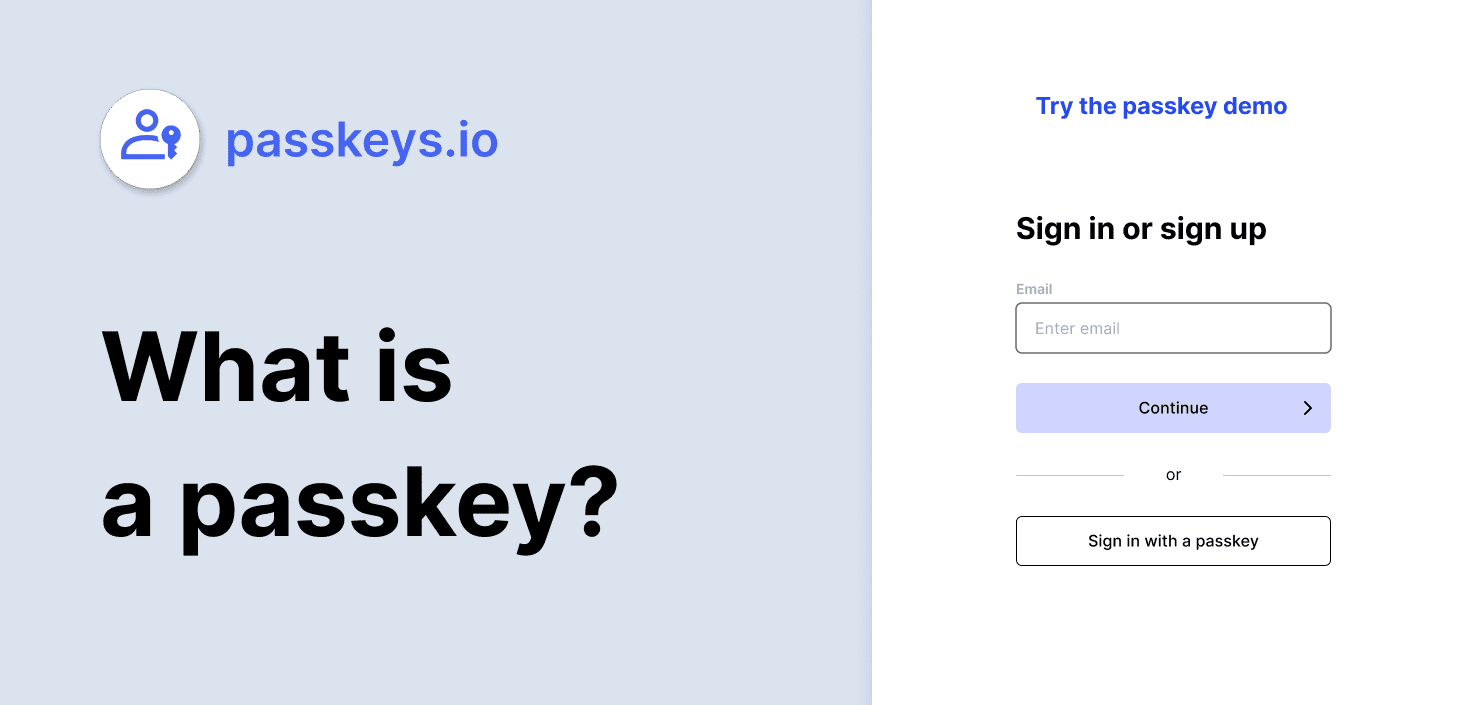
Accounts Create and Save Passkey for Website in Windows 11

  • Thread starter Thread starter Brink
  • Start date Published: Start date Updated Updated:
  • Tags Tags
    passkey

Passkey_banner.png

This tutorial will show you how to create a passkey for a website and save the passkey in Windows 11.

Passkeys provide a more secure and convenient way to sign in. With passkeys, you can use Windows Hello to sign in with a PIN, facial recognition, or fingerprint, making the authentication process faster and more convenient than ever before. And if you're on the go, you can even use your phone or tablet to sign in by scanning a QR code or via Bluetooth.

Passkeys are the future of authentication, and for good reason. They're easy to use and intuitive, eliminating the need for complicated password creation processes and the hassle of remembering them. Plus, they're unique to each website or application, so you don't have to worry about someone using your passkey to access other services. And unlike passwords, passkeys are resistant to phishing attempts, making them a much more secure option. Best of all, you can use your passkey across all your devices, so you never have to worry about forgetting your password again.

By default, Windows offers to save the passkey locally on the Windows device, in which case the passkey is protected by Windows Hello (biometrics and PIN). You can also choose to save the passkey in one of the following locations:
  • This Windows device: the passkey is saved locally on your Windows device, and protected by Windows Hello (biometrics and PIN)
  • iPhone, iPad or Android device: the passkey is saved on a phone or tablet, protected by the device's biometrics, if offered by the device. This option requires you to scan a QR code with your phone or tablet, which must be in proximity of the Windows device
  • Linked device: the passkey is saved on a phone or tablet, protected by the device's biometrics, if offered by the device. This option requires the linked device to be in proximity of the Windows device, and it's only supported for Android devices
  • Security key: the passkey is saved to a FIDO2 security key, protected by the key's unlock mechanism (for example, biometrics or PIN)
Starting with Windows 11 build 26120.2702 (Dev), as part of Microsoft’s commitment to a passwordless future, on Windows, Microsoft is launching API support for third-party passkey providers. Microsoft has been engaging with passkey manager partners on developing this capability. Microsoft is committed to bringing a passwordless future to all customers – together with third-party credential providers, Microsoft will raise the bar on login security with passkeys for all users on Windows.

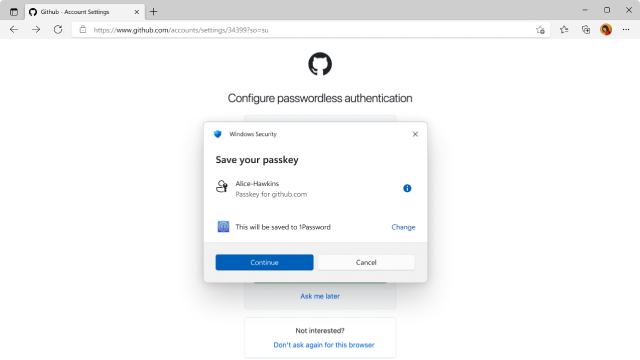
Starting with Windows 11 build 262100.6725 (24H2), Microsoft has partnered with 1Password to bring users a seamless plugin passkey provider integration in Windows 11. Setup is simple and intuitive:
  • Install 1Password Beta on your Windows 11 PC.
  • Go to Settings > Passkeys > Advanced options to enable the plugin credential manager.
  • Toggle on support and complete user verification with Windows Hello (face, fingerprint, or PIN).
  • You can now use your existing passkeys saved to the plugin credential manager or save new passkeys.
References:

EXAMPLE: Using a passkey to sign in to website

Best_Buy_passkey_sign-in-1.png
Best_Buy_passkey_sign-in-2.png


Here's How:

Your local account or Microsoft account on your Windows 11 device must have a Windows Hello PIN, facial recognition, or fingerprint to be able to create and save a passkey for a website to your Windows 11 device.


1 Open a website (ex: "Amazon" or "Best Buy") that supports passkeys and you have an account for.


2 Select to create a Passkey from your account settings for this site. (see screenshots below)

The exact steps to open your account security settings for the site and select to create a passkey for the site will vary per site.


ElevenForum-passkey-1.webp
ElevenForum-passkey-2.webp
Amazon_passkey-1.png
Amazon_passkey-2.png
Best_Buy_passkey-1.png
Best_Buy_passkey-2.png

3 If a passkey is stored locally and protected by Windows Hello , you're prompted to use Windows Hello PIN, facial recognition, or fingerprint for your your local account or Microsoft account in Windows 11 to sign in to the website. If you select the option Use another device, you can choose one of the following options: (see screenshots below)

Click/tap on an option link below for more exact steps to save a passkey using that option.


  • This Windows device: the passkey is saved locally on your Windows device, and protected by Windows Hello (biometrics and PIN)
  • iPhone, iPad or Android device: the passkey is saved on a phone or tablet, protected by the device's biometrics, if offered by the device. This option requires you to scan a QR code with your phone or tablet, which must be in proximity of the Windows device
  • Linked device: the passkey is saved on a phone or tablet, protected by the device's biometrics, if offered by the device. This option requires the linked device to be in proximity of the Windows device, and it's only supported for Android devices
  • Security key: the passkey is saved to a FIDO2 security key, protected by the key's unlock mechanism (for example, biometrics or PIN)
Amazon_passkey-3.png
Amazon_passkey-4.png
Use_another_device.png

4 When you finish the steps to create and save the passkey for example on "This Windows device" with Windows Hello, the passkey will be saved. (see screenshots below)

Amazon_passkey-5.png
Amazon_passkey-6.png
Best_Buy_passkey-4.png
Best_Buy_passkey-5.png
Best_Buy_passkey-6.png


That's it,
Shawn Brink


Last edited:
Hi Brink,

is it possible to disable Windows Security pin option for websites i log into and use daily, such as my employer's site?
 

My Computer My Computer

At a glance

Windows 11 homeAMD Ryzen 5 5600 6-Core Processor [Frequency ...16GBNVIDIA GeForce RTX 3050
OS
Windows 11 home
Computer type
PC/Desktop
Manufacturer/Model
Gigabyte Technology Co., Ltd.
CPU
AMD Ryzen 5 5600 6-Core Processor [Frequency : 4364 MB]
Motherboard
B550M AORUS ELITE AX
Memory
16GB
Graphics Card(s)
NVIDIA GeForce RTX 3050
Monitor(s) Displays
22" Asus, 23.4" Samsung
Keyboard
Logitech Y-BN52
Mouse
Logitech M570 (trackball)
Internet Speed
100mb/s
Antivirus
Bitdefender Total Security - best ever
Hi Brink,

is it possible to disable Windows Security pin option for websites i log into and use daily, such as my employer's site?

Hello, :alien:

You should be able to delete the passkey (if created) for a website like below.


My Computers My Computers

  • At a glance

    Windows 11 Pro for WorkstationsIntel i7-8700K 5 GHz64 GB (4x16GB) G.SKILL TridentZ RGB DDR4 3600...ASUS ROG-STRIX-GTX1080TI-O11G-GAMING (11GB GD...
    OS
    Windows 11 Pro for Workstations
    Computer type
    PC/Desktop
    Manufacturer/Model
    Custom self build
    CPU
    Intel i7-8700K 5 GHz
    Motherboard
    ASUS ROG Maximus XI Formula Z390
    Memory
    64 GB (4x16GB) G.SKILL TridentZ RGB DDR4 3600 MHz (F4-3600C18D-32GTZR)
    Graphics Card(s)
    ASUS ROG-STRIX-GTX1080TI-O11G-GAMING (11GB GDDR5X)
    Sound Card
    Integrated Digital Audio (S/PDIF)
    Monitor(s) Displays
    2 x Samsung Odyssey G75 27"
    Screen Resolution
    2560x1440
    Hard Drives
    1TB Samsung 990 PRO M.2,
    4TB Samsung 990 PRO M.2,
    TerraMaster F8 SSD Plus NAS
    PSU
    Seasonic Prime Titanium 850W
    Case
    Thermaltake Core P3 wall mounted
    Cooling
    Corsair Hydro H115i
    Keyboard
    Amazon Basics Wired Full Keyboard MD005
    Mouse
    Logitech MX Master 4
    Internet Speed
    2 Gbps Download and 100 Mbps Upload
    Browser
    Chrome and Edge
    Antivirus
    Microsoft Defender
    Other Info
    Logitech Z625 speaker system,
    Logitech BRIO 4K Pro webcam,
    HP Color LaserJet Pro MFP M477fdn,
    CyberPower CP1500PFCLCD
    Galaxy S23 Plus phone
  • At a glance

    Windows 11 ProSnapdragon X Elite (12 core) 3.42 GHz16 GB LPDDR5x-7467 MHz
    Operating System
    Windows 11 Pro
    Computer type
    Laptop
    Manufacturer/Model
    Surface Laptop 7 Copilot+ PC
    CPU
    Snapdragon X Elite (12 core) 3.42 GHz
    Memory
    16 GB LPDDR5x-7467 MHz
    Monitor(s) Displays
    15" HDR
    Screen Resolution
    2496 x 1664
    Hard Drives
    1 TB SSD
    Internet Speed
    Wi-Fi 7 and Bluetooth 5.4
    Browser
    Chrome and Edge
    Antivirus
    Microsoft Defender
@Brink, I use Roboform on all my devices and want Roboform to handle all my logins using the info I store in Roboform. I do not want to use passkeys on any website. I am assuming from what I read that it's Windows giving me the "set up a passkey" popups when I go to a site that accepts passkeys. Is there any way to turn off this popup other than disabling the "Use a pin" option to login to Windows itself?
 

My Computers My Computers

  • At a glance

    Windows 11 Pro 25H2 26200.8655i9-10900 10 core 20 threads32 gbnone-Intel UHD Graphics 630
    OS
    Windows 11 Pro 25H2 26200.8655
    Computer type
    PC/Desktop
    Manufacturer/Model
    Dell Optiplex 7080
    CPU
    i9-10900 10 core 20 threads
    Motherboard
    DELL 0J37VM
    Memory
    32 gb
    Graphics Card(s)
    none-Intel UHD Graphics 630
    Sound Card
    Integrated Realtek
    Monitor(s) Displays
    Benq 27
    Screen Resolution
    2560x1440
    Hard Drives
    2x1tb Solidigm m.2 nvme /External drives 512gb Samsung m.2 sata+2tb Kingston m2.nvme
    PSU
    500w
    Case
    MT
    Cooling
    Dell Premium
    Keyboard
    Logitech wired
    Mouse
    Logitech wireless
    Internet Speed
    so slow I'm too embarrassed to tell
    Browser
    #1 Edge #2 Firefox
    Antivirus
    Defender+MWB Premium
  • At a glance

    Windows 11 Pro 24H2 26200.8457AMD Ryzen 7 6800U32 gbintegrated
    Operating System
    Windows 11 Pro 24H2 26200.8457
    Computer type
    PC/Desktop
    Manufacturer/Model
    Beelink Mini PC SER5
    CPU
    AMD Ryzen 7 6800U
    Memory
    32 gb
    Graphics card(s)
    integrated
    Sound Card
    integrated
    Monitor(s) Displays
    Benq 27
    Screen Resolution
    2560x1440
    Hard Drives
    1TB Crucial nvme
    Keyboard
    Logitech wired
    Mouse
    Logitech wireless
    Internet Speed
    still too embarrassed to tell
    Browser
    Firefox
    Antivirus
    Defender
    Other Info
    System 3 is non compliant Dell 9020 i7-4770/24gb ram Win11 PRO 26200.8457
@Brink, I use Roboform on all my devices and want Roboform to handle all my logins using the info I store in Roboform. I do not want to use passkeys on any website. I am assuming from what I read that it's Windows giving me the "set up a passkey" popups when I go to a site that accepts passkeys. Is there any way to turn off this popup other than disabling the "Use a pin" option to login to Windows itself?
Other than a possible setting on the site or browser, I've not seen a way so far to disable the Passkey feature in Windows 11 other than not using a Windows Hello sign in option.
 

My Computers My Computers

  • At a glance

    Windows 11 Pro for WorkstationsIntel i7-8700K 5 GHz64 GB (4x16GB) G.SKILL TridentZ RGB DDR4 3600...ASUS ROG-STRIX-GTX1080TI-O11G-GAMING (11GB GD...
    OS
    Windows 11 Pro for Workstations
    Computer type
    PC/Desktop
    Manufacturer/Model
    Custom self build
    CPU
    Intel i7-8700K 5 GHz
    Motherboard
    ASUS ROG Maximus XI Formula Z390
    Memory
    64 GB (4x16GB) G.SKILL TridentZ RGB DDR4 3600 MHz (F4-3600C18D-32GTZR)
    Graphics Card(s)
    ASUS ROG-STRIX-GTX1080TI-O11G-GAMING (11GB GDDR5X)
    Sound Card
    Integrated Digital Audio (S/PDIF)
    Monitor(s) Displays
    2 x Samsung Odyssey G75 27"
    Screen Resolution
    2560x1440
    Hard Drives
    1TB Samsung 990 PRO M.2,
    4TB Samsung 990 PRO M.2,
    TerraMaster F8 SSD Plus NAS
    PSU
    Seasonic Prime Titanium 850W
    Case
    Thermaltake Core P3 wall mounted
    Cooling
    Corsair Hydro H115i
    Keyboard
    Amazon Basics Wired Full Keyboard MD005
    Mouse
    Logitech MX Master 4
    Internet Speed
    2 Gbps Download and 100 Mbps Upload
    Browser
    Chrome and Edge
    Antivirus
    Microsoft Defender
    Other Info
    Logitech Z625 speaker system,
    Logitech BRIO 4K Pro webcam,
    HP Color LaserJet Pro MFP M477fdn,
    CyberPower CP1500PFCLCD
    Galaxy S23 Plus phone
  • At a glance

    Windows 11 ProSnapdragon X Elite (12 core) 3.42 GHz16 GB LPDDR5x-7467 MHz
    Operating System
    Windows 11 Pro
    Computer type
    Laptop
    Manufacturer/Model
    Surface Laptop 7 Copilot+ PC
    CPU
    Snapdragon X Elite (12 core) 3.42 GHz
    Memory
    16 GB LPDDR5x-7467 MHz
    Monitor(s) Displays
    15" HDR
    Screen Resolution
    2496 x 1664
    Hard Drives
    1 TB SSD
    Internet Speed
    Wi-Fi 7 and Bluetooth 5.4
    Browser
    Chrome and Edge
    Antivirus
    Microsoft Defender
-------
Brink on Step 3
"If a passkey is stored locally and protected by Windows Hello, you're prompted to use Windows Hello PIN, facial recognition, or fingerprint for your your local account or Microsoft account in Windows 11 to sign in to the website."
--------
Will this replace my old windows local user account password with my Win Hello Passkey pin so that I have to remember the Win Hello pin just to get past my Lockscreen?
Is there any way I can keep my local user acct password and just use the Passkey pin when Passkey access is needed?
 

My Computer My Computer

At a glance

Windows 11
OS
Windows 11
Computer type
Laptop
Manufacturer/Model
HP 17" Laptop, Acer Aspire 5
-------
Brink on Step 3
"If a passkey is stored locally and protected by Windows Hello, you're prompted to use Windows Hello PIN, facial recognition, or fingerprint for your your local account or Microsoft account in Windows 11 to sign in to the website."
--------
Will this replace my old windows local user account password with my Win Hello Passkey pin so that I have to remember the Win Hello pin just to get past my Lockscreen?
Is there any way I can keep my local user acct password and just use the Passkey pin when Passkey access is needed?

Hello mate, :alien:

No. The passkey is just an additional sign in option for the website.
 

My Computers My Computers

  • At a glance

    Windows 11 Pro for WorkstationsIntel i7-8700K 5 GHz64 GB (4x16GB) G.SKILL TridentZ RGB DDR4 3600...ASUS ROG-STRIX-GTX1080TI-O11G-GAMING (11GB GD...
    OS
    Windows 11 Pro for Workstations
    Computer type
    PC/Desktop
    Manufacturer/Model
    Custom self build
    CPU
    Intel i7-8700K 5 GHz
    Motherboard
    ASUS ROG Maximus XI Formula Z390
    Memory
    64 GB (4x16GB) G.SKILL TridentZ RGB DDR4 3600 MHz (F4-3600C18D-32GTZR)
    Graphics Card(s)
    ASUS ROG-STRIX-GTX1080TI-O11G-GAMING (11GB GDDR5X)
    Sound Card
    Integrated Digital Audio (S/PDIF)
    Monitor(s) Displays
    2 x Samsung Odyssey G75 27"
    Screen Resolution
    2560x1440
    Hard Drives
    1TB Samsung 990 PRO M.2,
    4TB Samsung 990 PRO M.2,
    TerraMaster F8 SSD Plus NAS
    PSU
    Seasonic Prime Titanium 850W
    Case
    Thermaltake Core P3 wall mounted
    Cooling
    Corsair Hydro H115i
    Keyboard
    Amazon Basics Wired Full Keyboard MD005
    Mouse
    Logitech MX Master 4
    Internet Speed
    2 Gbps Download and 100 Mbps Upload
    Browser
    Chrome and Edge
    Antivirus
    Microsoft Defender
    Other Info
    Logitech Z625 speaker system,
    Logitech BRIO 4K Pro webcam,
    HP Color LaserJet Pro MFP M477fdn,
    CyberPower CP1500PFCLCD
    Galaxy S23 Plus phone
  • At a glance

    Windows 11 ProSnapdragon X Elite (12 core) 3.42 GHz16 GB LPDDR5x-7467 MHz
    Operating System
    Windows 11 Pro
    Computer type
    Laptop
    Manufacturer/Model
    Surface Laptop 7 Copilot+ PC
    CPU
    Snapdragon X Elite (12 core) 3.42 GHz
    Memory
    16 GB LPDDR5x-7467 MHz
    Monitor(s) Displays
    15" HDR
    Screen Resolution
    2496 x 1664
    Hard Drives
    1 TB SSD
    Internet Speed
    Wi-Fi 7 and Bluetooth 5.4
    Browser
    Chrome and Edge
    Antivirus
    Microsoft Defender

Latest Support Threads

Back
Top Bottom