
Hello, I did a clean install of Windows 11 today and fully updated it, Installed all my drivers and desired applications.
Then I booted back to the install media and did "Shift + F10" to get a command line up.
Then I entered "Diskpart" and did "List vol" to list the volumes, I selected my C:\ drive with "Select vol 3"
Then I assigned this volume the letter I for input with "Assign letter=I"
I then selected a storage volume with "Select vol 5" and assigned this with the letter O for output "Assign letter=O"
I then exited Diskpart and used Dism to create a "Backup.wim" file of my C:\ drive with the following command
Then I restarted my machine back to Windows.
These steps were all sucessful and I ended up with a 25gb "Backup.wim" file on my storage drive.
Then I created a 30gb partition on this drive after my C:\ partition, I called it "Recovery"
I formatted it as NTFS and assigned the drive letter R.
Then on this new "Recovery" partition I copied the contents of my Windows 11 Install USB.
After copying was complete I navigated to "R:\sources" and deleted "Install.wim".
Then I copied over my "Backup.wim" to "R:\sources" and renamed it to "Install.wim"
Ok so this is the setup and here comes the issue.
When I boot the PC I hit F12 and get into my motherboards boot menu. I can then boot into my recovery partition fine.
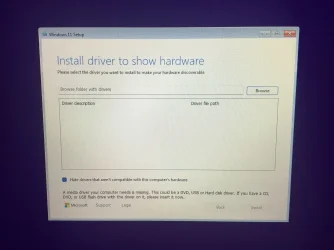
But at the start of setup it says "Install driver to show hardware" I don't understand why. It is a copy of the orignal Windows 11 install media from USB that worked fine and had no driver error, It's also loading from a partition on the drive I want to install to so it can see the drive and partitons. I tried getting the Raid driver from my Motherboards support page, and putting it on a USB stick but this doesn't seem to work. Can anyone give me some advice or point me in the right direction. I used this method in the past on Windows 7 and Windows 10 without issue.
Kind Regards jse
Then I booted back to the install media and did "Shift + F10" to get a command line up.
Then I entered "Diskpart" and did "List vol" to list the volumes, I selected my C:\ drive with "Select vol 3"
Then I assigned this volume the letter I for input with "Assign letter=I"
I then selected a storage volume with "Select vol 5" and assigned this with the letter O for output "Assign letter=O"
I then exited Diskpart and used Dism to create a "Backup.wim" file of my C:\ drive with the following command
Batch:
dism /capture-image /imagefile:O:\Backup.wim /capturdir:I:\ /name:"Recovery" /description:"Recovery Image" /compress:maximumThen I restarted my machine back to Windows.
These steps were all sucessful and I ended up with a 25gb "Backup.wim" file on my storage drive.
Then I created a 30gb partition on this drive after my C:\ partition, I called it "Recovery"
I formatted it as NTFS and assigned the drive letter R.
Then on this new "Recovery" partition I copied the contents of my Windows 11 Install USB.
After copying was complete I navigated to "R:\sources" and deleted "Install.wim".
Then I copied over my "Backup.wim" to "R:\sources" and renamed it to "Install.wim"
Ok so this is the setup and here comes the issue.
When I boot the PC I hit F12 and get into my motherboards boot menu. I can then boot into my recovery partition fine.
But at the start of setup it says "Install driver to show hardware" I don't understand why. It is a copy of the orignal Windows 11 install media from USB that worked fine and had no driver error, It's also loading from a partition on the drive I want to install to so it can see the drive and partitons. I tried getting the Raid driver from my Motherboards support page, and putting it on a USB stick but this doesn't seem to work. Can anyone give me some advice or point me in the right direction. I used this method in the past on Windows 7 and Windows 10 without issue.
Kind Regards jse
My Computer
At a glance
Windows 11AMD Ryzen™ 9 9950XCORSAIR VENGEANCE DDR5 2x16GB 7200MHz CMH32GX...GeForce RTX™ 3060 Ti
- OS
- Windows 11
- Computer type
- PC/Desktop
- CPU
- AMD Ryzen™ 9 9950X
- Motherboard
- Mag X670e Tomahawk Wifi
- Memory
- CORSAIR VENGEANCE DDR5 2x16GB 7200MHz CMH32GX5M2X7200C34
- Graphics Card(s)
- GeForce RTX™ 3060 Ti
- Sound Card
- Onboard Realtek ALC1200
- Monitor(s) Displays
- PHILIPS Evnia 27M2N3500NL
- Screen Resolution
- 2560x1440
- Hard Drives
- Samsung SSD 980 PRO 1TB
Seagate FireCuda 510 2TB
- Case
- Phanteks Enthoo Pro
- Cooling
- ARCTIC Liquid Freezer III 420
- Keyboard
- Logitech K270
- Mouse
- Logitech Signature M650 L
- Internet Speed
- Symmetric 1Gbps FTTP
- Browser
- LibreWolf
- Antivirus
- Microsoft Defender






