This tutorial will show you how to delete saved Copilot memory for your Microsoft account.
The Microsoft Copilot app is an AI here to give advice, inspiration, and help when you need a hand. You can start a conversation to get clear answers to tough questions, turn ideas into images, or polish your writing until it shines.
Signing into Copilot using your personal Microsoft Account gives you access to your chat history, image creation, longer conversations, voice interactions, and other Copilot features.
Microsoft Copilot offers you tailored experiences by remembering key details and preferences from your conversations with Microsoft Copilot Chat using Copilot Memory. Over time, it can recall useful information like your communication style, favorite topics, work goals, and recurring tasks to make conversations straightforward and more relevant. If the user has Copilot memory enabled, Copilot can provided personalized recommendations by using Copilot Chat conversations and usage data, Microsoft 365 work data, usage signals, and profile information.
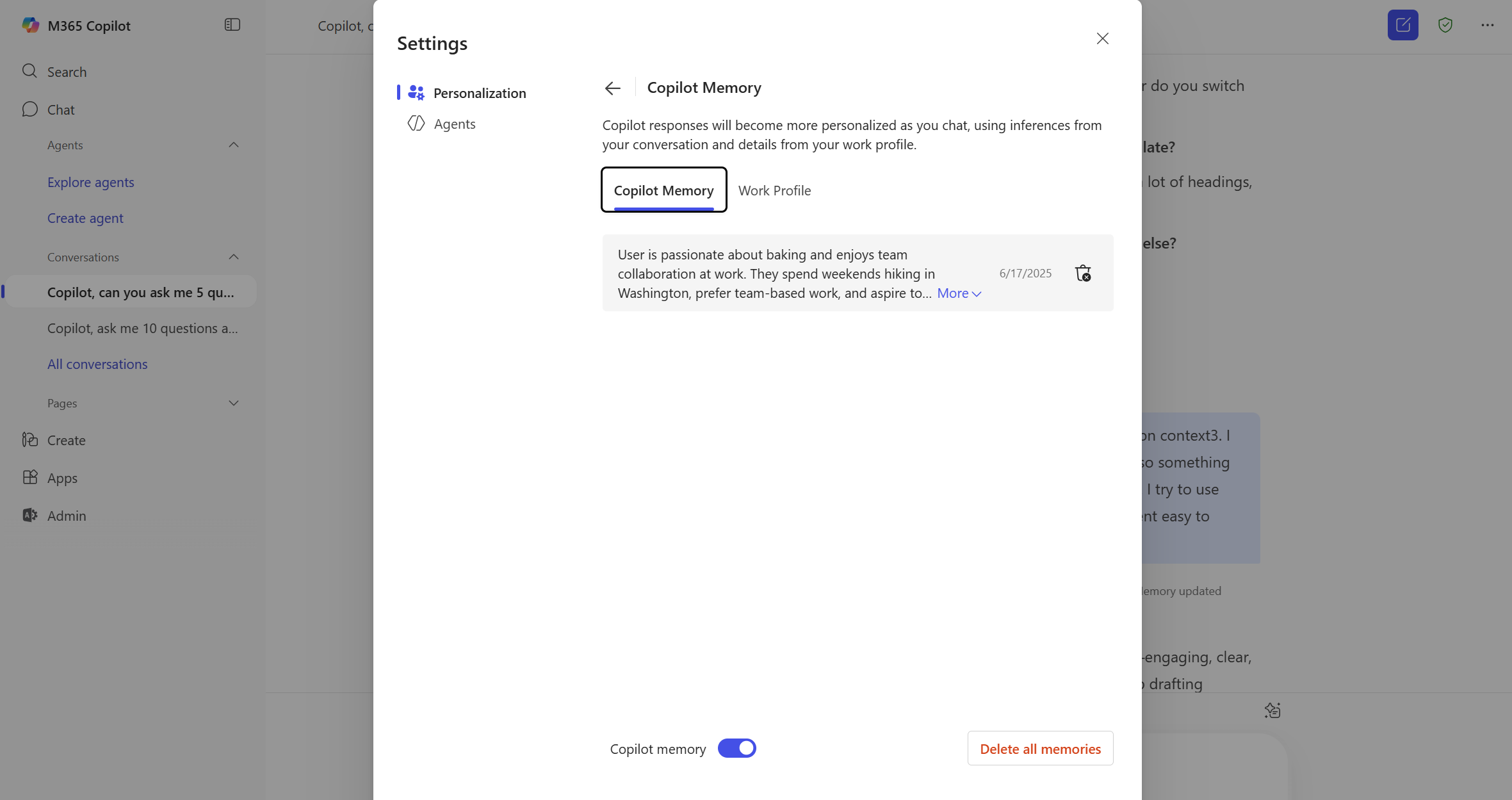
Once Copilot has saved memories, you can manage those memories and even delete them from Copilot Memory.
References:
Introducing Copilot Memory: A More Productive and Personalized AI for the Way You Work | Microsoft Community Hub
At Microsoft, we believe AI should work for you—not the other way around. That’s why we’re introducing memory in Copilot, a new capability that makes your...
 techcommunity.microsoft.com

Manage Copilot personalization and memory
This article details how to use the personalization and memory settings in Microsoft Copilot
learn.microsoft.com
Manage Copilot Memory in Microsoft Copilot | Microsoft Support
Learn how to manage and delete saved memories from Copilot Memory in Microsoft Copilot
 support.microsoft.com
Personalize what Microsoft Copilot remembers | Microsoft Support
Learn how to personalize what Microsoft Copilot remembers about you and your preferences
support.microsoft.com
Microsoft Copilot privacy controls | Microsoft Support
Learn about privacy controls available in Microsoft Copilot.
support.microsoft.com
Contents
- Option One: Delete Copilot Memory from Copilot app and web
- Option Two: Delete Copilot Memory from Microsoft Edge
1 Open the copilot.microsoft.com site or Copilot app on Windows 11.
2 Sign in to Copilot with your Microsoft account if not already.
3 Open Copilot Chat settings.
4 Click/tap on Personalization on the left side. (see screenshot below step 5)
5 Click/tap on the Manage button for Saved memories. (see screenshot below)
6 Do step 7 (delete all) or step 8 (delete specific) below depending on if you want to delete all or specific saved memories from Copilot.
7. Default All Memories from Copilot
A) Click/tap on Delete all memory at the bottom. (see screenshot below)
B) Click/tap on Delete all memory again to confirm. (see screenshot below)
C) You can now close Copilot settings if you like.
6. Default Specific Memories from Copilot
A) Click/tap on the Delete (trash can) button for the memory you want to delete. (see screenshot below)
B) When finished, you can close Copilot settings if you like.
1 Open Microsoft Edge.
2 Sign in to Microsoft Edge with your Microsoft account if not already.
3 Click/tap on the Copilot Chat icon on the toolbar. (see screenshot below step 4)
4 Click/tap on the Settings and more (3 dots) button, and click/tap on Chat settings. (see screenshot below)
5 Click/tap on Personalization in Chat settings. (see screenshot below)
6 Click/tap on the Manage button for Saved memories. (see screenshot below)
7 Do step 8 (delete all) or step 9 (delete specific) below depending on if you want to delete all or specific saved memories from Copilot.
8. Default All Memories from Copilot
A) Click/tap on Delete all memory. (see screenshot below)
B) Click/tap on Delete all memory again to confirm. (see screenshot below)
C) You can now back out of and close Copilot settings if you like.
9. Default Specific Memories from Copilot
A) Click/tap on the Delete (trash can) button for the memory you want to delete. (see screenshot below)
B) When finished, you can now back out of and close Copilot settings if you like.
That's it,
Shawn Brink
Last edited: