Desktop Can't Find my Phone Camera


GollyRojer

Well-known member
Local time
8:00 AM
Posts
23
OS
Windows 11
I hav∈ a USB camera attached to my desktop. I use Phone Link to keep my phone connected as well. My computer used to see the camera on my phone, a Samsung Galaxy A54. I recently reinstalled Windows, and ever since, it cannot find the phone camera (which is preferable to the USB camera). Although Phone Link works, when I connect by bluetooth between phone and desktop, it disconnects after a couple of seconds.
What might I do to get this phone camera to show up?
 
Windows Build/Version
24H2 26120.5733

My Computer

System One

  • OS
    Windows 11

My Computers

System One System Two

  • OS
    Windows 11 Pro 25H2
    Computer type
    PC/Desktop
    Manufacturer/Model
    Dell Optiplex 7080
    CPU
    i9-10900 10 core 20 threads
    Motherboard
    DELL 0J37VM
    Memory
    32 gb
    Graphics Card(s)
    none-Intel UHD Graphics 630
    Sound Card
    Integrated Realtek
    Monitor(s) Displays
    Benq 27
    Screen Resolution
    2560x1440
    Hard Drives
    2x1tb Solidigm m.2 nvme /External drives 512gb Samsung m.2 sata+2tb Kingston m2.nvme
    PSU
    500w
    Case
    MT
    Cooling
    Dell Premium
    Keyboard
    Logitech wired
    Mouse
    Logitech wireless
    Internet Speed
    so slow I'm too embarrassed to tell
    Browser
    #1 Edge #2 Firefox
    Antivirus
    Defender+MWB Premium
  • Operating System
    Windows 11 Pro 24H2 26200.8457
    Computer type
    PC/Desktop
    Manufacturer/Model
    Beelink Mini PC SER5
    CPU
    AMD Ryzen 7 6800U
    Memory
    32 gb
    Graphics card(s)
    integrated
    Sound Card
    integrated
    Monitor(s) Displays
    Benq 27
    Screen Resolution
    2560x1440
    Hard Drives
    1TB Crucial nvme
    Keyboard
    Logitech wired
    Mouse
    Logitech wireless
    Internet Speed
    still too embarrassed to tell
    Browser
    Firefox
    Antivirus
    Defender
    Other Info
    System 3 is non compliant Dell 9020 i7-4770/24gb ram Win11 PRO 26200.8457

My Computer

System One

  • OS
    Windows 11 Pro + Win11 Canary VM.
    Computer type
    Laptop
    Manufacturer/Model
    ASUS Zenbook 14
    CPU
    I9 13th gen i9-13900H 2.60 GHZ
    Motherboard
    Yep, Laptop has one.
    Memory
    16 GB soldered
    Graphics Card(s)
    Integrated Intel Iris XE
    Sound Card
    Realtek built in
    Monitor(s) Displays
    laptop OLED screen
    Screen Resolution
    2880x1800 touchscreen
    Hard Drives
    1 TB NVME SSD (only weakness is only one slot)
    PSU
    Internal + 65W thunderbolt USB4 charger
    Case
    Yep, got one
    Cooling
    Stella Artois (UK pint cans - 568 ml) - extra cost.
    Keyboard
    Built in UK keybd
    Mouse
    Bluetooth , wireless dongled, wired
    Internet Speed
    900 mbs (ethernet), wifi 6 typical 350-450 mb/s both up and down
    Browser
    Edge
    Antivirus
    Defender
    Other Info
    TPM 2.0, 2xUSB4 thunderbolt, 1xUsb3 (usb a), 1xUsb-c, hdmi out, 3.5 mm audio out/in combo, ASUS backlit trackpad (inc. switchable number pad)

    Macrium Reflect Home V8
    Office 365 Family (6 users each 1TB onedrive space)
    Hyper-V (a vm runs almost as fast as my older laptop)
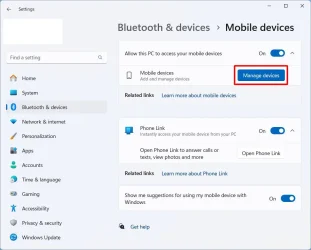
When I went to my PC's Settings | Bluetooth & Devices | Mobile devices, I found that "Allow this PC to access your mobile devices" was not on. Turning it on resolved the issue.
 

My Computer

System One

  • OS
    Windows 11
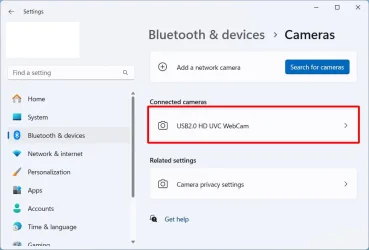
Here are the steps I use to enable using the phone's camera as a connected camera on the PC

If you go to Settings > Bluetooth & devices > Cameras, then by default you only see your laptop's webcam

cam0.webp

To enable the use of your phone's camera as a connected camera:

1a. Go to Settings > Bluetooth & devices > Mobile devices
1b. Select Manage devices

cam1.webp


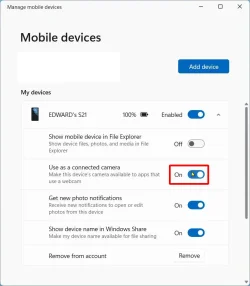
2. Turn Use as a connected camera to On

cam2.webp


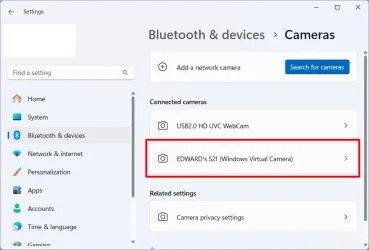
3. If you go back to Settings > Bluetooth & devices > Cameras, then you will see the phone's camera as an option

cam3.webp

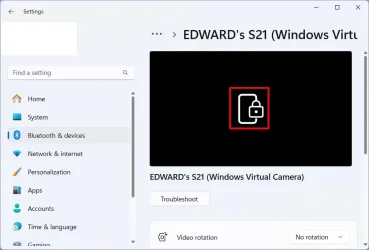
4. If select the phone's camera and see a "padlock" then you must unlock the phone's screen to use the camera

cam4.webp

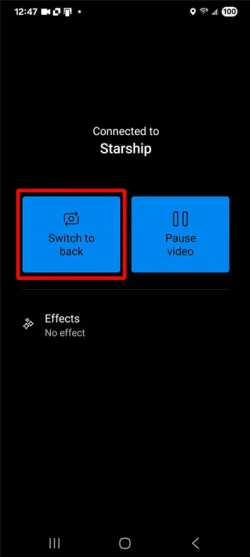
5a. On the phone's screen if you see Switch to back, then you are using the phone's front camera
5b. Click on Switch to back to switch to the phone's back camera

cam5.webp

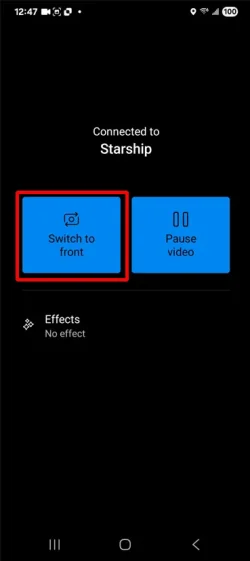
6a. On the phone's screen if you see Switch to front, then you are using the phone's back camera
6b. Click on Switch to front to switch to the phone's front camera

cam6.webp
 
Last edited:

My Computers

System One System Two

  • OS
    Windows 11 Pro 25H2 (26200.6901)
    Computer type
    Laptop
    Manufacturer/Model
    ASUS TUF Gaming A15 (2022)
    CPU
    AMD Ryzen 7 6800H with Radeon 680M GPU (486MB RAM)
    Memory
    Crucial DDR5-4800 (2400MHz) 32GB (2 x 16GB)
    Graphics Card(s)
    NVIDIA RTX 3060 Laptop (6GB RAM)
    Sound Card
    n/a
    Monitor(s) Displays
    15.6-inch
    Screen Resolution
    1920x1080 300Hz
    Hard Drives
    2 x Samsung 990 Evo Plus (2TB M.2 NVME SSD)
    PSU
    n/a
    Mouse
    Wireless Mouse M510
    Internet Speed
    2100Mbps/300Mbps
    Browser
    Firefox
    Antivirus
    Malwarebytes
  • Operating System
    Windows 11 Pro 25H2 (26200.8246)
    Computer type
    PC/Desktop
    Manufacturer/Model
    Custom build
    CPU
    AMD Ryzen 7 5700X3D
    Motherboard
    ASUS ROG Strix B550-F Gaming WiFi II
    Memory
    G.SKILL Flare X 32GB (2x16GB) DDR4
    Graphics card(s)
    ASUS ROG-STRIX-RTX3060TI-08G-V2-GAMING (RTX 3060-Ti, 8GB RAM)
    Monitor(s) Displays
    Samsung G50D IPS 27"
    Screen Resolution
    1440p/180Hz
    Hard Drives
    SAMSUNG 990 EVO Plus (2TB] M.2 NVME SSD
    SAMSUNG 990 EVO Plus (4TB) M.2 NVME SSD
    PSU
    Corsair RM750x (750 watts)
    Case
    Cooler Master MasterCase 5
    Cooling
    Scythe Mugen 6
    Keyboard
    Logitech K520 (MK540 keyboard/mouse combo)
    Mouse
    Logitech M310 (MK540 keyboard/mouse combo)
    Internet Speed
    2100 Mbps down / 300 Mbps up
    Browser
    Firefox, Edge, Chrome
    Antivirus
    Malwarebytes (Premium)
    Other Info
    ASUS Blu-ray Burner BW-16D1HT (SATA) || Western Digital Easystore 20TB USB 3.0 external hard drive used with Acronis True Image 2025 backup software || HP OfficeJet Pro 6975 Printer/Scanner

Latest Support Threads

Back
Top Bottom