Did Microsoft mess up my Security? Strange story!


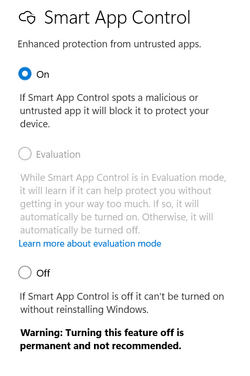
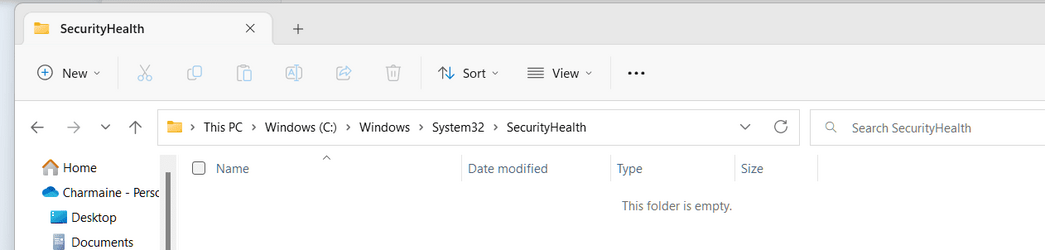
You may be missing a file in the Secuity Health folder for Windows Security. My folder was empty after the WIN11 update. I ran this reinstall and can access Device Security options. However, my Smart App Control was set to Evaluation, then was OFF after a couple of days on ON option greyed out. I checked today and it was back to Evaluation. I was able to switch it to ON. The Security Health folder is empty again, but all is well. I did do a reinstall of WIN11 yesterday, so I assume there was an update to fix the issue?

You can try reinstalling Windows Security Platform with the new update. Download from this link the folder that contains the application:

1.0.2207.20002-0.zip | Powered by Box

Now follow these steps:

1. Create a restore point first

2. Unzip the downloaded ZIP file on the Desktop

3. Navigate to the location C:\Windows\System32\SecurityHealth to take ownership of that folder:

Properties > Security > Advanced Options > Change > Administrators

Check the "Replace owner on subcontainers and objects" box and click Apply.

In the "SecurityHealth Permissions" window select Administrators > Full Control. Apply.

4. Copy the "1.0.2207.20002-0" folder on the Desktop to the SecurityHealth folder

5. Open the folder and run the application "Microsoft.SecHealthUI_8wekyb3d8bbwe.appx" as administrator to update.

6. Restart the computer.
Screenshot 2022-11-17 170752.png
 

Attachments

  • Screenshot 2022-11-17 170208.png
    Screenshot 2022-11-17 170208.png
    15.7 KB · Views: 13

My Computer My Computer

At a glance

Win11 22623.89111th Gen Intel R Core TM i7 - 1165G7 @ 2.80GHz16gbIntel R Iris R Xe Graphics
OS
Win11 22623.891
Computer type
Laptop
Manufacturer/Model
HP
CPU
11th Gen Intel R Core TM i7 - 1165G7 @ 2.80GHz
Memory
16gb
Graphics Card(s)
Intel R Iris R Xe Graphics
Sound Card
Realtek R Audio, Intel Smart Sound
Hard Drives
C
Browser
Google
Antivirus
Windows Security/Microsoft Defender
Other Info
Downloaded MSEdgeRedirect

You may be missing a file in the Secuity Health folder for Windows Security. My folder was empty after the WIN11 update. I ran this reinstall and can access Device Security options. However, my Smart App Control was set to Evaluation, then was OFF after a couple of days on ON option greyed out. I checked today and it was back to Evaluation. I was able to switch it to ON. The Security Health folder is empty again, but all is well. I did do a reinstall of WIN11 yesterday, so I assume there was an update to fix the issue?

You can try reinstalling Windows Security Platform with the new update. Download from this link the folder that contains the application:

1.0.2207.20002-0.zip | Powered by Box

Now follow these steps:

1. Create a restore point first

2. Unzip the downloaded ZIP file on the Desktop

3. Navigate to the location C:\Windows\System32\SecurityHealth to take ownership of that folder:

Properties > Security > Advanced Options > Change > Administrators

Check the "Replace owner on subcontainers and objects" box and click Apply.

In the "SecurityHealth Permissions" window select Administrators > Full Control. Apply.

4. Copy the "1.0.2207.20002-0" folder on the Desktop to the SecurityHealth folder

5. Open the folder and run the application "Microsoft.SecHealthUI_8wekyb3d8bbwe.appx" as administrator to update.

6. Restart the computer.

View attachment 45497

I just wanted to pop in here and say that this helped me to restore the standard hardware security not found error after I had reinstalled Windows. My SecurityHeath folder was also blank as in this example, so thank you for making this application that fixed it!
 

My Computer My Computer

At a glance

Windows 11 Pro 24H2Intel(R) Core(TM) i5-7400 CPU @ 3.00GHzCorsair Vengeance 16GB DDR4 2133NVIDIA GeForce GTX 1060 3GB (HP)
OS
Windows 11 Pro 24H2
Computer type
PC/Desktop
Manufacturer/Model
OMEN by HP Desktop PC 870-224
CPU
Intel(R) Core(TM) i5-7400 CPU @ 3.00GHz
Motherboard
HP 82F1 1.01
Memory
Corsair Vengeance 16GB DDR4 2133
Graphics Card(s)
NVIDIA GeForce GTX 1060 3GB (HP)
Monitor(s) Displays
Samsung SyncMaster 27" P2770HD, Dell SE271H 27", Viewsonic TD1655 15" (Portable)
Screen Resolution
1920x1080
Hard Drives
Samsung SSD 860 EVO 2TB, Seagate Desktop HDD ST1000DM003 1TB
Mouse
Razer Viper Ultimate
Internet Speed
1 Gbps Download, 40 Mbps Upload
Browser
Mozilla Firefox
Antivirus
Malwarebytes Premium + Windows Defender
Other Info
Headphones: Corsair HS70 Pro Wireless (Cream), NAS: Synology DS1520+ 5-bay
You may be missing a file in the Secuity Health folder for Windows Security. My folder was empty after the WIN11 update. I ran this reinstall and can access Device Security options. However, my Smart App Control was set to Evaluation, then was OFF after a couple of days on ON option greyed out. I checked today and it was back to Evaluation. I was able to switch it to ON. The Security Health folder is empty again, but all is well. I did do a reinstall of WIN11 yesterday, so I assume there was an update to fix the issue?

You can try reinstalling Windows Security Platform with the new update. Download from this link the folder that contains the application:

1.0.2207.20002-0.zip | Powered by Box

Now follow these steps:

1. Create a restore point first

2. Unzip the downloaded ZIP file on the Desktop

3. Navigate to the location C:\Windows\System32\SecurityHealth to take ownership of that folder:

Properties > Security > Advanced Options > Change > Administrators

Check the "Replace owner on subcontainers and objects" box and click Apply.

In the "SecurityHealth Permissions" window select Administrators > Full Control. Apply.

4. Copy the "1.0.2207.20002-0" folder on the Desktop to the SecurityHealth folder

5. Open the folder and run the application "Microsoft.SecHealthUI_8wekyb3d8bbwe.appx" as administrator to update.

6. Restart the computer.

View attachment 45497
It worked on a test env in VBox, with a small variation: instead of taking ownership etc. (didn't want to risk leaving wrong privileges on system files) I used PowerRun (Sordum) to rename/delete/copy files to/from C:\Windows\System32\SecurityHealth\ with TrustedInstaller rights the easy way.
 

My Computer My Computer

At a glance

Windows 11 HomeIntel i9-13980HX32GB DDR5 5600MHzNVidia GTX 4090 Laptop 256bit 16GB 175W
OS
Windows 11 Home
Computer type
Laptop
Manufacturer/Model
ASUS ROG SCAR 18
CPU
Intel i9-13980HX
Memory
32GB DDR5 5600MHz
Graphics Card(s)
NVidia GTX 4090 Laptop 256bit 16GB 175W
Sound Card
Realtek ALC285 + Dolby Atmos
Monitor(s) Displays
G-Sync NE180QDM-NZ2 18" 16:10, FreeSync Premium XiaoMi Mi 34" 21:9
Screen Resolution
2560x1600@240Hz (internal), 3440x1440@144Hz (external)
Hard Drives
NVMe Lexar NM790 1TB 6GB/s, NVMe Lexar NM790 4TB 6GB/s
PSU
330W (laptop PSU)
Mouse
ROG Strix Carry Wireless-BT mouse
Other Info
4K UHD USB Archgon Star Blu-Ray 4K UHD,
8BitDo Arcade Stick,
Vader 4 Pro controller
Thank you so much for your suggestions. I've had the 'Hardware not Supported' issue (with an empty SecurityHealth folder) since doing a Reset of my Win22H2 device, and am hoping this process will finally put it to bed.

Do you know what SecurityHealthSetup.exe does when executed? How is this different than running "Microsoft.SecHealthUI_8wekyb3d8bbwe.appx" to update the package as suggested by @CharmaineK?

@hexaae
PowerRun looks like a great tool. I like that permission changes are automatically wiped when the app is closed. I downloaded V 1.6, and have a couple of usage questions. I looked here, but am still a bit confused. Any guidance you can provide will be appreciated.

1. It looks like I need to launch Cmd or PowerShell from PowerRun in order to copy the new folder into "C:\Windows\System32\SecurityHealth\". Yes?
2. Currently, "System" is the owner of the SecurityHealth folder. Does it matter if PowerRun is set to use System vs TrustedInstaller permissions?
3. To update the appx package, would I just drag it into PowerRun and set the working directory as (in my case) "C:\Windows\System32\SecurityHealth\1.0.2302.21002-0\" ?

Thanks again in advance for your help.
 

My Computers My Computers

  • At a glance

    Windows 11 23H2, 24H2i7-12700K16GB (2 x 8)Intel(R) UHD Graphics 770 with shared graphic...
    OS
    Windows 11 23H2, 24H2
    Computer type
    PC/Desktop
    Manufacturer/Model
    Dell XPS8950, Vostro5620
    CPU
    i7-12700K
    Motherboard
    Z690 : 9D2HH Foxconn, R6PCT Foxconn 2nd (XPS)
    Memory
    16GB (2 x 8)
    Graphics Card(s)
    Intel(R) UHD Graphics 770 with shared graphics memory
    Sound Card
    Integrated
    Monitor(s) Displays
    Acer CBL282K Smiiprx
    Screen Resolution
    4K UHD (3840 x 2160) @ 60 Hz
    Hard Drives
    Western Digital PC SN810 512 GB M.2 NVMe SSD, PCIe
    PSU
    750W
    Cooling
    2G44F Asetek 125W CPU liquid cooler
    Keyboard
    Arteck Wireless
    Mouse
    Victsing-mm057 wireless
    Internet Speed
    Wi-Fi 6
    Browser
    Vivaldi
    Antivirus
    Windows Defender (native)
  • At a glance

    Win 23H212th Gen Intel Core i7-1260P2 x 8 GBIntel Iris Xe Graphics
    Operating System
    Win 23H2
    Computer type
    Laptop
    Manufacturer/Model
    Dell Vostro 5620
    CPU
    12th Gen Intel Core i7-1260P
    Memory
    2 x 8 GB
    Graphics card(s)
    Intel Iris Xe Graphics
    Screen Resolution
    1920 x 1200 @ 60 Hz
    Hard Drives
    NVMe 512 GB
    Case
    Aluminum
    Mouse
    Touchpad
    Browser
    Vivaldi
    Antivirus
    Windows Defender (native)
@hexaae
PowerRun looks like a great tool. I like that permission changes are automatically wiped when the app is closed. I downloaded V 1.6, and have a couple of usage questions. I looked here, but am still a bit confused. Any guidance you can provide will be appreciated.

1. It looks like I need to launch Cmd or PowerShell from PowerRun in order to copy the new folder into "C:\Windows\System32\SecurityHealth\". Yes?
2. Currently, "System" is the owner of the SecurityHealth folder. Does it matter if PowerRun is set to use System vs TrustedInstaller permissions?
3. To update the appx package, would I just drag it into PowerRun and set the working directory as (in my case) "C:\Windows\System32\SecurityHealth\1.0.2302.21002-0\" ?

Thanks again in advance for your help.
1. yes, you click on the small icon in the bar with Cmd inside the gear
2. well, TrustedInstaller is actually running under System user... I copied/renamed/deleted etc. using TrustedInstaller (I used XCopy from TrustedInstaller prompt to copy whole dir and subdirs...) and final permissions/owner were exactly as those in the original state, I double-checked that
3. I just double clicked on the "Microsoft.SecHealthUI_8wekyb3d8bbwe.appx" from Explorer in my account (not as TrustedInstaller) and it worked opening a small panel where I was asked to reinstall the app (then you need to reboot to see SecHealthUI actually changed)

.... but the problem is that it didn't work well on my real machine: TPM wasn't recognized correctly... so I finally rolled back to a Restore Point to be safe. Was 100% successful from VBox environment only (without a real TPM).
 

My Computer My Computer

At a glance

Windows 11 HomeIntel i9-13980HX32GB DDR5 5600MHzNVidia GTX 4090 Laptop 256bit 16GB 175W
OS
Windows 11 Home
Computer type
Laptop
Manufacturer/Model
ASUS ROG SCAR 18
CPU
Intel i9-13980HX
Memory
32GB DDR5 5600MHz
Graphics Card(s)
NVidia GTX 4090 Laptop 256bit 16GB 175W
Sound Card
Realtek ALC285 + Dolby Atmos
Monitor(s) Displays
G-Sync NE180QDM-NZ2 18" 16:10, FreeSync Premium XiaoMi Mi 34" 21:9
Screen Resolution
2560x1600@240Hz (internal), 3440x1440@144Hz (external)
Hard Drives
NVMe Lexar NM790 1TB 6GB/s, NVMe Lexar NM790 4TB 6GB/s
PSU
330W (laptop PSU)
Mouse
ROG Strix Carry Wireless-BT mouse
Other Info
4K UHD USB Archgon Star Blu-Ray 4K UHD,
8BitDo Arcade Stick,
Vader 4 Pro controller
Thank you @hexaae. I performed a cloud-based reset, so a Restore Point isn't an option. Hopefully copying the ...\1.0.2302.21002-0\ folder into SecurityHealth and re-running the appx file will do the trick. If not, my next attempt will be to download an ISO and try an in-place upgrade, which a couple of people said worked for them. If that doesn't work, I may just have to live without DeviceSecurity - at least until Win23. Sigh.
 

My Computers My Computers

  • At a glance

    Windows 11 23H2, 24H2i7-12700K16GB (2 x 8)Intel(R) UHD Graphics 770 with shared graphic...
    OS
    Windows 11 23H2, 24H2
    Computer type
    PC/Desktop
    Manufacturer/Model
    Dell XPS8950, Vostro5620
    CPU
    i7-12700K
    Motherboard
    Z690 : 9D2HH Foxconn, R6PCT Foxconn 2nd (XPS)
    Memory
    16GB (2 x 8)
    Graphics Card(s)
    Intel(R) UHD Graphics 770 with shared graphics memory
    Sound Card
    Integrated
    Monitor(s) Displays
    Acer CBL282K Smiiprx
    Screen Resolution
    4K UHD (3840 x 2160) @ 60 Hz
    Hard Drives
    Western Digital PC SN810 512 GB M.2 NVMe SSD, PCIe
    PSU
    750W
    Cooling
    2G44F Asetek 125W CPU liquid cooler
    Keyboard
    Arteck Wireless
    Mouse
    Victsing-mm057 wireless
    Internet Speed
    Wi-Fi 6
    Browser
    Vivaldi
    Antivirus
    Windows Defender (native)
  • At a glance

    Win 23H212th Gen Intel Core i7-1260P2 x 8 GBIntel Iris Xe Graphics
    Operating System
    Win 23H2
    Computer type
    Laptop
    Manufacturer/Model
    Dell Vostro 5620
    CPU
    12th Gen Intel Core i7-1260P
    Memory
    2 x 8 GB
    Graphics card(s)
    Intel Iris Xe Graphics
    Screen Resolution
    1920 x 1200 @ 60 Hz
    Hard Drives
    NVMe 512 GB
    Case
    Aluminum
    Mouse
    Touchpad
    Browser
    Vivaldi
    Antivirus
    Windows Defender (native)
I
> used PowerRun (as suggested by @hexaae in post #43) to copy the missing folder (in my case 1.0.2302.21002-0\) - from a working device to C:\Windows\System32\SecurityHealth. This worked perfectly - thank you.

> then ran the application "Microsoft.SecHealthUI_8wekyb3d8bbwe.appx" from the copied folder as suggested by @CharmaineK
> then rebooted

Unfortunately this did not resolve the issue. Unless anyone has any other ideas, my next attempt will be to perform an in-place upgrade from a downloaded ISO file.
 

My Computers My Computers

  • At a glance

    Windows 11 23H2, 24H2i7-12700K16GB (2 x 8)Intel(R) UHD Graphics 770 with shared graphic...
    OS
    Windows 11 23H2, 24H2
    Computer type
    PC/Desktop
    Manufacturer/Model
    Dell XPS8950, Vostro5620
    CPU
    i7-12700K
    Motherboard
    Z690 : 9D2HH Foxconn, R6PCT Foxconn 2nd (XPS)
    Memory
    16GB (2 x 8)
    Graphics Card(s)
    Intel(R) UHD Graphics 770 with shared graphics memory
    Sound Card
    Integrated
    Monitor(s) Displays
    Acer CBL282K Smiiprx
    Screen Resolution
    4K UHD (3840 x 2160) @ 60 Hz
    Hard Drives
    Western Digital PC SN810 512 GB M.2 NVMe SSD, PCIe
    PSU
    750W
    Cooling
    2G44F Asetek 125W CPU liquid cooler
    Keyboard
    Arteck Wireless
    Mouse
    Victsing-mm057 wireless
    Internet Speed
    Wi-Fi 6
    Browser
    Vivaldi
    Antivirus
    Windows Defender (native)
  • At a glance

    Win 23H212th Gen Intel Core i7-1260P2 x 8 GBIntel Iris Xe Graphics
    Operating System
    Win 23H2
    Computer type
    Laptop
    Manufacturer/Model
    Dell Vostro 5620
    CPU
    12th Gen Intel Core i7-1260P
    Memory
    2 x 8 GB
    Graphics card(s)
    Intel Iris Xe Graphics
    Screen Resolution
    1920 x 1200 @ 60 Hz
    Hard Drives
    NVMe 512 GB
    Case
    Aluminum
    Mouse
    Touchpad
    Browser
    Vivaldi
    Antivirus
    Windows Defender (native)
it work!!!!! thanks you
i have try every method over youtube and reset my windows to orgine with no luck

i find your solution and it work ...
 

My Computer My Computer

At a glance

Windows 11
OS
Windows 11
Computer type
PC/Desktop
Manufacturer/Model
Asus
Man thank you for the tutorial i really appreciate it, i was looking on YT and other including search bar and then found this, you saved my life.

Thank you so much <3
 

My Computer My Computer

At a glance

Windows 11 Home
OS
Windows 11 Home
Computer type
Laptop
Manufacturer/Model
Lenovo
Back
Top Bottom