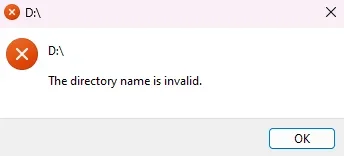
(Drive Letter) The directory name is Invalid. Letter is a CD-DVD-BD drive (UP: Discs read as "RAW")


Lebon14

Well-known member
Member
VIP
Local time
6:50 PM
Posts
22
OS
Windows 11 Pro
1772220353435.webp

Hey guys. This error box has been giving me troubles for a while now.

I can't really explain what's going on but I can at least explain how it happens and I can trigger it on demand.

But, first, a tiny bit of background: I collect physical media - especially audio CDs. For me, it's a matter of ownership but also being to preserve the music. So, I rip a lot of CDs using Exact Audio Copy ("EAC") but also extract the content of bonus DVDs and Blu-rays using MakeMKV.

I have two optical drives that I use: the Pioneer BDR-XD07 and the Asus BW-16D1HT. The first one is a pure external drive that uses a USB Micro-B on the drive itself. The other one is a good ol' 5.25" drive (but plugged in an enclosure then using USB-B to A.)

When you first plug the drive and put a CD in, Windows will show the disc in File Explorer like normal. Apps will behave normally.
Then, I pull the CD out and either put it back in or put a new one (it doesn't matter) then the error at the top will pop up. CONSISTENTLY. The format of the optical disc does not matter.

When the error happens, the apps will interact with the drive normally and will see the content. For example, EAC will see an audio CD just fine and MakeMKV will see a blu-ray just fine as well. However, File Explorer and File Explorer replacements such as Directory opus or Total Commander will not show the optical drive with the CD in My PC, along with the hard drives and Network Shares.

It doesn't seem to affect external drives or thumb drives. Probably because you disconnect and reconnect them unlike an optical drive where it remains connected when you change its content.

But I hear you tell me, "if the other apps, except File Explorer, sees the disc, why bother trying to figure this out?".

Well, let me introduce to some optical disc formats: CD-ROM, DVD-ROM and (to a very low degree) BD-ROM. You now see where I'm going with this? The error will popup even with these. If they don't show in File Explorer (or any File Explorer replacements), how can you go and see the files stored on the disc? This also applies to Enhanced sections of CD Audio (aka CD Extra).

The only workaround I found is to unplug and replug the drive. It will work for exactly ONE disc. Then, the next ones will show this error until I redo the process.

It's driving me absolutely nuts. It really seems like it's either:
- A bug in Windows
- Some kind of software/driver incompatibility.

Rebooting does not help. Disabling and re-enabling the drive will not help either. Like I said, it does this with any optical drive plugged on my PC.

Any help that does not involve starting from a fresh install of Windows will be appreciated.

Running the last stable version of Windows 11: Pro 23H2.

EDIT: I was hesitating between "Device & Drivers" and "General Support". Decided on the latter because I thought this was more of a general OS issue than the drives themselves which work as expected when Windows doesn't throw that error.
 
Windows Build/Version
Pro 23H2 (build 22631.6199)
Last edited:

My Computer

System One

  • OS
    Windows 11 Pro
    Computer type
    PC/Desktop
    Manufacturer/Model
    Self-Build
    CPU
    Ryzen 9 5900X
    Motherboard
    Gigabyte X570 Aorus Master
    Memory
    64GB G.Skill Neo 3600MHz CL16 (4x16GB)
    Graphics Card(s)
    EVGA GeForce RTX 3070 Ti
    Sound Card
    On-Board
    Monitor(s) Displays
    Dell Alienware AW3418DW
    Screen Resolution
    3440x1440 120Hz
    Hard Drives
    Sabrent Rocket Plus 4.0 2TB
    PSU
    Seasonic Focus PX-850 850W
    Case
    Corsair 680X
    Cooling
    Corsair Hydro Series H100i RGB Platinum
    Keyboard
    Logitech MX Keys S
    Mouse
    Logitech MX Master 3S (Black)
    Internet Speed
    1gbit symmetric (Fiber)
    Browser
    Waterfox
    Antivirus
    none
    Other Info
    Synology NAS: 4×10TB (1 drive for parity). 1 10TB cold spare.
Please post a screenshot of the Disk Management window.
That Disk Management can be started by right mouse button click on the start button, click Disk Management.

Possibly your built-in CD ROM drive has the letter D: (which is default if you dont have other partitions) and should be changed to any other letter.
After that you could insert the USB CD-ROM Drive and do the same.

BTW. you wrote:

Running the last stable version of Windows 11: Pro 23H2.
The last stable version of Windows 11 is (Home or Pro or other) 25H2

23H2 is outdated an not supported anymore by security updates.
 

My Computer

System One

  • OS
    Windows 11 Pro 25H2 26200.8457
    Computer type
    PC/Desktop
    Manufacturer/Model
    Build by vendor to my specs
    CPU
    AMD Ryzen 7 5700G
    Motherboard
    MSI PRO B550M-P Gen3
    Memory
    Kingston FURY Beast 2x16GB DIMM DDR4 2666 CL16
    Graphics Card(s)
    MSI GeForce GT 730 2GB LP V1
    Sound Card
    Creative Sound Blaster Audigy FX
    Monitor(s) Displays
    Samsung S24E450F 24"
    Screen Resolution
    1920 x 1080
    Hard Drives
    1. SSD Crucial P5 Plus 500GB PCIe M.2
    2. SSD-SATA Crucial MX500-2TB
    PSU
    Corsair CV650W
    Case
    Cooler Master Silencio S400
    Cooling
    Cooler Master Hyper H412R with Be Quiet Pure Wings 2 PWM BL038 fan
    Keyboard
    Cherry Stream (wired, scissor keys)
    Mouse
    Asus WT465 (wireless)
    Internet Speed
    70 Mbps down / 80 Mbps up
    Browser
    Firefox 130.0
    Antivirus
    F-Secure (Internetprovider version)
    Other Info
    Router: FRITZBox 7490
    Oracle VirtualBox 7 for testing software on Win 10 or 11
Please post a screenshot of the Disk Management window.
That Disk Management can be started by right mouse button click on the start button, click Disk Management.

Possibly your built-in CD ROM drive has the letter D: (which is default if you dont have other partitions) and should be changed to any other letter.
After that you could insert the USB CD-ROM Drive and do the same.
Sure, I can do that.
Also, actually, my Pioneer drive wasn't on D:\ before and it did it on the old letter as well. Also, the 5.25" drive is in a USB 5.25" enclosure. So both are external.

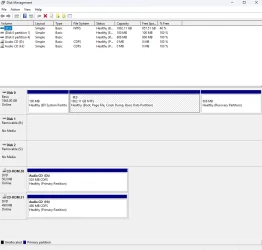
Both drives empty:
1772228158476.webp

Both drives with a CD in them:
1772228285658.webp

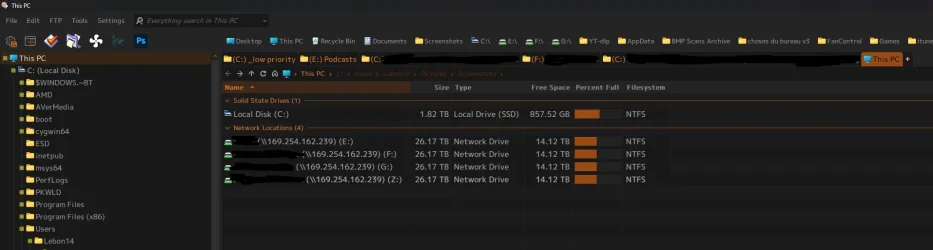
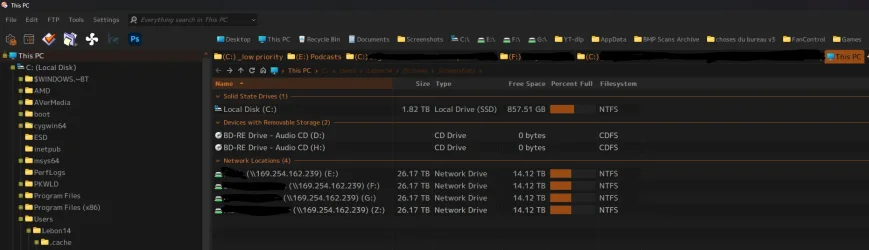
Screenshot of Directory Opus showing My PC, while both discs are in the drive:
1772228460249.webp

As you can see, the drives ain't showing up despite both having a disc inside.
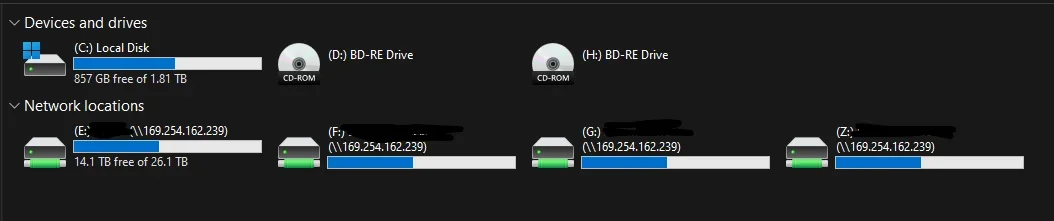
Same as above but in Files Explorer:
1772228568446.webp
The drives here are false hearrings. Trying to open them gives errors.

Now, I unplug my Pioneer drive and turn off and back on (enclosure has an on-off switch) the Asus drive:
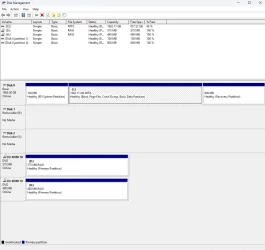
1772228852083.webp
1772228863151.webp
1772228921251.webp

Opening both drives to get the discs out and just reclosing the lid/tray will return to the first set of screenshots.

P.S: The IP addresses shown here are not reachable from the internet. It's a direct link between my PC and my NAS with no router in-between). So, those being uncensored doesn't matter.
 

My Computer

System One

  • OS
    Windows 11 Pro
    Computer type
    PC/Desktop
    Manufacturer/Model
    Self-Build
    CPU
    Ryzen 9 5900X
    Motherboard
    Gigabyte X570 Aorus Master
    Memory
    64GB G.Skill Neo 3600MHz CL16 (4x16GB)
    Graphics Card(s)
    EVGA GeForce RTX 3070 Ti
    Sound Card
    On-Board
    Monitor(s) Displays
    Dell Alienware AW3418DW
    Screen Resolution
    3440x1440 120Hz
    Hard Drives
    Sabrent Rocket Plus 4.0 2TB
    PSU
    Seasonic Focus PX-850 850W
    Case
    Corsair 680X
    Cooling
    Corsair Hydro Series H100i RGB Platinum
    Keyboard
    Logitech MX Keys S
    Mouse
    Logitech MX Master 3S (Black)
    Internet Speed
    1gbit symmetric (Fiber)
    Browser
    Waterfox
    Antivirus
    none
    Other Info
    Synology NAS: 4×10TB (1 drive for parity). 1 10TB cold spare.
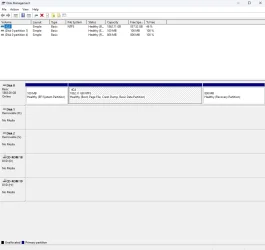
I would have expected the two CD/DVD-ROM drives were conflicting another because they had the same letter, but that does not seem to be the case.
You could try to change the letter of the drive that has D: now.
The method is described here:
You only can change the drive letter of a CD/DVD-ROM when it has some CD or DVD in it.

But as you wrote that it happened before when having a different drive letter, I think there's a hardware failure of the USB enclosure.
What happens if you put some good old HDD in that enclosure?
 

My Computer

System One

  • OS
    Windows 11 Pro 25H2 26200.8457
    Computer type
    PC/Desktop
    Manufacturer/Model
    Build by vendor to my specs
    CPU
    AMD Ryzen 7 5700G
    Motherboard
    MSI PRO B550M-P Gen3
    Memory
    Kingston FURY Beast 2x16GB DIMM DDR4 2666 CL16
    Graphics Card(s)
    MSI GeForce GT 730 2GB LP V1
    Sound Card
    Creative Sound Blaster Audigy FX
    Monitor(s) Displays
    Samsung S24E450F 24"
    Screen Resolution
    1920 x 1080
    Hard Drives
    1. SSD Crucial P5 Plus 500GB PCIe M.2
    2. SSD-SATA Crucial MX500-2TB
    PSU
    Corsair CV650W
    Case
    Cooler Master Silencio S400
    Cooling
    Cooler Master Hyper H412R with Be Quiet Pure Wings 2 PWM BL038 fan
    Keyboard
    Cherry Stream (wired, scissor keys)
    Mouse
    Asus WT465 (wireless)
    Internet Speed
    70 Mbps down / 80 Mbps up
    Browser
    Firefox 130.0
    Antivirus
    F-Secure (Internetprovider version)
    Other Info
    Router: FRITZBox 7490
    Oracle VirtualBox 7 for testing software on Win 10 or 11
What happens if you put some good old HDD in that enclosure?
The enclosure is actually brand new but the issue existed before I got it. It would be a hassle to unscrew everything and get the drive out and put a 3.5" HDD in it. But, like I said in the opening post, putting a thumb drive or other external drive to other USB ports just works as expected. My theory is, like I said in the OP, is that you can't change the memory chips / platters in it like you can change the CD/DVD/BD in an optical drive.

However, I have an external dock to read SD cards which could technically trigger like the optical drives.

*finds a card and tries*

No issues at first. Showed up fine. Let me try one more time and........ no issues as well.
So, now, we can see that Windows only do this for optical drives.

I'll move both drives to letters "N" and "O" and try again.

Yeah... it just shows "N:\ The directory name is invalid" instead.

Also, I dunno if you noticed in the first Disk Management screenshot but it shows the partitions as "RAW" when it doesn't work and show up correctly as "CDFS" in the second...

EDIT

So, I have a minipc between my main PC and my NAS which is always on. It also has Windows 23H2 on it. So, I decided to try plugging my 5.25" drive to it to see how it would behave. Lo and behold.... nothing happened! I mean, "nothing happened" as in "no errors happened". It detected the drive and the disk and didn't throw the "D:\ The directory name is invalid" error.

EDIT 2:
Progress: I've changed the AutoPlay settings in Settings -> Bluetooth and devices -> AutoPlay. Any setting that's not "open folder to view files" in "Removable drive" section will stop the error from showing up. However, it does not resolve the fact that the disc doesn't show up and DOpus or File Explorer. Tried "Play (foobar2000)" will show the error. So, basically, anything that tries to do something with it will show an error.
 
Last edited:

My Computer

System One

  • OS
    Windows 11 Pro
    Computer type
    PC/Desktop
    Manufacturer/Model
    Self-Build
    CPU
    Ryzen 9 5900X
    Motherboard
    Gigabyte X570 Aorus Master
    Memory
    64GB G.Skill Neo 3600MHz CL16 (4x16GB)
    Graphics Card(s)
    EVGA GeForce RTX 3070 Ti
    Sound Card
    On-Board
    Monitor(s) Displays
    Dell Alienware AW3418DW
    Screen Resolution
    3440x1440 120Hz
    Hard Drives
    Sabrent Rocket Plus 4.0 2TB
    PSU
    Seasonic Focus PX-850 850W
    Case
    Corsair 680X
    Cooling
    Corsair Hydro Series H100i RGB Platinum
    Keyboard
    Logitech MX Keys S
    Mouse
    Logitech MX Master 3S (Black)
    Internet Speed
    1gbit symmetric (Fiber)
    Browser
    Waterfox
    Antivirus
    none
    Other Info
    Synology NAS: 4×10TB (1 drive for parity). 1 10TB cold spare.
Latest Support Threads

Back
Top Bottom