This tutorial will show you how to enable or disable Administrator Protection for admin approval mode elevations in Windows 11.
Starting with Windows 11 build 26100.9278 (24H2), build 26200.9278 (25H2), and build 2800.3086 (26H1), Administrator protection aims to protect free-floating admin rights for administrators. It enables users to perform administrative tasks using just-in-time privileges. Administrator protection isn't classified as a formal security boundary. It hardens security against elevation-of-privilege attacks by introducing profile separation. This feature is turned off by default and can be enabled using OMA-URI in Microsoft Intune or through Group Policy. This feature was previously disclosed in October 2025 (KB5067036) and is now beginning to roll out.
You can enable Administrator Protection to use for Admin Approval Mode (aka: elevated rights) instead of User Account Control (UAC).
Administrator Protection is an upcoming platform security feature in Windows 11, which aims to protect free floating admin rights for administrator users allowing them to still perform all admin functions with just-in-time admin privileges. This feature is off by default and needs to be enabled via group policy. Microsoft plans to share more details about this feature at Microsoft Ignite.
Administrator protection requires that a user verify their identity with Windows Hello integrated authentication before allowing any action that requires administrator privileges. These actions include installing software, changing system settings like the time or the registry, and accessing sensitive data. Administrator protection minimizes the risk of the user making a system-level change by mistake, and, more importantly, helps prevent malware from making silent changes to the system without the user knowing.
At its core, Administrator protection operates on the principle of least privilege. The user is issued the deprivileged user token when they sign in to Windows. However, when admin privileges are needed, Windows will request that the user authorize the operation. Once the operation is authorized, Windows uses a hidden, system-generated, profile-separated user account to create an isolated admin token. This token is issued to the requesting process and is destroyed once the process ends. This ensures that admin privileges do not persist. The whole process is repeated when the user tries to perform another task that requires admin privileges.
Administrator protection introduces a new security boundary with our support to fix any reported security bugs. It should not be confused with User Account Control (UAC), which is more of a defense-in-depth feature. The architectural changes mentioned above help ensure that any access to or tampering with the code or data of elevated session cannot be done without authorization.
Benefits of Administrator protection:
- Enhanced security: By requiring explicit authorization for every administrative task, Administrator protection protects Windows from accidental changes by users and changes by malware. It helps ensure that users are aware of potentially harmful actions before they occur, which provides an additional layer of defense against cyber threats.
- The user is always in control: Administrator protection allows users to manage admin rights, granting or restricting access granularly to individual apps. This helps ensure that only authorized apps can make system changes, reducing the risk of accidental or malicious modifications.
- Malware reduction: Malicious software often relies on admin privileges to change device settings and execute harmful actions. Administrator protection breaks the attack kill chain since malware will no longer be able to silently acquire admin privileges.
If you enable Administrator Protection, Admin Approval Mode uses Windows Security for a more secure elevation approval instead of User Account Control (UAC). A C:\Users\ADMIN_<OriginalAdminProfileFolderName> profile folder (ex: "ADMIN_Brink") will be created by the system to use for Administrator Protection.
References:
Administrator protection on Windows 11 | Microsoft Community Hub
New Windows 11 security feature provides just-in-time admin privileges to help protect users while performing key functions.
 techcommunity.microsoft.com

Evolving the Windows User Model – A Look to the Past | Microsoft Community Hub
techcommunity.microsoft.com

Evolving the Windows User Model – Introducing Administrator Protection | Microsoft Community Hub
Previously, in part one, we outlined the history of the multi-user model in Windows, how Microsoft introduced features to secure it, and in what ways we got...
techcommunity.microsoft.com
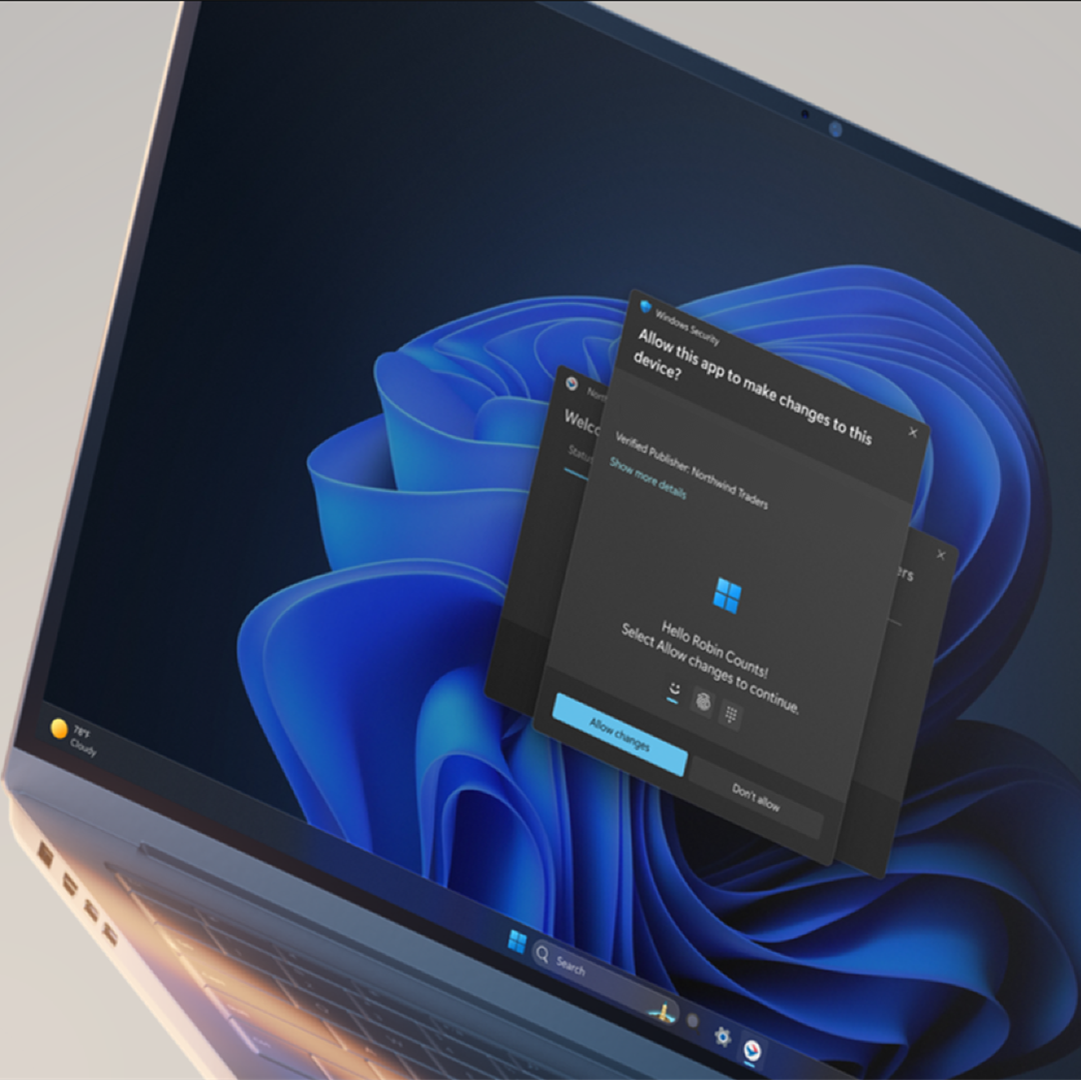
Enhance your application security with administrator protection
Introduction Administrator protection is a new Windows 11 platform security feature that aims to protect the admin users on the device while still allowing them to perform the necessary functions which may require use of admin level permissi
 blogs.windows.com
You must be signed in as an administrator to enable or disable Administrator Protection.
Contents
- Option One: Enable or Disable Administrator Protection for Admin Approval Mode in Windows Security
- Option Two: Enable or Disable Administrator Protection for Admin Approval Mode in Local Security Policy
- Option Three: Enable or Disable Administrator Protection for Admin Approval Mode using REG file
EXAMPLE: Administrator Protection enabled (Windows Security) and disabled (UAC)
1 Open Windows Security, and click/tap on Account protection. (see screenshot below)
2 Click/tap on the Administrator protection settings link under Administrator protection. (see screenshot below)
3 Turn on or off (default) Administrator protection for what you want. (see screenshot below)
4 Restart the computer to apply. (see screenshot below)
Enable or Disable Administrator Protection for Admin Approval Mode in Local Security Policy
Local Security Policy is only available in the Windows 11 Pro, Enterprise, and Education editions.
All editions can use Option One or Option Three to change the same policy.
1 Open Local Security Policy (secpol.msc).
2 Perform the following actions: (see screenshot below)
- Expand open the Local Policies folder in the left pane.
- Click/tap on the Security Options subfolder in the left pane.
- Double click/tap on the User Account Control: Configure type of Admin Approval Mode policy in the right pane.
3 In the Local Security Setting tab, select Legacy Admin Approval Mode (Default) (disable) or Admin Approval Mode with Administrator protection (enable) for what you want in the drop menu, and click/tap on OK. (see screenshot below)
1 Do step 2 (enable) or step 3 (disable) below for what you would like to do.
2 Enable Administrator Protection for Admin Approval Mode
A) Click/tap on the Download button below to download the file below, and go to step 4 below.
Enable_Administrator_Protection_for_Admin_Approval_Mode.reg
Download
(Contents of REG file for reference)
Code:
Windows Registry Editor Version 5.00

[HKEY_LOCAL_MACHINE\SOFTWARE\Microsoft\Windows\CurrentVersion\Policies\System]
"TypeOfAdminApprovalMode"=dword:00000002
3 Disable Administrator Protection for Admin Approval Mode
This is the default setting.
A) Click/tap on the Download button below to download the file below, and go to step 4 below.
Disable_Administrator_Protection_for_Admin_Approval_Mode.reg
Download
(Contents of REG file for reference)
Code:
Windows Registry Editor Version 5.00

[HKEY_LOCAL_MACHINE\SOFTWARE\Microsoft\Windows\CurrentVersion\Policies\System]
"TypeOfAdminApprovalMode"=dword:00000001
4 Save the .reg file to your desktop.
5 If you have Smart App Control turned on, you will need to unblock the downloaded REG file.
6 Double click/tap on the downloaded .reg file to merge it.
7 When prompted, click/tap on Run, Yes (UAC), Yes, and OK to approve the merge.
8 Restart the computer to apply.
9 You can now delete the downloaded .reg file if you like.
That's it,
Shawn Brink
Attachments
Last edited:


 If I create a whole new administrator account it works, but I don't get why my already existing account doesn't work with it.