This tutorial will show you how to enable or disable Copilot Actions in the Copilot app for your account in Windows 11.
Starting with the Copilot app version 1.25112.74 and higher, Microsoft is rolling out Copilot Actions to Windows Insiders worldwide, excluding EEA,.
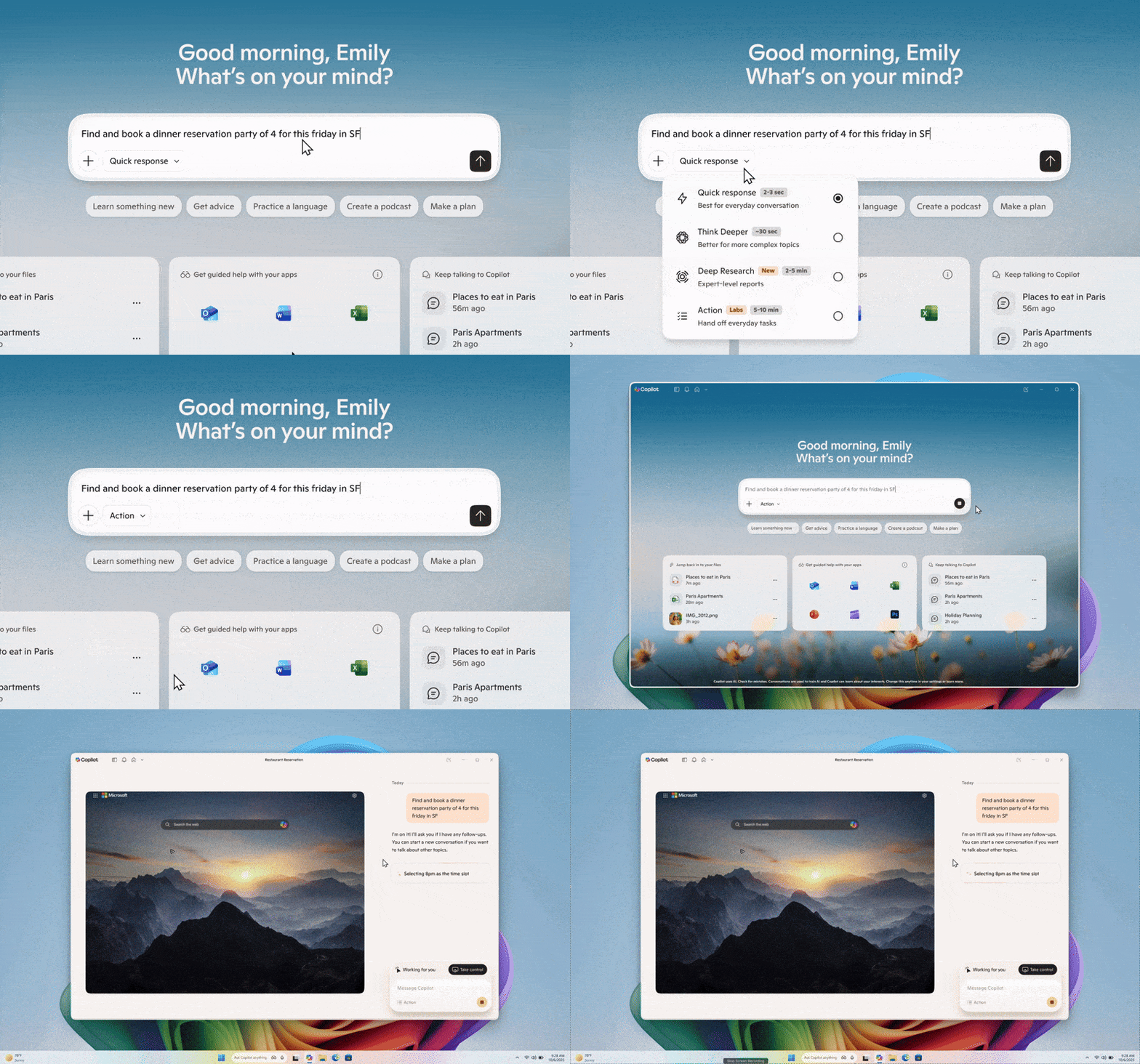
Copilot Actions is an AI agent that completes tasks for you by interacting with your apps and files, using vision and advanced reasoning to click, type and scroll like a human would. This transforms agents from passive assistants into active digital collaborators that can carry out complex tasks for you to enhance efficiency and productivity – like updating documents, organizing files, booking tickets or sending emails. After you’ve granted the agent access, when integrated with Windows, the agent can take advantage of what you already have on your PC, like your apps and data, to complete tasks for you.
Copilot Actions can do the heavy lifting for you as a general purpose agent— simply describe the task you want to complete in your own words, and the agent will attempt to complete it by interacting with desktop and web applications. Whether you need a hand resizing or de-duplicating your recent vacation photos or need to extract info from a PDF or fill out repetitive forms, Copilot Actions can help.
Copilot Actions is operating in the background, in its own Desktop. Actions are in preview and may make mistakes, please monitor their work closely. At any time, you can take over the task or check in on the progress of the action, including reviewing what actions have been taken.
Starting with Copilot app version 1.25121.60.0 and higher, Microsoft is rolling out Copilot Actions for Text Editing to Windows Insiders, excluding the EEA. Copilot Actions for Text Editing lets you use Copilot to rewrite, refine, or edit text in real time during Copilot Vision sessions, enabling smooth, in‑flow collaboration and editing. To start a Vision session, open the Copilot app and select the glasses icon in the bottom right of the chat bar. Then choose the window you want to share that includes a doc or app you are editing in, and Copilot will begin analyzing what’s on your screen. Place your cursor in any text field, click into the text field, and speak naturally, using your own words. For example, you could say, “rewrite this to be more formal”, “make this clearer”, or “simplify this text”. Copilot will then suggest an edit directly in-flow. You’ll see a preview before any changes are made, so you can accept or refine the suggestion while staying focused on your task. Copilot Vision remains a fully opt-in feature and will only be activated when a user chooses to turn it on.
References:

[Copilot Actions] - A Copilot Labs experiment
Copilot Actions helps you get things done by taking on tasks you'd rather skip.
Copilot on Windows: Copilot Actions begins rolling out to Windows Insiders
Hello Windows Insiders, we are excited to begin rolling out a new update for the Microsoft Copilot app on Windows that introduces the following changes and improvements: Copilot Actions: Windows Insiders can now use Copilot Actions
 blogs.windows.com

Securing AI agents on Windows
As AI-powered agents become integral to how we work and create, Windows is committed to making these experiences more productive and secure for individuals and enterprises. Today, we
 blogs.windows.com
Copilot on Windows: New text editing feature begins rolling out to Windows Insiders
Hello Windows Insiders, we are excited to begin rolling out a new update for the Microsoft Copilot app on Windows that introduces the following changes and improvements: Copilot Actions for Text Editing: Windows Insiders can use Cop
blogs.windows.com
EXAMPLE: Copilot Actions
Here's How:
1 Open the Copilot app.
2 Sign in to Copilot with your Microsoft account if wanted to sync settings.
3 While in full view, click/tap on the Account button on the sidebar, and click/tap on Settings. (see screenshot below)
4 Under Permission settings, turn on (default) or off Copilot Actions for what you want. (see screenshot below)
5 Click/tap on the Back arrow button to exit Copilot settings.
That's it,
Shawn Brink
Last edited: