This tutorial will show you how to summarize a web page with Copilot in Microsoft Edge on Windows 11.
Microsoft Edge is the AI-powered browser. A smarter way to browse. As the only browser built and optimized for Windows, it’s AI-powered tools are designed to help you make the most of your time online. Whether you’re searching, shopping or gaming, AI-powered tools and a security-first approach help you stay productive, save money, and get things done your way.
You can use Copilot in Microsoft Edge to quickly summarize a page to get a clear and accurate representation of the original text, saving you time and effort.
Reference:
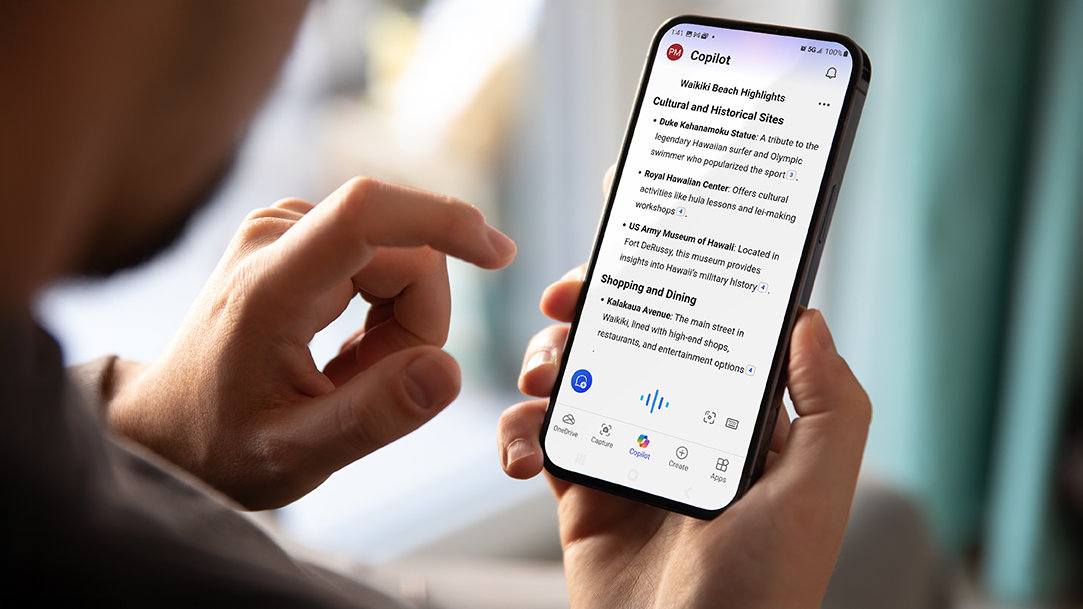
Summarize Articles with Copilot | Microsoft Edge
Use Copilot in Microsoft Edge for AI-generated article summaries. Save time with smarter research, easy-to-read overviews, and detailed, insightful summaries.
It is required to turn on Show Copilot button in toolbar to have the Summarize page with Copilot feature available in Microsoft Edge.
Here's How:
1 Open Microsoft Edge.
2 While on a page you want to summarize, perform either action below: (see screenshots below)
- Click/tap on the Copilot menu arrow on the toolbar, and click/tap on Summarize page
- Right click on an empty area of the page, click/tap on Ask Copilot, and click/tap on Summarize.
3 Copilot will now summarize this page in the Copilot pane. (see screenshot below)
That's it,
Shawn Brink
Last edited: