This tutorial will show you how to enable or disable "Hey Copilot" for the Copilot app for your account in Windows 11.
Starting with Copilot app (version 1.25051.10.0 and higher), Microsoft is beginning to roll out Hey Copilot across all Insider Channels via the Microsoft Store.
Windows Insiders can now invoke Copilot with the phrase “Hey, Copilot!”. This opt-in feature gives people a new way to easily start a conversation with Copilot Voice, anytime the feature is enabled, and their PC is unlocked. With this new hands-free experience, you can stay in your flow when you need answers to a question or just need someone to bounce an idea off of.
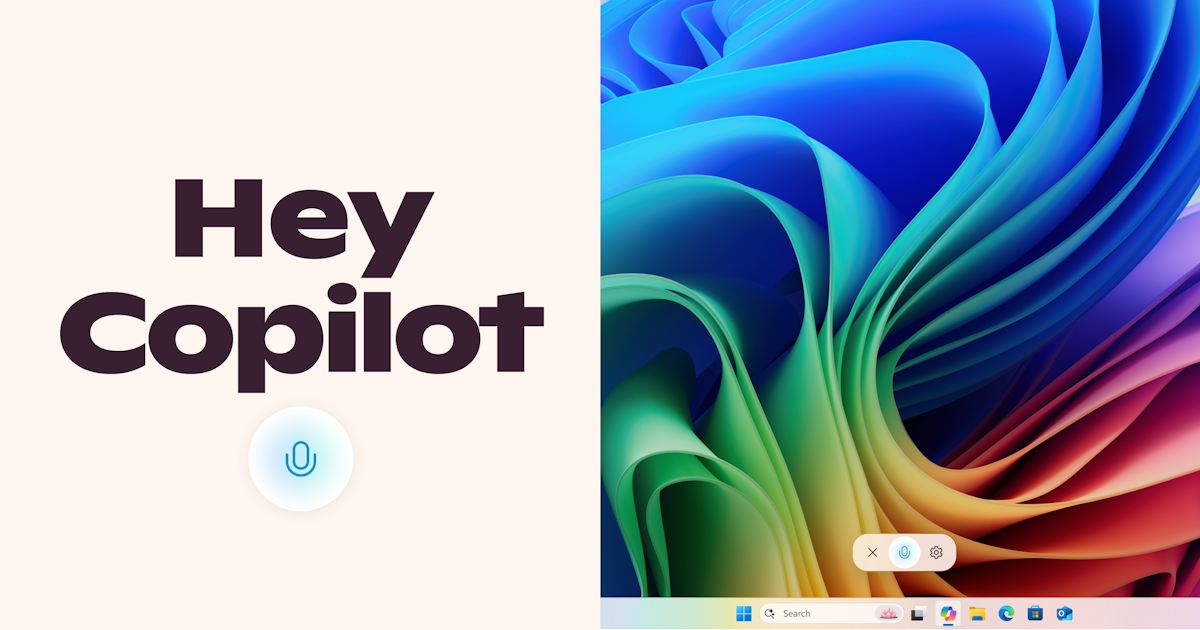
To get started, enable “Hey, Copilot” in the Settings of your Copilot app, then simply ask a question starting with “Hey, Copilot…”. You’ll see the Copilot microphone appear on your screen, along with a chime to indicate that Coplot is listening. To end a conversation, tap ‘X’ or Copilot will end the call automatically after a few seconds of no interaction. You will hear a chime confirming that the conversation has ended.
How do I use ‘Hey Copilot’ once enabled?
- Anytime your PC is unlocked, and the feature is enabled, simply say “Hey Copilot” or “Hey Copilot, what is the weather in Palm Springs this weekend?” (or whatever question you have) and Copilot Voice will respond.
- Anytime the wake word is detected you will see the Copilot Voice Floating UI appear on the bottom of your screen and either hear a small chime, or a voice greeting or response from Copilot.
- You can end a conversation by tapping the X on the Copilot Voice Floating Call UI or wait a few seconds without speaking and the call will end automatically. You will hear a hang up chime or a voice confirmation that the call ended.
No, you must enable this feature within Copilot’s settings to use it.
Why does Windows show my microphone in use when I turn on ‘Hey Copilot’?
Windows will show Copilot in use of the microphone via the Windows System Tray when either of these are true:
- ‘Hey Copilot’ is enabled and the Copilot app is running in (open, minimized, or running in the background)
- Any Copilot Voice conversation is going on

If you see the Copilot Voice interface, you are in a conversation with Copilot Voice.
Is my data/voice/recordings sent to the cloud when ‘Hey Copilot’ is enabled?
No. When ‘Hey Copilot’ is enabled, Copilot uses the microphone with an on-device wake word spotter that only detects the ‘Hey Copilot’ phrase.
The wake word spotter uses an on-device 10 second audio buffer in memory. This audio buffer is never recorded or stored locally.
When the wake word is detected, the Copilot Voice Floating UI will appear and begin to establish a Copilot Voice conversation. In parallel, the audio buffer will send audio from when “Hey Copilot” was detected to the cloud so it can be used to help answer the question you asked.
Will ‘Hey Copilot’ work when my PC is off or locked?
No, your PC must be powered on and unlocked. It will respond to any voice it hears when unlocked.
Will ‘Hey Copilot’ work if I’m offline?
Recognition of the wake word is always performed locally and will try to establish a Copilot Voice call when detected. If you are offline you will see Copilot attempt to establish a connection but will not able to and see the call end. Copilot Voice responses require internet access and cloud processing, similar to typed interactions.
Reference:
Copilot on Windows: “Hey, Copilot!” begins rolling out to Windows Insiders
Hello Windows Insiders, we are beginning to roll out an update for the Microsoft Copilot app on Windows via the Microsoft Store which introduces the following changes and improvements: Copilot wake word: Windows Insiders can now inv
 blogs.windows.com
Hey Copilot will first roll out to Insiders worldwide, who have their display language in Windows set to English. The above-mentioned features are gradually rolling out so not all Insiders will get the update right away.
EXAMPLE: Invoke Copilot with your voice with "Hey Copilot"
Here's How:
1 Open the Copilot app.
2 Sign in to Copilot with your Microsoft account if wanted to sync settings.
3 While in full view, click/tap on the Account button on the sidebar, and click/tap on Settings. (see screenshot below)
4 Click/tap on Preferences on the left side, and turn on or off (default) Listen for 'Hey, Copilot' to start a conversation for what you want. (see screenshot below)
That's it,
Shawn Brink
Last edited: