System Enable or Disable Quick Machine Recovery in Windows 11

  • Thread starter Thread starter Brink
  • Start date Published: Start date Updated Updated:

cloud_banner.webp

This tutorial will show you how to enable or disable Quick Machine Recovery in Windows 11.

Quick machine recovery (QMR) is a feature that enables the recovery of Windows devices when they encounter critical errors that prevent them from booting. QMR automatically detects, diagnoses, and remediates boot critical issues from WinRE, helping restore productivity without requiring hands on, in-person intervention. This feature can automatically search for remediations in the cloud and recover from widespread boot failures, significantly reducing the burden on IT administrators when multiple devices are affected.

Building on the foundation of Startup Repair, quick machine recovery uses a secure and connected Windows Recovery Environment to scan Windows Update for remediation options. This allows devices to be recovered without requiring manual intervention.

QMR is enabled by default on Windows Home and will be soon enabled on Pro devices that are not managed by IT. It requires Windows 11 24H2 or 25H2. On managed Windows Pro and Enterprise devices, QMR needs to be enabled by IT policy, and soon can be enabled just-in-time by Autopatch management. Microsoft is introducing the preview of QMR management in Windows Autopatch. Autopatch empowers IT administrators with comprehensive control over the deployment of QMR updates, including approvals, scheduling, alerting, and reporting. To discover more details, visit the Ignite Autopatch blog post and attend the Ignite breakout session BRK345: Resilient by design: How Windows has evolved with new recovery tools for a demo.

There are two main settings of quick machine recovery: cloud remediation and auto remediation.

Cloud remediation is the process of using Windows Update to find remediations and fix issues on devices:​
  • When enabled, devices connect to the network and utilize Windows Update during recovery scenarios
  • When disabled, Windows uses Startup Repair as a local recovery option
Auto remediation allows you to automate the recovery process:​
  • When enabled, the device connects automatically to Windows Update and tries to find a remediation. If a solution isn't found on the first attempt, the device retries without requiring manual intervention
  • When disabled or not configured, the device requires manual intervention to continue the recovery process
Here are the phases of the quick machine recovery process:
  1. Device crash: When the device fails to boot repeatedly, the system automatically detects the issue and initiates the recovery process
  2. Boot to recovery: The device boots into the recovery environment to initiate the quick machine recovery process
  3. Network connection: After a network connection is established, the device scans Windows Update for remediations
  4. Remediation
    • If no solution is found, the system retries the process based on the configured retry scanning intervals and time-outs
    • If a solution is found, the system downloads and applies it
  5. Reboot: After a remediation is applied, the device reboots:
    • If the solution is successful, the device boots into Windows
    • If the solution fails, the device reboots into the recovery environment again and the process repeats from step 2
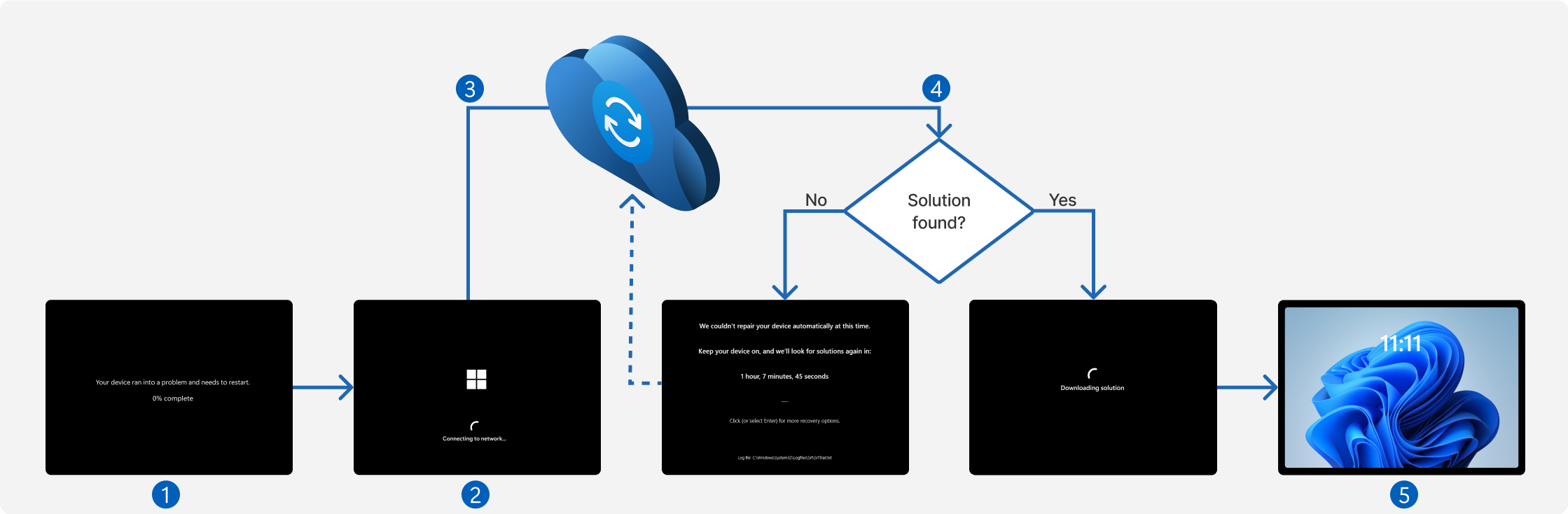
Diagram of quick machine recovery showing the five phases of recovery.

Starting with Windows 11 build 26100.4770 (24H2), Quick machine recovery is now available and enabled by default on Windows Home and will be soon enabled on Pro devices that are not managed by IT. When enabled, it automatically detects and fixes widespread issues on Windows 11 devices using the Windows Recovery Environment (WinRE). This reduces downtime and avoids the need for manual fixes. If a device experiences a widespread boot issue, it enters WinRE, connects to the internet, and Microsoft can deliver a targeted fix through Windows Update. IT admins can enable or customize this experience for their organization through the Intune Settings Catalog UI using the RemoteRemediationCSP. There is also a dedicated quick machine recovery settings page available under System > Recovery > Quick machine recovery. Today it’s enabled by default for home users.

A more streamlined interface appears during an unexpected restart This updated design aligns with Windows 11’s visual style and helps you return to work faster. The screen displays a more readable layout while keeping the technical details visible. This screen appears with a black background.

Starting with Windows 11 build 26200.5518 (Dev 24H2) and build 26120.3653 (Beta 24H2), as a follow up to the last announcement of quick machine recovery, the test remediation package is now available for Windows Insiders to experience the full capabilities of QMR in action. Microsoft encourages Windows Insiders to test it today. The remediation package “Quick machine recovery update for Windows 11” will be automatically installed by QMR when “test mode” is activated. To verify the quick machine recovery remediation is installed, go to Settings > Windows Update > Update history. The remediation should be listed under Quality updates. Please note that the ability to see the remediation package in your Windows Update history is gradually rolling out so not everyone will see this listed there right away. To provide feedback, simply open the Feedback Hub app on your Windows device, navigate to Recovery and Uninstall > Quick Machine Recovery, and share your insights. Stay tuned for further updates and enhancements as Microsoft continues to improve the resilience and reliability of Windows.

Starting with Windows 11 build 26100.7309 (24H2), build 26200.7309 (25H2), and build 2800.1764 (26H1), Microsoft is updating Quick Machine Recovery in Windows – Microsoft Support make getting back to a working PC clearer and faster. The experience in both Windows Settings and the Windows Recovery Environment (WinRE) has been streamlined so options are easier to find and use. On PCs with the settings “quick machine recovery” and “automatically check for solutions” both enabled, QMR now runs a one‑time scan by default instead of repeating scans in a loop. If a fix isn’t available right away, you won’t be left waiting; QMR will quickly point you to the most appropriate recovery options to get you back up and running.

Starting with Windows 11 build 26100.7922 (24H2) and 26200.9822 (25H2), Quick machine recovery (QMR) will now be turned on automatically for Windows Professional devices that are not domain joined. These devices will get the same recovery features as Windows Home users. For enterprise computers that are domain joined, nothing changes—QMR will stay off unless your organization turns it on.

References:
You must be signed in as an administrator to enable or disable Quick Machine Recovery.


Quick Machine Recovery (QMR) will not work at boot if it cannot connect to the internet.

This is not an issue with an Ethernet (LAN) connection. If you use a Wi-Fi (WLAN) connection, then you should use Option Two to configure a custom settings.xml file with your Wi-Fi SSID and password.

couldnt_connect_to_network.webp


Contents

  • Option One: Enable or Disable Quick Machine Recovery in Settings
  • Option Two: Configure Quick Machine Recovery using Custom settings.xml


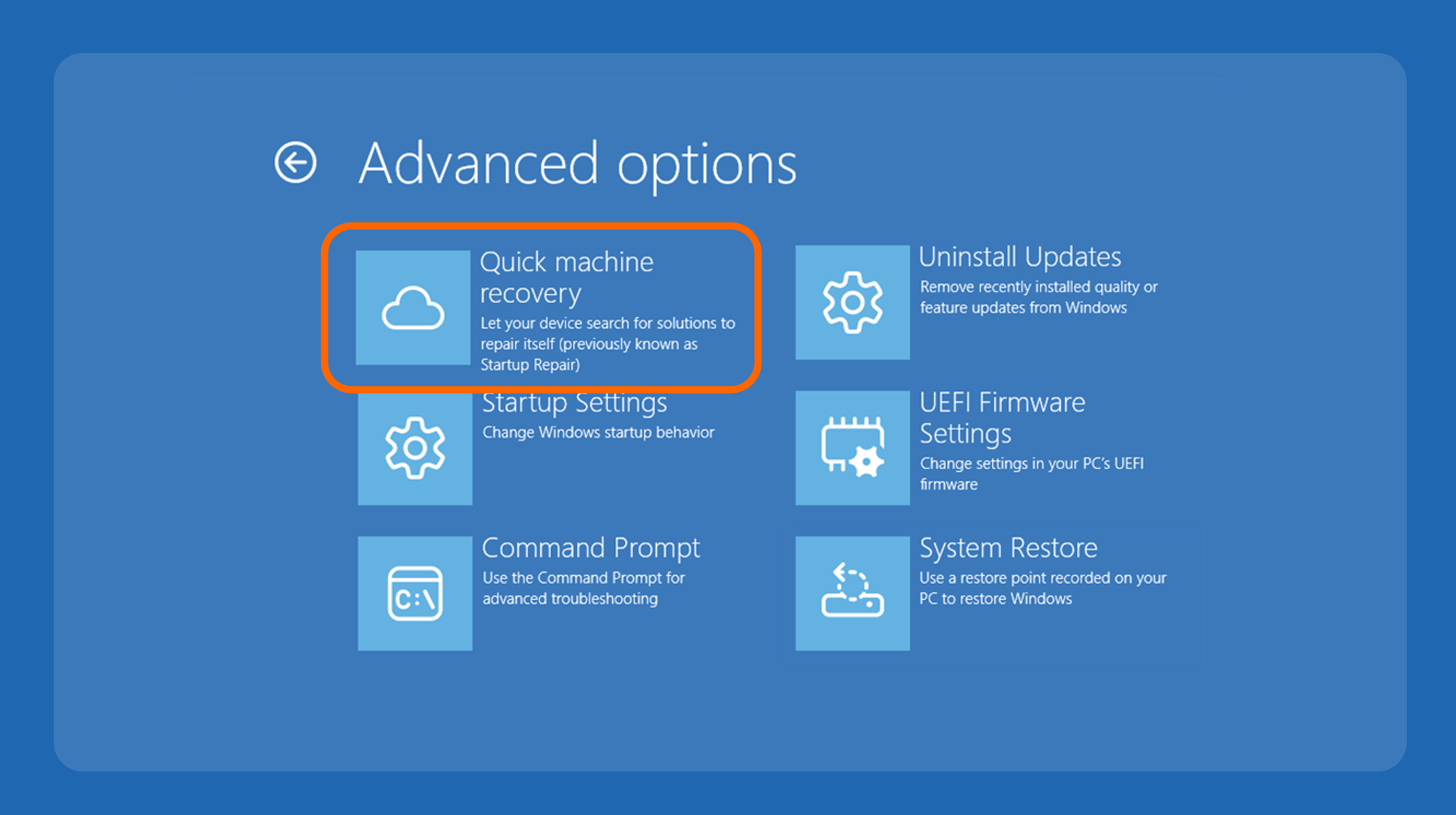
EXAMPLE: Quick Machine Recovery in WinRE Advanced Options

quick-machine-recovery.webp


Option One

Enable or Disable Quick Machine Recovery in Settings


1 Open Settings (WIn+I).

2 Click/tap on System on the left side, and click/tap on Recovery on the right side. (see screenshot below)


Quick_Machine_Recovery_Settings-1.webp

3 Under "Recovery options", click/tap on Quick machine recovery. (see screenshot below)

Quick_Machine_Recovery_Settings-2.webp

4 Do step 5 (on) or step 6 (off) below for what you want.

5 Turn On Quick Machine Recovery

This is the default setting.


A) Turn on Quick machine recovery (cloud remediation). (see screenshot below)​

Quick_Machine_Recovery_Settings-3.webp

B) Perform the step below for the available setting name version: (see screenshots below)​
  • Turn on or off Continue searching if a solution isn't found (auto remediation) for what you want.
  • Turn on or off Automatically check for solutions for what you want.
Quick_Machine_Recovery_Settings-5.webp
Automatically_check_for_solutions-1.webp

C) Perform the step below for the available setting name version: (see screenshots below)​
  • If you turned on Continue searching if a solution isn't found (auto remediation), select a Look for solutions every time you want in the drop menu.
  • If you turned on Automatically check for solutions, select a Look for solutions time you want in the drop menu.
Quick_Machine_Recovery_Settings-6.webp
Automatically_check_for_solutions-2.webp

D) If you turned on Continue searching if a solution isn't found (auto remediation), select a Restart every time you want in the drop menu. (see screenshot below)​

Quick_Machine_Recovery_Settings-7.webp

E) Go to step 7.​

6 Turn Off Quick Machine Recovery

A) Turn off Quick machine recovery, and go to step 7. (see screenshot below)​

Quick_Machine_Recovery_Settings-3.webp

7 You can now close Settings if you like.


Option Two

Configure Quick Machine Recovery using Custom settings.xml


This option is useful when you use a Wi-Fi connection, and need to configure a QMR settings.xml file to specify your Wi-Fi SSID and password for connection.


1 Open the Notepad app.

2 Copy and paste the code below into Notepad. (see screenshot below step 3)

Code:
<?xml version='1.0' encoding='utf-8'?>

<WindowsRE>
    <WifiCredential>
        <Wifi ssid="WiFi-SSID" password="WiFi-Password" />
    </WifiCredential>
    <CloudRemediation state="1" />
    <AutoRemediation state="1" totalwaittime="180" waitinterval="0"/>
    <Headless state="0"/>
</WindowsRE>

3 Change the code below in Notepad for what you want configured: (see screenshot below)
  • Replace WiFi-SSID in the code with the actual SSID for your Wi-Fi connection.
  • Replace WiFi-Password in the code with the actual password for your Wi-Fi connection.
  • CloudRemediation state 1 = QMR enabled, and 0 = QMR disabled
  • AutoRemediation state 1 = "Automatically check for solutions" enabled, and 0 = "Automatically check for solutions" disabled
  • totalwaittime is "Restart every" time in minutes (ex: "180")
  • waitinterval is "Look for solutions" time in minutes (ex: "0")
settings.xml-1.webp

4 When finished, click/tap on File on the toolbar, and click/tap on Save as. (see screenshot below)

settings.xml-2.webp

5 Perform the steps below to save the settings.xml file where you want to keep it on your PC: (see screenshot below)
  1. Navigate to and select the folder (ex: "C:\QMR") you want to save the settings.xml file at.
  2. Select All files (*.*) in the Save as type drop menu.
  3. Type settings.xml as the File name.
  4. Click/tap on Save.
settings.xml-3.webp

6 Open Windows Terminal (Admin), and select Command Prompt.

7 Type the command below into into Terminal (Admin), and press Enter to apply the custom settings.xml file. (see screenshot below)

reagentc.exe /setrecoverysettings /path "<Full path of settings.xml file>"

Substitute <Full path of settings.xml file> in the command above with the actual full path of your custom QMR settings.xml file location from step 5.

For example: reagentc.exe /setrecoverysettings /path "C:\QMR\settings.xml"


settings.xml-4.webp

8 Copy and paste the command below into Terminal (Admin), and press Enter to verify your QMR settings. (see screenshot below)

reagentc.exe /getrecoverysettings

settings.xml-5.webp

9 You can now close the Terminal window if you like.


That's it,
Shawn Brink


Attachments

  • Quick_Machine_Recovery_Settings-4.webp
    Quick_Machine_Recovery_Settings-4.webp
    25.2 KB · Views: 53
Last edited:
Has MS released the test package to try out the feature yet? Last time I checked (10 days ago or thereabouts) it wasn't yet available. What do you know? Thanks for another nifty tutorial, too!
--Ed--
 

My Computers

System One System Two

  • OS
    Windows 11
    Computer type
    Laptop
    Manufacturer/Model
    Lenovo X380 Yoga
    CPU
    i7-8650U (8th Gen/Kaby Lake)
    Motherboard
    20LH000MUS (U3E1)
    Memory
    16 GB
    Graphics Card(s)
    Intel UHD Graphics 620
    Sound Card
    Integrated Conexant SmartAudio HD
    Monitor(s) Displays
    FlexView Display
    Screen Resolution
    1920x1080
    Hard Drives
    Toshiba 1 TB PCIe x3 NVMe SSD
    external 5TB Seagate USB-C attached HDD
    PSU
    Lenovo integrated 65W power brick
    Case
    Laptop
    Cooling
    Laptop
    Keyboard
    Integrated Lenovo ThinkPad keyboard
    Mouse
    touchscreen, touchpad
    Internet Speed
    GbE (Spectrum/Charter)
    Browser
    all of em
    Antivirus
    Defender
    Other Info
    Purchased early 2019 as Windows Insider test PC
  • Operating System
    Windows 11
    Computer type
    PC/Desktop
    Manufacturer/Model
    DIY
    CPU
    Ryzen 5800X
    Motherboard
    Asrock B550 Extreme4
    Memory
    128 GB (4x32 DDR5-5600)
    Graphics card(s)
    NVIDIA 3070Ti
    Sound Card
    built-in
    Monitor(s) Displays
    2xDell 2707
    Screen Resolution
    1980x1200
    Hard Drives
    2XNVMe, multiple HDDs from 3 to 12 TB
    PSU
    Seasonic 650
    Case
    NZXT Flo 6
    Cooling
    dual-fan air cooler
    Keyboard
    Logitech Wave
    Mouse
    Logitech Logi
    Internet Speed
    GbE
    Browser
    all of 'em
    Antivirus
    Defender
    Other Info
    temperamental UEFI
Has MS released the test package to try out the feature yet? Last time I checked (10 days ago or thereabouts) it wasn't yet available. What do you know? Thanks for another nifty tutorial, too!
--Ed--

Hey Ed, :alien:

Test Mode is supposed to be available like below, but I haven't tested it yet. I'm hoping to today.


Done.

 
Last edited:

My Computers

System One System Two

  • OS
    Windows 11 Pro for Workstations
    Computer type
    PC/Desktop
    Manufacturer/Model
    Custom self build
    CPU
    Intel i7-8700K 5 GHz
    Motherboard
    ASUS ROG Maximus XI Formula Z390
    Memory
    64 GB (4x16GB) G.SKILL TridentZ RGB DDR4 3600 MHz (F4-3600C18D-32GTZR)
    Graphics Card(s)
    ASUS ROG-STRIX-GTX1080TI-O11G-GAMING (11GB GDDR5X)
    Sound Card
    Integrated Digital Audio (S/PDIF)
    Monitor(s) Displays
    2 x Samsung Odyssey G75 27"
    Screen Resolution
    2560x1440
    Hard Drives
    1TB Samsung 990 PRO M.2,
    4TB Samsung 990 PRO M.2,
    TerraMaster F8 SSD Plus NAS
    PSU
    Seasonic Prime Titanium 850W
    Case
    Thermaltake Core P3 wall mounted
    Cooling
    Corsair Hydro H115i
    Keyboard
    Amazon Basics Wired Full Keyboard MD005
    Mouse
    Logitech MX Master 4
    Internet Speed
    2 Gbps Download and 100 Mbps Upload
    Browser
    Chrome and Edge
    Antivirus
    Microsoft Defender
    Other Info
    Logitech Z625 speaker system,
    Logitech BRIO 4K Pro webcam,
    HP Color LaserJet Pro MFP M477fdn,
    CyberPower CP1500PFCLCD
    Galaxy S23 Plus phone
  • Operating System
    Windows 11 Pro
    Computer type
    Laptop
    Manufacturer/Model
    Surface Laptop 7 Copilot+ PC
    CPU
    Snapdragon X Elite (12 core) 3.42 GHz
    Memory
    16 GB LPDDR5x-7467 MHz
    Monitor(s) Displays
    15" HDR
    Screen Resolution
    2496 x 1664
    Hard Drives
    1 TB SSD
    Internet Speed
    Wi-Fi 7 and Bluetooth 5.4
    Browser
    Chrome and Edge
    Antivirus
    Microsoft Defender
@Ed Tittel

After using "Quick machine recovery" from WinRE, this is what I got below. Basically the same Startup Repair did.

recovery.webp
 

My Computers

System One System Two

  • OS
    Windows 11 Pro for Workstations
    Computer type
    PC/Desktop
    Manufacturer/Model
    Custom self build
    CPU
    Intel i7-8700K 5 GHz
    Motherboard
    ASUS ROG Maximus XI Formula Z390
    Memory
    64 GB (4x16GB) G.SKILL TridentZ RGB DDR4 3600 MHz (F4-3600C18D-32GTZR)
    Graphics Card(s)
    ASUS ROG-STRIX-GTX1080TI-O11G-GAMING (11GB GDDR5X)
    Sound Card
    Integrated Digital Audio (S/PDIF)
    Monitor(s) Displays
    2 x Samsung Odyssey G75 27"
    Screen Resolution
    2560x1440
    Hard Drives
    1TB Samsung 990 PRO M.2,
    4TB Samsung 990 PRO M.2,
    TerraMaster F8 SSD Plus NAS
    PSU
    Seasonic Prime Titanium 850W
    Case
    Thermaltake Core P3 wall mounted
    Cooling
    Corsair Hydro H115i
    Keyboard
    Amazon Basics Wired Full Keyboard MD005
    Mouse
    Logitech MX Master 4
    Internet Speed
    2 Gbps Download and 100 Mbps Upload
    Browser
    Chrome and Edge
    Antivirus
    Microsoft Defender
    Other Info
    Logitech Z625 speaker system,
    Logitech BRIO 4K Pro webcam,
    HP Color LaserJet Pro MFP M477fdn,
    CyberPower CP1500PFCLCD
    Galaxy S23 Plus phone
  • Operating System
    Windows 11 Pro
    Computer type
    Laptop
    Manufacturer/Model
    Surface Laptop 7 Copilot+ PC
    CPU
    Snapdragon X Elite (12 core) 3.42 GHz
    Memory
    16 GB LPDDR5x-7467 MHz
    Monitor(s) Displays
    15" HDR
    Screen Resolution
    2496 x 1664
    Hard Drives
    1 TB SSD
    Internet Speed
    Wi-Fi 7 and Bluetooth 5.4
    Browser
    Chrome and Edge
    Antivirus
    Microsoft Defender
@Brink any reg tweak available for these settings? especially for this
 

Attachments

  • quick_machine_recovery.webp
    quick_machine_recovery.webp
    41.2 KB · Views: 49

My Computers

System One System Two

  • OS
    Windows 11 Pro Latest Retail Build
    Computer type
    PC/Desktop
    Manufacturer/Model
    Gaming-Rig (Intel 13th Gen based Self-Assembled)
    CPU
    Intel 13th Gen i5-13600KF
    Motherboard
    MSI PRO Z790-A WIFI DDR5
    Memory
    G-Skill Trident Z5 RGB 32GB Kit (F5-7200J3445G16GX2-TZ5RK) @7200 MT/s CL34
    Graphics Card(s)
    Nvidia GeForce RTX 4060 Ti 16GB OC
    Sound Card
    Motherboard Realtek UDA DTS Audio
    Monitor(s) Displays
    Hisense 43" 4K QLED
    Screen Resolution
    4096 * 2160 (4K)
    Hard Drives
    1. SSD1: NVME PCI-e Gen4x4 Kingstone KC3000 [500 GB]
    2. SSD2: NVME PCI-e Gen4x4 Adata XPG S70 Blade [1 TB]
    3. HDD 1: Seagate BarraCuda 4TB 5400 RPM
    4. HDD 2: Seagate SkyHawk 4TB 7200 RPM
    PSU
    Deepcool 750W Gold Full Modular
    Case
    Deepcool CH510 MESH DIGITAL
    Cooling
    Deepcool AK400 Zero Dark Edition CPU Cooler + 5x Arctic Chassis 120mm PWM PST CO Pressure-Optimized Fans
    Keyboard
    Razer Cynosa V2 RGB Gaming Keyboard
    Mouse
    Logitech G304 LIGHTSPEED Wireless Gaming Mouse
    Internet Speed
    100 Mbps Fiber Broadband
    Browser
    Chrome+Firefox (Latest always)
    Antivirus
    Eset Security Ultimate (Latest)
    Other Info
    My Gaming Configurations
  • Operating System
    Windows 11 Pro Latest Build
    Computer type
    PC/Desktop
    Manufacturer/Model
    Work Desktop (Intel 12th Gen based Self-Assembled)
    CPU
    Intel 12th Gen i5-12400
    Motherboard
    MSI MAG B760 Tomahawk WIFI
    Memory
    Crucial Ballistix DDR4 32GB [16x2 Dual Channel] @3600 CL:16
    Graphics card(s)
    Integrated Intel UHD 720 iGPU
    Sound Card
    Motherboard Realtek UDA DTS Audio
    Monitor(s) Displays
    Sony Bravia 32" LED TV
    Screen Resolution
    1920 * 1080 (Full HD)
    Hard Drives
    1. SSD: NVME M.2 2280 Gen3x4 WD Blue SN570 250GB
    2. HDD: WD Blue 1TB @5400
    PSU
    Cooler Master MWE V2 750W Gold Fully Modular
    Case
    Cooler Master MasterBox MB540 ARGB
    Cooling
    Intel Stock CPU Cooler FAN+ 5x Arctic Chassis 120mm PWM PST CO Pressure-Optimized Fans
    Keyboard
    Logitech K295 Wireless M&K Combo
    Mouse
    Logitech K295 Wireless M&K Combo
    Internet Speed
    100 Mbps Optical Fiber Broadband
    Browser
    Google+Firefox (Latest)
    Antivirus
    Eset Security Ultimate (Latest)
    Other Info
    My Workbench Configuration

My Computers

System One System Two

  • OS
    Windows 11 Pro for Workstations
    Computer type
    PC/Desktop
    Manufacturer/Model
    Custom self build
    CPU
    Intel i7-8700K 5 GHz
    Motherboard
    ASUS ROG Maximus XI Formula Z390
    Memory
    64 GB (4x16GB) G.SKILL TridentZ RGB DDR4 3600 MHz (F4-3600C18D-32GTZR)
    Graphics Card(s)
    ASUS ROG-STRIX-GTX1080TI-O11G-GAMING (11GB GDDR5X)
    Sound Card
    Integrated Digital Audio (S/PDIF)
    Monitor(s) Displays
    2 x Samsung Odyssey G75 27"
    Screen Resolution
    2560x1440
    Hard Drives
    1TB Samsung 990 PRO M.2,
    4TB Samsung 990 PRO M.2,
    TerraMaster F8 SSD Plus NAS
    PSU
    Seasonic Prime Titanium 850W
    Case
    Thermaltake Core P3 wall mounted
    Cooling
    Corsair Hydro H115i
    Keyboard
    Amazon Basics Wired Full Keyboard MD005
    Mouse
    Logitech MX Master 4
    Internet Speed
    2 Gbps Download and 100 Mbps Upload
    Browser
    Chrome and Edge
    Antivirus
    Microsoft Defender
    Other Info
    Logitech Z625 speaker system,
    Logitech BRIO 4K Pro webcam,
    HP Color LaserJet Pro MFP M477fdn,
    CyberPower CP1500PFCLCD
    Galaxy S23 Plus phone
  • Operating System
    Windows 11 Pro
    Computer type
    Laptop
    Manufacturer/Model
    Surface Laptop 7 Copilot+ PC
    CPU
    Snapdragon X Elite (12 core) 3.42 GHz
    Memory
    16 GB LPDDR5x-7467 MHz
    Monitor(s) Displays
    15" HDR
    Screen Resolution
    2496 x 1664
    Hard Drives
    1 TB SSD
    Internet Speed
    Wi-Fi 7 and Bluetooth 5.4
    Browser
    Chrome and Edge
    Antivirus
    Microsoft Defender
I have just activated QMR on Windows 11 Pro release channel. 24H2 26200.4770.
 

My Computers

System One System Two

  • OS
    Windows 11 Pro 25H2 26200.8524
    Computer type
    Laptop
    Manufacturer/Model
    Acemagic LX15PRO
    CPU
    AMD Ryzen 7 5825U with Radeon Graphics
    Memory
    16GB
    Screen Resolution
    1920 x 1080
    Hard Drives
    SSD 2TB
    Internet Speed
    30 Mbps
    Browser
    Brave
    Antivirus
    Webroot Secure Anywhere
    Other Info
    System 3

    Acer Swift SF114-34 laptop
    OS Windows 11 Pro 26200.8524
    CPU Pentium Silver N6000
    RAM 4GB
    SSD Samsung 970 EVO Plus SSD 2TB (an upgrade)
  • Operating System
    Windows 11 Pro 23H2 22631.2506
    Computer type
    Laptop
    Manufacturer/Model
    HP Mini 210-1090NR PC (bought in late 2009!)
    CPU
    Atom N450 1.66GHz
    Memory
    2GB
    Browser
    Brave
    Antivirus
    Webroot
Windows writes the settings to C:\Windows\System32\Recovery\SrSettings.ini and \Recovery\WindowsRE\SrSettings.ini.
Code:
[Settings]
CloudRemediation="on"
AutoRemediation="on"
TotalWaitTime="2400"
WaitInterval="120"

For some reason, "reagentc /setrecoverysettings" fails to copy your SSID & password to SrSettings.ini. This can be confirmed by using "reagentc.exe /getrecoverysettings" right after /setrecoverysettings.
 
Last edited:

My Computer

System One

  • OS
    Windows 7
View attachment 134066
There are two main settings of quick machine recovery: cloud remediation and auto remediation.

Does this correspond to the sliders in the settings?
"Quick machine recovery" turns on/off the cloud remediation as a whole, and "Continue searching if a solution isn't found" turns on/off the auto remediation.

Did I understand that correctly?
 

My Computer

System One

  • OS
    Win11 22H2
I have a hypothetical question for you guys because I am confused.

Many times a machine will not boot due to BCD data being corrupt and/or written to a disk other than the system disk because users do not disconnect their other drives during install. We see it all the time. We all know that BCD will be written to the first efi disk that windows install SEES which is not always the system disk..
If a machine fails to boot and goes into this new quick machine recovery state, will it detect issues with BCD and if so, won't it rewrite BCD to the first efi disk it sees, just like a windows install does?
Inquiring minds want to know.
 

My Computers

System One System Two

  • OS
    Windows 11 Pro 25H2
    Computer type
    PC/Desktop
    Manufacturer/Model
    Dell Optiplex 7080
    CPU
    i9-10900 10 core 20 threads
    Motherboard
    DELL 0J37VM
    Memory
    32 gb
    Graphics Card(s)
    none-Intel UHD Graphics 630
    Sound Card
    Integrated Realtek
    Monitor(s) Displays
    Benq 27
    Screen Resolution
    2560x1440
    Hard Drives
    2x1tb Solidigm m.2 nvme /External drives 512gb Samsung m.2 sata+2tb Kingston m2.nvme
    PSU
    500w
    Case
    MT
    Cooling
    Dell Premium
    Keyboard
    Logitech wired
    Mouse
    Logitech wireless
    Internet Speed
    so slow I'm too embarrassed to tell
    Browser
    #1 Edge #2 Firefox
    Antivirus
    Defender+MWB Premium
  • Operating System
    Windows 11 Pro 24H2 26200.8457
    Computer type
    PC/Desktop
    Manufacturer/Model
    Beelink Mini PC SER5
    CPU
    AMD Ryzen 7 6800U
    Memory
    32 gb
    Graphics card(s)
    integrated
    Sound Card
    integrated
    Monitor(s) Displays
    Benq 27
    Screen Resolution
    2560x1440
    Hard Drives
    1TB Crucial nvme
    Keyboard
    Logitech wired
    Mouse
    Logitech wireless
    Internet Speed
    still too embarrassed to tell
    Browser
    Firefox
    Antivirus
    Defender
    Other Info
    System 3 is non compliant Dell 9020 i7-4770/24gb ram Win11 PRO 26200.8457
Does this correspond to the sliders in the settings?
"Quick machine recovery" turns on/off the cloud remediation as a whole, and "Continue searching if a solution isn't found" turns on/off the auto remediation.

Did I understand that correctly?

Hello, :alien:

Correct.

The configuration options consist of:
  • Enable or disable cloud remediation
  • Enable or disable auto remediation
  • Configure auto remediation scanning intervals and time-outs to optimize remediation triggers
  • Configure network connections to ensure smooth recovery workflows
Cloud remediation is enabled by default on Windows Home edition devices, while auto remediation is turned off by default.

For Windows Pro and Enterprise editions, both cloud remediation and auto remediation are disabled by default.

You can also verify if cloud remediation and auto remediation state is enabled (1) or disabled (0) by using the command below.

reagentc.exe /getrecoverysettings


My Computers

System One System Two

  • OS
    Windows 11 Pro for Workstations
    Computer type
    PC/Desktop
    Manufacturer/Model
    Custom self build
    CPU
    Intel i7-8700K 5 GHz
    Motherboard
    ASUS ROG Maximus XI Formula Z390
    Memory
    64 GB (4x16GB) G.SKILL TridentZ RGB DDR4 3600 MHz (F4-3600C18D-32GTZR)
    Graphics Card(s)
    ASUS ROG-STRIX-GTX1080TI-O11G-GAMING (11GB GDDR5X)
    Sound Card
    Integrated Digital Audio (S/PDIF)
    Monitor(s) Displays
    2 x Samsung Odyssey G75 27"
    Screen Resolution
    2560x1440
    Hard Drives
    1TB Samsung 990 PRO M.2,
    4TB Samsung 990 PRO M.2,
    TerraMaster F8 SSD Plus NAS
    PSU
    Seasonic Prime Titanium 850W
    Case
    Thermaltake Core P3 wall mounted
    Cooling
    Corsair Hydro H115i
    Keyboard
    Amazon Basics Wired Full Keyboard MD005
    Mouse
    Logitech MX Master 4
    Internet Speed
    2 Gbps Download and 100 Mbps Upload
    Browser
    Chrome and Edge
    Antivirus
    Microsoft Defender
    Other Info
    Logitech Z625 speaker system,
    Logitech BRIO 4K Pro webcam,
    HP Color LaserJet Pro MFP M477fdn,
    CyberPower CP1500PFCLCD
    Galaxy S23 Plus phone
  • Operating System
    Windows 11 Pro
    Computer type
    Laptop
    Manufacturer/Model
    Surface Laptop 7 Copilot+ PC
    CPU
    Snapdragon X Elite (12 core) 3.42 GHz
    Memory
    16 GB LPDDR5x-7467 MHz
    Monitor(s) Displays
    15" HDR
    Screen Resolution
    2496 x 1664
    Hard Drives
    1 TB SSD
    Internet Speed
    Wi-Fi 7 and Bluetooth 5.4
    Browser
    Chrome and Edge
    Antivirus
    Microsoft Defender
Tutorial updated, and added option 2. :alien:
 

My Computers

System One System Two

  • OS
    Windows 11 Pro for Workstations
    Computer type
    PC/Desktop
    Manufacturer/Model
    Custom self build
    CPU
    Intel i7-8700K 5 GHz
    Motherboard
    ASUS ROG Maximus XI Formula Z390
    Memory
    64 GB (4x16GB) G.SKILL TridentZ RGB DDR4 3600 MHz (F4-3600C18D-32GTZR)
    Graphics Card(s)
    ASUS ROG-STRIX-GTX1080TI-O11G-GAMING (11GB GDDR5X)
    Sound Card
    Integrated Digital Audio (S/PDIF)
    Monitor(s) Displays
    2 x Samsung Odyssey G75 27"
    Screen Resolution
    2560x1440
    Hard Drives
    1TB Samsung 990 PRO M.2,
    4TB Samsung 990 PRO M.2,
    TerraMaster F8 SSD Plus NAS
    PSU
    Seasonic Prime Titanium 850W
    Case
    Thermaltake Core P3 wall mounted
    Cooling
    Corsair Hydro H115i
    Keyboard
    Amazon Basics Wired Full Keyboard MD005
    Mouse
    Logitech MX Master 4
    Internet Speed
    2 Gbps Download and 100 Mbps Upload
    Browser
    Chrome and Edge
    Antivirus
    Microsoft Defender
    Other Info
    Logitech Z625 speaker system,
    Logitech BRIO 4K Pro webcam,
    HP Color LaserJet Pro MFP M477fdn,
    CyberPower CP1500PFCLCD
    Galaxy S23 Plus phone
  • Operating System
    Windows 11 Pro
    Computer type
    Laptop
    Manufacturer/Model
    Surface Laptop 7 Copilot+ PC
    CPU
    Snapdragon X Elite (12 core) 3.42 GHz
    Memory
    16 GB LPDDR5x-7467 MHz
    Monitor(s) Displays
    15" HDR
    Screen Resolution
    2496 x 1664
    Hard Drives
    1 TB SSD
    Internet Speed
    Wi-Fi 7 and Bluetooth 5.4
    Browser
    Chrome and Edge
    Antivirus
    Microsoft Defender
I have a hypothetical question for you guys because I am confused.

Many times a machine will not boot due to BCD data being corrupt and/or written to a disk other than the system disk because users do not disconnect their other drives during install. We see it all the time. We all know that BCD will be written to the first efi disk that windows install SEES which is not always the system disk..
If a machine fails to boot and goes into this new quick machine recovery state, will it detect issues with BCD and if so, won't it rewrite BCD to the first efi disk it sees, just like a windows install does?
Inquiring minds want to know.
QMR doesn't address the problem of a corrupted or conflicting BCD store. All it does is attempt to recover from a failed boot because of recent Windows or system file changes which may have been introduced by MS or another vendor.

For QMR to function, your BCD store has to be in working order. The idea is if Windows quickly crashes in the startup phases, it secretly marks some hidden setting, and the boot manager eventually detects it should reboot into Recovery mode. If your PC can't boot into Recovery mode because the BCD store is broken, then none of this helps you.
 

My Computer

System One

  • OS
    Windows 7
QMR doesn't address the problem of a corrupted or conflicting BCD store. All it does is attempt to recover from a failed boot because of recent Windows or system file changes which may have been introduced by MS or another vendor.

For QMR to function, your BCD store has to be in working order. The idea is if Windows quickly crashes in the startup phases, it secretly marks some hidden setting, and the boot manager eventually detects it should reboot into Recovery mode. If your PC can't boot into Recovery mode because the BCD store is broken, then none of this helps you.
I think Point-in-Time Restore will cover that.


My Computers

System One System Two

  • OS
    Windows 11 Pro
    Computer type
    PC/Desktop
    Manufacturer/Model
    Stigg's Build
    CPU
    Intel Core i9-10900X
    Motherboard
    GIGABYTE X299X DESIGNARE 10G
    Memory
    Corsair 64 GB (4 x 16 GB) CMW64GX4M4C3000C15 Vengeance RGB Pro 3000Mhz DDR4
    Graphics Card(s)
    GIGABYTE GeForce GTX 1660 Super Mini ITX 6 GB OC
    Sound Card
    Realtek ALC1220
    Monitor(s) Displays
    Samsung 27" FHD LED FreeSync Gaming Monitor (LS27F350FHEXXY)
    Screen Resolution
    1920 x 1080
    Hard Drives
    Samsung 970 Pro Series 1TB M.2 2280 NVMe SSD
    Western Digital Red Pro WD8003FFBX-68B9AN0 8 TB, 7200 RPM, SATA-III
    Western Digital Red Pro WD8003FFBX-68B9AN0 8 TB, 7200 RPM, SATA-III
    PSU
    Corsair HX1200 1200W 80 Plus Platinum
    Case
    Fractal Design Define 7 Black Solid Case
    Cooling
    Noctua NH-D15 Chromax Black
    Keyboard
    Razer Ornata V2
    Mouse
    Razer DeathAdder Essential
    Internet Speed
    FTTN 100Mbps / 40Mbps
    Browser
    Mozilla Firefox
    Antivirus
    N/A
    Other Info
    Logitech BRIO 4k Ultra HD USB-C Webcam
  • Operating System
    Windows 10 Pro
    Computer type
    Laptop
    Manufacturer/Model
    ASUS ROG Zephyrus M GM501GS
    CPU
    Core i7-8750H
    Motherboard
    Zephyrus M GM501GS
    Memory
    SK Hynix 32 GB (2 x 16 GB) HMA82GS6CJR8N-VK 16 GB DDR4-2666 DDR4 SDRAM
    Graphics card(s)
    NVIDIA GeForce GTX 1070
    Sound Card
    Realtek ALC294
    Monitor(s) Displays
    AU Optronics B156HAN07.1 [15.6" LCD]
    Screen Resolution
    1920 x 1080
    Hard Drives
    Samsung MZVKW512HMJP-00000 512 GB, PCI-E 3.0 x4
    Samsung SSD 860 QVO 4TB 4 TB, SATA-III
    PSU
    N/A
    Case
    N/A
    Cooling
    N/A
    Keyboard
    PC/AT Enhanced PS2 Keyboard (101/102-Key)
    Mouse
    Razer DeathAdder Essential
    Internet Speed
    FTTN 100Mbps / 40Mbps
    Browser
    Mozilla Firefox
    Antivirus
    N/A
    Other Info
    USB2.0 HD UVC Webcam
How is that related? For an UEFI system, BCD store is saved on the ESP, which PITR doesn't protect.

PITR sounds like an updated version of a Shadow Volume recovery. Shadow volumes don't extend to ESP since it's FAT32. MS isn't going to write QMR to depend on PITR since that's an optional feature. QMR is designed to "phone home" and look for a remediation script to download and execute. It's not going to roll back your system to perform a recovery.

How does it know the previous snapshot is actually a "good" copy? QMR is basically a quick response to what happened with CrowdStrike.

Eventually they could do what you're thinking about, but PITR would need to record if the snapshot matched a Last Known Good configuration.
 

My Computer

System One

  • OS
    Windows 7

Latest Support Threads

Back
Top Bottom