Privacy and Security Enable or Disable Search Highlights in Windows 11


Search_Highlights_banner.webp

This tutorial will show you how to enable or disable the Search Highlights graphics icon on the taskbar Search Box for your account or all users in Windows 11.

Search Highlights will show an icon or graphics on the right side of the Search Box on the task bar by default.

Starting with Windows 11 build 22572 and build 22000.766, Microsoft started rolling out an update for Search that highlights interesting moments in time. You can still type to start searching for your apps, files, settings, and quick answers on the web.

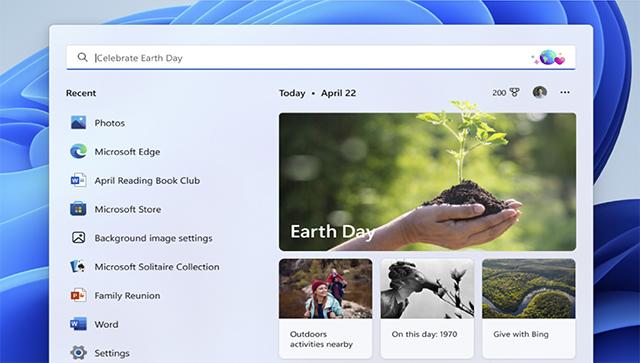
Search Highlights will present notable and interesting moments of what’s special about each day—like holidays, anniversaries, and other educational moments in time both globally and in your region. You’ll find rich, bold content in search home that highlights what’s special about today.

The search box in Start and Search will periodically update with content, including fun illustrations, that help you discover more, be connected, and stay productive. These hints in the search box give you a sneak peek into what to expect in search home.

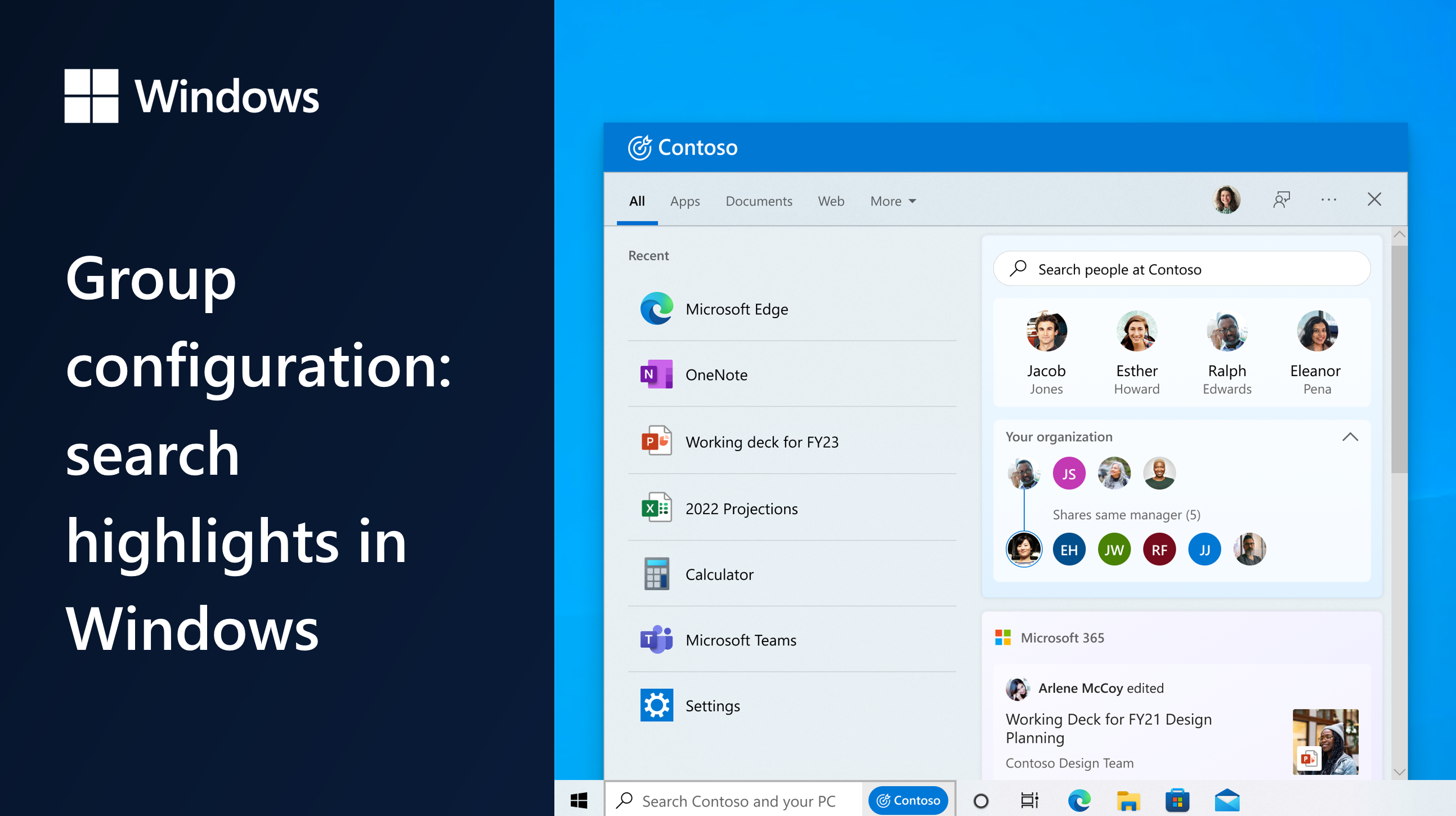
Signing in with your work or school account enables Search to be your one-stop-shop for your organization’s files and contacts through Microsoft Search. Search highlights will feature the latest updates from your organization and suggested people, files, and more. Explore files that may be of interest to you or browse through your organization’s people chart. As always, just start typing to find everything related to your organization, right at your fingertips using Search.

You have control over the search highlights experience where if you prefer not to see this, you can turn it off or back on. For organization administrators, there are additional controls available in the M365 admin center. You can learn more about those policies here: Policy CSP – Search.

References:
If you disable (remove) Copilot and Web icons in Windows Search, it will also disable Search Highlights.


Contents

  • Option One: Turn On or Off Search Highlights for Current User in Settings
  • Option Two: Turn On or Off Search Highlights for Current User using REG file
  • Option Three: Enable or Disable Search Highlights for All Users in Local Group Policy Editor
  • Option Four: Enable or Disable Search Highlights for All Users using REG file


LEFT EXAMPLE: Search Highlights on the taskbar showing an updated experience for Earth Day. Includes relevant content and illustration in the search box and content relevant to Earth Day in search home.

RIGHT EXAMPLE: Search on the taskbar showing an updated experience for an organization, Contoso. Includes relevant content and illustration in the search box and the organization’s people chart in search home.

Search-highlights-Consumer-final-cropped.jpg
Search-highlights-home.jpg


Search_Highlights_on_taskbar.webp


Option One

Turn On or Off Search Highlights for Current User in Settings


Starting with Windows 11 build 26100.4770 (24H2), Microsoft is reorganizing Windows Search settings under Settings > Privacy & security under a “Search permissions” settings page and a “Searching Windows” settings page. Microsoft is beginning to roll out a change that brings those two settings pages together so you can easily access to all the Windows Search settings under a single settings page via Settings > Privacy & security > Search. The page is refreshed with a new modern visual for you to clearly browse the settings and control your experiences inside Windows Search, with the items listed in a better order.


1 Open Settings (Win+I).

2 Click/tap on Privacy & security on the left side, and click/tap on Search on the right side. (see screenshot below)


Search_Settings.webp

3 Turn On (default) or Off Show search highlights for what you want. (see screenshots below)

Search_highlights_Settings.webp

4 You can now close Settings if you like.


Option Two

Turn On or Off Search Highlights for Current User using REG file


1 Do step 2 (on) or step 3 (off) below for what you want.

2 Turn On Search Highlights for Current User

This is the default setting.


A) Click/tap on the Download button below to download the file below, and go to step 4 below.​

Turn_ON_Search_Highlights_for_current_user.reg


(Contents of REG file for reference)
Code:
Windows Registry Editor Version 5.00

[HKEY_CURRENT_USER\Software\Microsoft\Windows\CurrentVersion\SearchSettings]
"IsDynamicSearchBoxEnabled"=dword:00000001

3 Turn Off Search Highlights for Current User

A) Click/tap on the Download button below to download the file below, and go to step 4 below.​

Turn_OFF_Search_Highlights_for_current_user.reg


(Contents of REG file for reference)
Code:
Windows Registry Editor Version 5.00

[HKEY_CURRENT_USER\Software\Microsoft\Windows\CurrentVersion\SearchSettings]
"IsDynamicSearchBoxEnabled"=dword:00000000

4 Save the .reg file to your desktop.

5 If you have Smart App Control turned on, you will need to unblock the downloaded REG file.

6 Double click/tap on the downloaded .reg file to merge it.

7 When prompted, click/tap on Run, Yes (UAC), Yes, and OK to approve the merge.

8 You can now delete the downloaded .reg file if you like.


Option Three

Enable or Disable Search Highlights for All Users in Local Group Policy Editor


You must be signed in as an administrator to use this option.

The Local Group Policy Editor is only available in the Windows 11 Pro, Enterprise, and Education editions.

All editions can use Option Four to configure the same policy.


1 Open the Local Group Policy Editor (gpedit.msc).

2 Navigate to the policy location below in the left pane of the Local Group Policy Editor. (see screenshot below)

Computer Configuration > Administrative Templates > Windows Components > Search

Search_Highlights_gpedit-1.png

3 In the right pane of Search, double click/tap on the Allow search highlights policy to edit it. (see screenshot above)

4 Do step 5 (default), step 6 (enable), or step 7 (disable) below for what you want.

5 Default User-choice Search Highlights

This is the default setting to allow using Option One and Option Two.


A) Select (dot) Not Configured, click/tap on OK, and go to step 8 below. (see screenshot below)​

Search_Highlights_gpedit-2.png

6 Always Enable Search Highlights for All Users

This will disable and prevent using Option One and Option Two.


A) Select (dot) Enabled, click/tap on OK, and go to step 8 below. (see screenshot below)​

Search_Highlights_gpedit-4.webp

7 Disable Search Highlights for All Users

This will disable and prevent using Option One and Option Two.


A) Select (dot) Disabled, click/tap on OK, and go to step 8 below. (see screenshot below)​

Search_Highlights_gpedit-3.png

8 You can now close the Local Group Policy Editor if you like.


Option Four

Enable or Disable Search Highlights for All Users using REG file


You must be signed in as an administrator to use this option.


1 Do step 2 (defaut), step 3 (always enable), or step 4 (disable) below for what you want.


 2. Default User-choice Search Highlights

This is the default setting to allow using Option One and Option Two.


A) Click/tap on the Download button below to download the file below, and go to step 5 below.​

Default_user-choice_Search_Highlights.reg


(Contents of REG file for reference)
Code:
Windows Registry Editor Version 5.00

[HKEY_LOCAL_MACHINE\SOFTWARE\Policies\Microsoft\Windows\Windows Search]
"EnableDynamicContentInWSB"=-


 3. Always Enable Search Highlights for All Users

This will disable and prevent using Option One and Option Two.


A) Click/tap on the Download button below to download the file below, and go to step 4 below.​

Always_enable_Search_Highlights_for_all_users.reg


(Contents of REG file for reference)
Code:
Windows Registry Editor Version 5.00

[HKEY_LOCAL_MACHINE\SOFTWARE\Policies\Microsoft\Windows\Windows Search]
"EnableDynamicContentInWSB"=dword:00000001


 4. Disable Search Highlights for All Users

This will disable and prevent using Option One and Option Two.


A) Click/tap on the Download button below to download the file below, and go to step 5 below.​

Disable_Search_Highlights_for_all_users.reg


(Contents of REG file for reference)
Code:
Windows Registry Editor Version 5.00

[HKEY_LOCAL_MACHINE\SOFTWARE\Policies\Microsoft\Windows\Windows Search]
"EnableDynamicContentInWSB"=dword:00000000

5 Save the REG file to your desktop.

6 If you have Smart App Control turned on, you will need to unblock the downloaded REG file.

7 Double click/tap on the downloaded REG file to merge it.

8 When prompted, click/tap on Run, Yes (UAC), Yes, and OK to approve the merge.

9 You can now delete the downloaded REG file if you like.


That's it,
Shawn Brink


Attachments

Last edited:
Microsoft has moved the furniture around again.

Search highlights.webp
 

My Computers

System One System Two

  • OS
    11 Home
    Computer type
    Laptop
    Manufacturer/Model
    Asus TUF Gaming F16 (2024)
    CPU
    i7 13650HX
    Memory
    16GB DDR5
    Graphics Card(s)
    GeForce RTX 4060 Mobile
    Sound Card
    Eastern Electric MiniMax DAC Supreme; Emotiva UMC-200; Astell & Kern AK240
    Monitor(s) Displays
    Sony Bravia XR-55X90J
    Screen Resolution
    3840×2160
    Hard Drives
    512GB SSD internal
    37TB external
    PSU
    Li-ion
    Cooling
    2× Arc Flow Fans, 4× exhaust vents, 5× heatpipes
    Keyboard
    Logitech K800
    Mouse
    Logitech G402
    Internet Speed
    30Mbit/s up, 500Mbit/s down
    Browser
    FF
    Antivirus
    What's an antivirus?
  • Operating System
    11 Home
    Computer type
    Laptop
    Manufacturer/Model
    Medion S15450
    CPU
    i5 1135G7
    Memory
    16GB DDR4
    Graphics card(s)
    Intel Iris Xe
    Sound Card
    Eastern Electric MiniMax DAC Supreme; Emotiva UMC-200; Astell & Kern AK240
    Monitor(s) Displays
    Sony Bravia XR-55X90J
    Screen Resolution
    3840×2160
    Hard Drives
    2TB SSD internal
    37TB external
    PSU
    Li-ion
    Keyboard
    Logitech K800
    Mouse
    Logitech G402
    Internet Speed
    30Mbit/s up, 500Mbit/s down
    Browser
    FF
Microsoft has moved the furniture around again.

View attachment 149935

Odd. I don't have that setting on none of my 25H2 or Insider builds systems, but still have the "Show search highlights" setting like in the tutorial. :confused:
 

My Computers

System One System Two

  • OS
    Windows 11 Pro for Workstations
    Computer type
    PC/Desktop
    Manufacturer/Model
    Custom self build
    CPU
    Intel i7-8700K 5 GHz
    Motherboard
    ASUS ROG Maximus XI Formula Z390
    Memory
    64 GB (4x16GB) G.SKILL TridentZ RGB DDR4 3600 MHz (F4-3600C18D-32GTZR)
    Graphics Card(s)
    ASUS ROG-STRIX-GTX1080TI-O11G-GAMING (11GB GDDR5X)
    Sound Card
    Integrated Digital Audio (S/PDIF)
    Monitor(s) Displays
    2 x Samsung Odyssey G75 27"
    Screen Resolution
    2560x1440
    Hard Drives
    1TB Samsung 990 PRO M.2,
    4TB Samsung 990 PRO M.2,
    TerraMaster F8 SSD Plus NAS
    PSU
    Seasonic Prime Titanium 850W
    Case
    Thermaltake Core P3 wall mounted
    Cooling
    Corsair Hydro H115i
    Keyboard
    Amazon Basics Wired Full Keyboard MD005
    Mouse
    Logitech MX Master 4
    Internet Speed
    2 Gbps Download and 100 Mbps Upload
    Browser
    Chrome and Edge
    Antivirus
    Microsoft Defender
    Other Info
    Logitech Z625 speaker system,
    Logitech BRIO 4K Pro webcam,
    HP Color LaserJet Pro MFP M477fdn,
    CyberPower CP1500PFCLCD
    Galaxy S23 Plus phone
  • Operating System
    Windows 11 Pro
    Computer type
    Laptop
    Manufacturer/Model
    Surface Laptop 7 Copilot+ PC
    CPU
    Snapdragon X Elite (12 core) 3.42 GHz
    Memory
    16 GB LPDDR5x-7467 MHz
    Monitor(s) Displays
    15" HDR
    Screen Resolution
    2496 x 1664
    Hard Drives
    1 TB SSD
    Internet Speed
    Wi-Fi 7 and Bluetooth 5.4
    Browser
    Chrome and Edge
    Antivirus
    Microsoft Defender
Microsoft has moved the furniture around again.
"Let search apps show results" is not the same as the "Show search highlights" setting.
This setting is the equivalent of this tutorial: Add or Remove Copilot and "Find results in Web" in Windows Search in Windows 11.
i.e. It is to disable bing search in the start menu.
But it is available only in EEA.

I don't have that setting on none of my 25H2 or Insider builds systems, but still have the "Show search highlights" setting
EEA related as well.
Due to the DMA act, the "Show search highlights" setting is removed and disabled for users in EEA.

This is controlled in the"C:\Windows\System32\IntegratedServicesRegionPolicySet.json" file.
"V2: First party Taskbar Gleam customization is shown." and "First party Taskbar Gleam customization is shown."

V1 seems to be the original "Search Highlights" implementation, tied to online Bing integration, and disabled in the EEA.
V2 seems to be a local approch to reenable this feature excluding cloud-based content fetching (not sure if it is already available).
 

My Computer

System One

  • OS
    .
"Let search apps show results" is not the same as the "Show search highlights" setting.
This setting is the equivalent of this tutorial: Add or Remove Copilot and "Find results in Web" in Windows Search in Windows 11.
i.e. It is to disable bing search in the start menu.
But it is available only in EEA.


EEA related as well.
Due to the DMA act, the "Show search highlights" setting is removed and disabled for users in EEA.

This is controlled in the"C:\Windows\System32\IntegratedServicesRegionPolicySet.json" file.
"V2: First party Taskbar Gleam customization is shown." and "First party Taskbar Gleam customization is shown."

V1 seems to be the original "Search Highlights" implementation, tied to online Bing integration, and disabled in the EEA.
V2 seems to be a local approch to reenable this feature excluding cloud-based content fetching (not sure if it is already available).
Microsoft did not restrict this toggle to EEA jurisdictions, though. AFAIK this toggle is visible by default for all users worldwide as of Windows 11 version 25H2 build 26200.6899. Prior to this, you had to have velocity ID 40979072 enabled to see this toggle show up. This feature was introduced in Windows 11 version 22H2 Insider Preview build 23471 (released to Windows Insiders in the Dev Channel on 1 June, 2023).

This toggle controls the following registry setting:

reg add HKCU\Software\Microsoft\Windows\CurrentVersion\SearchSettings /v IsSearchAppResultsAllowed /t REG_DWORD /d 0 /f
  • 0 = Disabled
  • 1 = Enabled (apps can show results)
  • Absence = Default behavior (depends on build and policy)
 

My Computers

System One System Two

  • OS
    11 Home
    Computer type
    Laptop
    Manufacturer/Model
    Asus TUF Gaming F16 (2024)
    CPU
    i7 13650HX
    Memory
    16GB DDR5
    Graphics Card(s)
    GeForce RTX 4060 Mobile
    Sound Card
    Eastern Electric MiniMax DAC Supreme; Emotiva UMC-200; Astell & Kern AK240
    Monitor(s) Displays
    Sony Bravia XR-55X90J
    Screen Resolution
    3840×2160
    Hard Drives
    512GB SSD internal
    37TB external
    PSU
    Li-ion
    Cooling
    2× Arc Flow Fans, 4× exhaust vents, 5× heatpipes
    Keyboard
    Logitech K800
    Mouse
    Logitech G402
    Internet Speed
    30Mbit/s up, 500Mbit/s down
    Browser
    FF
    Antivirus
    What's an antivirus?
  • Operating System
    11 Home
    Computer type
    Laptop
    Manufacturer/Model
    Medion S15450
    CPU
    i5 1135G7
    Memory
    16GB DDR4
    Graphics card(s)
    Intel Iris Xe
    Sound Card
    Eastern Electric MiniMax DAC Supreme; Emotiva UMC-200; Astell & Kern AK240
    Monitor(s) Displays
    Sony Bravia XR-55X90J
    Screen Resolution
    3840×2160
    Hard Drives
    2TB SSD internal
    37TB external
    PSU
    Li-ion
    Keyboard
    Logitech K800
    Mouse
    Logitech G402
    Internet Speed
    30Mbit/s up, 500Mbit/s down
    Browser
    FF
its EU. ive added that dword on a test machine and it does nothing. even Microsoft own copilot will tell you EU

1761084967579.webp


tried adding IsSearchAppResultsAllowed and IsEURegion to registry. no go.

changed the region via oobe to ireland (no data is lost doing so, for whomever wants to do that to unlock all EEA features that are locked on US) and it showed up as expected...

1761084971223.webp
 

My Computer

System One

  • OS
    Windows 11 Pro
I tried to enable Vivetool workarounds for the new Copilot enabled Windows search, no joy. Microsoft hasn't brought it out. Those interested can install all the following Vivetool ids and reboot:

vivetool /enable /id:45658302
vivetool /enable /id:44774629
vivetool /enable /id:45549771
vivetool /enable /id:45584836

They will make Windows ready once Microsoft rolls it out.
 

My Computers

System One System Two

  • OS
    Windows 11 Education For 25H2
    Computer type
    Laptop
    Manufacturer/Model
    HP ZBook G2
    CPU
    Intel® Core i7 5500u
    Motherboard
    HP
    Memory
    8 GB
    Graphics Card(s)
    Intel HD Family Graphics 5500 AMD Firepro 4150M
    Sound Card
    Realtek High Audio
    Hard Drives
    1 TB SSD
    Mouse
    HP USB Mouse
    Antivirus
    Windows Defender
  • Operating System
    Windows 11 Pro For Workstations 25H2
    Computer type
    Laptop
    Manufacturer/Model
    HP Zbook G4
    CPU
    Xeon 1535m v6
    Motherboard
    HP
    Memory
    32 GB
    Graphics card(s)
    AMD Quadro Pro 4100
    Sound Card
    Bang and Olufson Audio
    Hard Drives
    1TB SSD
    Mouse
    HP USB Mouse
    Antivirus
    Windows Defender
@dacrone thanks you for testing.

For reference:
Microsoft said:
Windows Search
In the EEA, apps can provide web search results in Windows Search.

The setting is not only to disable Bing Search in the Start menu, but also to have other search provider.

This toggle controls the following registry setting:

reg add HKCU\Software\Microsoft\Windows\CurrentVersion\SearchSettings /v IsSearchAppResultsAllowed /t REG_DWORD /d 0 /f

On my system, the seting "Let search apps show results" controls: IsGlobalWebSearchProviderToggleEnabled,notIsSearchAppResultsAllowed.
IsSearchAppResultsAllowed does nothing at all.
 

My Computer

System One

  • OS
    .
Any Way to Enable Search Highlights with icon in windows 11 enterprise ltsc?
 

My Computer

System One

  • OS
    Windows 11
    Computer type
    Laptop
    Manufacturer/Model
    Asus
    CPU
    11th Gen Intel(R) Core(TM) i7-1165G7 @ 2.80GHz 2.80 G
    Motherboard
    UX363EA
    Memory
    16
    Graphics Card(s)
    Intel® Iris® Xe
    Sound Card
    DTS

Latest Support Threads

Back
Top Bottom