This tutorial will show you how to turn on or off showing the Recommended section instead of Quick access in File Explorer Home for your account in Windows 11.
Home in the navigation pane of File Explorer allows you to quickly access and view your pinned locations, frequent folders, and recent files from one location in the sections below:
- Quick access = Displays up to 13 folders that you pinned or frequently opened on the system.
- Favorites = Pinned files.
- Recent (Recent files) = Displays up to 25 files that you most recently opened.
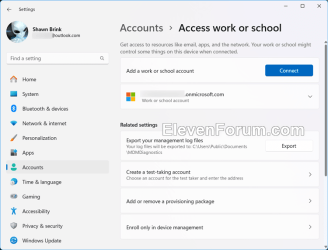
Starting with build 26100.5074 (24H2), when you're signed in with a work or school account (Entra ID), File Explorer will display people icons in the Activity column and the Recommended section at the top of File Explorer Home. Hover over or select a person's icon to open their Microsoft 365 Live Persona Card, which shows who they are and how they're connected to the file.
Starting with Windows 11 build 26100.9278 (24H2), build 26200.9278 (25H2), and build 2800.3086 (26H1), the Recommended section on Home now supports touch scrolling, making it easier to browse files in the carousel.
When you turn on Show recommended section in File Explorer > Home, it will replace the Quick access section.
Contents
- Option One: Turn On or Off Show Recommended Section in File Explorer Home in Folder Options
- Option Two: Turn On or Off Show Recommended Section in File Explorer Home using REG file
EXAMPLE: Show Recommended section in File Explorer Home turned on and off
1 Open Folder Options.
2 Do step 3 (on) or step 4 (off) below for what you want.
3 Turn On Show Recommended Section in File Explorer Home
This is the default setting.
A) In the General tab, check Include account-based insights, recent, favorite, and recommended files under "Privacy". (see screenshot below)
B) Check Show recommended section under "Privacy".
C) Click/tap on OK.
4 Turn Off Show Recommended Section in File Explorer Home
A) In the General tab, uncheck Show recommended section under "Privacy".
B) Click/tap on OK.
1 Do step 2 (on) or step 3 (off) below for what you want.
2. Turn On Show Recommended Section in File Explorer Home
This is the default setting.
A) Click/tap on the Download button below to download the file below, and go to step 4 below.
Turn_ON_show_Recommanded_section_in_File_Explorer_Home.reg
Download
(Contents of REG file for reference)
Code:
Windows Registry Editor Version 5.00

[HKEY_CURRENT_USER\Software\Microsoft\Windows\CurrentVersion\Explorer]
"ShowCloudFilesInQuickAccess"=dword:00000001
"ShowRecommendations"=dword:00000001
3. Turn Off Show Recommended Section in File Explorer Home
A) Click/tap on the Download button below to download the file below, and go to step 4 below.
Turn_OFF_show_Recommanded_section_in_File_Explorer_Home.reg
Download
(Contents of REG file for reference)
Code:
Windows Registry Editor Version 5.00

[HKEY_CURRENT_USER\Software\Microsoft\Windows\CurrentVersion\Explorer]
"ShowRecommendations"=dword:00000000
4 Save the .reg file to your desktop.
5 If you have Smart App Control turned on, you will need to unblock the downloaded REG file.
6 Double click/tap on the downloaded .reg file to merge it.
7 When prompted, click/tap on Run, Yes (UAC), Yes, and OK to approve the merge.
8 If File Explorer is currently open, then either refresh (F5) or close and reopen File Explorer to apply.
9 You can now delete the downloaded .reg file if you like.
That's it,
Shawn Brink
Related Tutorials
- Add or Remove Home in Navigation Pane of File Explorer in Windows 11
- Add or Remove Quick Access in File Explorer Home in Windows 11
- Add and Remove Favorites in File Explorer Home in Windows 11
- Add or Remove Recent Files in File Explorer Home in Windows 11
- Enable or Disable Show Files from Office.com in File Explorer Home in Windows 11
Attachments
Last edited: