Personalization Enable or Disable Show Shadows under Windows in Windows 11

  • Thread starter Thread starter Brink
  • Start date Published: Start date Updated Updated:

Open_folder_banner.png

This tutorial will show you how to enable or disable showing shadows under windows for your account in Windows 10 and Windows 11.

Windows 11 will show shadows under windows by default.

The shadow visual effect is only for aesthetic purposes, so you can disable showing shadows under windows if wanted.


The "Show shadows under windows" setting is saved to the UserPreferencesMask REG_BINARY value in the key below in Registry Editor.

HKEY_CURRENT_USER\Control Panel\Desktop


EXAMPLE: Enable or disable "Show shadows under windows"

enable_show_shadows_under_windows.png
disable_show_shadows_under_windows.png


Here's How:

1 Open Visual Effects Performance Options (SystemPropertiesPerformance.exe).

2 Check (enable - default) or uncheck (disable) Show shadows under windows for what you want. (see screenshot below)

3 Click/tap on OK.

Show_shadows_under_windows.png


That's it,
Shawn Brink


Last edited:
I am using a theme because it displays the accent colour in File Explorer title bar. However, when using a theme or customizing a theme, the desktop top icon titles have a dropshadow. I unchecked the dropshadow option in performance but they still show.

If I don't use a theme, instead choose a solid background and accent colour, the the File Explorer title bar accent colour remains grey (however, will randomly display the chosen accent colour, different days/times and surprise!) and there are no desktop icon dropshadow.
 

My Computer My Computer

At a glance

Win11 22623.89111th Gen Intel R Core TM i7 - 1165G7 @ 2.80GHz16gbIntel R Iris R Xe Graphics
OS
Win11 22623.891
Computer type
Laptop
Manufacturer/Model
HP
CPU
11th Gen Intel R Core TM i7 - 1165G7 @ 2.80GHz
Memory
16gb
Graphics Card(s)
Intel R Iris R Xe Graphics
Sound Card
Realtek R Audio, Intel Smart Sound
Hard Drives
C
Browser
Google
Antivirus
Windows Security/Microsoft Defender
Other Info
Downloaded MSEdgeRedirect
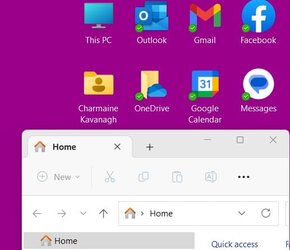
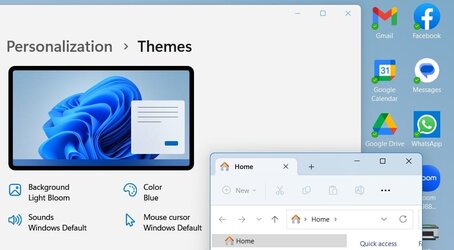
1. I choose a Theme (blue one that comes with WIN11), unchecked dropshadow option. After Restart the result is the automatic accent colour on the File Explorer title bar and no dropshadows on the desktop icon titles -THIS IS GREAT but not the colours I want
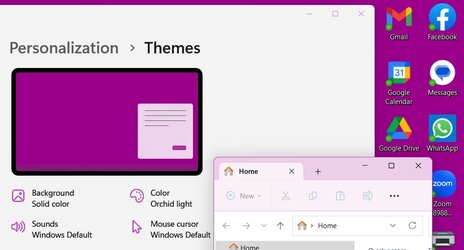
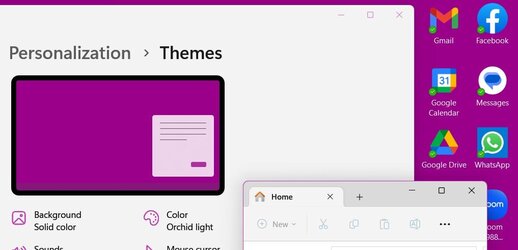
2. I customized that same Theme to a solid background and manual accent colour, seems successful. Accent colour and no dropshadows.
BUT AFTER RESTART
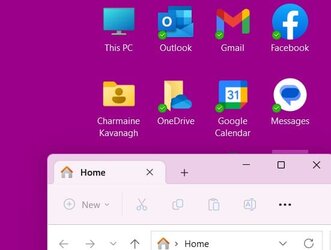
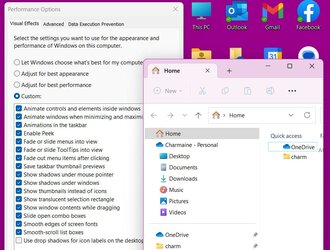
3. Same saved customized Theme, unchecked dropshadow option. After Restart no accent colour on file explorer title bar and dropshadows on desktop icon titles
4. A couple of hours after setting the customized theme, I clicked File Explorer folder and surprise, the title bar is the accent colour! (the same thing happens with the accent colour when I don t use a theme where it randomly appears some days at different times)
5. I restarted and the title bar is back to grey using the customized them from step 1.

Since I want the accent colour on the File Explorer title bar and no dropshadows I have to choose a preset Theme, it does not work if I customize a Theme. I don't like any of the Themes!
 

Attachments

  • 7. Accent colour back to grey after shutdown.jpg
    7. Accent colour back to grey after shutdown.jpg
    22 KB · Views: 208
  • 4. Theme saved.jpg
    4. Theme saved.jpg
    20.5 KB · Views: 204
  • 3. Dropshadow unchecked.jpg
    3. Dropshadow unchecked.jpg
    80.4 KB · Views: 235
  • 6. Accent colour apears a couple hours after restart but back to grey after shutdown (1).jpg
    6. Accent colour apears a couple hours after restart but back to grey after shutdown (1).jpg
    20.5 KB · Views: 215
  • 2. Custom from existing Theme.jpg
    2. Custom from existing Theme.jpg
    43 KB · Views: 168
  • 1. Selecting a Theme_title bar accent colour, no dropshadows.jpg
    1. Selecting a Theme_title bar accent colour, no dropshadows.jpg
    48.7 KB · Views: 232
  • 5. Restart after customizing Theme_No title bar accent colour, no dropshadows.jpg
    5. Restart after customizing Theme_No title bar accent colour, no dropshadows.jpg
    35.4 KB · Views: 236

My Computer My Computer

At a glance

Win11 22623.89111th Gen Intel R Core TM i7 - 1165G7 @ 2.80GHz16gbIntel R Iris R Xe Graphics
OS
Win11 22623.891
Computer type
Laptop
Manufacturer/Model
HP
CPU
11th Gen Intel R Core TM i7 - 1165G7 @ 2.80GHz
Memory
16gb
Graphics Card(s)
Intel R Iris R Xe Graphics
Sound Card
Realtek R Audio, Intel Smart Sound
Hard Drives
C
Browser
Google
Antivirus
Windows Security/Microsoft Defender
Other Info
Downloaded MSEdgeRedirect
1. I choose a Theme (blue one that comes with WIN11), unchecked dropshadow option. After Restart the result is the automatic accent colour on the File Explorer title bar and no dropshadows on the desktop icon titles -THIS IS GREAT but not the colours I want
2. I customized that same Theme to a solid background and manual accent colour, seems successful. Accent colour and no dropshadows.
BUT AFTER RESTART
3. Same saved customized Theme, unchecked dropshadow option. After Restart no accent colour on file explorer title bar and dropshadows on desktop icon titles
4. A couple of hours after setting the customized theme, I clicked File Explorer folder and surprise, the title bar is the accent colour! (the same thing happens with the accent colour when I don t use a theme where it randomly appears some days at different times)
5. I restarted and the title bar is back to grey using the customized them from step 1.

Since I want the accent colour on the File Explorer title bar and no dropshadows I have to choose a preset Theme, it does not work if I customize a Theme. I don't like any of the Themes!
UPDATE: I will just select SLEEP instead of SHUTDOWN each night. Atleast then my custom settings saved in order to have an accent color on the File Explorer title bar and no dropshadows on desktop icon are displaying correctly without reconfiguring each morning. I am certain it is a profile issue as my changes are not saving and revert back once I shutdown or restart. I even tried changing the accent color under regedit but no resolve.
 

My Computer My Computer

At a glance

Win11 22623.89111th Gen Intel R Core TM i7 - 1165G7 @ 2.80GHz16gbIntel R Iris R Xe Graphics
OS
Win11 22623.891
Computer type
Laptop
Manufacturer/Model
HP
CPU
11th Gen Intel R Core TM i7 - 1165G7 @ 2.80GHz
Memory
16gb
Graphics Card(s)
Intel R Iris R Xe Graphics
Sound Card
Realtek R Audio, Intel Smart Sound
Hard Drives
C
Browser
Google
Antivirus
Windows Security/Microsoft Defender
Other Info
Downloaded MSEdgeRedirect
Not sure if this is related to the topic, because I do not know the names of the effects. Often when I snap windows around the shadows stick and will show on the other virtual desktops, and staying on top of other windows. See the screenshot.

I have tried SystemPropertiesPerformance.exe and unchecked all, and also "Accessibility > Visual effects" and unchecked "Transparency effect" and "Animation effects", separately, but to no avail.
 

Attachments

  • Stuck shadow.png
    Stuck shadow.png
    248.9 KB · Views: 181

My Computer My Computer

At a glance

Windows 11AMD Ryzen 9 5900HX32 GBNVIDIA GeForce RTX 3080
OS
Windows 11
Computer type
Laptop
Manufacturer/Model
ASUS ROG Strix
CPU
AMD Ryzen 9 5900HX
Memory
32 GB
Graphics Card(s)
NVIDIA GeForce RTX 3080
Maybe the option for shadows under windows used to be in Accessibility -> Visual Effects. On my system, this option is simply not there.

Visual Effects.png


Strike one.

I went to the registry key you mention above & found this:

Registry Key.png


If I knew which value to change to affect drop down shadows, I surely would have changed it.

Strike two.

Fortunately, executing SystemPropertiesPerformance did bring up the Performance Options dialog in which I unchecked both the Show shadows under windows option & the Use drop down shadows for icon labels on the desktop checkboxes. I started with the radio button at the top on Let Windows choose what's best for my computer. I did not move the radio button. The action of changing any of the checkboxes apparently automatically moves the radio button to Custom.

No strike 3. You're not out.

The symptom that I was trying to cure was this. I have 2 monitors. On my desk I have a regular old computer monitor. On the opposite side of the room I have my TV. I have defined my TV as my second monitor. I have them oriented so that the monitor on my desk is "on the left" & the TV is "on the right." I was seeing a faint black shadow along the left edge of the TV. After much hunting around, I determined that this shadow was bleeding over from the multiple windows of a particular application on my desk. But dragging the right edges of those windows slightly away from the right edge of the display didn't make the shadow disappear. If I minimized all the offending windows, the shadow went away. But as I brought the windows back into visibility one by one on my desk, the shadow gradually came back on my TV & got slightly worse as I redisplayed each window. It seemed like each successive shadow being cast cascaded out beyond its predecessor. Unchecking the Show shadows under windows box in the oh-so-hard-to-find Performance Options dialog was probably enough. But I unchecked the 2 boxes at the same time so I can't say anything more than "probably."

When we're talking about something so basically simple as a system property, it is a bug if you have to resort to either a registry change or manually executing some system program. Apparently, this particular bug was introduced by some recent maintenance, according to what I found by web searches outside this forum. It would be nice if this bug got fixed in some new maintenance. But for me, that fix will be moot because I've already removed the shadows bleeding over from one monitor to the other & for me this case is closed.

 

My Computer My Computer

At a glance

Windows 11 Pro 64-bit 25H2Intel Core i9-13900K4x32G Teamgroup TForce Vulcan DDR5 6000 DIMMsMSI/NVidia GeForce RTX 4070 Gaming X Trio 12G...
OS
Windows 11 Pro 64-bit 25H2
Computer type
PC/Desktop
Manufacturer/Model
Self build
CPU
Intel Core i9-13900K
Motherboard
ASUS Z790-Plus WiFi TUF Gaming
Memory
4x32G Teamgroup TForce Vulcan DDR5 6000 DIMMs
Graphics Card(s)
MSI/NVidia GeForce RTX 4070 Gaming X Trio 12G GDDR6X + built into motherboard Intel UHD Graphics
Sound Card
Built into graphics card + built into motherboard Realtek Audio
Monitor(s) Displays
Two connected to the NVidia adapter - Primary: Dell SE2417HGX 23" diagonal connected via HDMI-to-DisplayPort dongle, Secondary: Toshiba TV 32" diagonal connected via HDMI through Onkyo TX-NR717 surround receiver. Third: Viewsonic VS19151 32" diagonal connected wirelessly via WiFi/Miracast & j5create JVAW56 dongle.
Screen Resolution
1920x1080 on all 3 monitors
Hard Drives
Samsung 970 EVO Plus NVMe M.2 2T
6xSATA-to-USB 3.0 Fideco external enclosures holding SATA drives of various brands & sizes 1x20T, 2x18T, 2x6T, 1x500G, all connected to a multi-port USB hub
For backups: USB 3.0 HDDs of various brands & sizes 3x20T, 1x1T + SSDs of various brands & sizes 2x480G, 1x1T, all connected to another multi-port USB hub, powered on only while actually performing backups & (may it never happen) restores
PSU
MSI MPG A1000G PCIe5 1000W, TrippLite Smart1500TSU 1200W UPS for the main system, TrippLite ECO850LCD 850W UPS for the DASD & my Internet connectivity boxes (no reason to throw out legacy equipment that stil works fine)
Case
Fractal North
Cooling
DeepCool AK620 CPU cooler (air, 2 fans), 2 case fans, 1 fan in PSU, 3 fans in graphics adapter; 4xpersonal cooling fans strategically placed to cool the external HDDs
Keyboard
Cherry MX 11900 USB (wired)
Mouse
Touchpad built into the keyboard
Internet Speed
500Mbps via Spectrum cable TV/cell phone bundle
Browser
Firefox
Antivirus
Built into Windows 11
Other Info
The ethernet adapter integrated into the motherboard died. I am now using a TPLink TX201 ethernet adapter in a PCIe expansion slot for Internet connectivity.
Totally off-topic but something I discovered creating the 2 images I inserted in my post above. To get the screenshot of the Settings, I just hit my PrintScreen key & pasted the image into the application I use for images (not Paint). When I had the Performance Options displayed, PrintScreen did nothing. Win+Shift+s did work, however. Except I used my image app to grab that image. Only after the fact did I go looking for an answer & discovered the Win+Shift+s keyboard shortcut. This is good to know. PrintScreen doesn't always activate Snippy. But then, there's the keyboard shortcut for such situations. Now the questions is, why didn't PrintScreen work? Very strange . . .

And since I mentioned it, my alternative to Paint is Fast Stone Image Viewer. I don't want be mysterious about such things.
 

My Computer My Computer

At a glance

Windows 11 Pro 64-bit 25H2Intel Core i9-13900K4x32G Teamgroup TForce Vulcan DDR5 6000 DIMMsMSI/NVidia GeForce RTX 4070 Gaming X Trio 12G...
OS
Windows 11 Pro 64-bit 25H2
Computer type
PC/Desktop
Manufacturer/Model
Self build
CPU
Intel Core i9-13900K
Motherboard
ASUS Z790-Plus WiFi TUF Gaming
Memory
4x32G Teamgroup TForce Vulcan DDR5 6000 DIMMs
Graphics Card(s)
MSI/NVidia GeForce RTX 4070 Gaming X Trio 12G GDDR6X + built into motherboard Intel UHD Graphics
Sound Card
Built into graphics card + built into motherboard Realtek Audio
Monitor(s) Displays
Two connected to the NVidia adapter - Primary: Dell SE2417HGX 23" diagonal connected via HDMI-to-DisplayPort dongle, Secondary: Toshiba TV 32" diagonal connected via HDMI through Onkyo TX-NR717 surround receiver. Third: Viewsonic VS19151 32" diagonal connected wirelessly via WiFi/Miracast & j5create JVAW56 dongle.
Screen Resolution
1920x1080 on all 3 monitors
Hard Drives
Samsung 970 EVO Plus NVMe M.2 2T
6xSATA-to-USB 3.0 Fideco external enclosures holding SATA drives of various brands & sizes 1x20T, 2x18T, 2x6T, 1x500G, all connected to a multi-port USB hub
For backups: USB 3.0 HDDs of various brands & sizes 3x20T, 1x1T + SSDs of various brands & sizes 2x480G, 1x1T, all connected to another multi-port USB hub, powered on only while actually performing backups & (may it never happen) restores
PSU
MSI MPG A1000G PCIe5 1000W, TrippLite Smart1500TSU 1200W UPS for the main system, TrippLite ECO850LCD 850W UPS for the DASD & my Internet connectivity boxes (no reason to throw out legacy equipment that stil works fine)
Case
Fractal North
Cooling
DeepCool AK620 CPU cooler (air, 2 fans), 2 case fans, 1 fan in PSU, 3 fans in graphics adapter; 4xpersonal cooling fans strategically placed to cool the external HDDs
Keyboard
Cherry MX 11900 USB (wired)
Mouse
Touchpad built into the keyboard
Internet Speed
500Mbps via Spectrum cable TV/cell phone bundle
Browser
Firefox
Antivirus
Built into Windows 11
Other Info
The ethernet adapter integrated into the motherboard died. I am now using a TPLink TX201 ethernet adapter in a PCIe expansion slot for Internet connectivity.
Maybe the option for shadows under windows used to be in Accessibility -> Visual Effects. On my system, this option is simply not there.
The option you have to switch off to get no shadows on the text of the dekstop icons is: Animation effects.
Besides that, the change that @Brink is pointing to in his startpost is neccesary as well!
Anyway, that's how I did it.
There is no separate option in the Accessibility menu to switch off shadows.
 

My Computer My Computer

At a glance

Windows 11 Pro 25H2AMD Ryzen 7 5700GKingston FURY Beast 2x16GB DIMM DDR4 2666 CL16MSI GeForce GT 730 2GB LP V1
OS
Windows 11 Pro 25H2
Computer type
PC/Desktop
Manufacturer/Model
Build by vendor to my specs
CPU
AMD Ryzen 7 5700G
Motherboard
MSI PRO B550M-P Gen3
Memory
Kingston FURY Beast 2x16GB DIMM DDR4 2666 CL16
Graphics Card(s)
MSI GeForce GT 730 2GB LP V1
Sound Card
Creative Sound Blaster Audigy FX
Monitor(s) Displays
Samsung S24E450F 24"
Screen Resolution
1920 x 1080
Hard Drives
1. SSD Crucial P5 Plus 500GB PCIe M.2
2. SSD-SATA Crucial MX500-2TB
PSU
Corsair CV650W
Case
Cooler Master Silencio S400
Cooling
Cooler Master Hyper H412R with Be Quiet Pure Wings 2 PWM BL038 fan
Keyboard
Cherry Stream (wired, scissor keys)
Mouse
Asus WT465 (wireless)
Internet Speed
70 Mbps down / 80 Mbps up
Browser
Firefox 130.0
Antivirus
F-Secure (Internetprovider version)
Other Info
Router: FRITZBox 7490
Oracle VirtualBox 7 for testing software on Win 10 or 11
Interesting. I have left Animation effects on. I have only unchecked the box in the Performance Options dialog. That one action by itself was enough to turn off the window shadows for me. I'm not too fussed about the icon text shadows. I have nothing on my Desktop except for Recycle Bin (which I have disabled, going all the way back to W3.1) My Desktop is pretty much permanently obscured by what I have open. I operate with Win, Win+x, Win+<a digit>, Win+t, Alt+Tab. About the only time I go to my Desktop is after some application's installer has rudely not offered me the option to not put their shortcut on the Desktop. So I go delete it. Then I resume ignoring the Desktop. If icon text has shadows, I don't see them. I unchecked that second box because it seemed like the consistent thing to do.
 

My Computer My Computer

At a glance

Windows 11 Pro 64-bit 25H2Intel Core i9-13900K4x32G Teamgroup TForce Vulcan DDR5 6000 DIMMsMSI/NVidia GeForce RTX 4070 Gaming X Trio 12G...
OS
Windows 11 Pro 64-bit 25H2
Computer type
PC/Desktop
Manufacturer/Model
Self build
CPU
Intel Core i9-13900K
Motherboard
ASUS Z790-Plus WiFi TUF Gaming
Memory
4x32G Teamgroup TForce Vulcan DDR5 6000 DIMMs
Graphics Card(s)
MSI/NVidia GeForce RTX 4070 Gaming X Trio 12G GDDR6X + built into motherboard Intel UHD Graphics
Sound Card
Built into graphics card + built into motherboard Realtek Audio
Monitor(s) Displays
Two connected to the NVidia adapter - Primary: Dell SE2417HGX 23" diagonal connected via HDMI-to-DisplayPort dongle, Secondary: Toshiba TV 32" diagonal connected via HDMI through Onkyo TX-NR717 surround receiver. Third: Viewsonic VS19151 32" diagonal connected wirelessly via WiFi/Miracast & j5create JVAW56 dongle.
Screen Resolution
1920x1080 on all 3 monitors
Hard Drives
Samsung 970 EVO Plus NVMe M.2 2T
6xSATA-to-USB 3.0 Fideco external enclosures holding SATA drives of various brands & sizes 1x20T, 2x18T, 2x6T, 1x500G, all connected to a multi-port USB hub
For backups: USB 3.0 HDDs of various brands & sizes 3x20T, 1x1T + SSDs of various brands & sizes 2x480G, 1x1T, all connected to another multi-port USB hub, powered on only while actually performing backups & (may it never happen) restores
PSU
MSI MPG A1000G PCIe5 1000W, TrippLite Smart1500TSU 1200W UPS for the main system, TrippLite ECO850LCD 850W UPS for the DASD & my Internet connectivity boxes (no reason to throw out legacy equipment that stil works fine)
Case
Fractal North
Cooling
DeepCool AK620 CPU cooler (air, 2 fans), 2 case fans, 1 fan in PSU, 3 fans in graphics adapter; 4xpersonal cooling fans strategically placed to cool the external HDDs
Keyboard
Cherry MX 11900 USB (wired)
Mouse
Touchpad built into the keyboard
Internet Speed
500Mbps via Spectrum cable TV/cell phone bundle
Browser
Firefox
Antivirus
Built into Windows 11
Other Info
The ethernet adapter integrated into the motherboard died. I am now using a TPLink TX201 ethernet adapter in a PCIe expansion slot for Internet connectivity.
I do see now, that this topic is as a matter of fact about shadows under around the windows, not about dropshadows on the icon text on the desktop. Reason I was wrong, was that @CharmaineK bended the topic into that direction.

Anyway: as far as I know in Windows11 there is no option in the Accessibility settings with what you can turn on or off shadows around windows.
 

My Computer My Computer

At a glance

Windows 11 Pro 25H2AMD Ryzen 7 5700GKingston FURY Beast 2x16GB DIMM DDR4 2666 CL16MSI GeForce GT 730 2GB LP V1
OS
Windows 11 Pro 25H2
Computer type
PC/Desktop
Manufacturer/Model
Build by vendor to my specs
CPU
AMD Ryzen 7 5700G
Motherboard
MSI PRO B550M-P Gen3
Memory
Kingston FURY Beast 2x16GB DIMM DDR4 2666 CL16
Graphics Card(s)
MSI GeForce GT 730 2GB LP V1
Sound Card
Creative Sound Blaster Audigy FX
Monitor(s) Displays
Samsung S24E450F 24"
Screen Resolution
1920 x 1080
Hard Drives
1. SSD Crucial P5 Plus 500GB PCIe M.2
2. SSD-SATA Crucial MX500-2TB
PSU
Corsair CV650W
Case
Cooler Master Silencio S400
Cooling
Cooler Master Hyper H412R with Be Quiet Pure Wings 2 PWM BL038 fan
Keyboard
Cherry Stream (wired, scissor keys)
Mouse
Asus WT465 (wireless)
Internet Speed
70 Mbps down / 80 Mbps up
Browser
Firefox 130.0
Antivirus
F-Secure (Internetprovider version)
Other Info
Router: FRITZBox 7490
Oracle VirtualBox 7 for testing software on Win 10 or 11

Latest Support Threads

Back
Top Bottom