This tutorial will show you how to turn on or off Xbox app Compact Mode for your account in Windows 10 and Windows 11.
The Xbox app for Windows is where you can go to play and manage PC gaming content on your Windows device. Whether you’re an Xbox Game Pass member, or you’ve bought titles from the Microsoft Store, your games await in the app.
Compact Mode is a feature available via the Xbox app on PC that enhances your gaming experience by providing a more intuitive user interface on smaller screens, including Windows handhelds.
Reference:
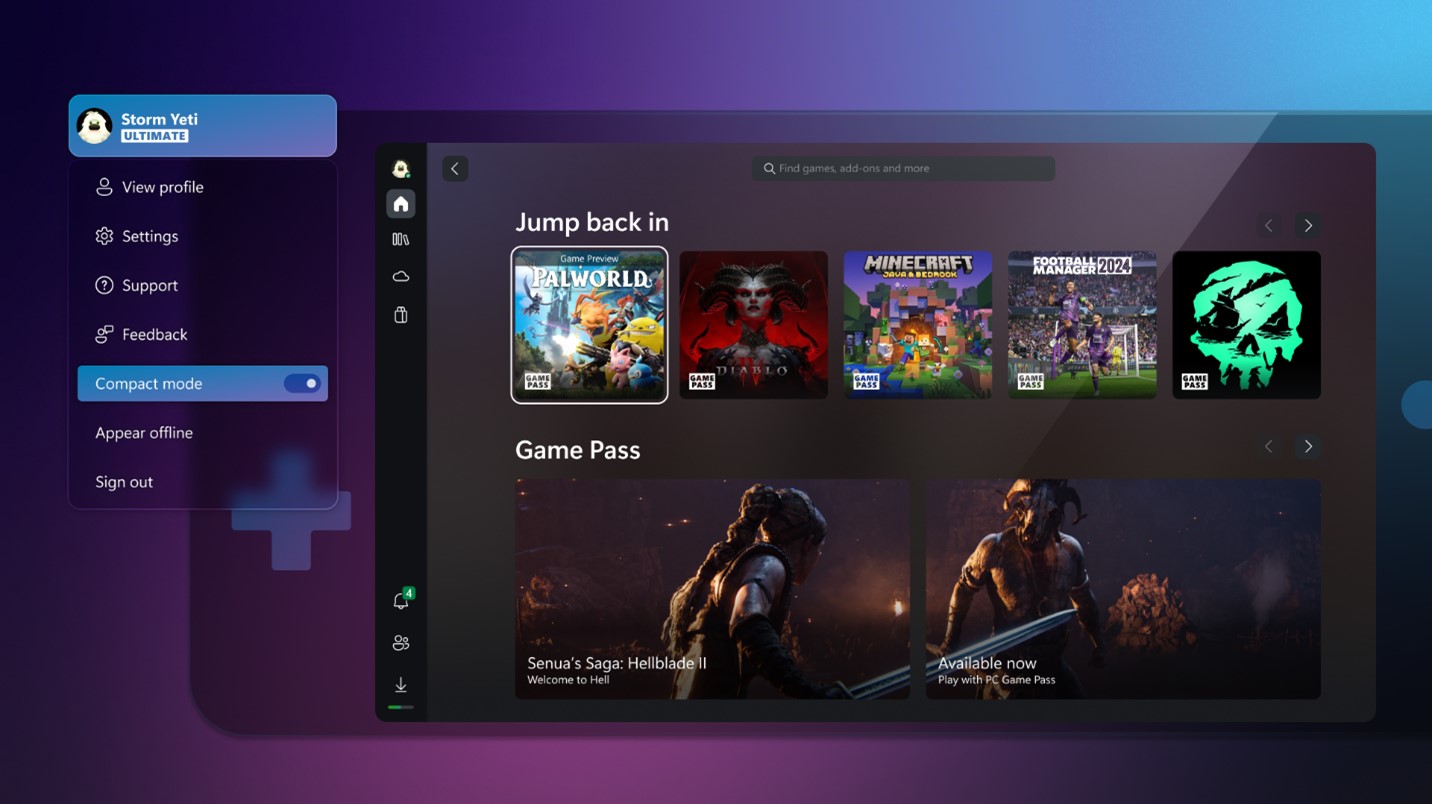
Compact Mode Continues Evolving in the Xbox App on PC
In November, we introduced Compact Mode, a feature available via the Xbox app on PC that enhances your gaming experience...
 news.xbox.com
EXAMPLE: Xbox app Compact Mode on and off
Here's How:
1 Open the Xbox app.
2 Click/tap on the user Profile button, and click/tap on Settings. (see screenshot below)
3 Click/tap on App in the left pane of Settings. (see screenshot below step 4)
4 Under General settings, turn on or off (default) Compact mode for what you want. (see screenshot below)
5 You can now close Settings if you like.
That's it,
Shawn Brink
Last edited: