Solved Error code 0xc0000225 cannot boot after delete EFI System Partition on secondary drive


imeem

Well-known member
Member
Local time
7:50 AM
Posts
34
OS
11, (10 as a test secondary)
I noticed on one of my non-OS HDD, there was a EFI system partition, so I deleted it by following this: https://www.tomshardware.com/how-to/delete-efi-system-partition-windows .

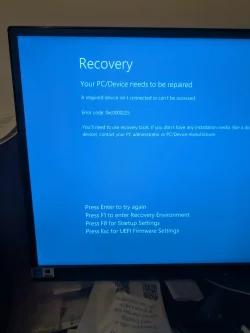
Now my windows 11 won't boot and gives Error code 0xc0000225 (I'm guessing when I initially installed the OS, I didn't unplug all the other HDDs, which is causing headaches for me right now).

I tried the /fixboot command but says Access Denied so I continued following this video:
.

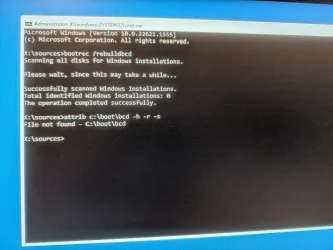
Looka like something went wrong and I still couldn't boot, so I went to step 7 in this link: Revive Your PC with a Quick Command: Master the BCD Fix .

I typed " attrib c:\boot\bcd -h -r -s " , but I got File Not found.


What am I doing wrong? And can anyone help?
 

Attachments
  • PXL_20260102_035920580.webp
    PXL_20260102_035920580.webp
    984.2 KB · Views: 2
  • PXL_20260102_042536490.webp
    PXL_20260102_042536490.webp
    1.6 MB · Views: 2

My Computer My Computer

At a glance

11, (10 as a test secondary)AMD Ryzen 9 7950X3DKingston FURY Beast 32 GB (2 x 16 GB) DDR5-56...RTX 5080
OS
11, (10 as a test secondary)
Computer type
PC/Desktop
CPU
AMD Ryzen 9 7950X3D
Motherboard
MSI MPG X670E CARBON WIFI
Memory
Kingston FURY Beast 32 GB (2 x 16 GB) DDR5-5600 CL36
Graphics Card(s)
RTX 5080
Hard Drives
C drive: Samsung SSD 870 EVO 4TB (win 11)
C Drive: Hitachi HTS545032B9A300 (win 10)
-WD WD1002FAEX 1tb
-Seagate ST3160812AS 160 gb
PSU
SeaSonic PRIME 1300 Gold 1300 W 80+ Gold
Case
Phanteks Enthoo Pro Tempered Glass ATX Full Tower Case
Cooling
Noctua NH-D15S
If you deleted the EFI partition, then you need to recreate to be able to boot Windows 11.

In this video, i will show you how to create EFI partition from within Windows Recovery Environment.


My Computer My Computer

At a glance

Windows 11AMD Ryzen 7 5700GMicron Technology DDR4-3200 16GBNVIDIA GeForce RTX 3060
OS
Windows 11
Computer type
PC/Desktop
Manufacturer/Model
HP Pavilion
CPU
AMD Ryzen 7 5700G
Motherboard
Erica6
Memory
Micron Technology DDR4-3200 16GB
Graphics Card(s)
NVIDIA GeForce RTX 3060
Sound Card
Realtek ALC671
Monitor(s) Displays
Samsung SyncMaster U28E590
Screen Resolution
3840 x 2160
Hard Drives
SAMSUNG MZVLQ1T0HALB-000H1
If you deleted the EFI partition, then you need to recreate to be able to boot Windows 11.

In this video, i will show you how to create EFI partition from within Windows Recovery Environment.

Thank you. I will watch the video. When I turn on the computer today, it suddenly able to boot into windows by itself, but wasn't behaving properly (for example, not being able to access disk manager, task manager not showing any storage, can't shut down, can't boot from usb etc..)

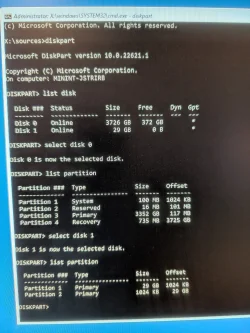
computer got more stable if I reconnect the secondary HDD, which now leads me to the below screenshot since I finally managed to get into recovery usb stick without connecting my secondary HDD:


Currently at "list disk", I only have 1 storage connected (a 4TB SSD that has windows 11 on it), but I see there is disk 0 and disk 1.

Which one do I selected ? I'm assuming disk 0? I think disk 1 was created because of Samsung overprovisioning to extend the lift of the SSD.

I also notice I have more partitions than what was show in your video. See screenshot
 

Attachments

  • PXL_20260102_174559893.webp
    PXL_20260102_174559893.webp
    1.4 MB · Views: 2
Last edited:

My Computer My Computer

At a glance

11, (10 as a test secondary)AMD Ryzen 9 7950X3DKingston FURY Beast 32 GB (2 x 16 GB) DDR5-56...RTX 5080
OS
11, (10 as a test secondary)
Computer type
PC/Desktop
CPU
AMD Ryzen 9 7950X3D
Motherboard
MSI MPG X670E CARBON WIFI
Memory
Kingston FURY Beast 32 GB (2 x 16 GB) DDR5-5600 CL36
Graphics Card(s)
RTX 5080
Hard Drives
C drive: Samsung SSD 870 EVO 4TB (win 11)
C Drive: Hitachi HTS545032B9A300 (win 10)
-WD WD1002FAEX 1tb
-Seagate ST3160812AS 160 gb
PSU
SeaSonic PRIME 1300 Gold 1300 W 80+ Gold
Case
Phanteks Enthoo Pro Tempered Glass ATX Full Tower Case
Cooling
Noctua NH-D15S
See screenshot
The screenshot shows the EFI system partition (System, 100 MB), so there is no need to create a new EFI partition.

Just run the following command:

bcdboot c:\windows

The bcdboot command automatically identifies the FAT32-formatted EFI system partition, copies the required UEFI boot files from the Windows partition to it, and creates a new Boot Configuration Data (BCD) store on that partition.

BCDBOOT <source> [/s <volume letter> [/f <firmware type>]]

<source>
- Required.
- Specifies the location of the Windows directory to use as the source for copying boot-environment files.
- Check the volume letter of the Windows partition with DiskPart's list volume command.

/s <volume letter>
- Optional volume letter for the target system partition where the boot files will be copied.
- If the /s option is not used, the system partition is automatically identified based on whether the system is booted in UEFI or BIOS mode.

/f <firmware type>
- Optional firmware type for the target system partition. Determines whether to copy UEFI or BIOS boot files.
- Used with the /s option.
- On a GPT disk, there is no need to specify the firmware type when you start Windows Recovery Environment (WinRE) from within Windows, or when booting a USB flash drive in UEFI mode (in the boot menu, select your USB with the UEFI prefix).

Microsoft: BCDBoot Command-Line Options:

UEFI:

  • BCDBoot copies the boot files to either the EFI system partition, or the partition specified by the /s option.

    BCDBoot creates the BCD store in the same partition.

    By default, BCDBoot creates a Windows Boot Manager entry in the NVRAM on the firmware to identify the boot files on the system partition. If the /s option is used, then this entry is not created.
 
Last edited:

My Computers My Computers

  • At a glance

    Windows 11 ProAMD Ryzen 9 9950X3DKingston FURY Beast 64GB (2x32GB) DDR5 6000MT/sASUS TUF Gaming Radeon RX 9070 OC Edition 16G...
    OS
    Windows 11 Pro
    Computer type
    PC/Desktop
    CPU
    AMD Ryzen 9 9950X3D
    Motherboard
    ASRock B650E Taichi Lite
    Memory
    Kingston FURY Beast 64GB (2x32GB) DDR5 6000MT/s
    Graphics Card(s)
    ASUS TUF Gaming Radeon RX 9070 OC Edition 16GB GDDR6
    Hard Drives
    Solidigm P44 Pro 2TB M.2 NVMe SSD
  • At a glance

    Windows 11 HomeIntel Core Ultra 9 275HX64GB (2x 32GB) DDR5-6400NVIDIA GeForce RTX 5080 16GB GDDR7 Laptop GPU
    Operating System
    Windows 11 Home
    Computer type
    Laptop
    Manufacturer/Model
    Lenovo Legion Pro 7i Gen 10 16"
    CPU
    Intel Core Ultra 9 275HX
    Memory
    64GB (2x 32GB) DDR5-6400
    Graphics card(s)
    NVIDIA GeForce RTX 5080 16GB GDDR7 Laptop GPU
    Hard Drives
    2x 1TB M.2 NVMe SSD (SK Hynix)
The screenshot shows the EFI system partition (System, 100 MB), so there is no need to create a new EFI partition.

Just run the following command:

bcdboot c:\windows

The bcdboot command automatically identifies the FAT32-formatted EFI system partition, copies the required UEFI boot files from the Windows partition to it, and creates a new Boot Configuration Data (BCD) store on that partition.

BCDBOOT <source> [/s <volume letter> [/f <firmware type>]]

<source>
- Required.
- Specifies the location of the Windows directory to use as the source for copying boot-environment files.
- Check the volume letter of the Windows partition with DiskPart's list volume command.

/s <volume letter>
- Optional volume letter for the target system partition where the boot files will be copied.
- If the /s option is not used, the system partition is automatically identified based on whether the system is booted in UEFI or BIOS mode.

/f <firmware type>
- Optional firmware type for the target system partition. Determines whether to copy UEFI or BIOS boot files.
- Used with the /s option.
- On a GPT disk, there is no need to specify the firmware type when you start Windows Recovery Environment (WinRE) from within Windows, or when booting a USB flash drive in UEFI mode (in the boot menu, select your USB with the UEFI prefix).

Microsoft: BCDBoot Command-Line Options:
Thank you.

It appears to be working as expecting now. bcdboot c:\windows . Do I still technically need to run the other command you mentioned?

Also do you suggest I run some DISM commands to check if anything is corrupted from the mistakes I made? I ran SFC and said no issues
 

My Computer My Computer

At a glance

11, (10 as a test secondary)AMD Ryzen 9 7950X3DKingston FURY Beast 32 GB (2 x 16 GB) DDR5-56...RTX 5080
OS
11, (10 as a test secondary)
Computer type
PC/Desktop
CPU
AMD Ryzen 9 7950X3D
Motherboard
MSI MPG X670E CARBON WIFI
Memory
Kingston FURY Beast 32 GB (2 x 16 GB) DDR5-5600 CL36
Graphics Card(s)
RTX 5080
Hard Drives
C drive: Samsung SSD 870 EVO 4TB (win 11)
C Drive: Hitachi HTS545032B9A300 (win 10)
-WD WD1002FAEX 1tb
-Seagate ST3160812AS 160 gb
PSU
SeaSonic PRIME 1300 Gold 1300 W 80+ Gold
Case
Phanteks Enthoo Pro Tempered Glass ATX Full Tower Case
Cooling
Noctua NH-D15S

My Computer My Computer

At a glance

Windows 10Intel(R) Core(TM) i7-4800MQ CPU @ 2.70GHz16 GB Total: Manufacturer : Samsung MemoryTyp...NVIDIA Quadro K3100M; Intel(R) HD Graphics 4600
OS
Windows 10
Computer type
Laptop
Manufacturer/Model
HP
CPU
Intel(R) Core(TM) i7-4800MQ CPU @ 2.70GHz
Motherboard
Product : 190A Version : KBC Version 94.56
Memory
16 GB Total: Manufacturer : Samsung MemoryType : DDR3 FormFactor : SODIMM Capacity : 8GB Speed : 1600
Graphics Card(s)
NVIDIA Quadro K3100M; Intel(R) HD Graphics 4600
Sound Card
IDT High Definition Audio CODEC; PNP Device ID HDAUDIO\FUNC_01&VEN_111D&DEV_76E0
Hard Drives
Model Hitachi HTS727575A9E364
Antivirus
Microsoft Defender
Other Info
Mobile Workstation
It appears to be working as expecting now. bcdboot c:\windows . Do I still technically need to run the other command you mentioned?
No need. I just wrote a short tutorial on the bcdboot command that explains what it does.
Also do you suggest I run some DISM commands to check if anything is corrupted from the mistakes I made? I ran SFC and said no issues
I'm not familiar with this issue. Hopefully someone else can answer.
 

My Computers My Computers

  • At a glance

    Windows 11 ProAMD Ryzen 9 9950X3DKingston FURY Beast 64GB (2x32GB) DDR5 6000MT/sASUS TUF Gaming Radeon RX 9070 OC Edition 16G...
    OS
    Windows 11 Pro
    Computer type
    PC/Desktop
    CPU
    AMD Ryzen 9 9950X3D
    Motherboard
    ASRock B650E Taichi Lite
    Memory
    Kingston FURY Beast 64GB (2x32GB) DDR5 6000MT/s
    Graphics Card(s)
    ASUS TUF Gaming Radeon RX 9070 OC Edition 16GB GDDR6
    Hard Drives
    Solidigm P44 Pro 2TB M.2 NVMe SSD
  • At a glance

    Windows 11 HomeIntel Core Ultra 9 275HX64GB (2x 32GB) DDR5-6400NVIDIA GeForce RTX 5080 16GB GDDR7 Laptop GPU
    Operating System
    Windows 11 Home
    Computer type
    Laptop
    Manufacturer/Model
    Lenovo Legion Pro 7i Gen 10 16"
    CPU
    Intel Core Ultra 9 275HX
    Memory
    64GB (2x 32GB) DDR5-6400
    Graphics card(s)
    NVIDIA GeForce RTX 5080 16GB GDDR7 Laptop GPU
    Hard Drives
    2x 1TB M.2 NVMe SSD (SK Hynix)

My Computer My Computer

At a glance

11, (10 as a test secondary)AMD Ryzen 9 7950X3DKingston FURY Beast 32 GB (2 x 16 GB) DDR5-56...RTX 5080
OS
11, (10 as a test secondary)
Computer type
PC/Desktop
CPU
AMD Ryzen 9 7950X3D
Motherboard
MSI MPG X670E CARBON WIFI
Memory
Kingston FURY Beast 32 GB (2 x 16 GB) DDR5-5600 CL36
Graphics Card(s)
RTX 5080
Hard Drives
C drive: Samsung SSD 870 EVO 4TB (win 11)
C Drive: Hitachi HTS545032B9A300 (win 10)
-WD WD1002FAEX 1tb
-Seagate ST3160812AS 160 gb
PSU
SeaSonic PRIME 1300 Gold 1300 W 80+ Gold
Case
Phanteks Enthoo Pro Tempered Glass ATX Full Tower Case
Cooling
Noctua NH-D15S
We are glad to hear your issue has been resolved, thank you for letting us know that all is now well!
 

My Computer My Computer

At a glance

Windows 11AMD Ryzen 7 5700GMicron Technology DDR4-3200 16GBNVIDIA GeForce RTX 3060
OS
Windows 11
Computer type
PC/Desktop
Manufacturer/Model
HP Pavilion
CPU
AMD Ryzen 7 5700G
Motherboard
Erica6
Memory
Micron Technology DDR4-3200 16GB
Graphics Card(s)
NVIDIA GeForce RTX 3060
Sound Card
Realtek ALC671
Monitor(s) Displays
Samsung SyncMaster U28E590
Screen Resolution
3840 x 2160
Hard Drives
SAMSUNG MZVLQ1T0HALB-000H1
Back
Top Bottom